

Para clientes Uma situação real
Your estimate arrived. Book the option you want.
Open the estimate link, compare the options, and book the one you choose at the quoted price.
Gravado em um espaço de trabalho de demonstração. Narrado, com legendas ativadas.
Esta gravação ainda não está disponível no seu idioma, por isso é reproduzida em inglês.
Open your estimate
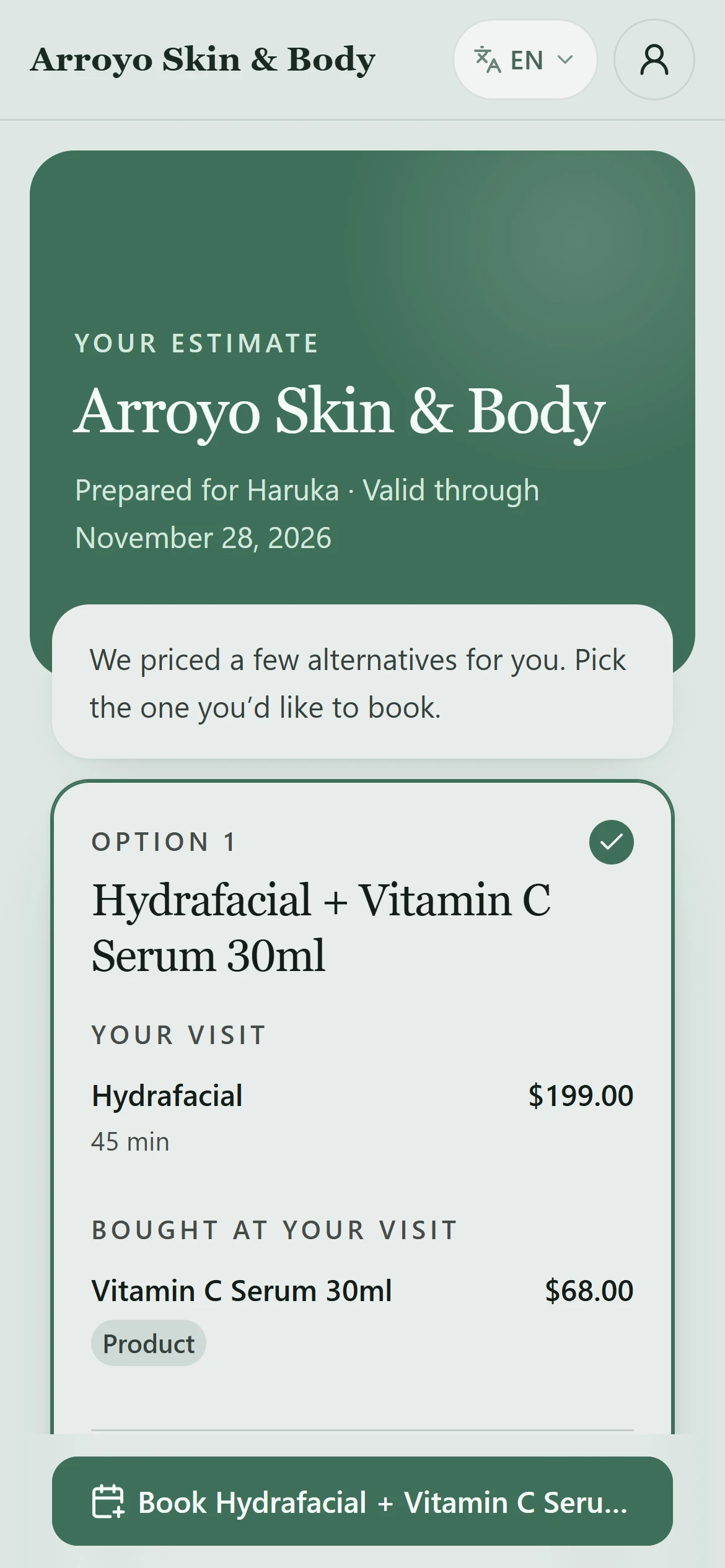
The link opens your estimate in the business's own style, with who it was prepared for and the date it is valid through.
A situação
Coloque em prática.
Your clinic sent you a link with two treatment options and their prices. You have decided which one you want and would like to book it.
O que você vai aprender
You know how to read your estimate, choose an option, book it, and what to do if it has expired.
Antes de começar
Open the link from the text or email your clinic sent. You do not need to sign in to see your estimate.
Lembre-se
An estimate is not a booking. Booking follows the business's usual terms, including any deposit, and prices are only promised until the valid-through date. This walkthrough stops before confirming the booking.
Tente a decisão
You chose an option and picked a time but have not confirmed. Is the visit booked?
Leia o passo a passo completo
1. Open your estimate
The link opens your estimate in the business's own style, with who it was prepared for and the date it is valid through.
2. Compare the options
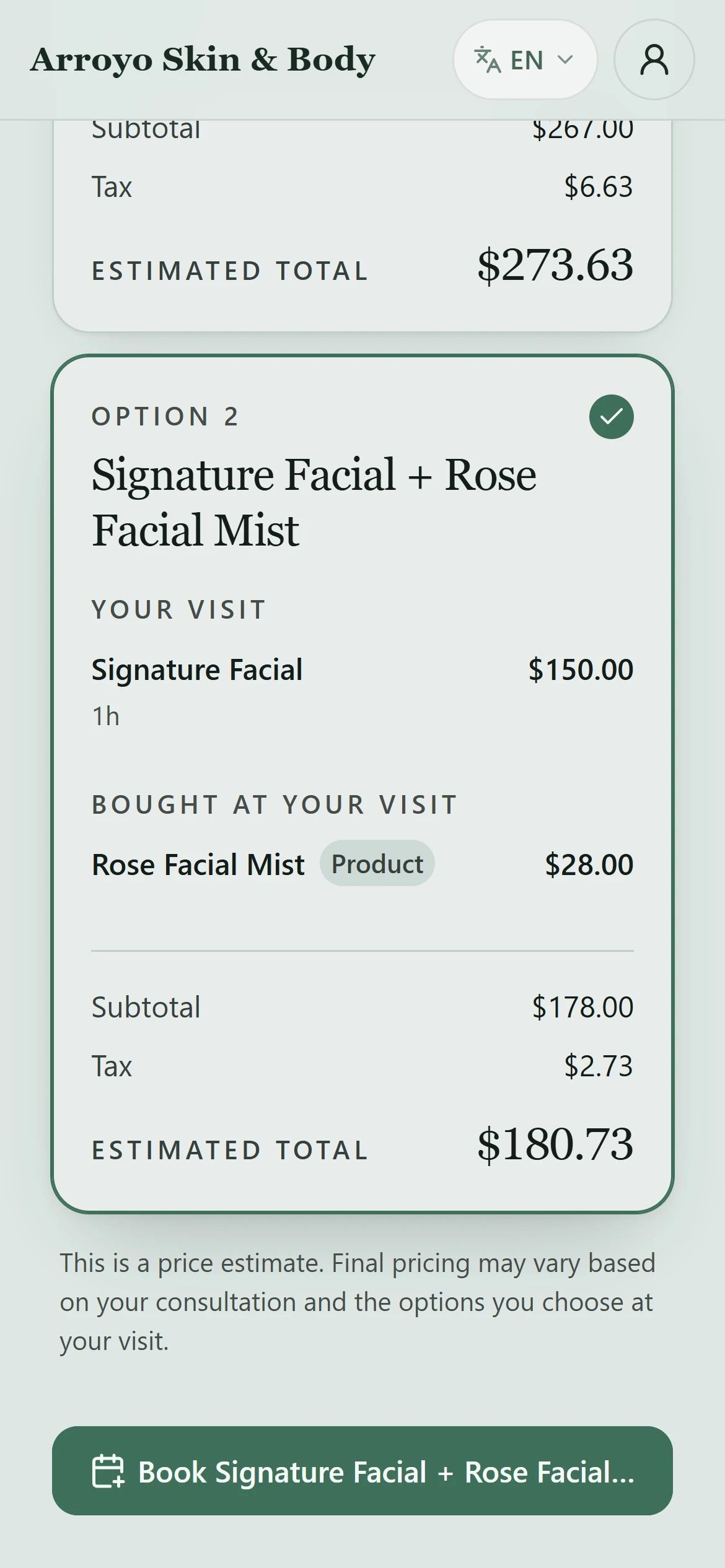
Each option lists the visit, anything bought at your visit, tax and the estimated total. If booking needs a card on file, the option says so before you start. Tap the option you want; you can take one.
3. Book this visit
The button opens the booking page with that option's treatments already chosen, at the quoted prices. Choose who you would like to see, or Anyone available.
4. Pick a time
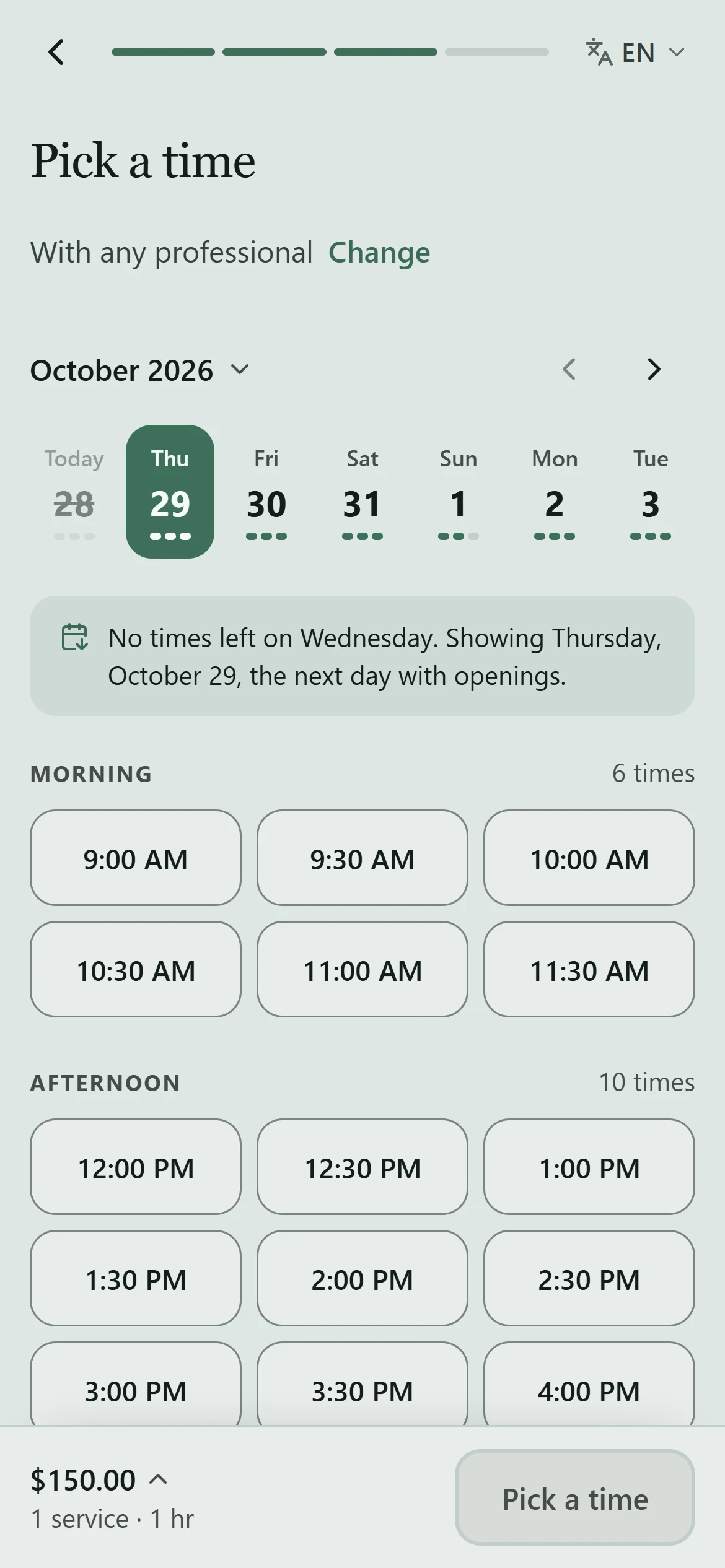
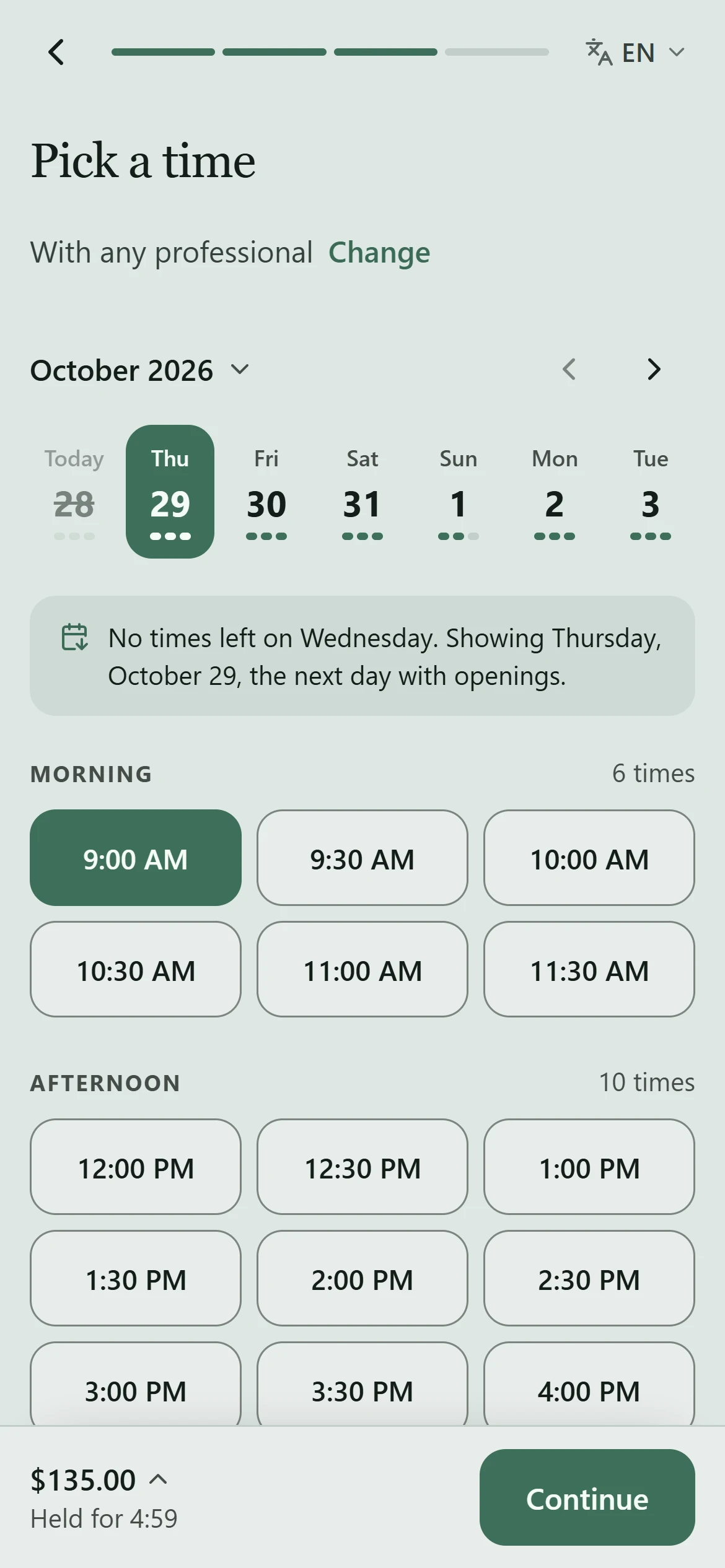
Choose a day and a time. The time is held for you for a few minutes while you continue to your details and confirm, as with any online booking. Products in the option are added to your visit. This walkthrough stops before confirming.
5. If it has expired
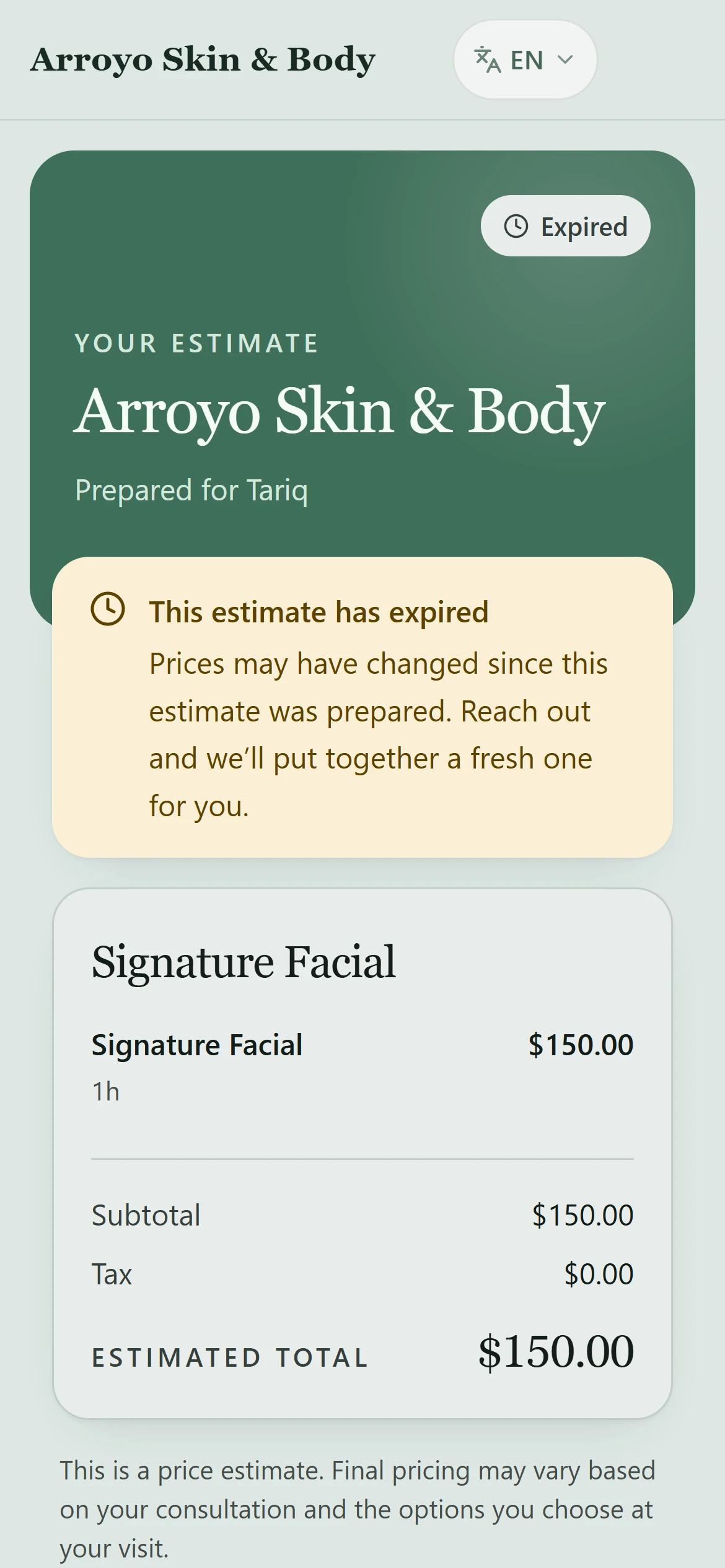
After the valid-through date, an estimate cannot be booked. Contact the business for a fresh one, because prices may have changed.
Aprofunde-se