

Para parceiros Uma situação real
Book the whole visit while the client is on the phone.
Find the booking controls, choose the client and services, and check the complete visit before confirming.
Gravado em um espaço de trabalho de demonstração. Narrado, com legendas ativadas.
Esta gravação ainda não está disponível no seu idioma, por isso é reproduzida em inglês.
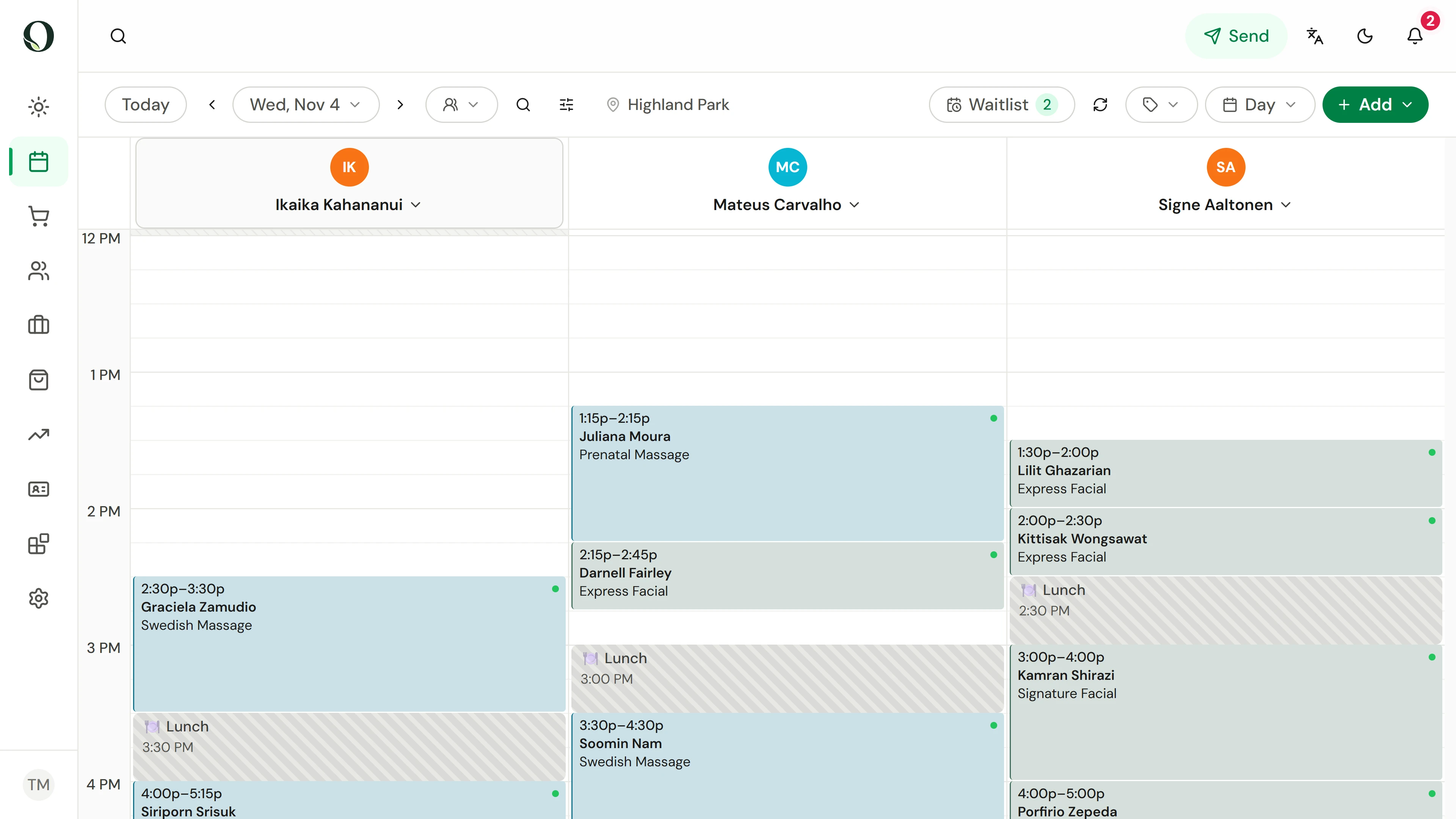
Choose the right calendar
Check the location and date at the top of the calendar. The provider columns and shift shading help you understand the day.
A situação
Coloque em prática.
A regular calls for another visit. They may need more than one service, and you want to give them an accurate finish time.
O que você vai aprender
You know where to build a visit and what to check before saving it.
Antes de começar
Check the business location and date. Appointment management permission is required; the available controls depend on your role.
Lembre-se
Review every service, provider and time range. A service can have a different provider from the rest of the visit. The recording builds the visit and stops before Book appointment, so nothing is saved.
Tente a decisão
A client asks for two services. What should you check before confirming?
Leia o passo a passo completo
1. Choose the right calendar
Check the location and date at the top of the calendar. The provider columns and shift shading help you understand the day.
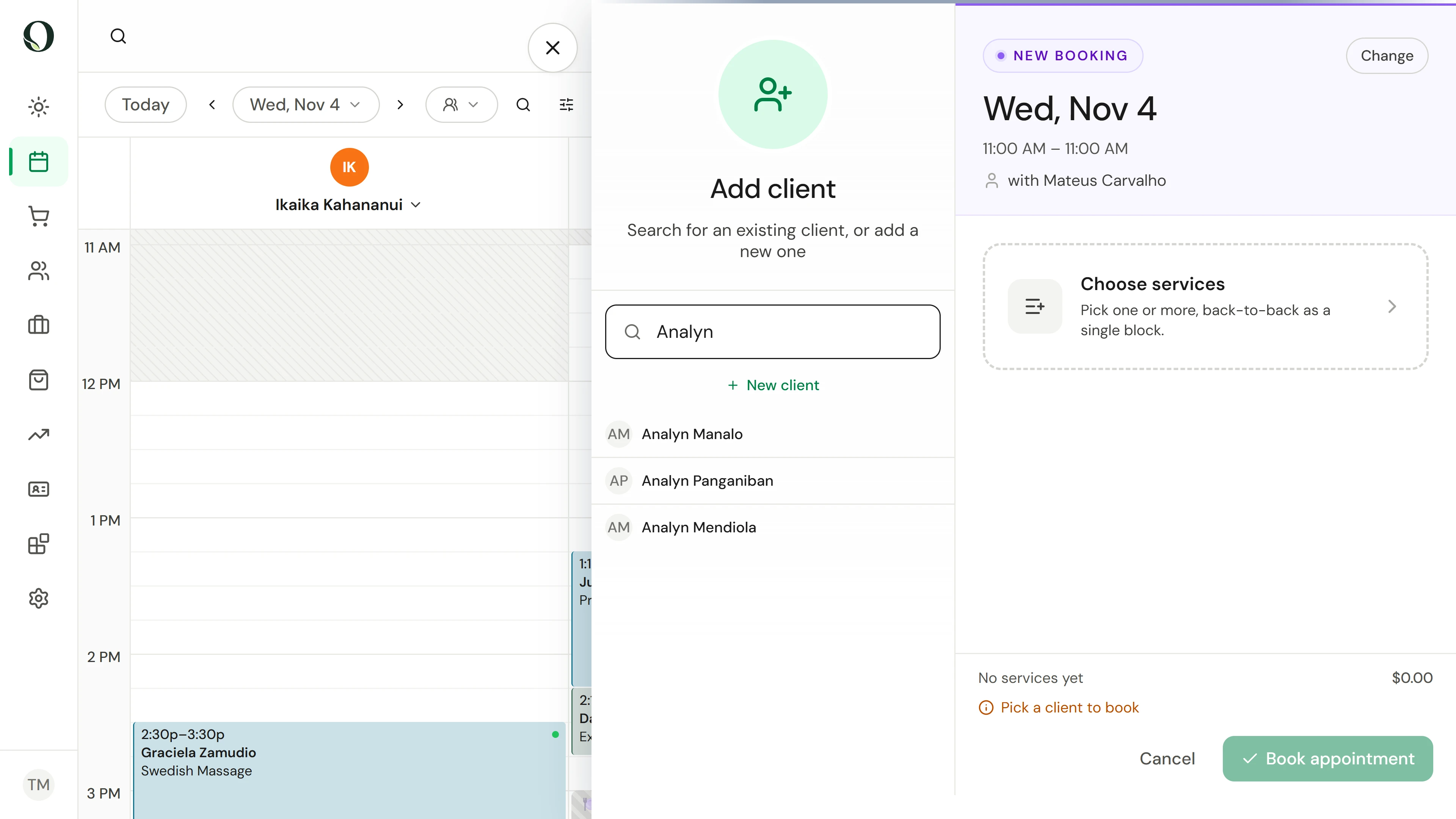
2. Open a new appointment
Use Add, then New appointment, and select an empty time in the right provider's column. That date, time and provider carry into the booking. Start typing the caller's name in the client search.
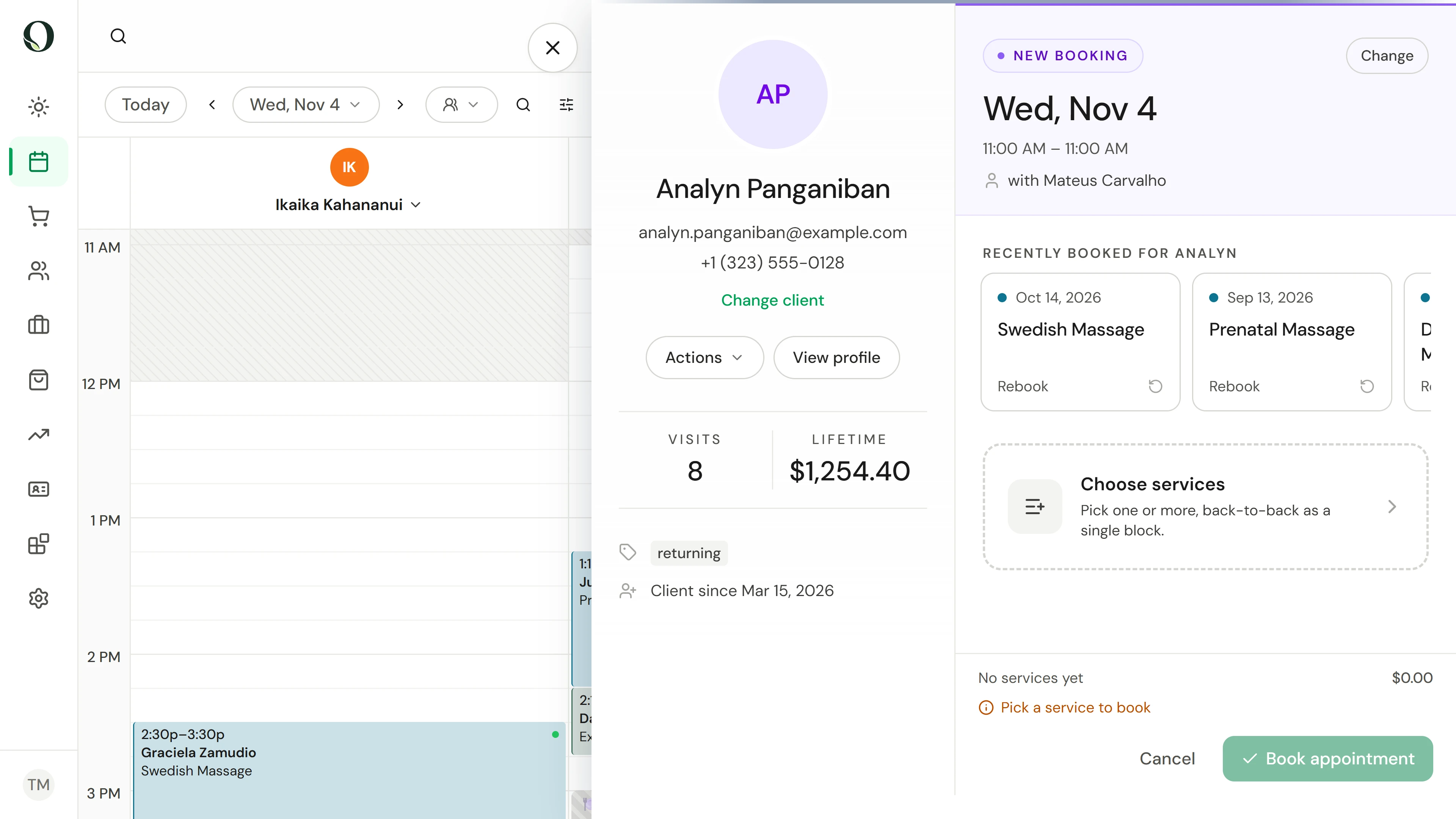
3. Choose the client
Pick the caller from the matches; you can also search by phone or email. Their contact details appear beside the booking so you can confirm who you are booking for.
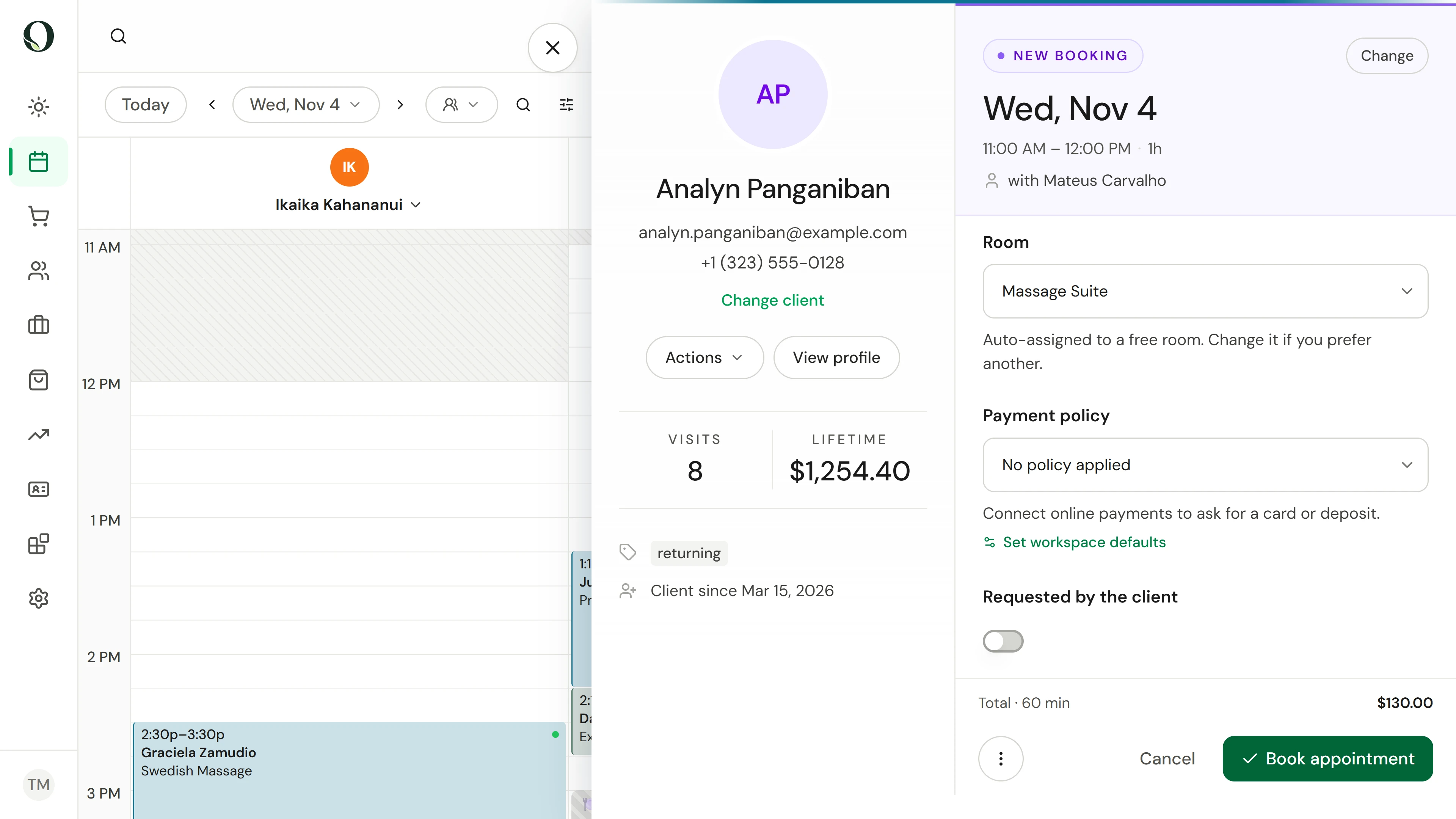
4. Add services and review
Choose services, then check each service, provider, start and finish time and the payment terms before you book. Use Add service for a longer visit and the full guide below for repeat bookings.
Aprofunde-se