

Për partnerët Një situatë reale
Send a quote with options, then follow it up.
Price a treatment and a product side by side, send the estimate with consent, and use its status to follow up before it expires.
Regjistruar në një hapësirë pune demo. Me shpjegim me zë dhe titra të aktivizuara.
Ky regjistrim nuk është ende i disponueshëm në gjuhën tuaj, prandaj luhet në anglisht.
Put a treatment and a product together
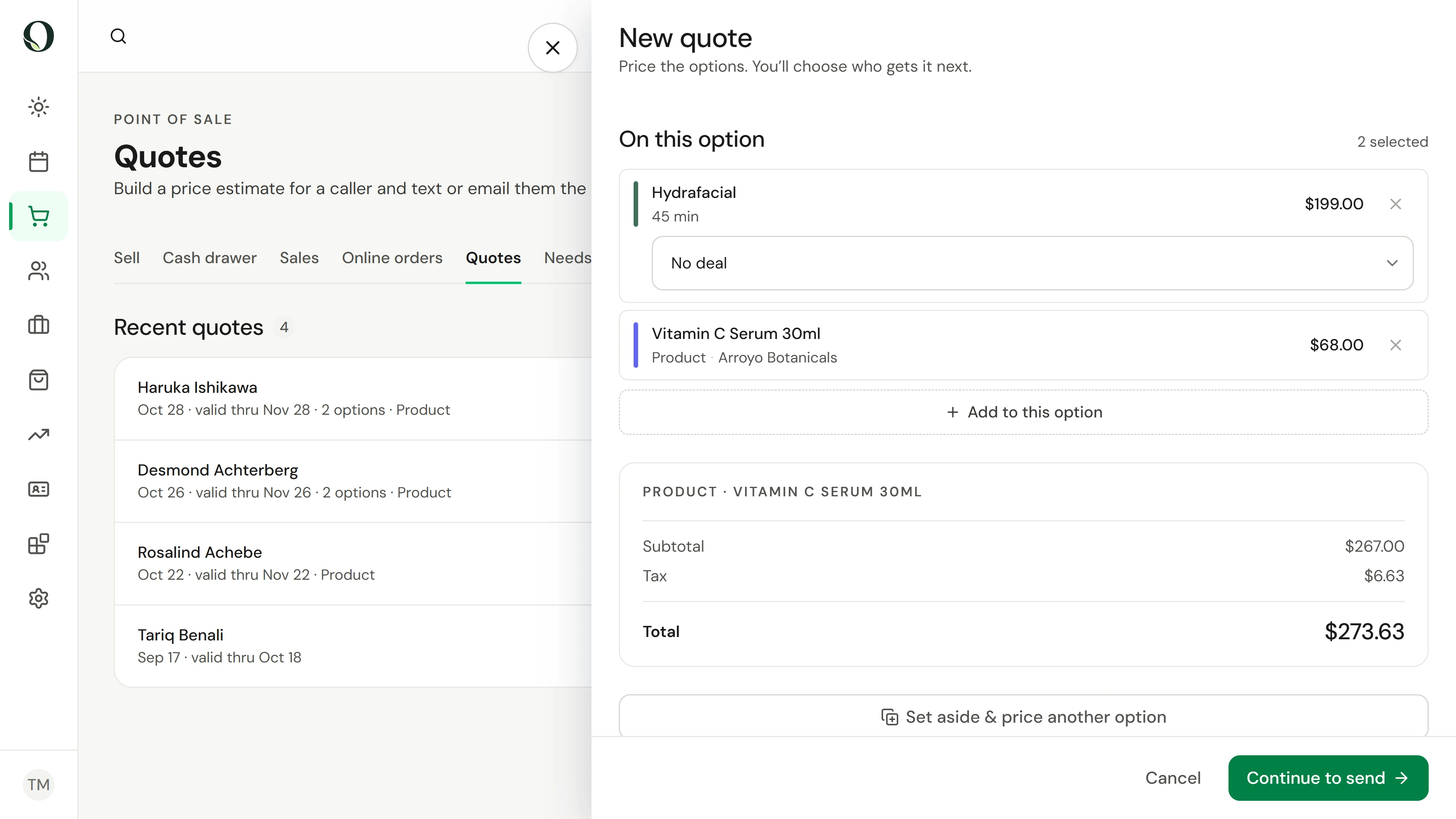
In Point of sale, Quotes, choose New quote, then Choose what to quote. Pick the treatment and the product from one grouped list, then Done. The total shows the subtotal, any deal, tax and the total.
Situata
Zbatojeni në praktikë.
A regular client asks about a facial and the serum to go with it, and wants to compare a lighter option. They will decide after talking it over at home.
Çfarë do të mësoni
A quote with two options ready to send, and a clear view of who opened theirs, who booked and which estimates have expired.
Përpara se të filloni
You need the permission to manage appointments. Choose one location first: a quote is priced for the location it is built at.
Kini parasysh
A sent quote cannot be edited, so the price the client saw stays the price. It is valid for 30 days, or until a deal on it ends. Only send it to someone who asked for it. This recording stops before sending.
Provoni vendimin
A client opened your quote yesterday but has not booked. What does the Viewed status tell you?
Lexoni udhëzuesin e plotë
1. Put a treatment and a product together
In Point of sale, Quotes, choose New quote, then Choose what to quote. Pick the treatment and the product from one grouped list, then Done. The total shows the subtotal, any deal, tax and the total.
2. Price an alternative
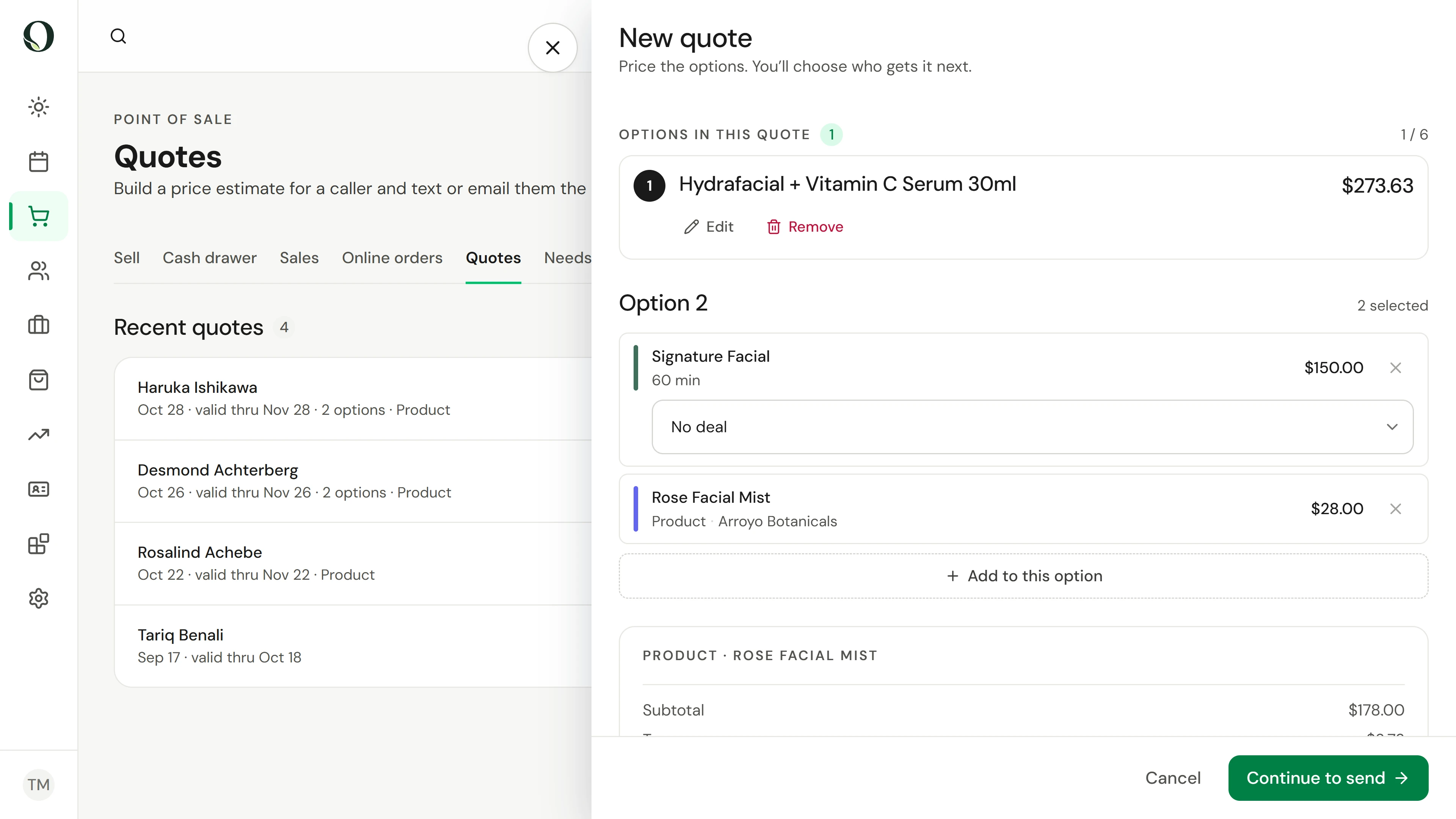
Set aside & price another option keeps this option and starts the next. A quote holds up to six options, and the client takes one.
3. Send it with consent
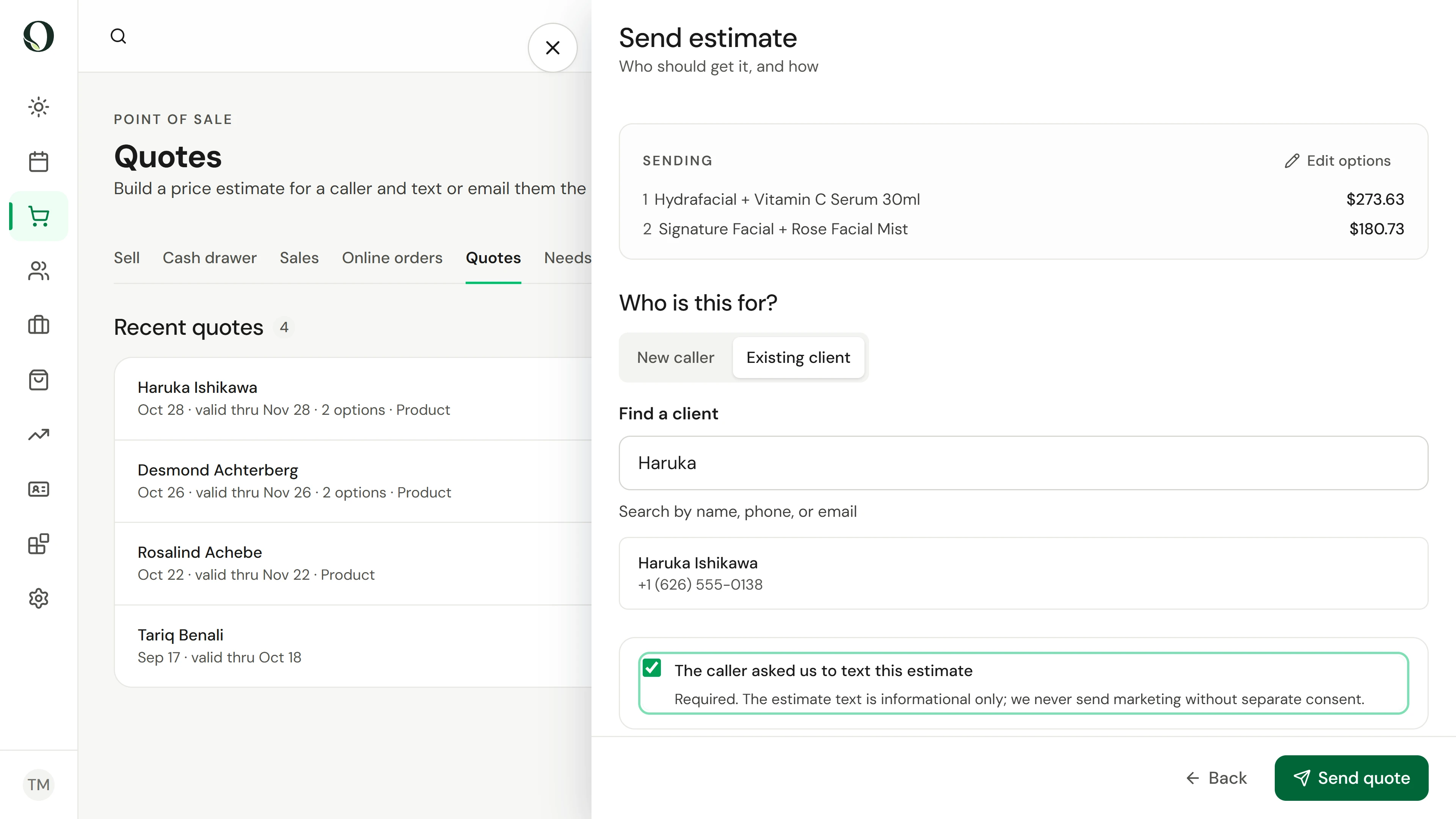
Continue to send and choose the client. Tick that they asked for this estimate; it is required. Send quote texts the link, or emails it if they have opted out of texts.
4. Follow up by status
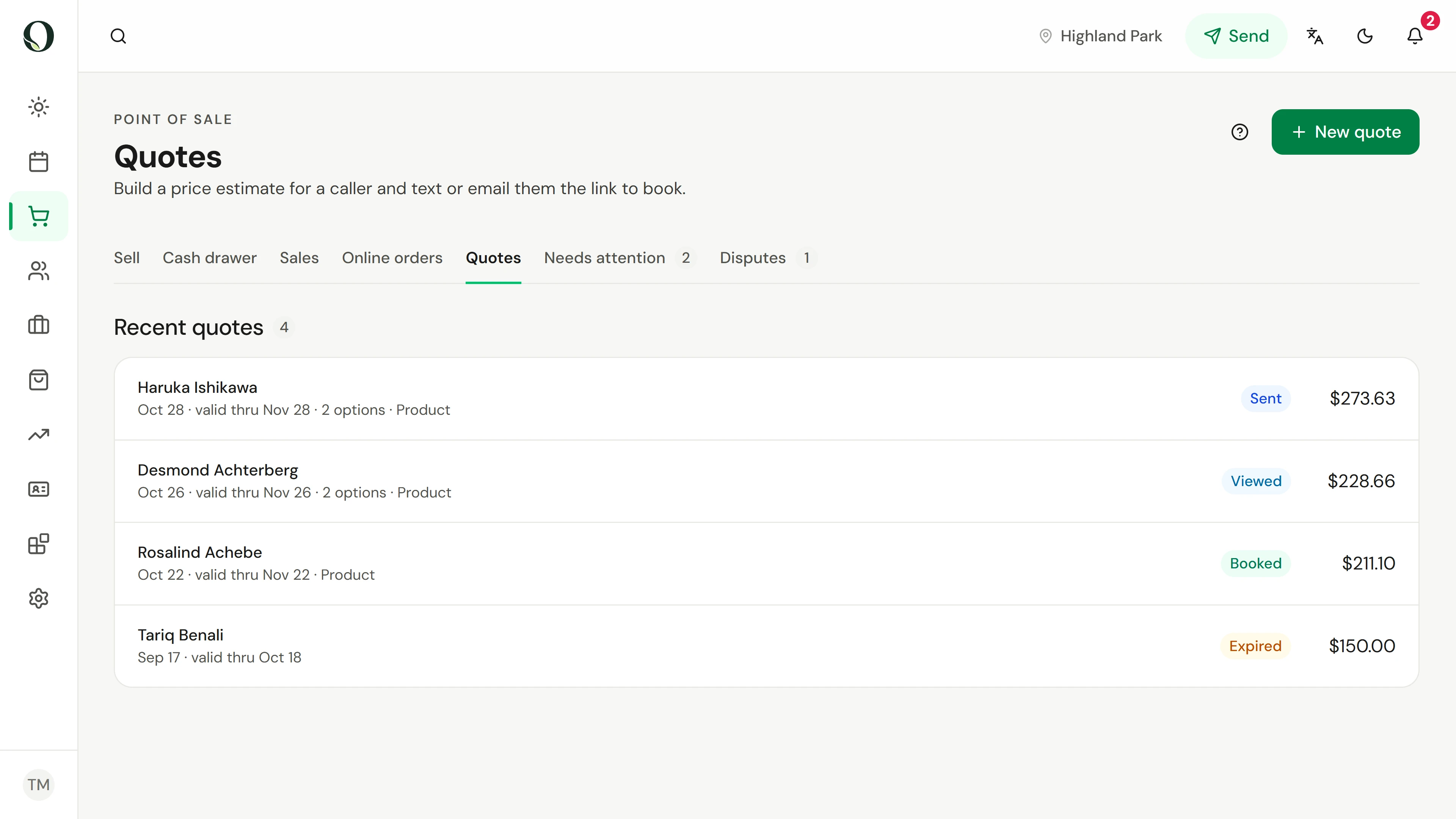
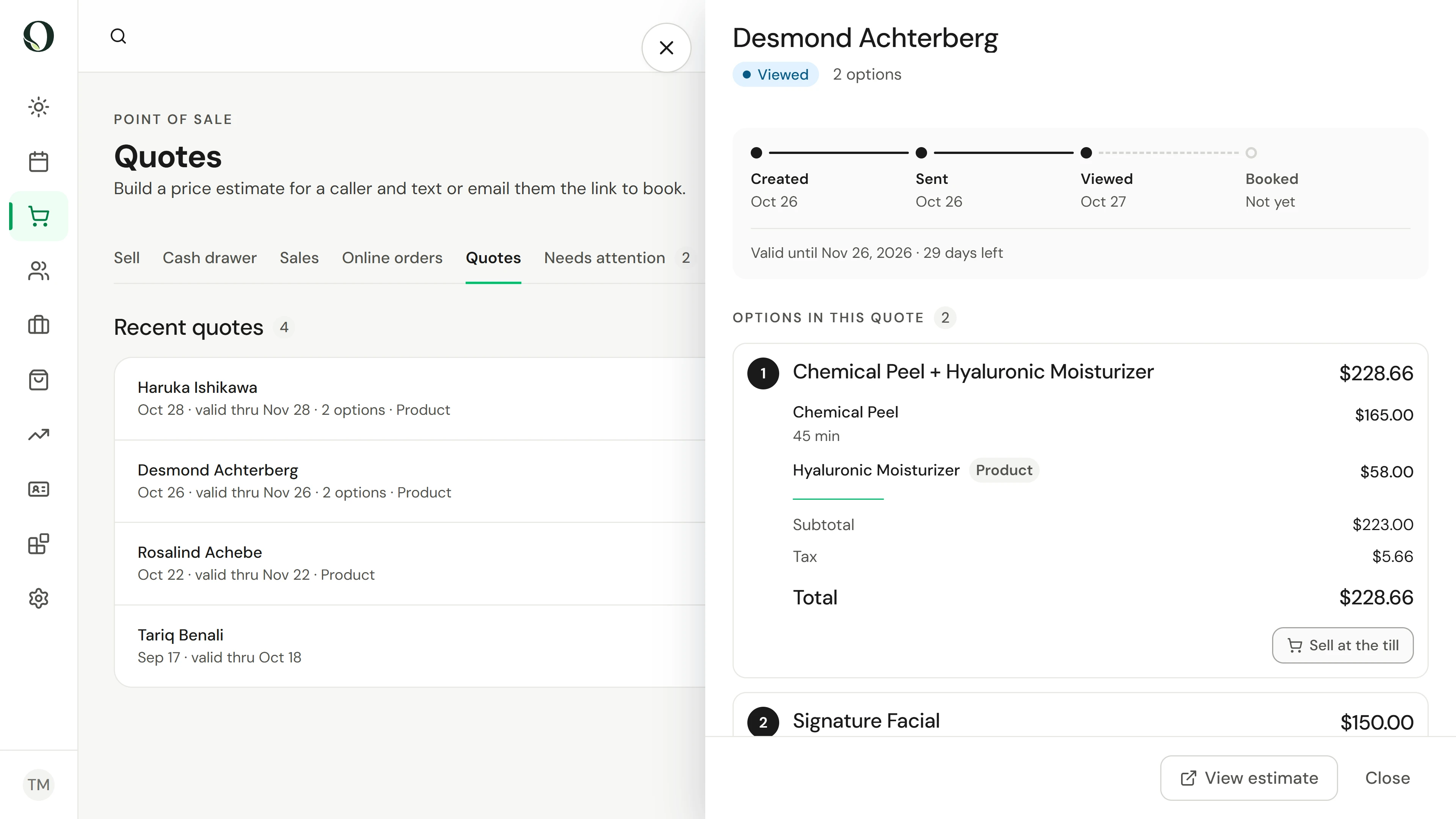
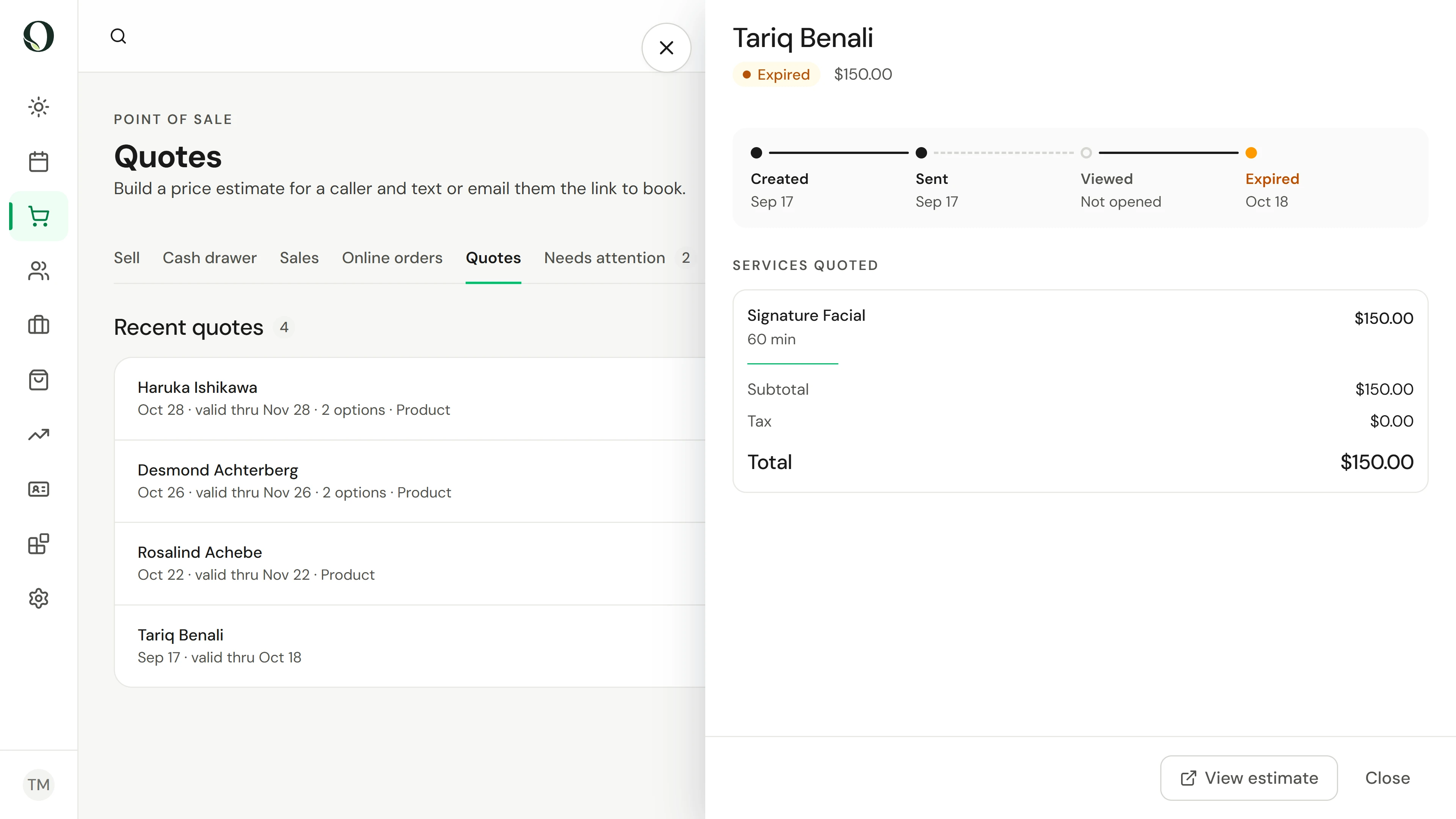
Recent quotes shows where each estimate stands: Sent, Viewed once the client opens the link, Booked or Purchased when they take an option, and Expired after its valid-through date.
5. Open a quote before you call
Select a quote to see when it was created, sent and viewed, the date it is valid through and every option. When the client is with you, Sell at the till puts an option on a sale at the quoted prices.
6. Let expired quotes go
A quote is valid for 30 days, or until a deal on it ends. After that it shows Expired, and the client is asked to get in touch for a fresh estimate. To change a price, build a new quote.
Mësoni më shumë