

For partners A real situation
Someone is starting late this week. Adjust the right schedule.
Understand the difference between repeating availability and a change for a particular week.
Recorded in a demo workspace. Narrated, with captions on.
Find the dated week
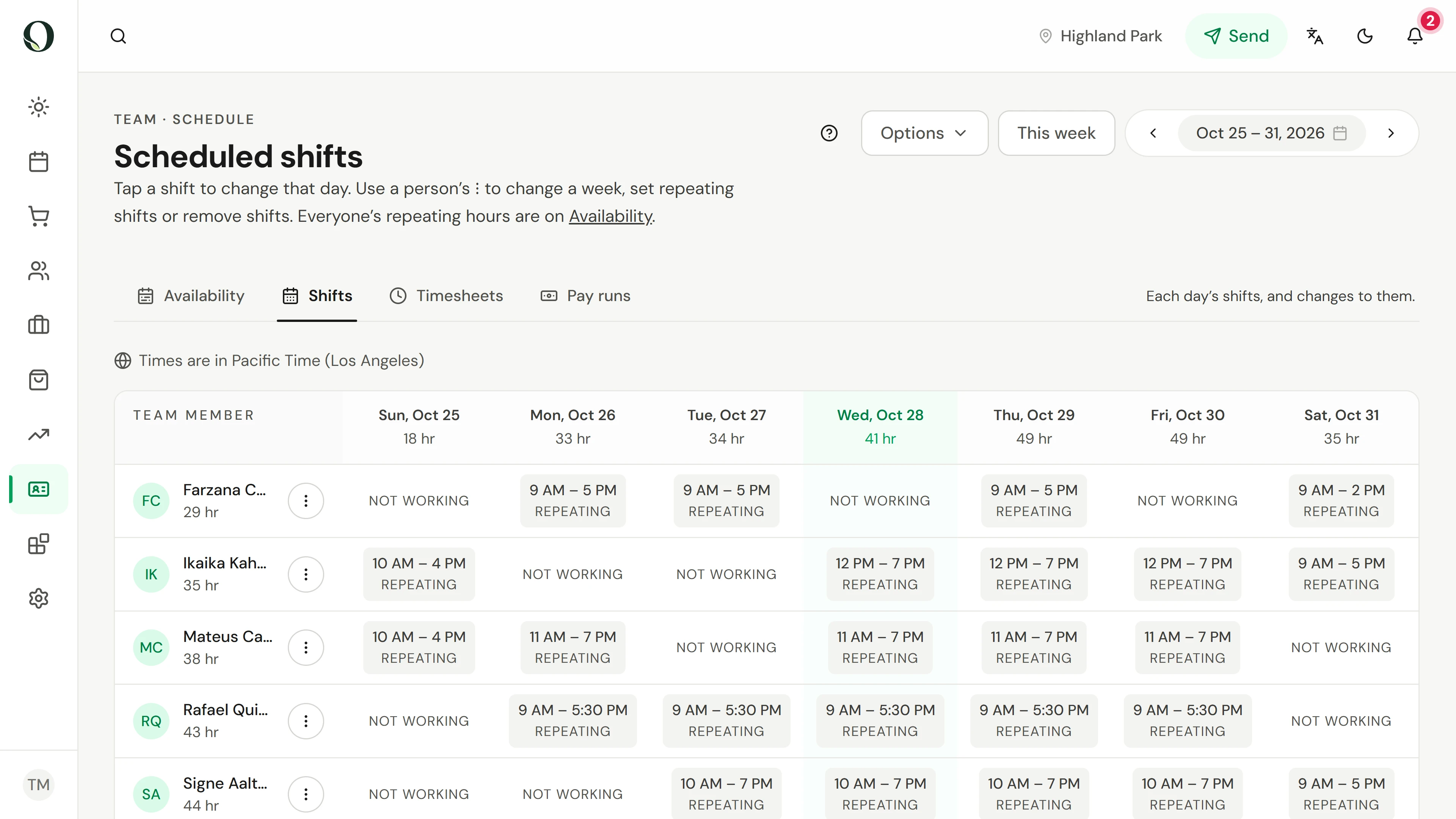
Open Scheduling and Shifts. Check the week selector before making a change. Repeating labels show where the normal weekly hours apply.
The situation
Put it into practice.
A team member needs a different start time on one day. You want to change that week without changing every week that follows.
What you will take away
You can find a dated shift and recognise when to use an override instead of repeating availability.
Before you start
Scheduling permission is separate from appointment management. Select the correct location and week, and check that the person belongs to that location.
Keep in mind
Approved time off and fixed-date holidays are protected. Check other locations and existing appointments before changing a shift. Saving a schedule does not move existing bookings for you.
Try the decision
This Tuesday is different, but future Tuesdays should stay the same. Which schedule fits?
Read the full walkthrough
1. Find the dated week
Open Scheduling and Shifts. Check the week selector before making a change. Repeating labels show where the normal weekly hours apply.
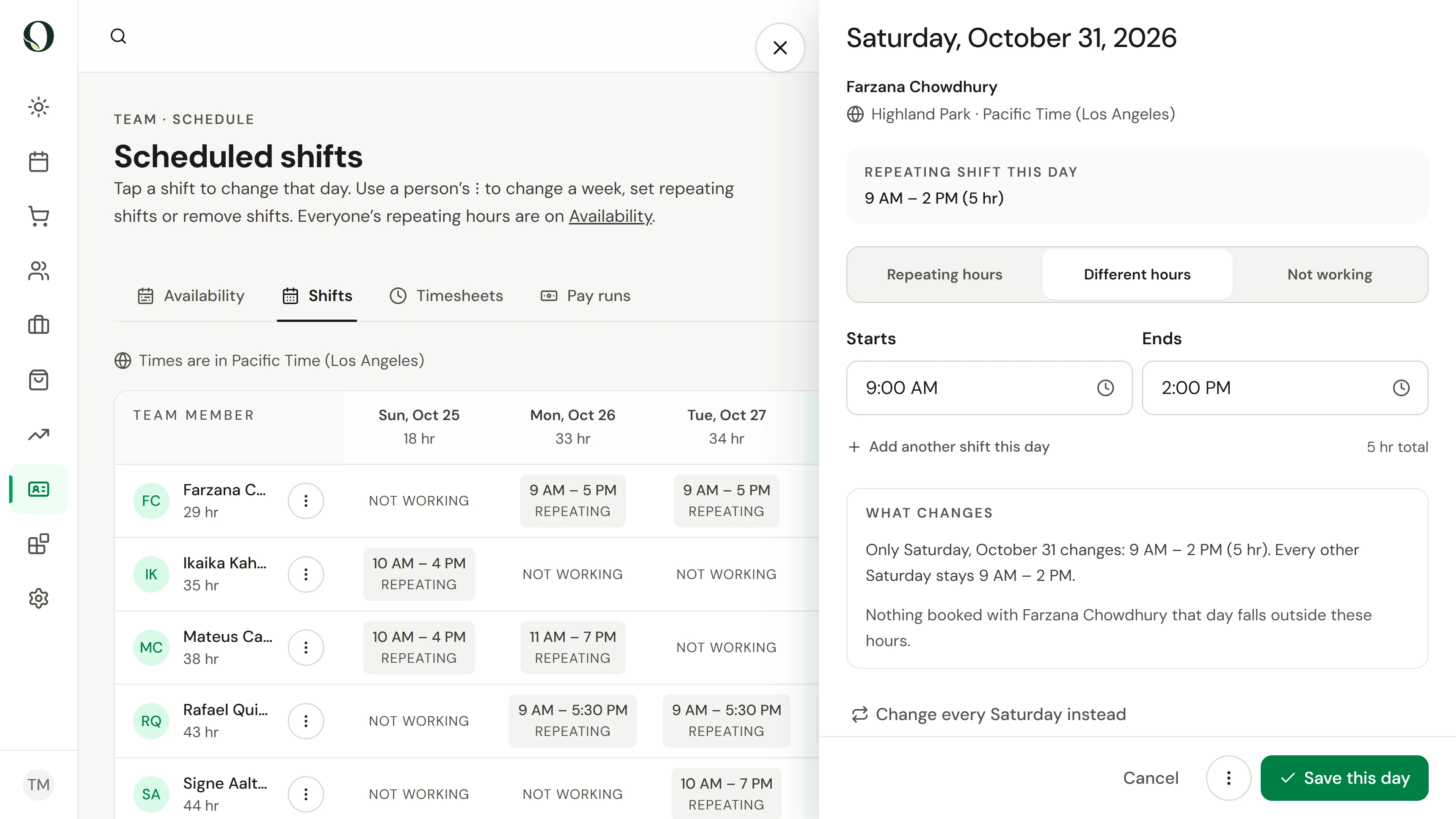
2. Inspect the day
Select the team member's day. Check the date and location, then choose Different hours or Not working. What changes shows that only this date is affected.
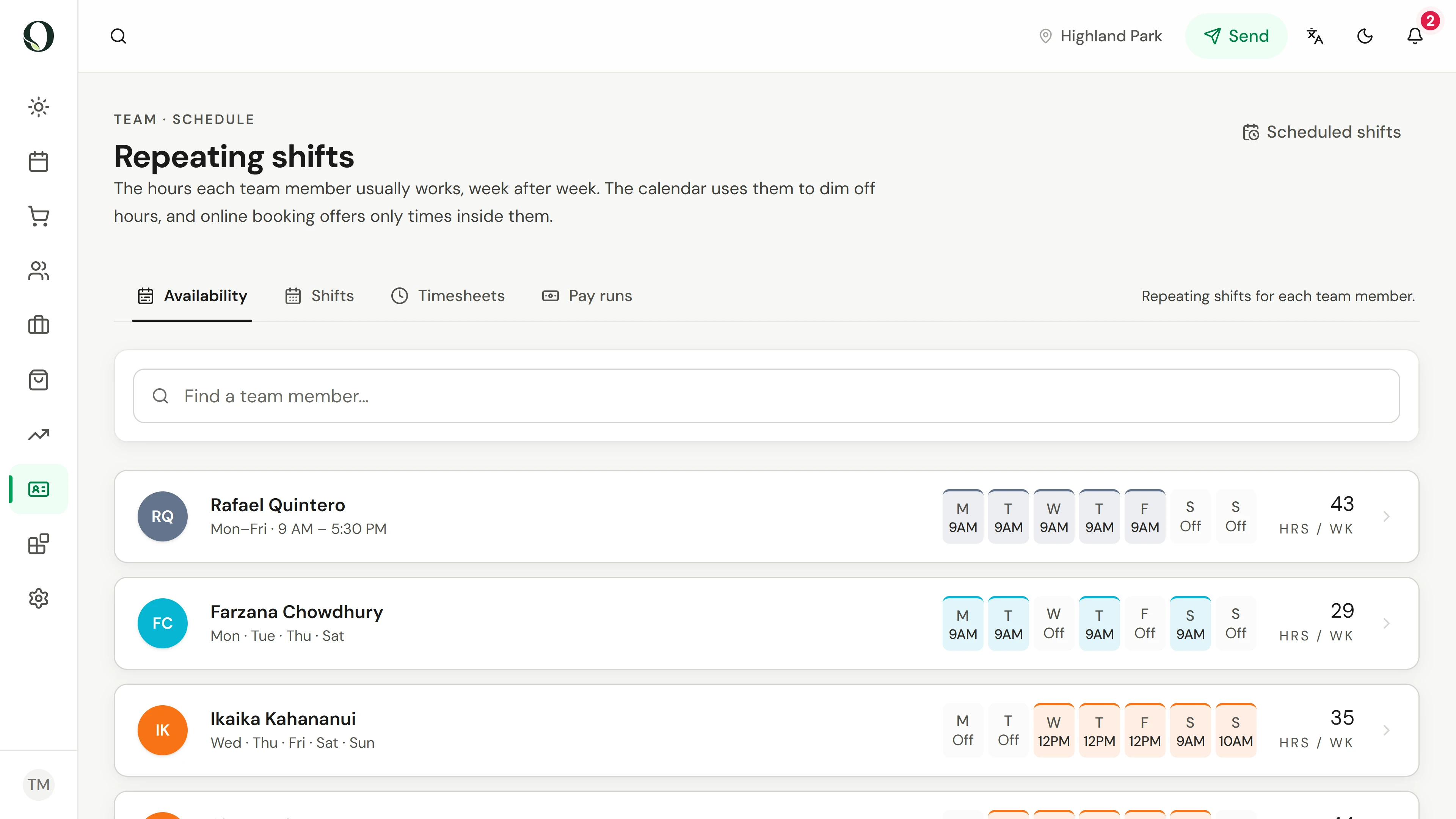
3. Keep the change in context
Cancel leaves this week unchanged. For a lasting change, open Availability, which holds each person's repeating weekly hours. Use a dated shift for this week only.
Go deeper