

Para parceiros Uma situação real
The treatment is done. Check the visit out from the calendar.
Open the appointment, check it out with its services already in the cart, take the tip and the card payment, and close the visit.
Gravado em um espaço de trabalho de demonstração. Narrado, com legendas ativadas.
Esta gravação ainda não está disponível no seu idioma, por isso é reproduzida em inglês.
Find the visit
On the calendar, find the appointment in the provider's column. Point at it to check the client, service and price.
A situação
Coloque em prática.
A client has just finished their treatment and is back at the desk. Their booking already says what they had and with whom, so start from the appointment rather than an empty cart.
O que você vai aprender
You can check out a booked visit, take payment, and see the visit marked as done.
Antes de começar
Checking out needs point-of-sale permission. Check the date and location on the calendar. A visit can be checked out on its day or after it, not before.
Lembre-se
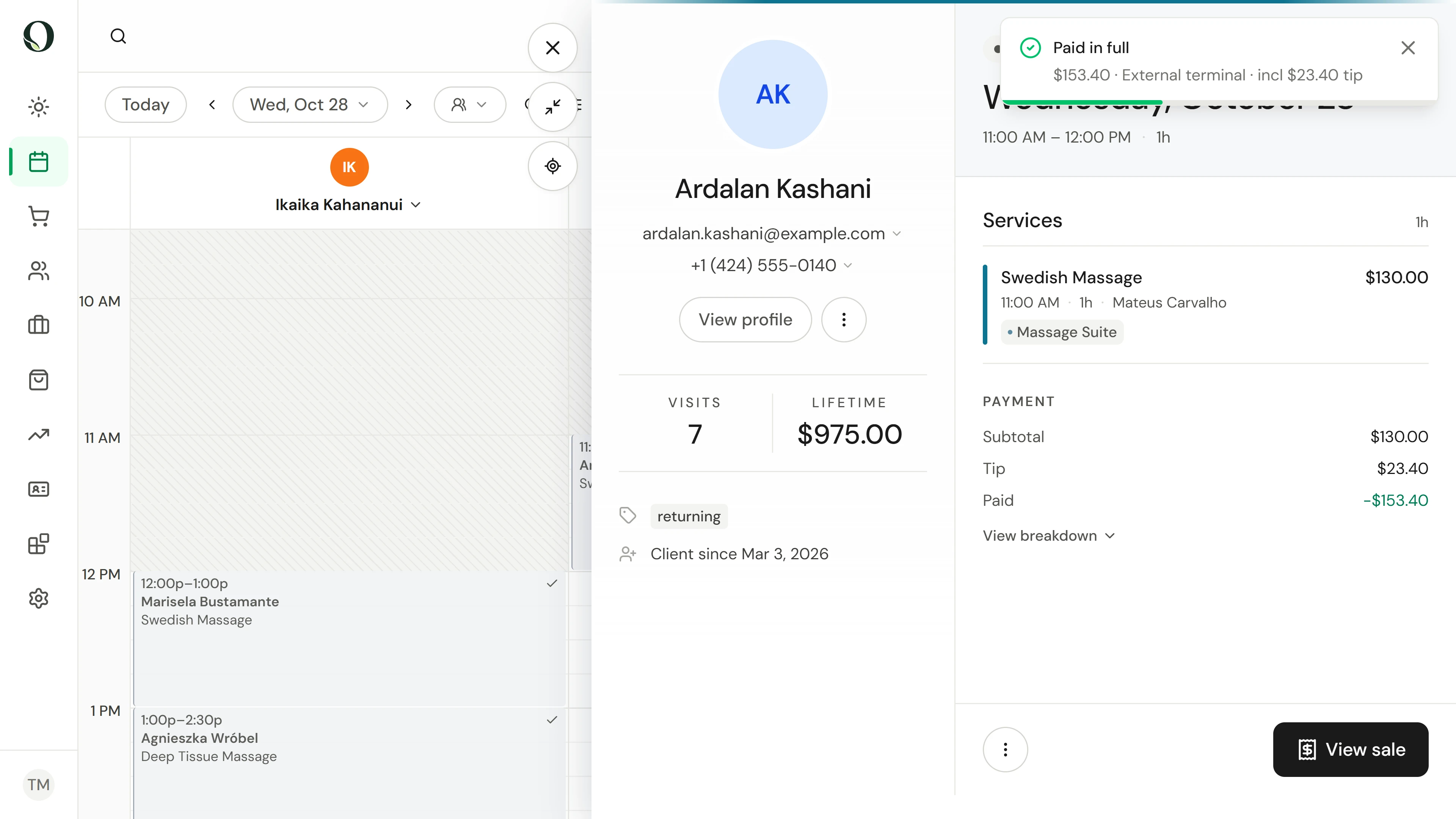
Checkout is the only way a visit becomes completed. A card taken on your own terminal is recorded here as External terminal; Owneli does not charge it again. Once it is paid, the visit offers View sale instead of Checkout.
Tente a decisão
The client paid on your card machine, which is not connected to Owneli. Which method do you choose?
Leia o passo a passo completo
1. Find the visit
On the calendar, find the appointment in the provider's column. Point at it to check the client, service and price.
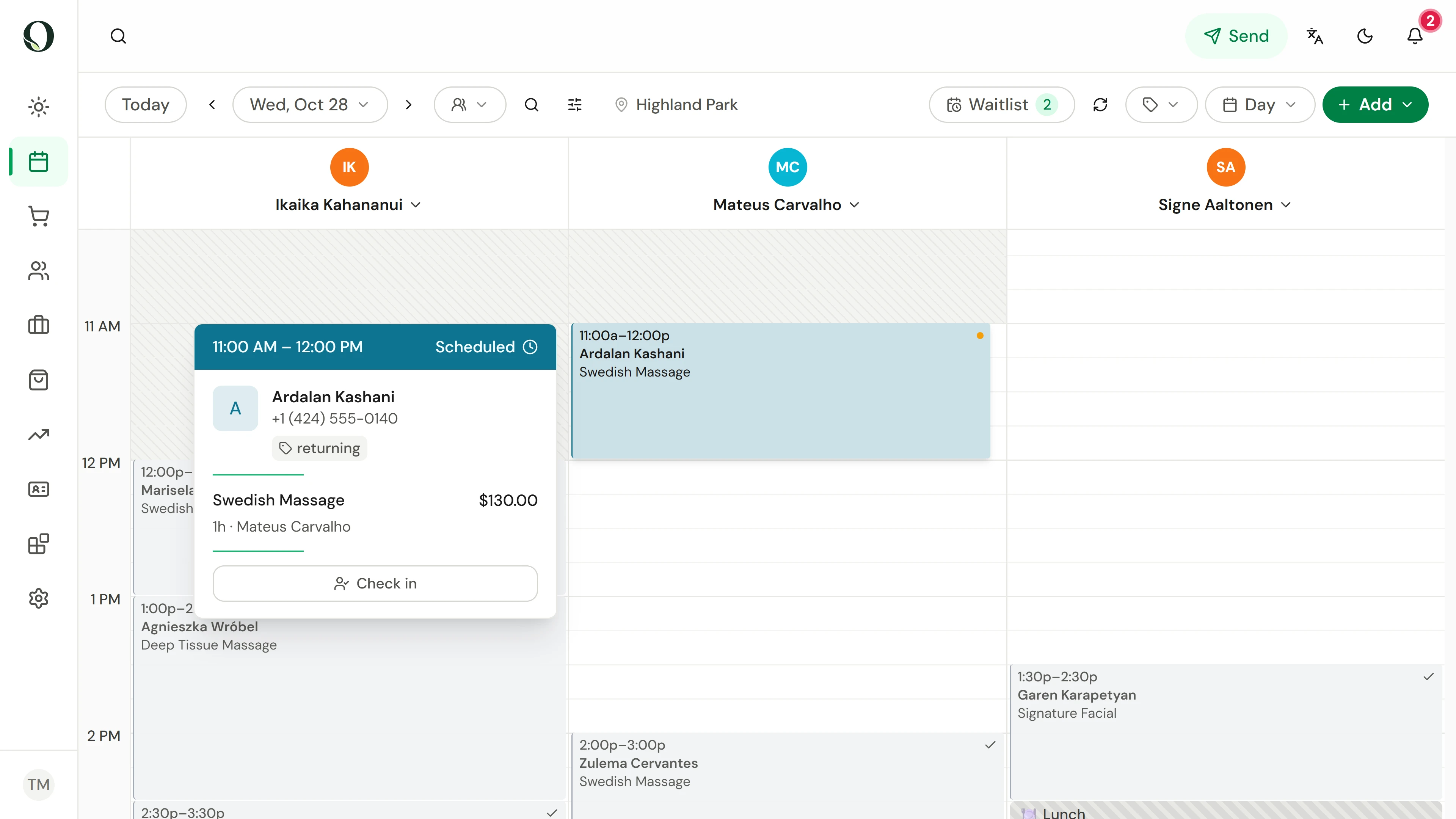
2. Open it and choose Checkout
Select the appointment and choose Checkout. The client, services and provider come straight into the cart, with the booking reference beside the client. Check them against what happened, and add a product, a service or a discount if the visit changed.
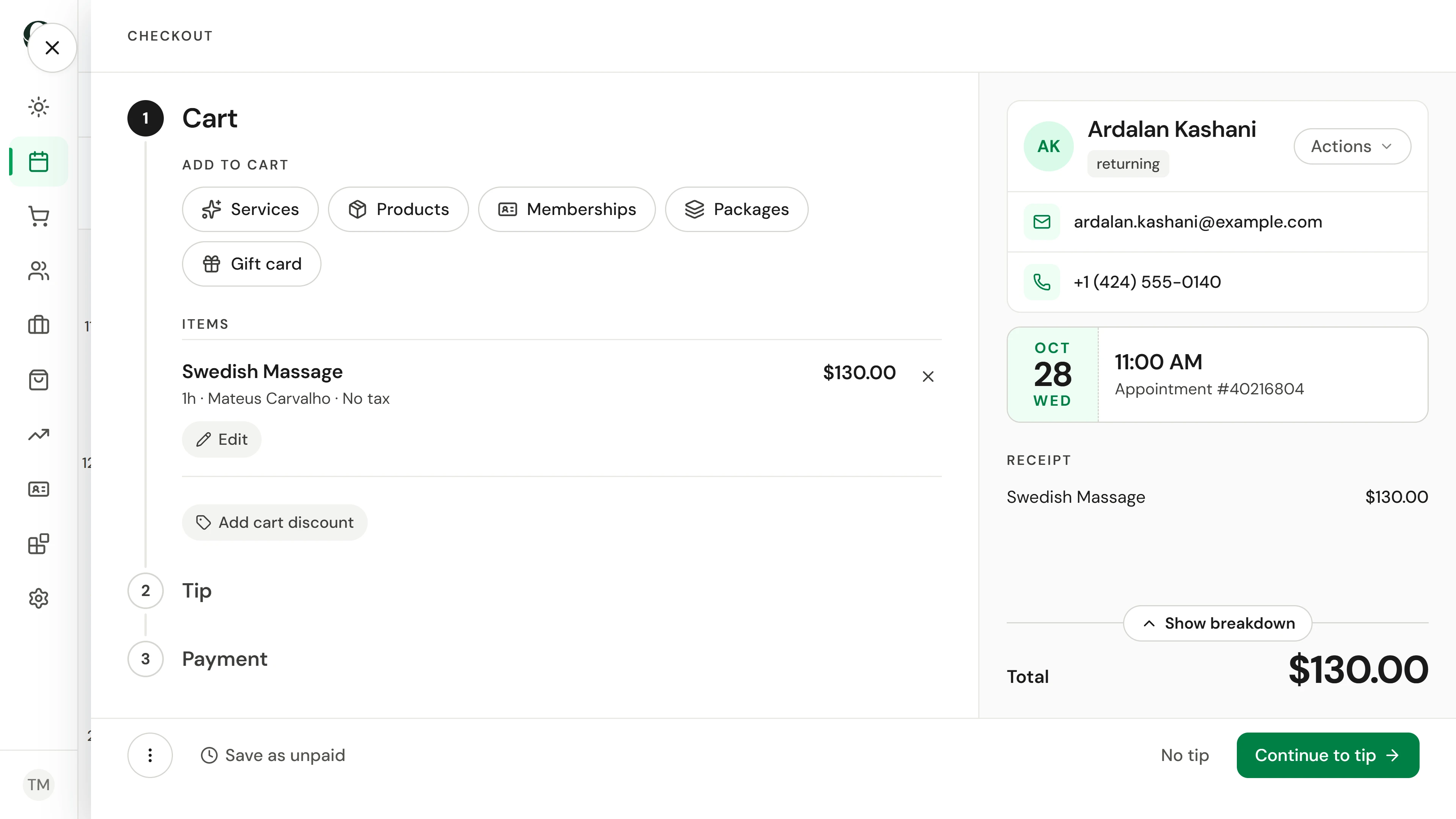
3. Add the tip they choose
Continue to tip and tap the client's choice, type their own amount, or choose No tip.
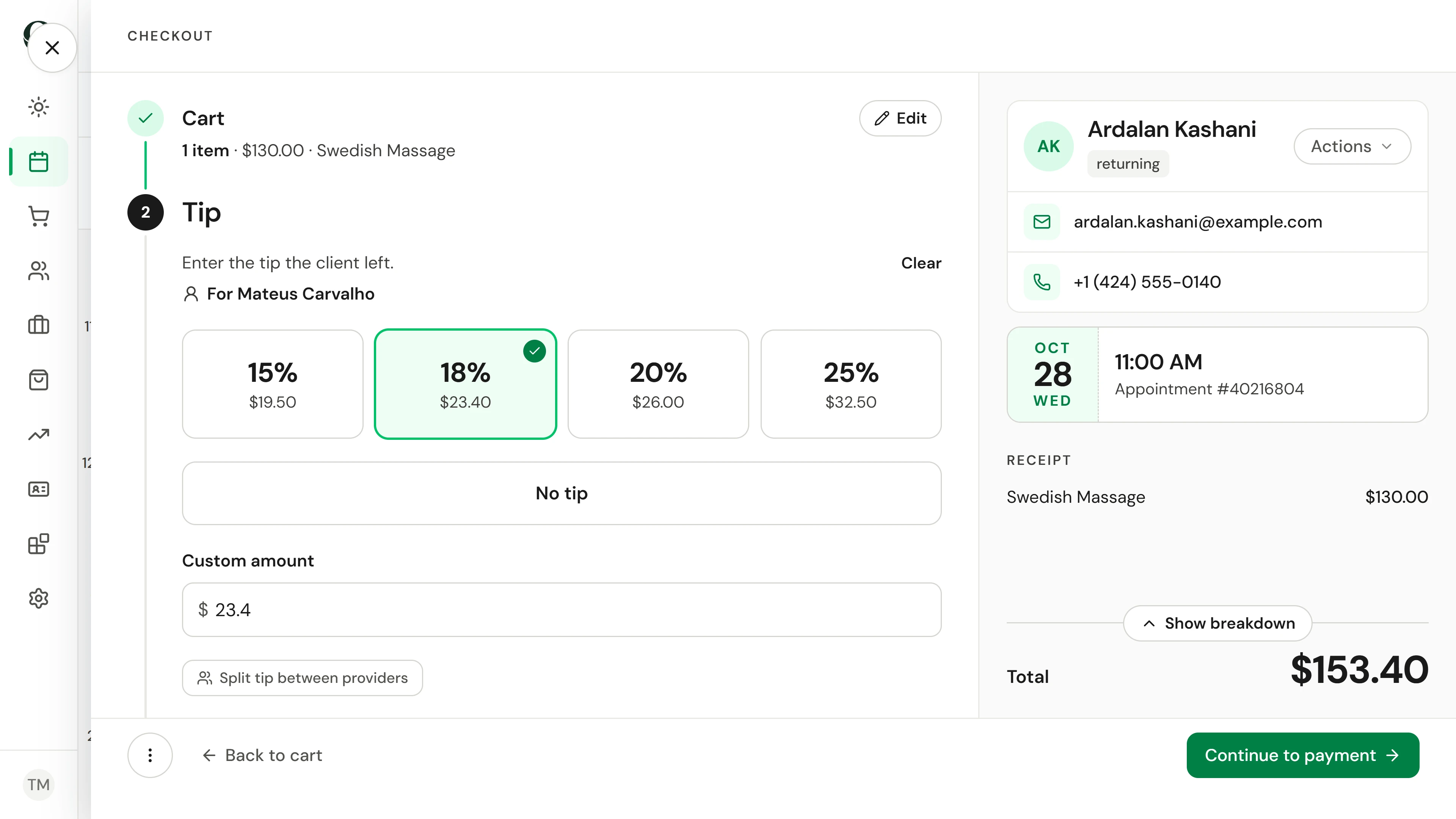
4. Take the card payment
Continue to payment. For a card taken on your own terminal, choose External terminal, add the last four digits if you want them on record, and charge.
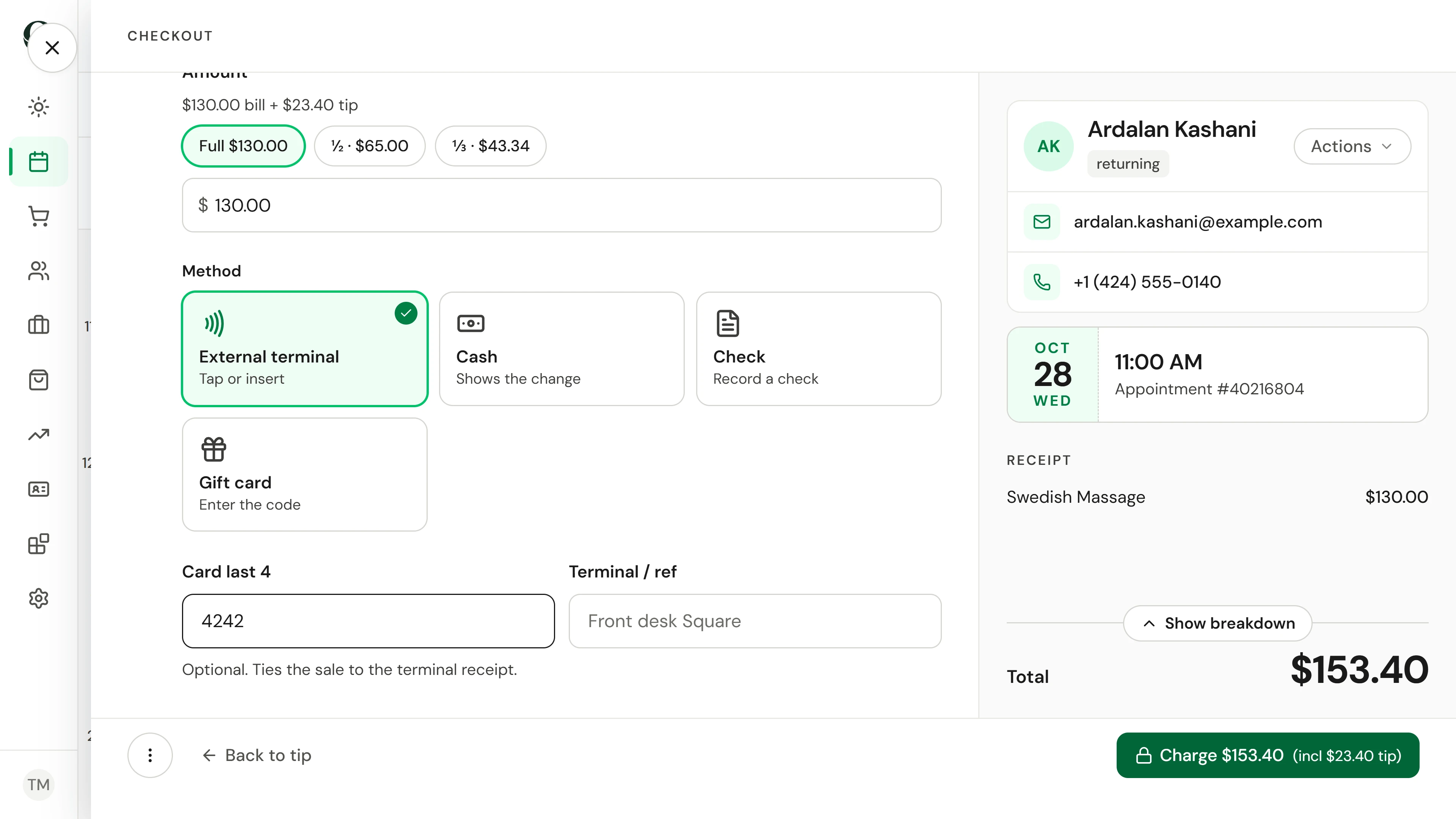
5. Close the visit
The sale is complete and the receipt is ready to print or email. Choose Done; on the calendar, the visit now shows as completed.
Aprofunde-se