

Para parceiros Uma situação real
Print a batch of gift cards for the holidays.
Make a batch of numbered cards, download the print file and proof sheet, and know exactly what to ask a card printer for.
Gravado num espaço de demonstração. Narrado e com legendas.
Esta gravação ainda não se encontra disponível no seu idioma, pelo que será reproduzida em inglês.
Open Printed cards
Go to Retail, Gift cards sold, and switch to Printed cards. It lists your batches, and the printing guide sits underneath.
A situação
Pôr em prática.
The holidays are coming and you want gift cards on the counter. A print shop will put your design on the cards, but every card needs its own number, and a card taken from the rack must be worth nothing.
O que vai aprender
A batch of card numbers, its print file and proof sheet, and a clear list of what to order from the printer.
Antes de começar
Making a batch and downloading its files needs permission to manage revenue setup. Card printers usually need two to three weeks, so start early.
Tenha em atenção
A printed card holds no money until it is sold at the till, so a box of blanks is not owed to anyone. The print file holds every number in the box: send it only to your printer, and every download is recorded. The recording makes a batch in a demo business and deletes it afterwards; nothing goes to a printer.
Experimente a decisão
A box of 200 blank cards arrives from the printer. How much do you owe on them?
Ler o passo a passo completo
1. Open Printed cards
Go to Retail, Gift cards sold, and switch to Printed cards. It lists your batches, and the printing guide sits underneath.
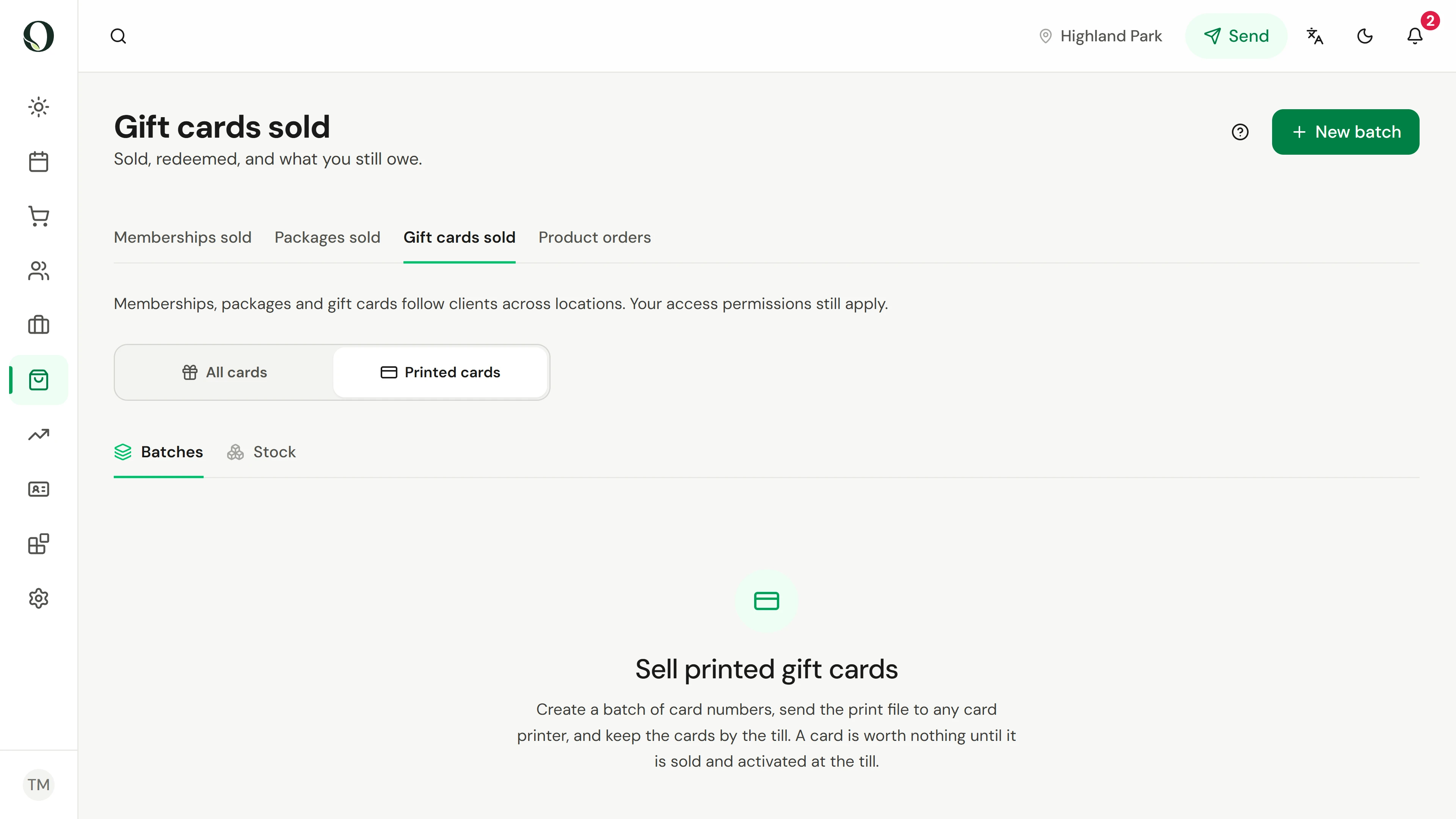
2. Start a batch
Select New batch. A batch is one print run: a set of unique card numbers, each worth nothing until its card is sold.
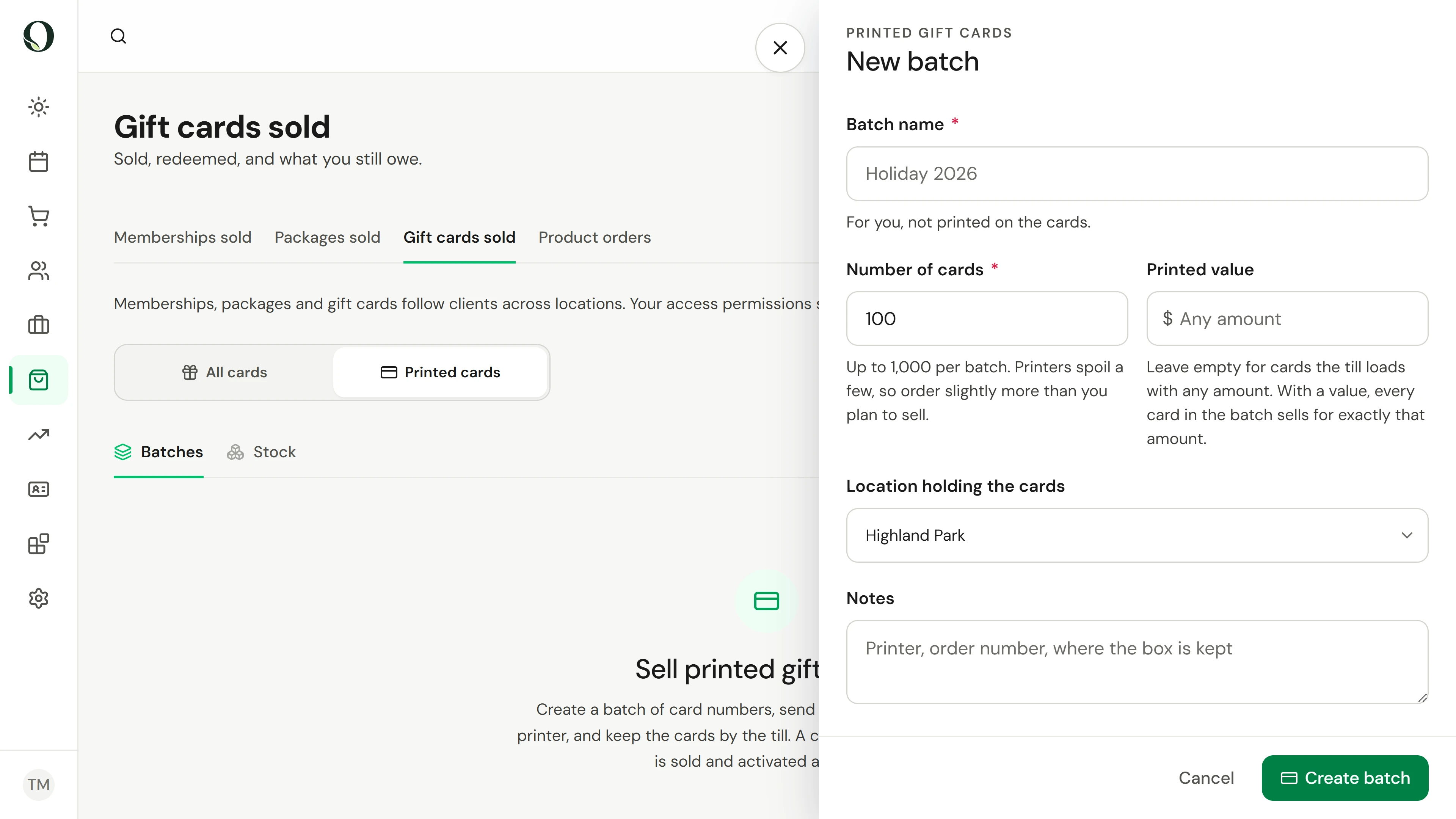
3. Name it and choose how many
Give the batch a name you will recognise; it is not printed on the cards. Enter how many, up to 1,000, and a few more than you plan to sell, because printers spoil some. Notes are for you too: the printer, the order number, where the box is kept.
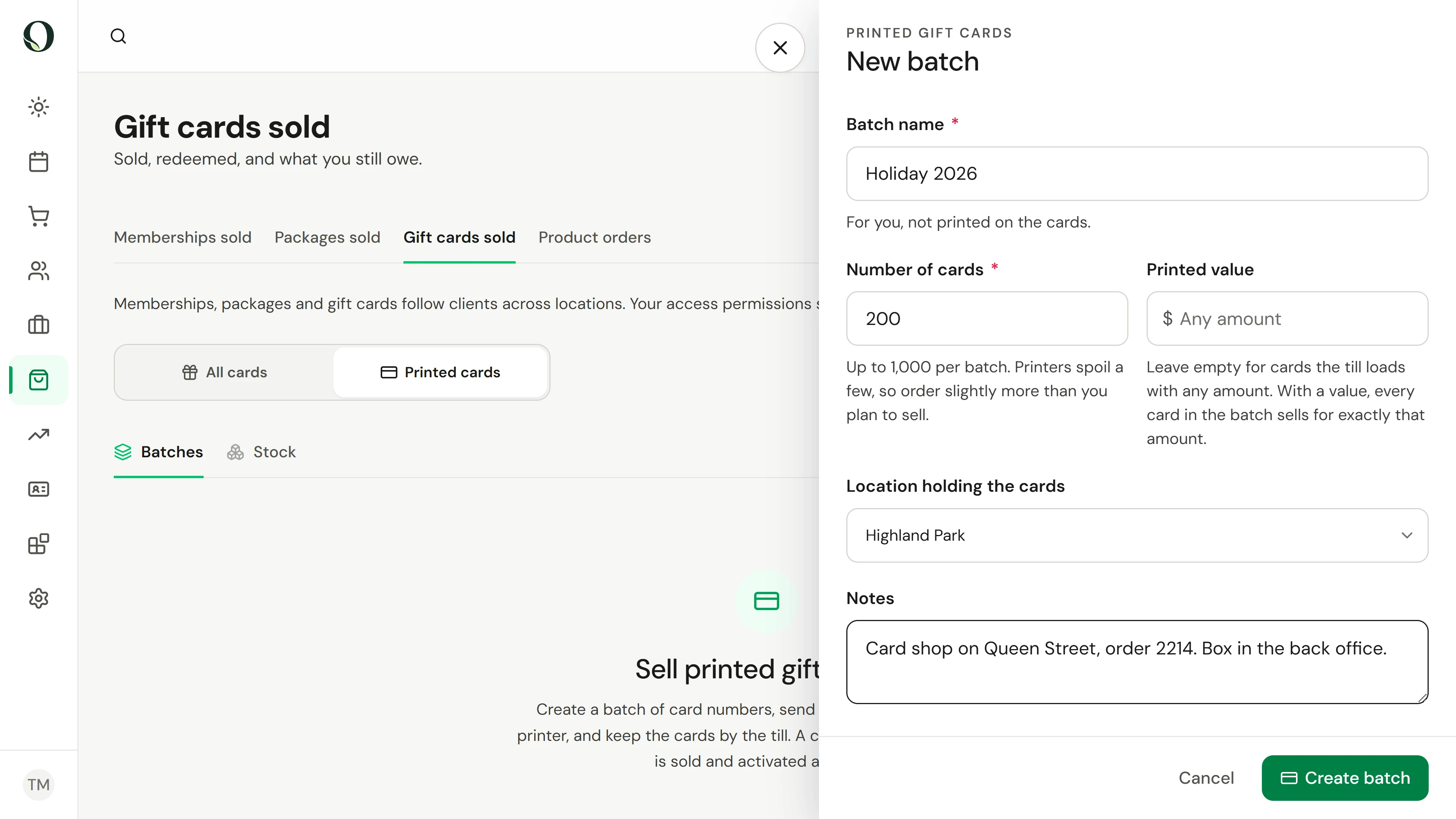
4. Set the value
Enter a printed value, such as 50, and every card in the batch sells for exactly that, with the value on the card. Leave it empty for cards the till loads with any amount. Check the location holding the box.
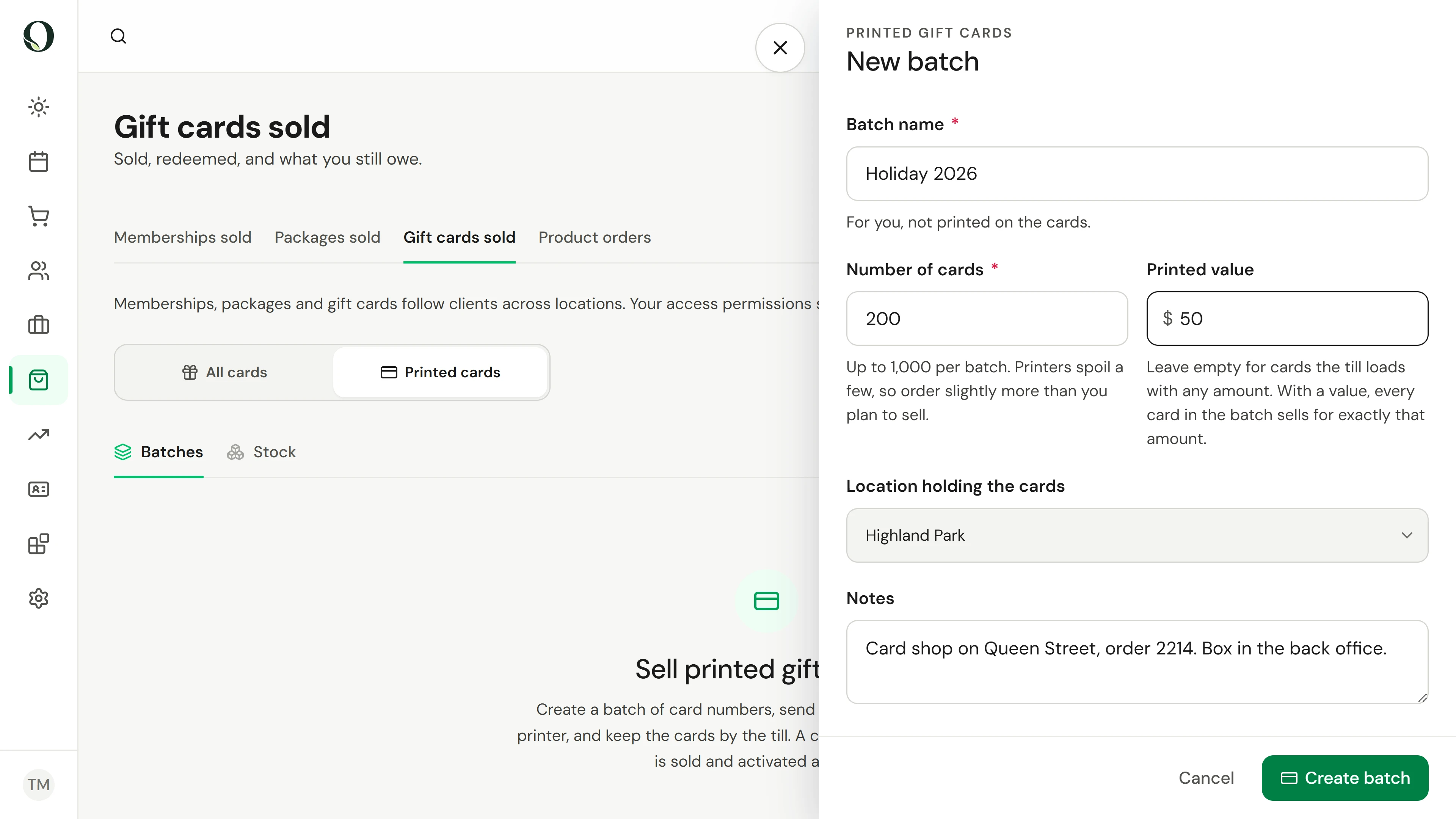
5. Create the batch
Select Create batch. Owneli makes a unique number for every card and offers the print files straight away.
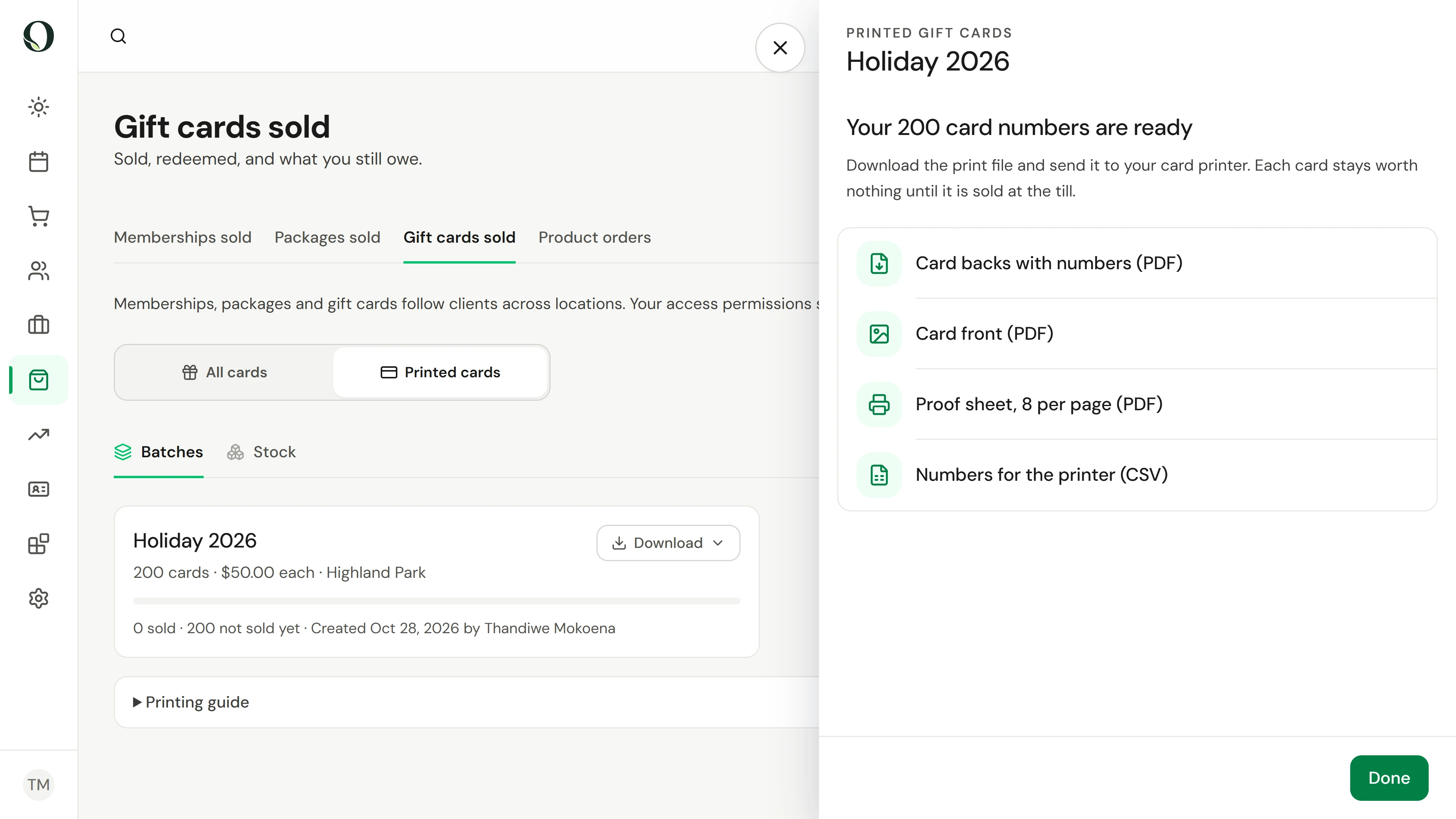
6. Download the print file and proof
Card backs with numbers is the file for the printer: each card's number, barcode and QR code on your brand colour. Download the proof sheet too, print it at the office, and scan a card at the till before you order. Every file stays under Download on the batch.
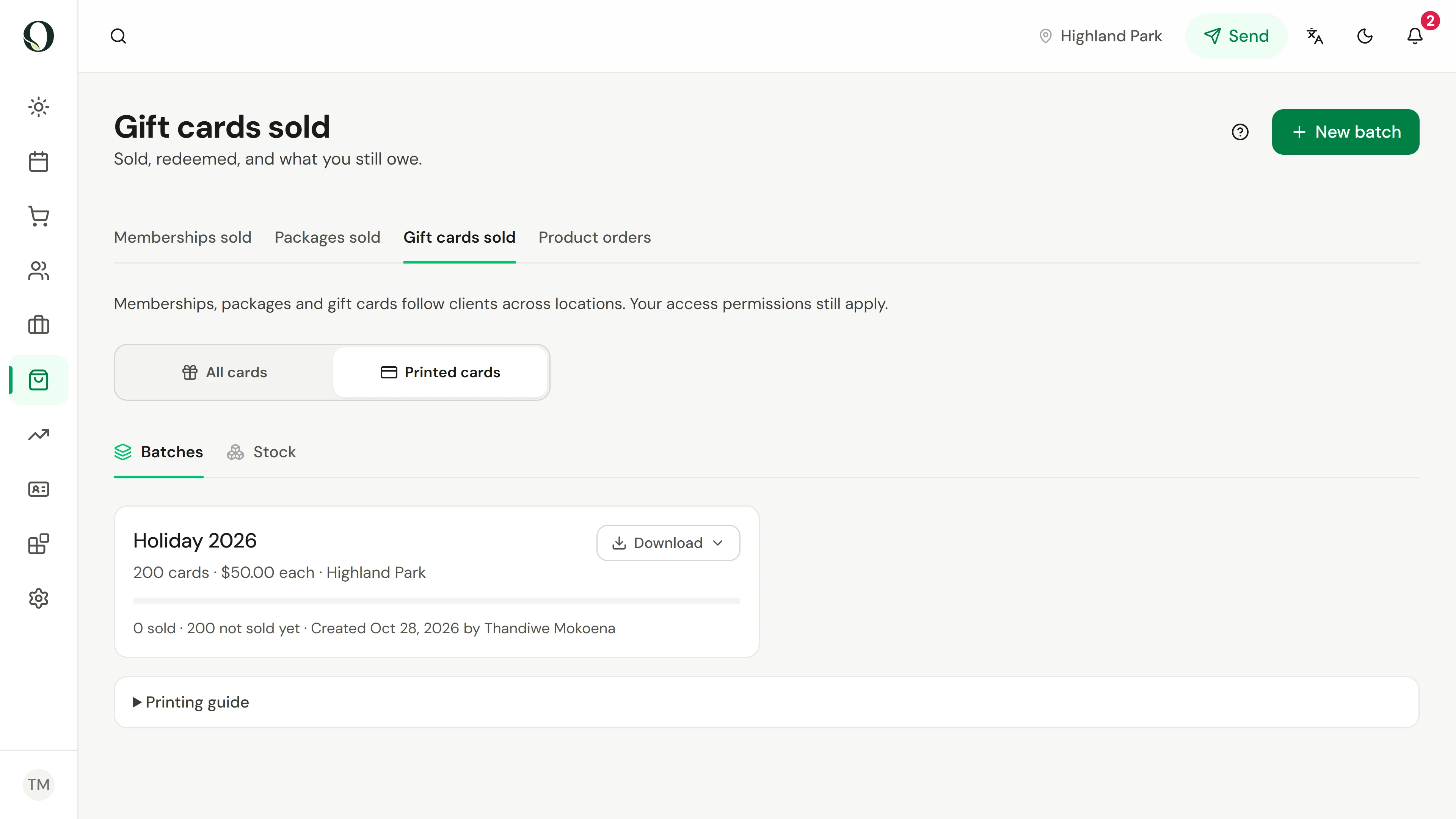
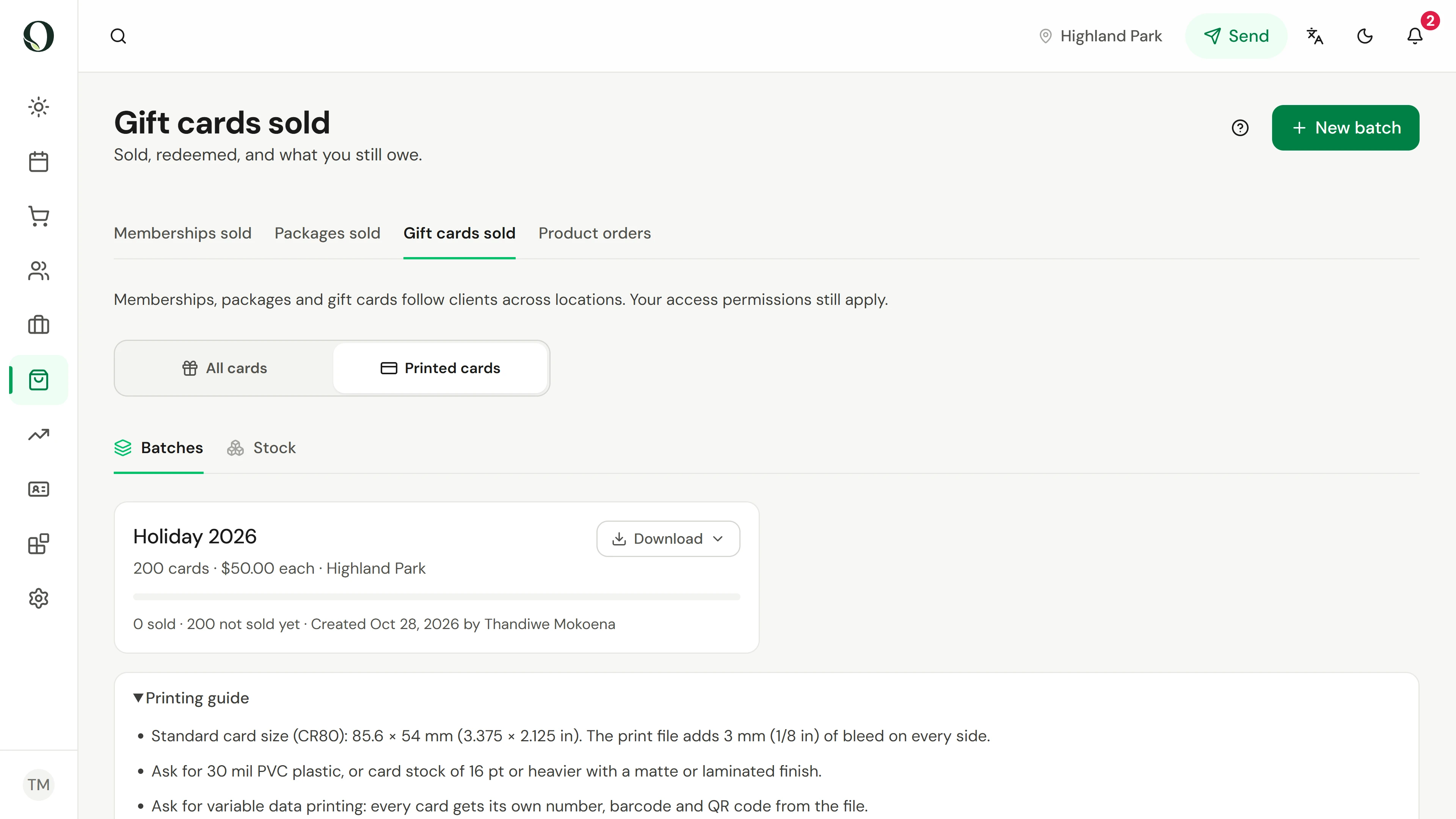
7. Know what to order
The batch now shows how many cards are sold and how many are still blank. Printing guide lists what to ask for: standard CR80 card size with the bleed already in the file, 30 mil plastic or 16 pt card, variable data printing, a pure black barcode, and a proof first.
Aprofundar