

For partners A real situation
Something happened at the venue. Record it while it's fresh.
File a factual incident record with the response and a witness, then follow it up and close it.
Recorded in a demo workspace. Narrated, with captions on.
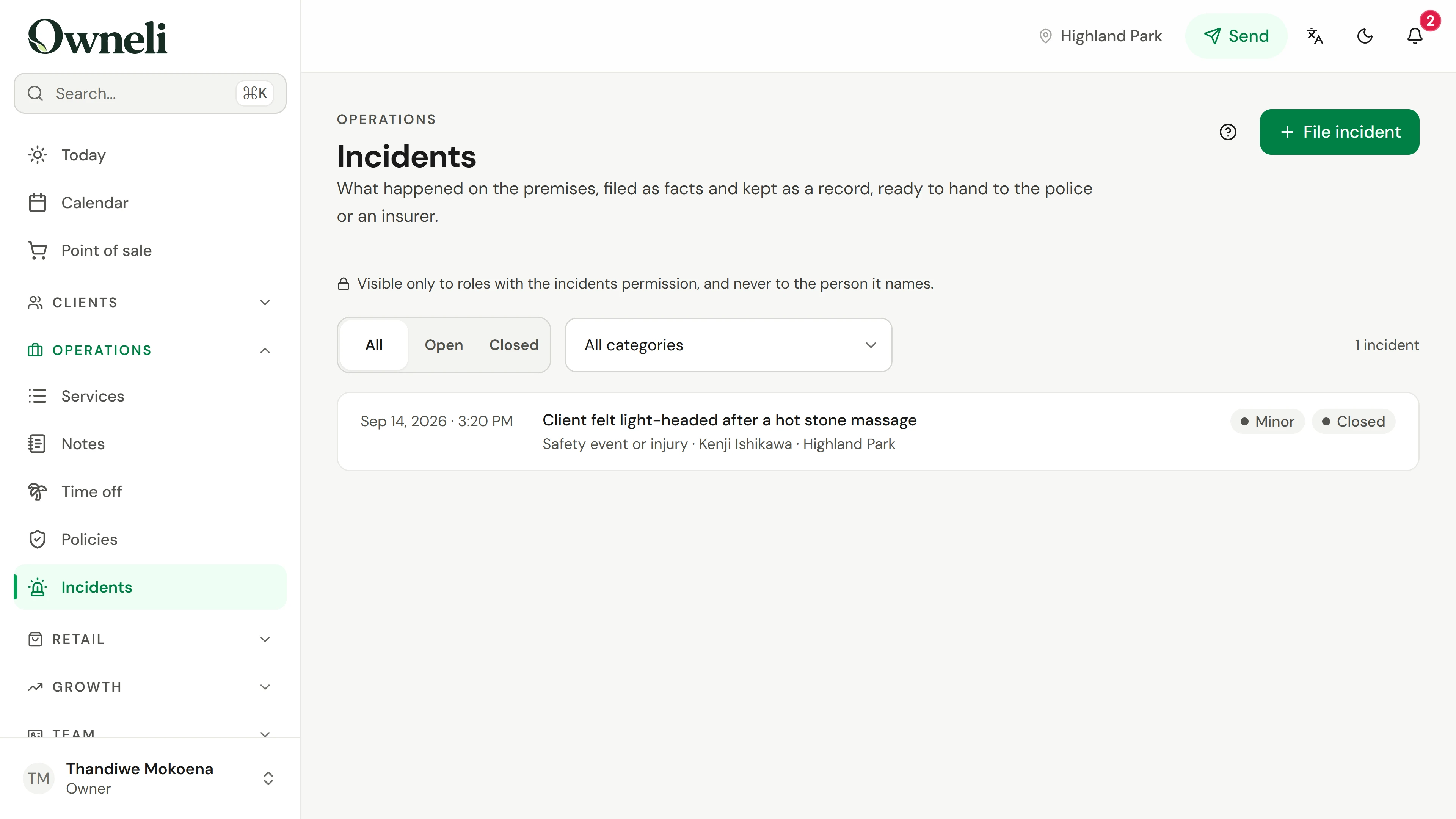
Find Incidents under Operations
Open Operations, then Incidents. The list shows open and closed records, with filters for status and category. Only roles with the incidents permission can see it, and the person a record names never does.
The situation
Put it into practice.
A client knocks a glass shelf over in reception. Nobody is hurt, but two products are broken. You want a factual record now, while the details are clear, in case an insurer or your landlord asks later.
What you will take away
A filed incident with the facts, the response and a witness, followed up and closed.
Before you start
Filing and updating incidents needs the Incidents manage permission; view permission only reads them. If your business has several locations, check which one it happened at.
Keep in mind
Filing an incident never blocks a client, contacts the police or sends anything. The account you file is locked afterwards, so add corrections and updates in the follow-up. Closing an incident keeps the record.
Try the decision
You remember another detail after filing. Where does it go?
Read the full walkthrough
1. Find Incidents under Operations
Open Operations, then Incidents. The list shows open and closed records, with filters for status and category. Only roles with the incidents permission can see it, and the person a record names never does.
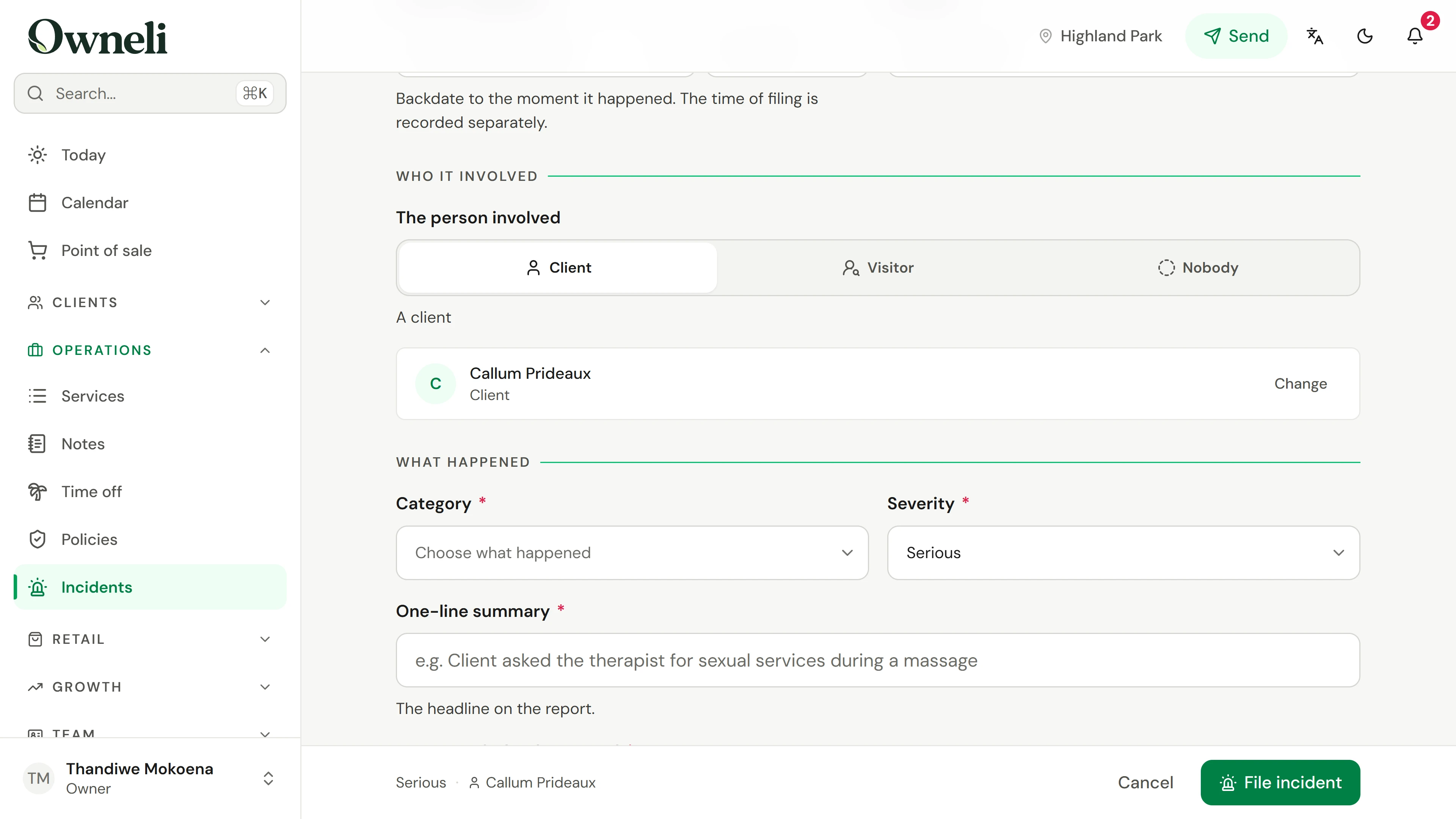
2. Record when, where and who
Choose File incident. Set the date and time it happened; you can backdate it, but not into the future. Check the location, then choose whether it involved a client, a visitor with no client record, or nobody identifiable, and find the client by name.
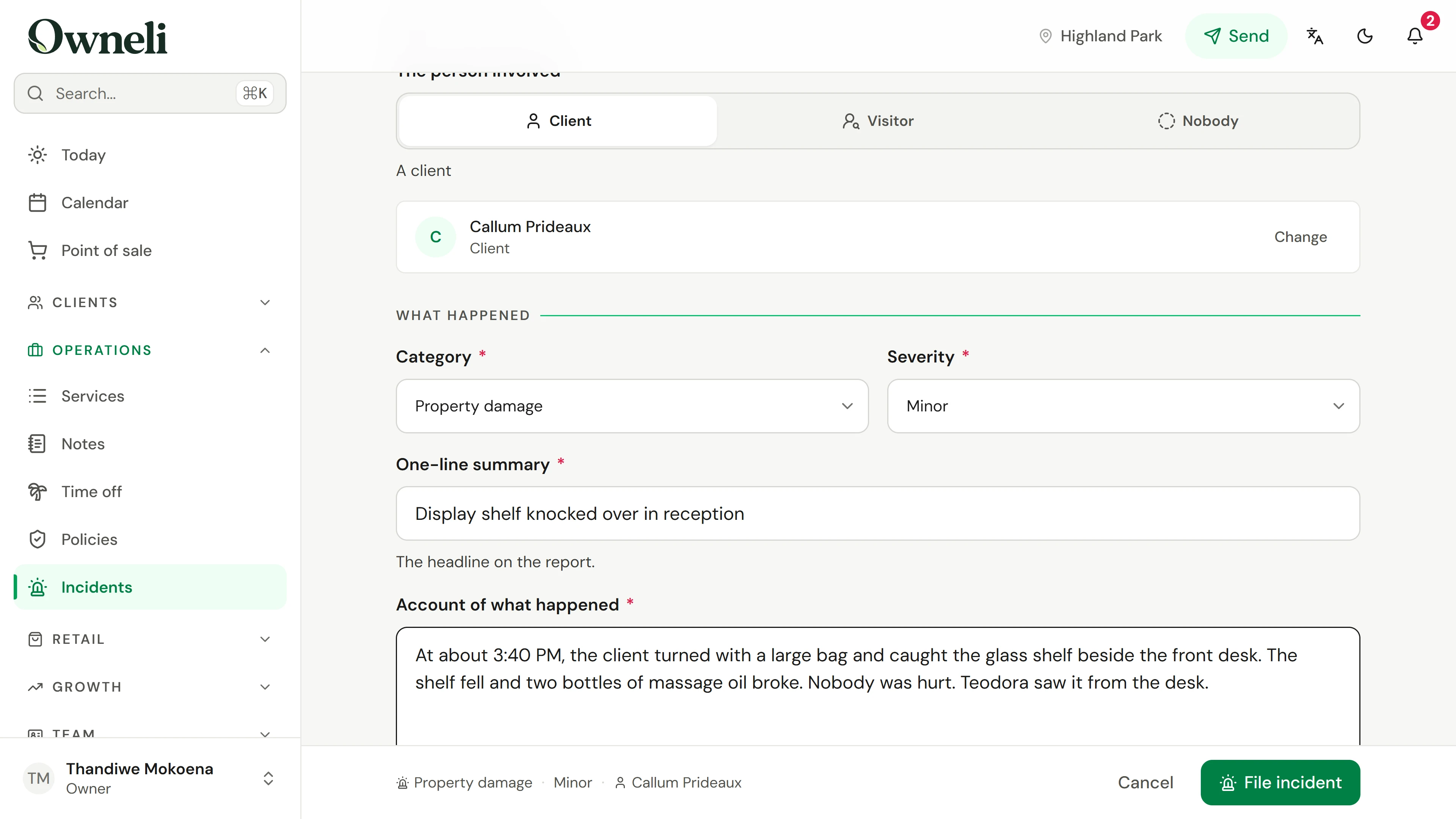
3. Describe what happened
Choose a category and a severity of minor, serious or critical, and write a one-line summary. Then describe what happened in order, with times. If a line reads like an opinion, the form asks you to describe the behaviour instead.
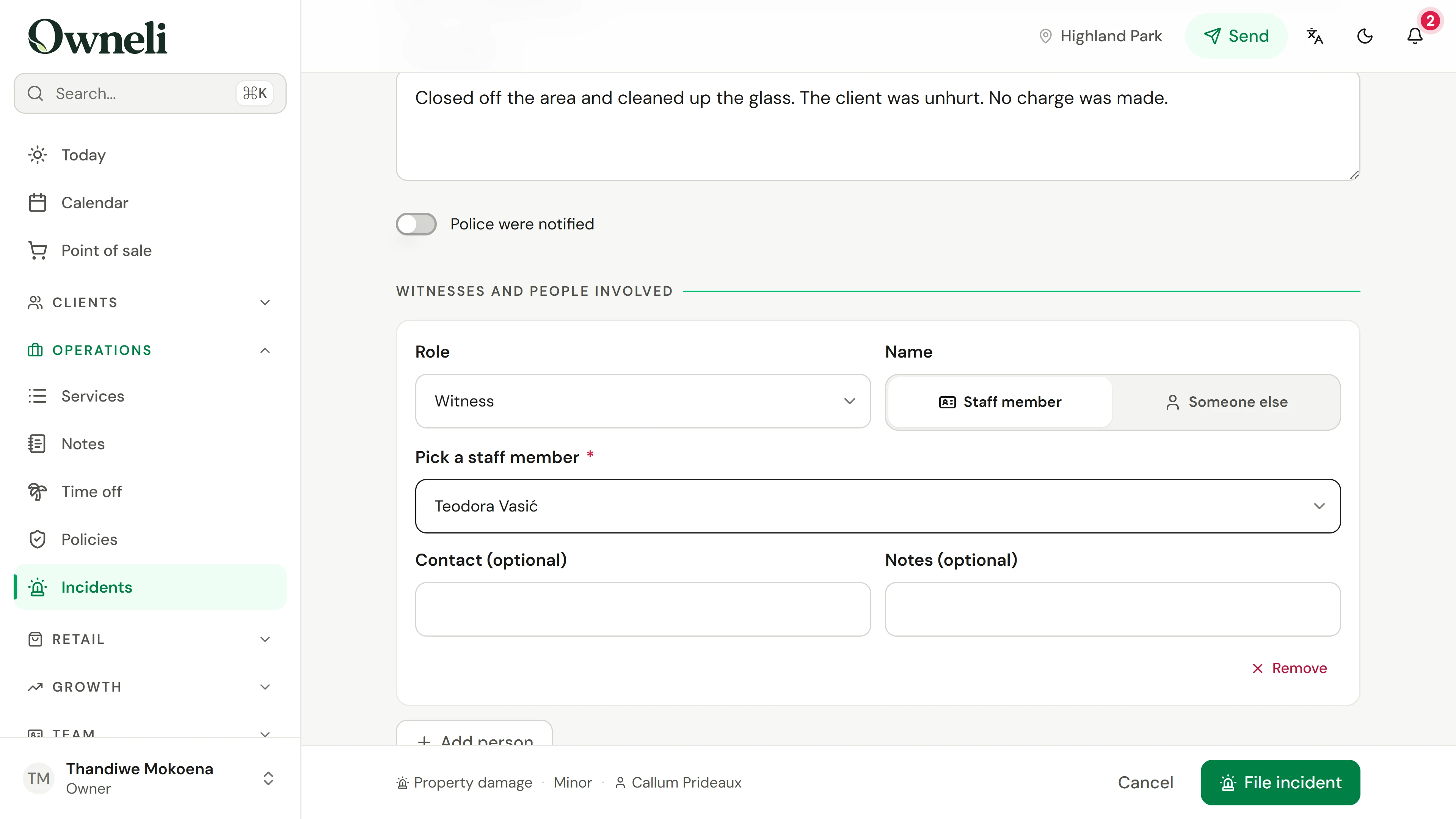
4. Record the response and witnesses
Under What the business did, record the action already taken. If the police were notified, switch that on and add their reference. Then add witnesses, affected people or responders: a staff member, or anyone else by name.
5. File the record
Check the summary at the foot of the form and choose File incident. The record gets a reference number, starts as Open, and shows who filed it and when. Filing does not block the client; Block this client is a separate decision.
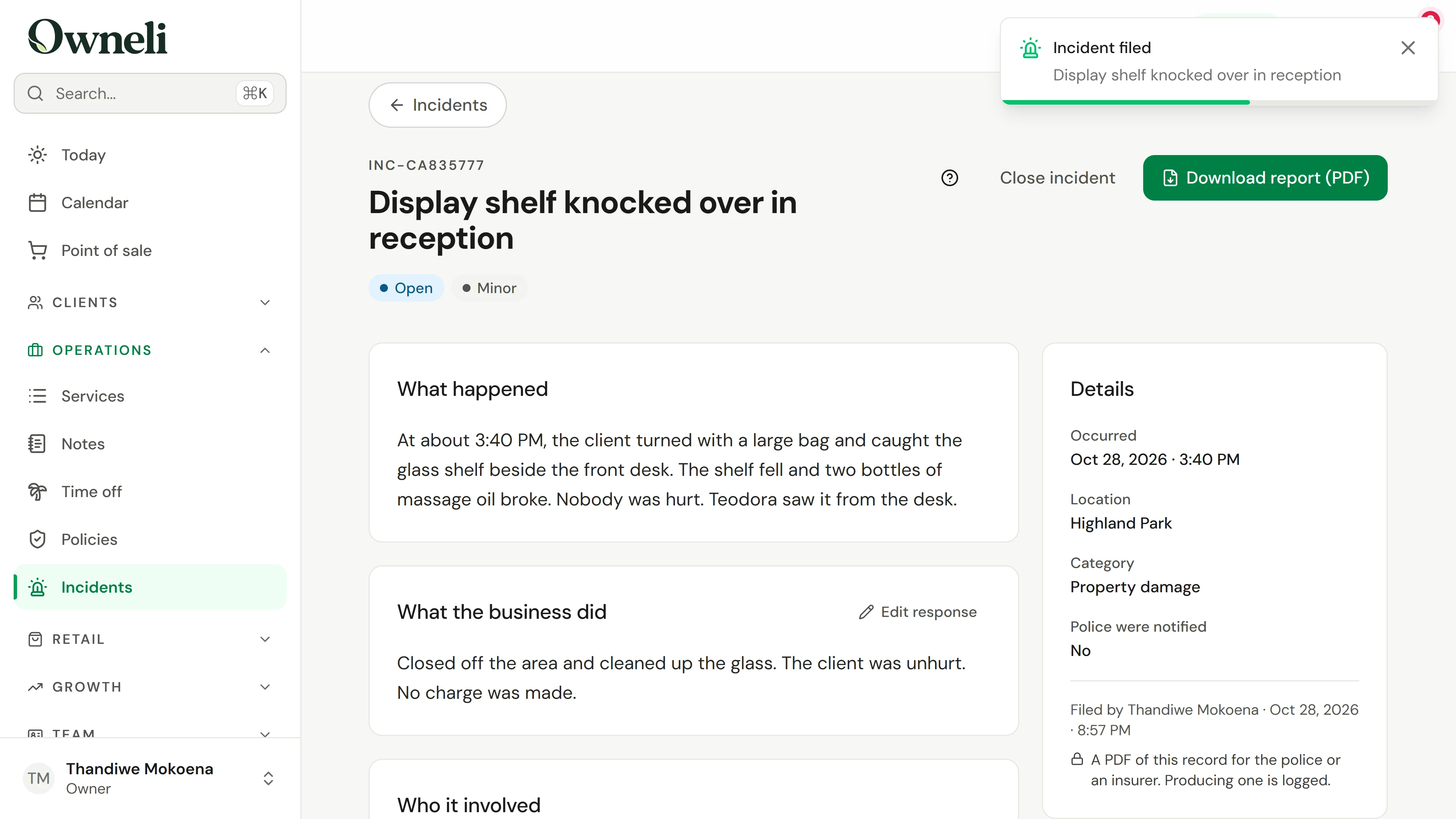
6. Follow up, then close
The account you filed cannot be changed. Choose Edit response to add the follow-up and any later corrections, then Save. When the work is done, choose Close incident; you can reopen it. Download report saves a PDF for an insurer or the police, and the download is logged.
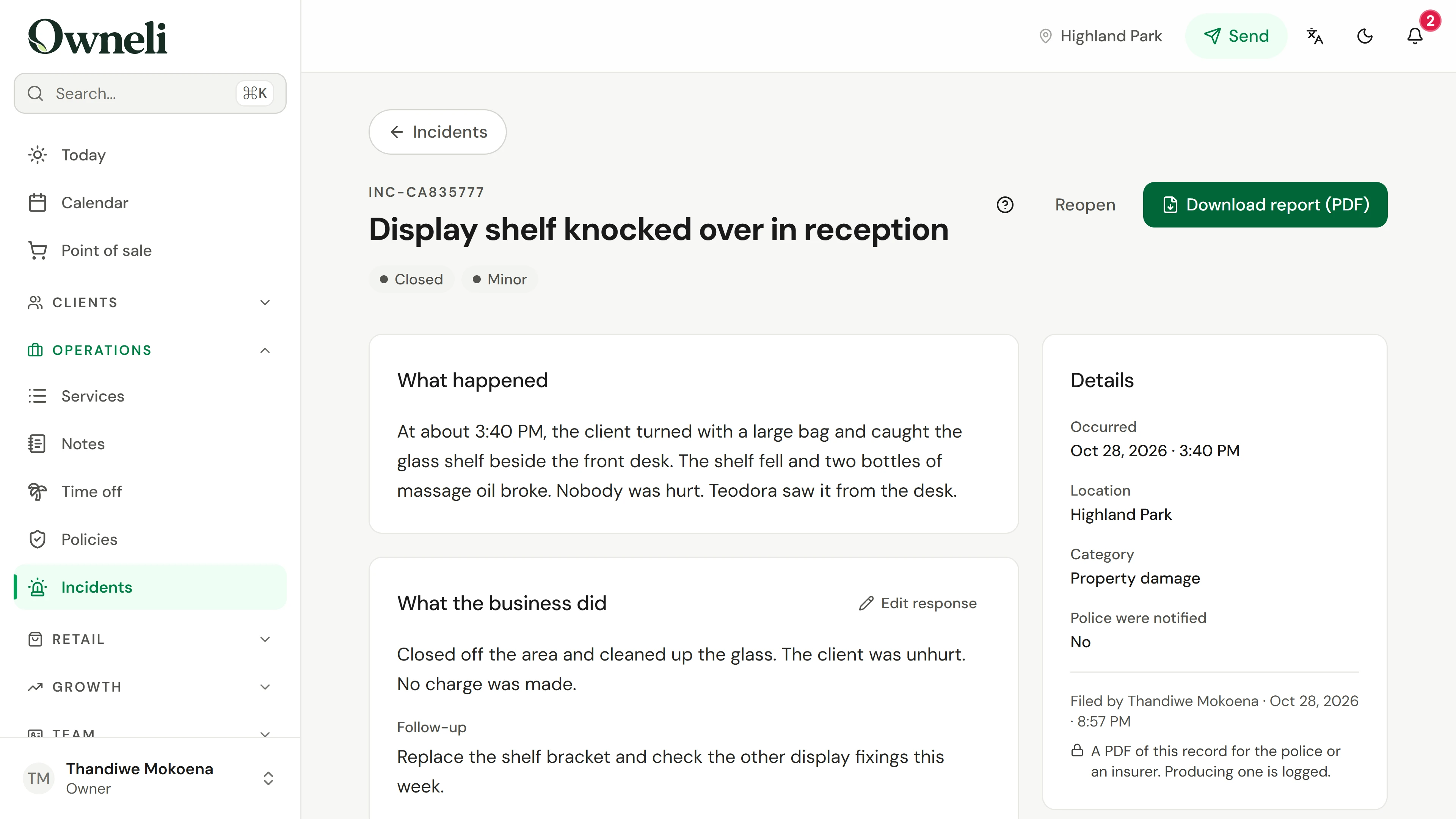
Go deeper