

For partners A real situation
You've been invited to the team. Set up your account.
Accept a team invitation, create your login, turn on two-factor sign-in if your business asks, complete the welcome steps and find your way on day one.
Recorded in a demo workspace. Narrated, with captions on.
Open your invitation
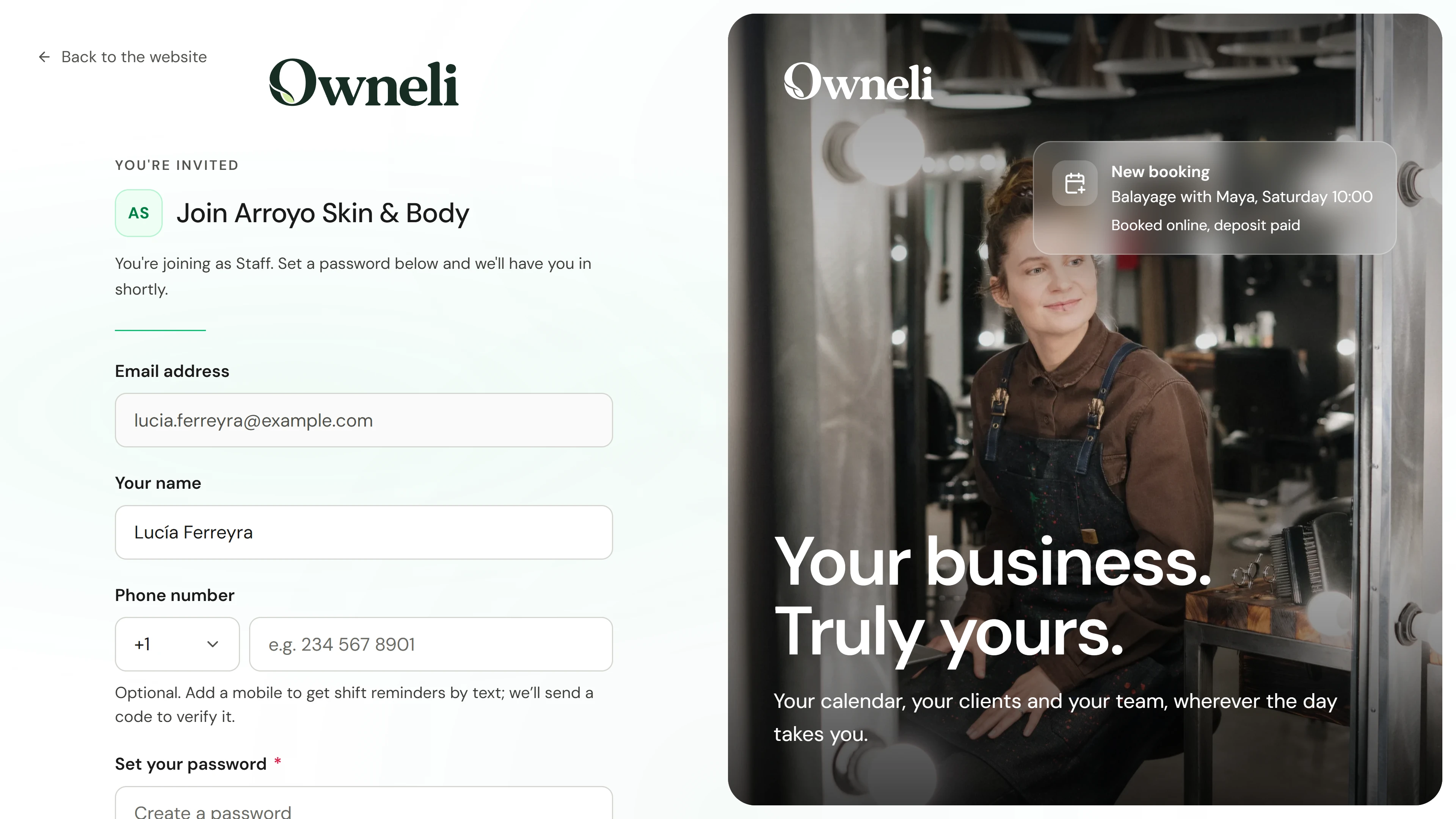
Open the link in your invitation email. It shows the business you are joining and the role you were invited as. Your email address is fixed to the one the invitation was sent to.
The situation
Put it into practice.
You have just joined a salon, and an email has arrived inviting you to its Owneli workspace. The salon asks everyone to use two-factor sign-in. You want your account ready before your first shift.
What you will take away
A working login protected by two-factor sign-in, your details and emergency contact added, and your Today screen ready for your first day.
Before you start
Open the invitation on a device you will use for work. The link lasts seven days; if it has expired, ask the person who invited you to resend it.
Keep in mind
Your password is yours alone; nobody at the business needs it. If your business requires two-factor sign-in, nothing else opens until it is on; keep your recovery codes somewhere safe, because they are how you get back in without your phone. If you already sign in to Owneli for another business, sign in with that account to accept, rather than creating a second one.
Try the decision
The invitation page says the link has expired. What should you do?
Read the full walkthrough
1. Open your invitation
Open the link in your invitation email. It shows the business you are joining and the role you were invited as. Your email address is fixed to the one the invitation was sent to.
2. Create your account
Check your name. A mobile number is optional; add one for shift reminders by text and it is confirmed with a code. Choose a password of at least eight characters, confirm it and choose Continue.
3. Turn on two-factor sign-in
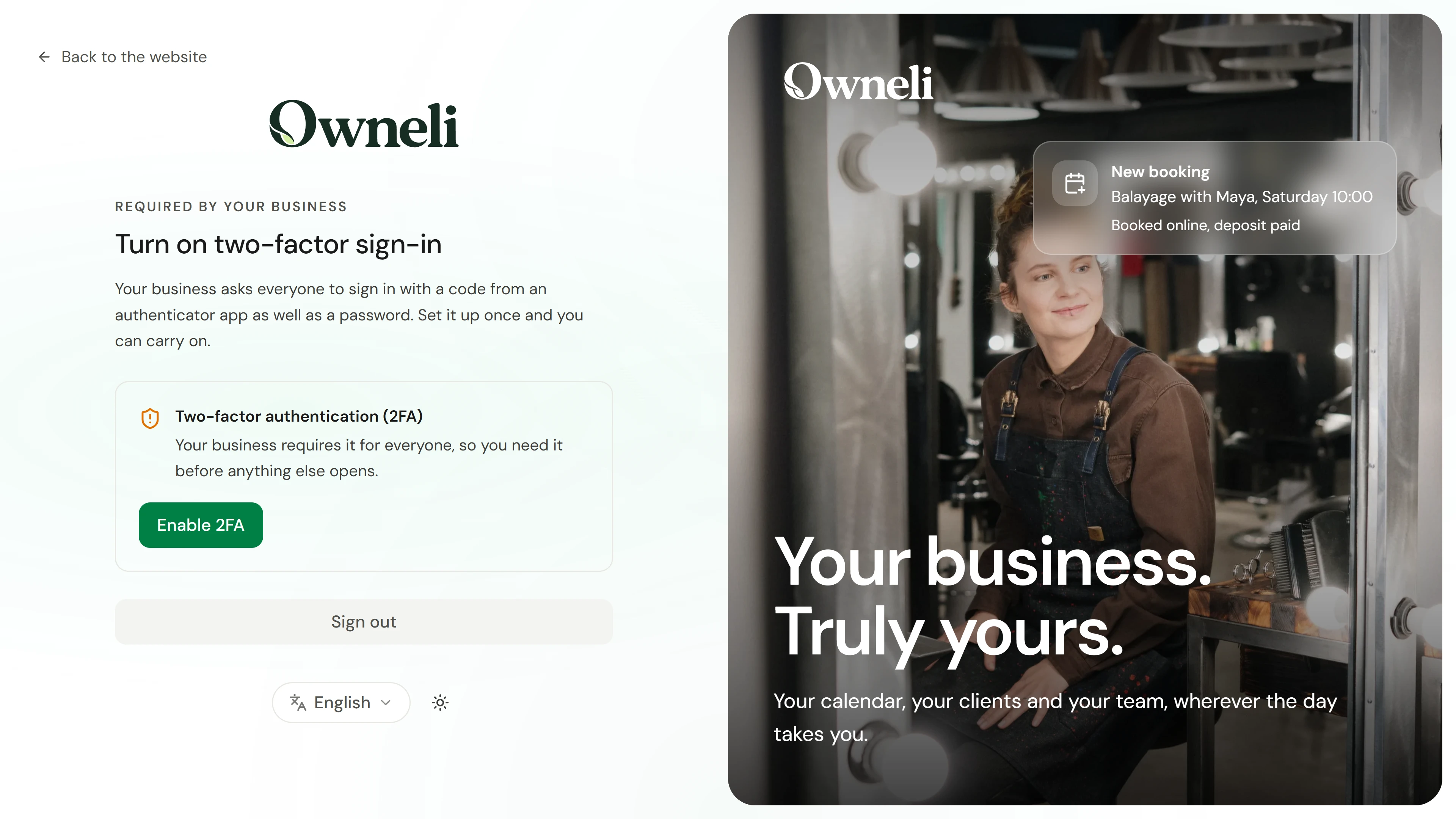
If your business requires two-factor sign-in, you set it up before anything else opens. Choose Enable 2FA, scan the QR code with an authenticator app (or type the code under it), enter the six-digit code it shows and verify. Save or download the recovery codes, then choose Continue.
4. Introduce yourself
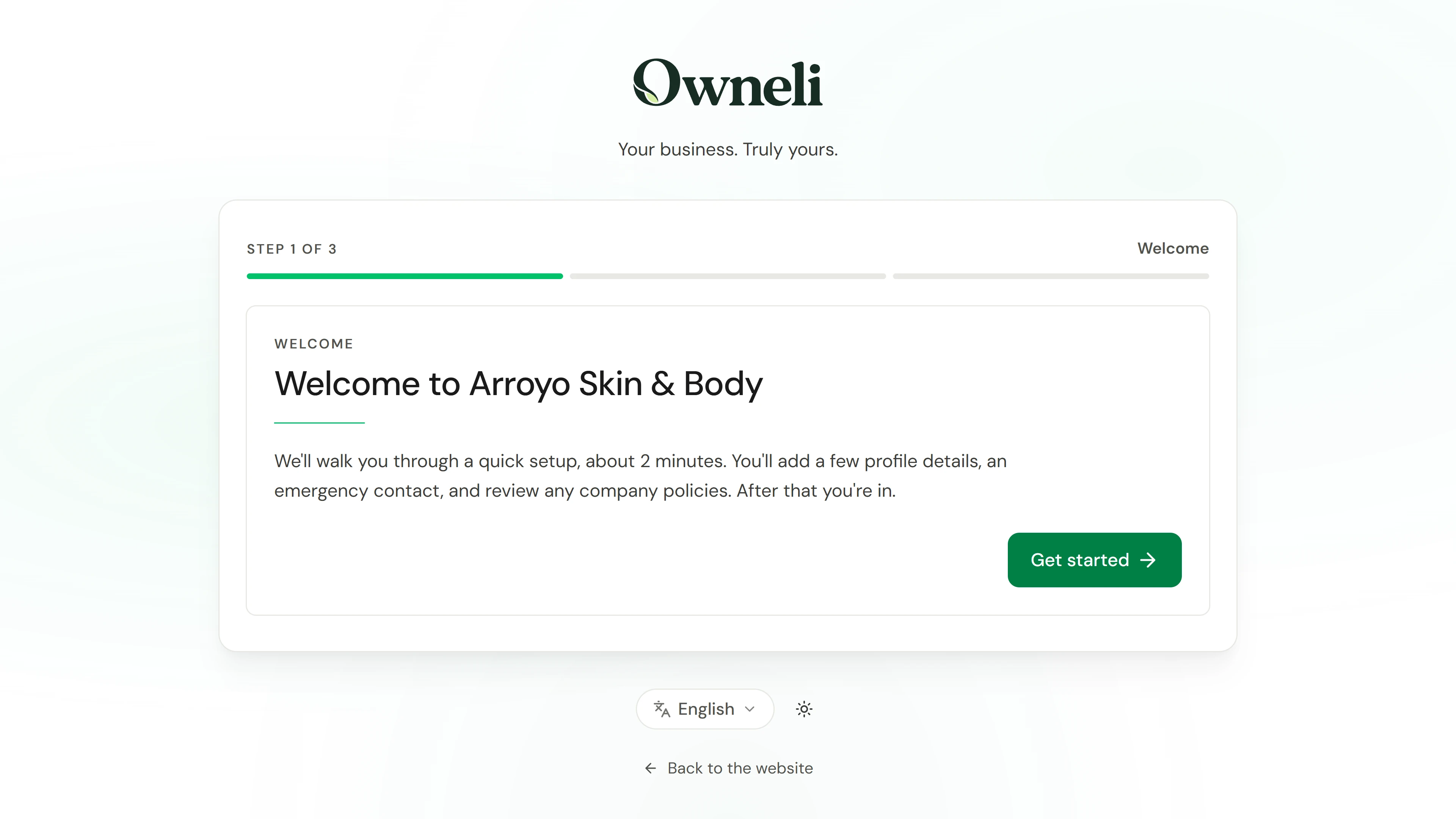
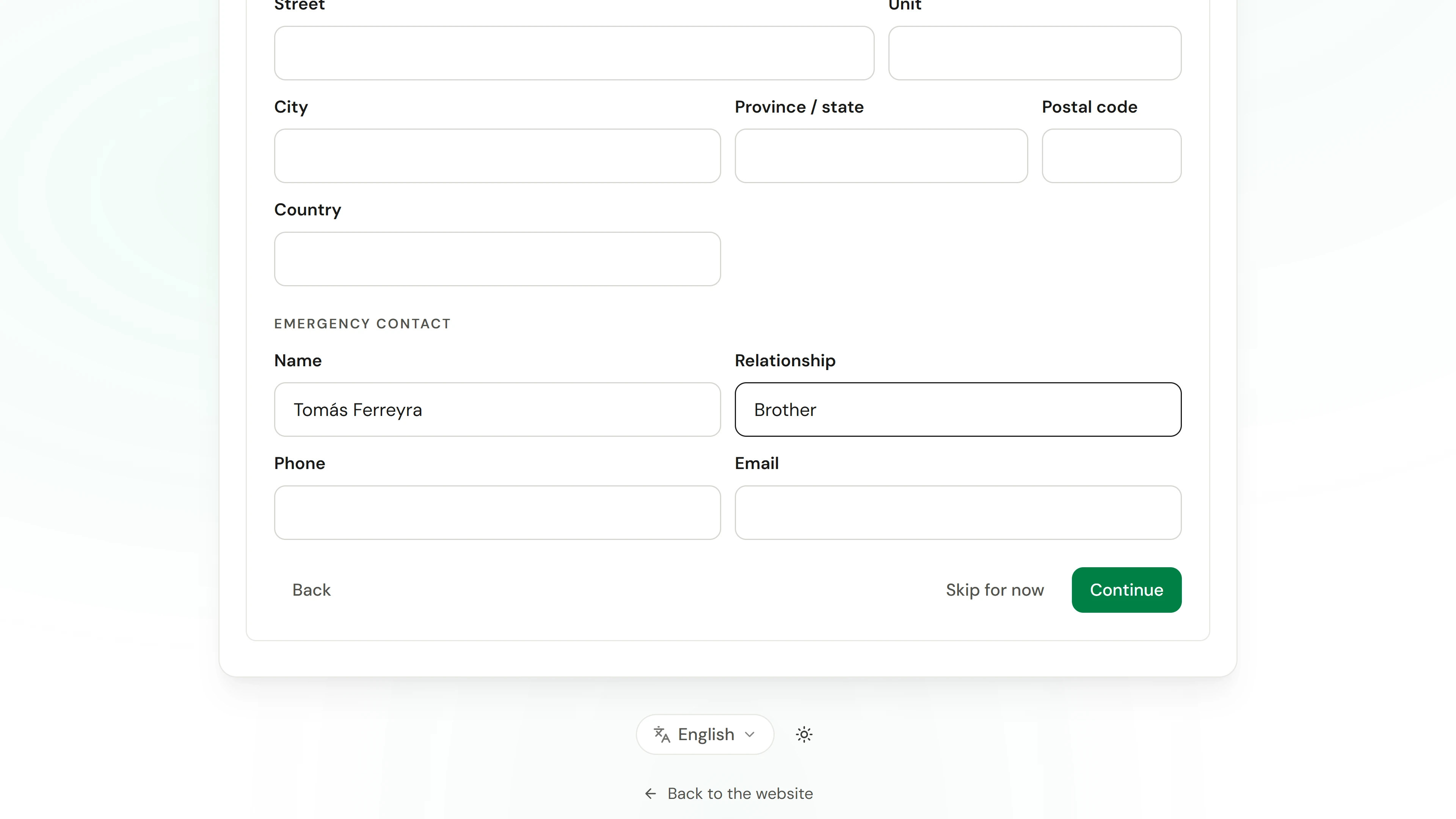
A short welcome asks for the name you go by, your phone and date of birth, then your address and an emergency contact. Any of it can be skipped for now. If your business has policies to read, you sign them here too.
5. Start your first day
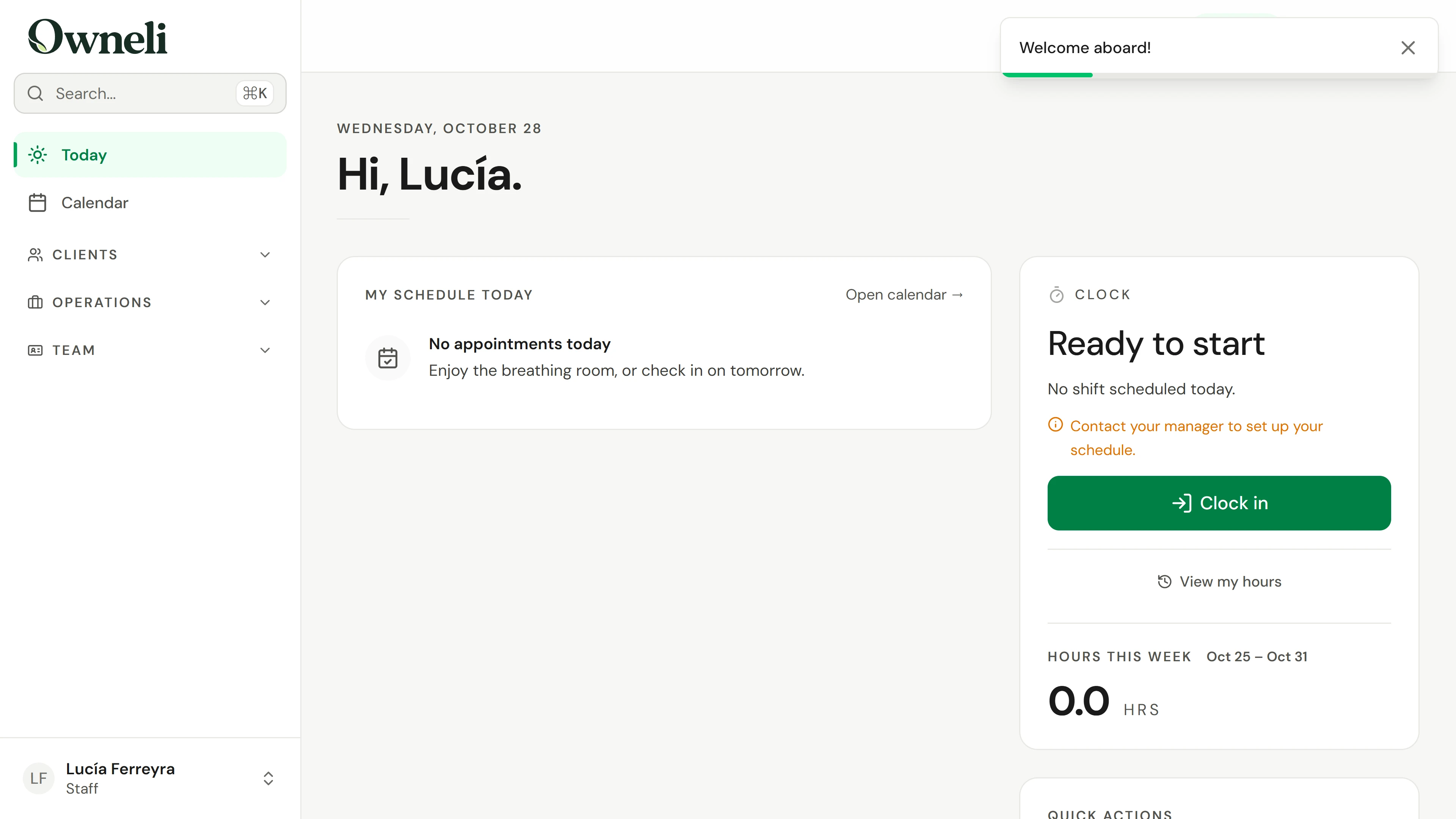
Choose Continue, then Go to Today. Today shows your appointments, the clock for starting your shift, and anything that needs you.
Go deeper