

Para parceiros Uma situação real
Clients are due back. Review your rebook reminder.
Review the business default, a service-specific rebooking interval and the conversion report before saving changes.
Gravado num espaço de demonstração. Narrado e com legendas.
Esta gravação ainda não se encontra disponível no seu idioma, pelo que será reproduzida em inglês.
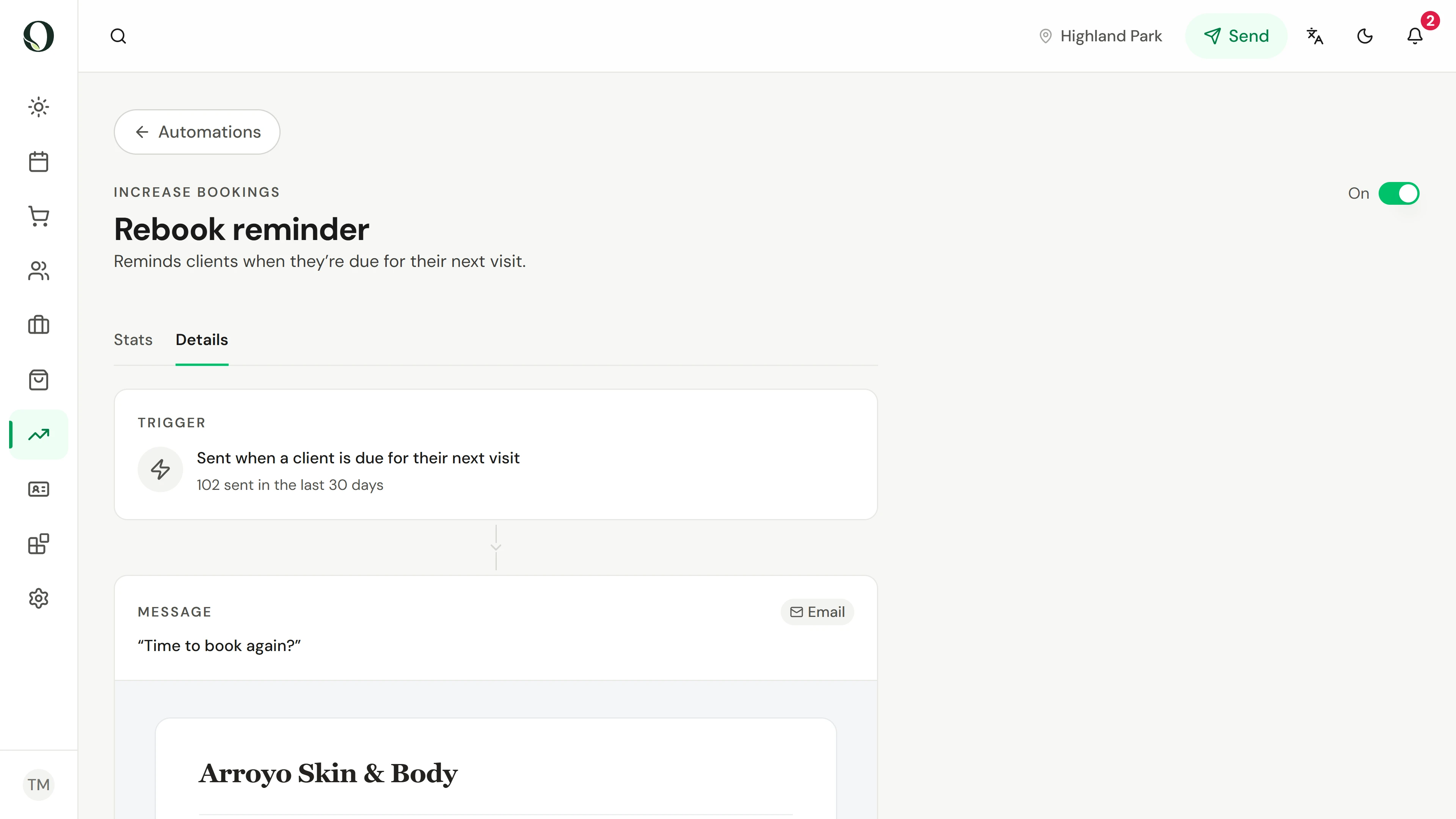
Find the rebooking automation
In Automations, open Rebook reminder and choose Details. Review its trigger and current status. The enabled switch changes a live configuration, so inspect it without switching it on.
A situação
Pôr em prática.
You want to help regular clients arrange their next visit. Before switching on more messages, check the automation and the service timing together.
O que vai aprender
You can find the reminder settings, understand the service interval and read the conversion report without confusing bookings with attendance.
Antes de começar
Use an account with permission to view and manage automations and services, and to view the report. Agree the timing and communication approach with the team first.
Tenha em atenção
The automation sets the business default. A service can use that default, choose its own interval in days or weeks, or opt out. Owneli skips a future booking for the same service and checks recent nudges and contact eligibility. A conversion is a later booking within the report window, not proof of attendance or causation. This recording saves no changes and sends nothing.
Experimente a decisão
Rebook conversion shows a booking after a reminder. Does that prove the client attended because of the message?
Ler o passo a passo completo
1. Find the rebooking automation
In Automations, open Rebook reminder and choose Details. Review its trigger and current status. The enabled switch changes a live configuration, so inspect it without switching it on.
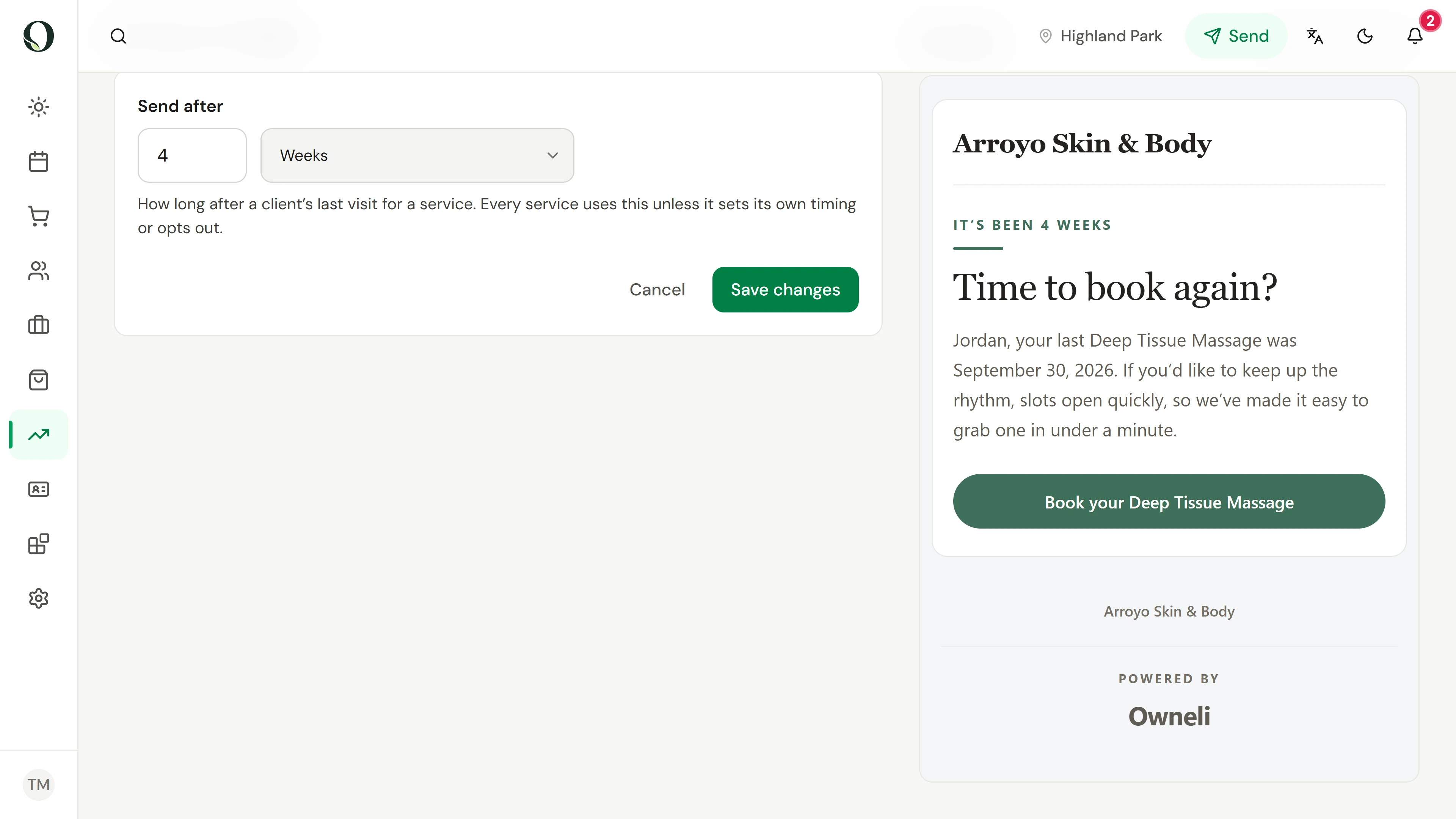
2. Review the business default
Choose Configure message. Send after sets the business default in days or weeks, counted from the client’s last visit for that service. Services use it unless they set custom timing or opt out. Review the channel and message controls before a real change; this recording saves nothing.
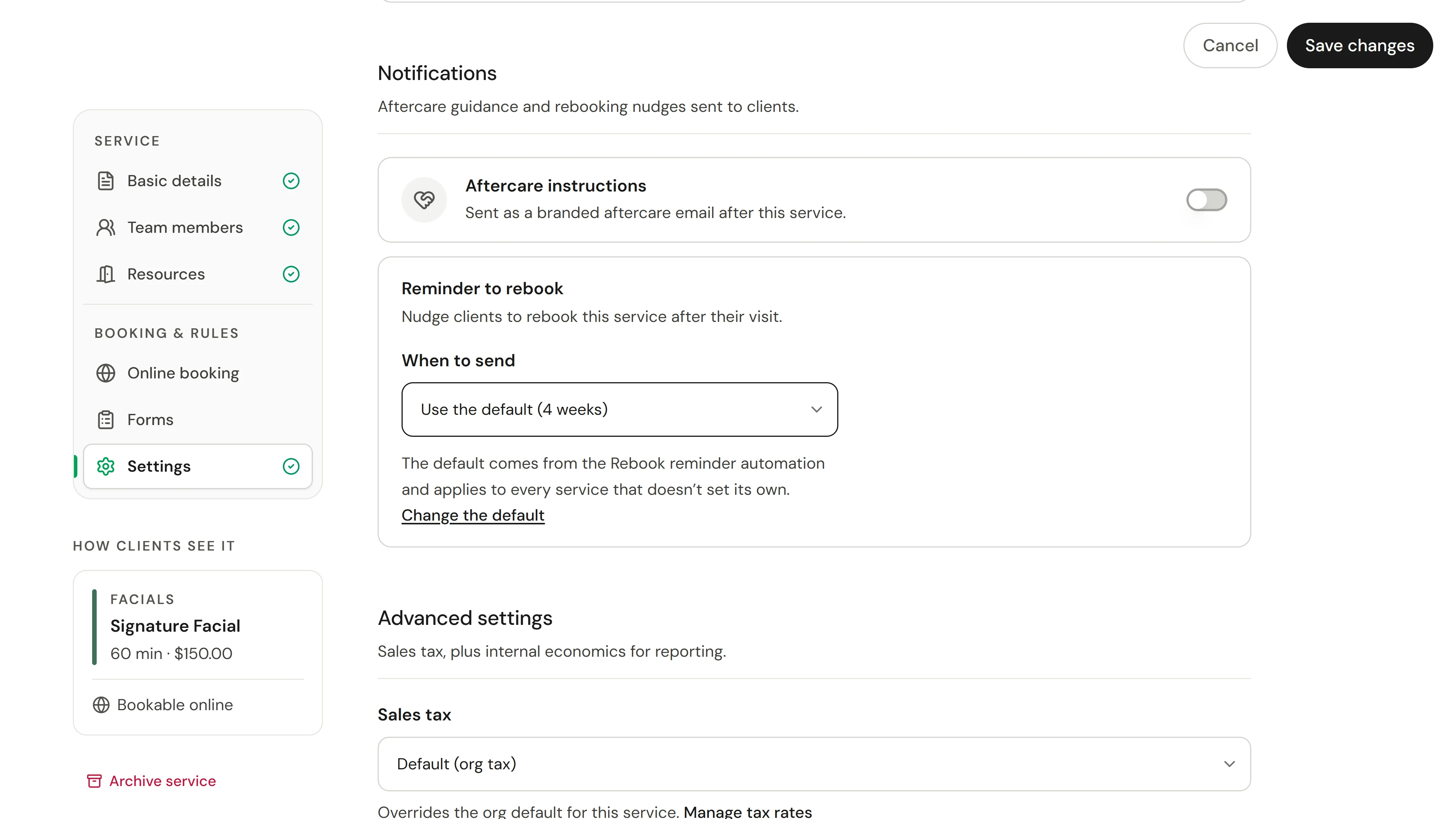
3. Find the service timing
In Operations, open Services, choose the service, then Settings. Under Reminder to rebook, review When to send. The service can use the business default, choose Custom timing, or choose Don’t send for this service. The recording previews these choices without saving.
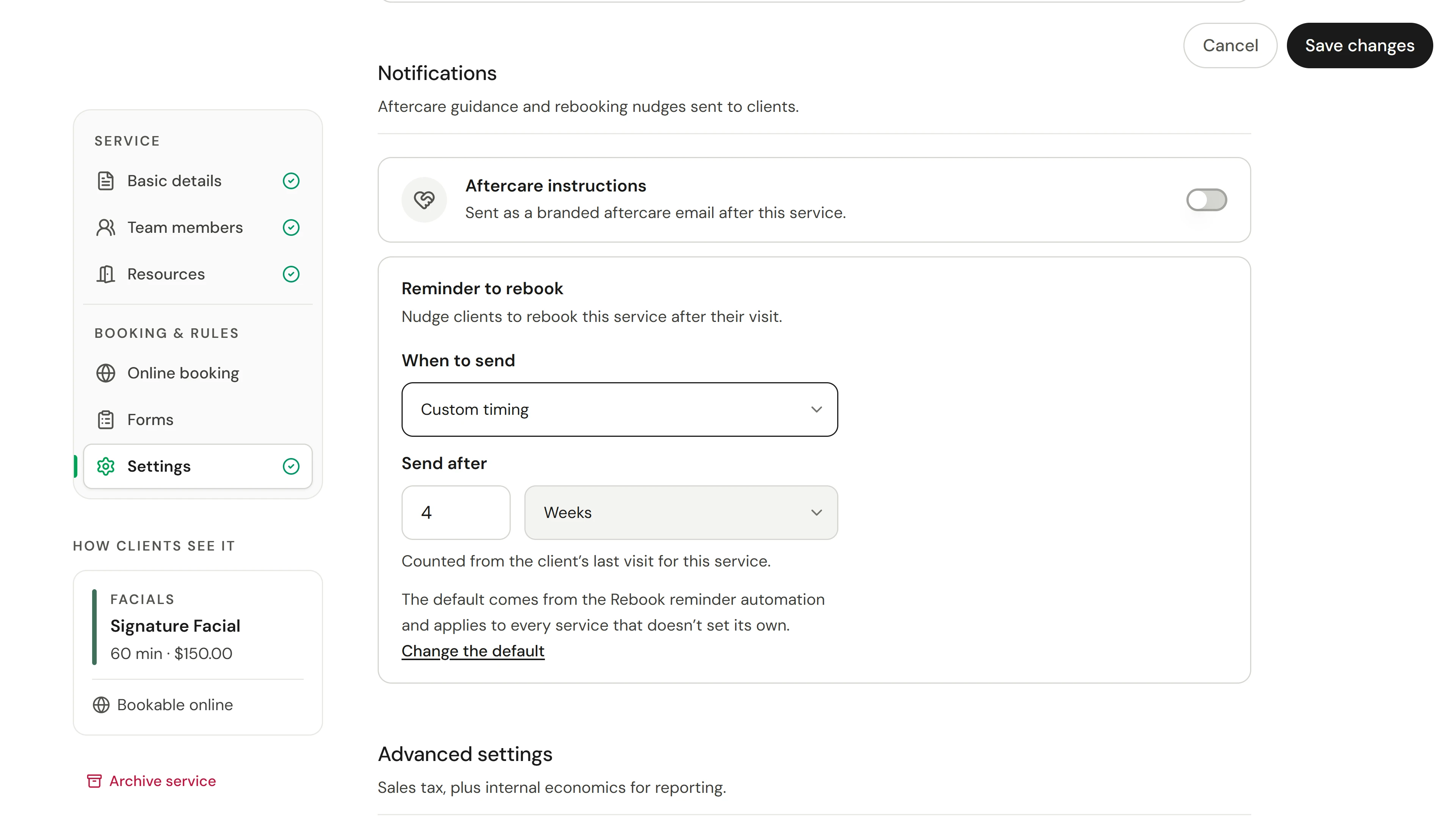
4. Read the interval and safeguards
Choose Custom timing to show this service’s Send after value and unit. The interval can be in days or weeks. Agree a suitable interval with the team before saving a real change. The recording leaves the editor without saving. The business automation must also be enabled for reminders to send; an interval is not clinical advice.
5. Follow bookings in the report
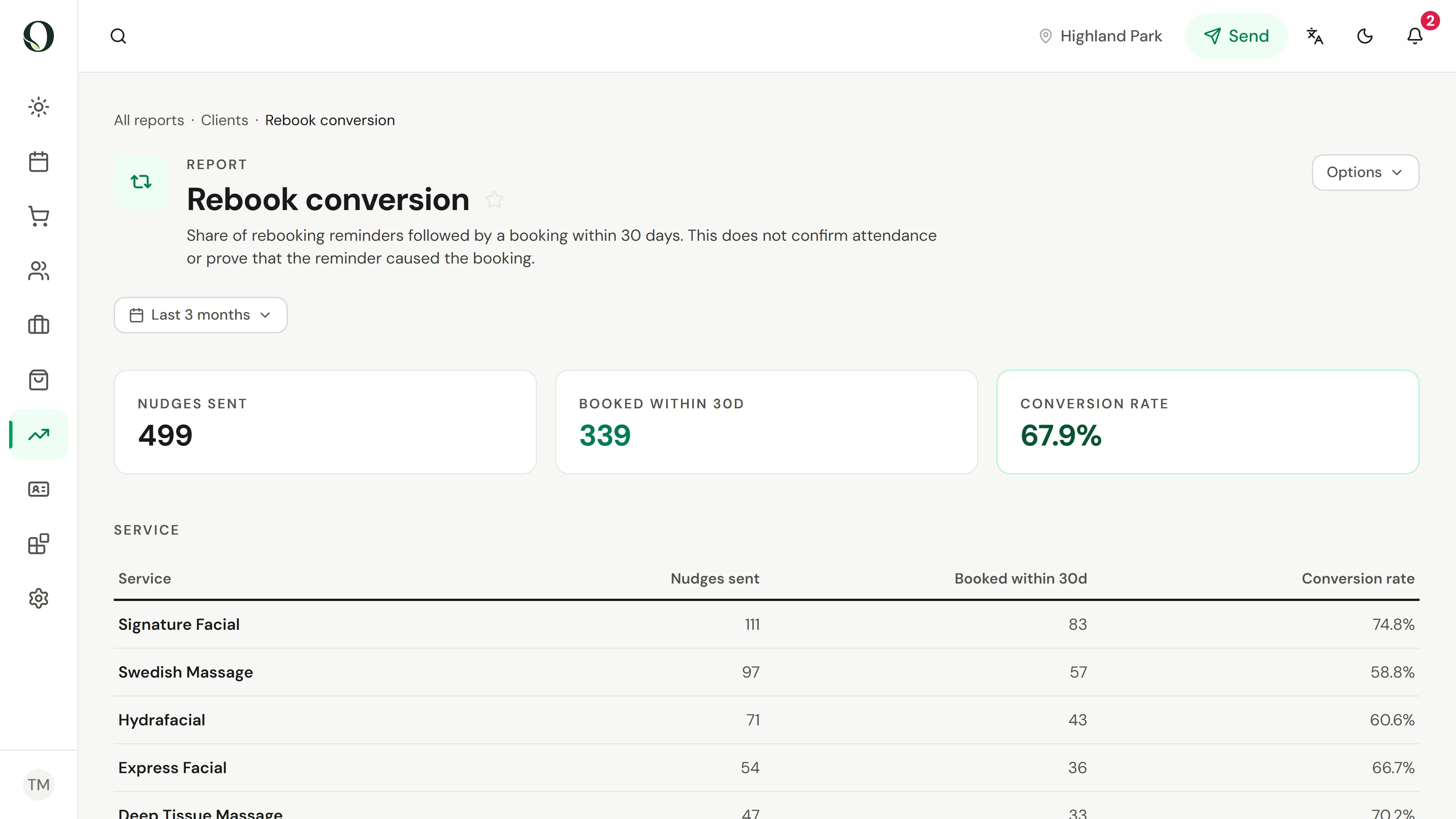
Open Reports and Rebook conversion. Review the date range, nudges and later bookings. The report uses a thirty day booking window; check actual attendance separately. Small samples and overlapping messages need care when interpreting the result.
Aprofundar