

For partners A real situation
Clients miss visits. Make the next step clear.
Find where missed visits happen, check what the reminder tells clients and offer a freed slot to someone waiting.
Recorded in a demo workspace. Narrated, with captions on.
Find the pattern
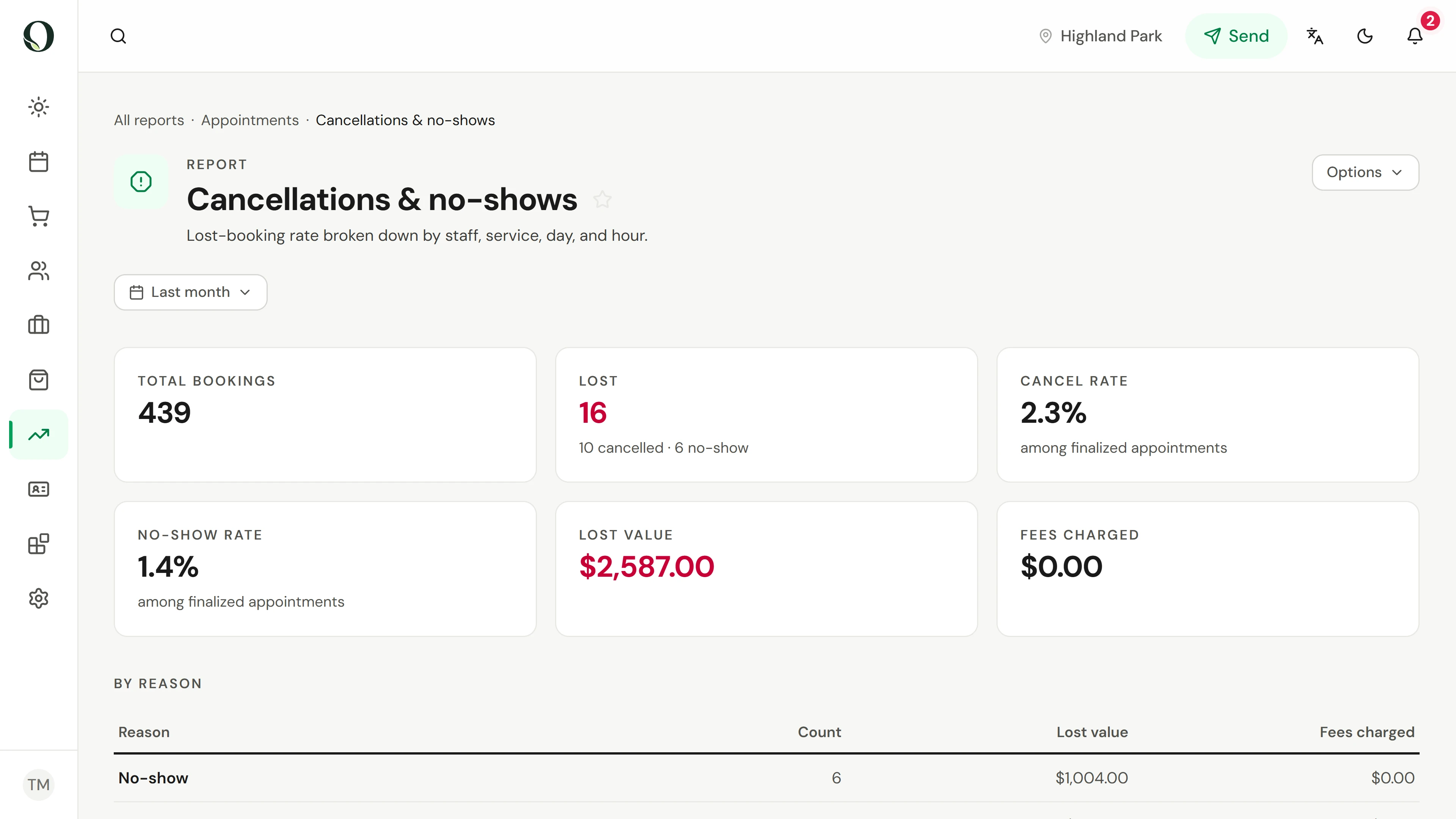
In Reports, open Cancellations & no-shows and choose a whole month. Lost counts the visits that did not happen, split into cancellations and no-shows. No-show rate is the share of finished bookings where the client neither came nor cancelled.
The situation
Put it into practice.
The team keeps discovering an empty appointment slot after it is too late to fill it. Before adding more messages or changing the policy, look at where the booking journey becomes unclear.
What you will take away
A practical check of when visits are lost, what the reminder tells clients and how a freed slot reaches someone on the waitlist.
Before you start
You need permission to see reports and to manage automations. Review a small set of recent missed visits without blaming individual clients. This lesson does not prescribe fees or replace local legal requirements.
Keep in mind
A sent reminder is not proof that it was delivered or read. An advance cancellation is different from a missed visit, and an offered replacement slot is not a confirmed booking.
Try the decision
The report says a reminder was sent, but the client missed the visit. What should you check first?
Read the full walkthrough
1. Find the pattern
In Reports, open Cancellations & no-shows and choose a whole month. Lost counts the visits that did not happen, split into cancellations and no-shows. No-show rate is the share of finished bookings where the client neither came nor cancelled.
2. See when it happens
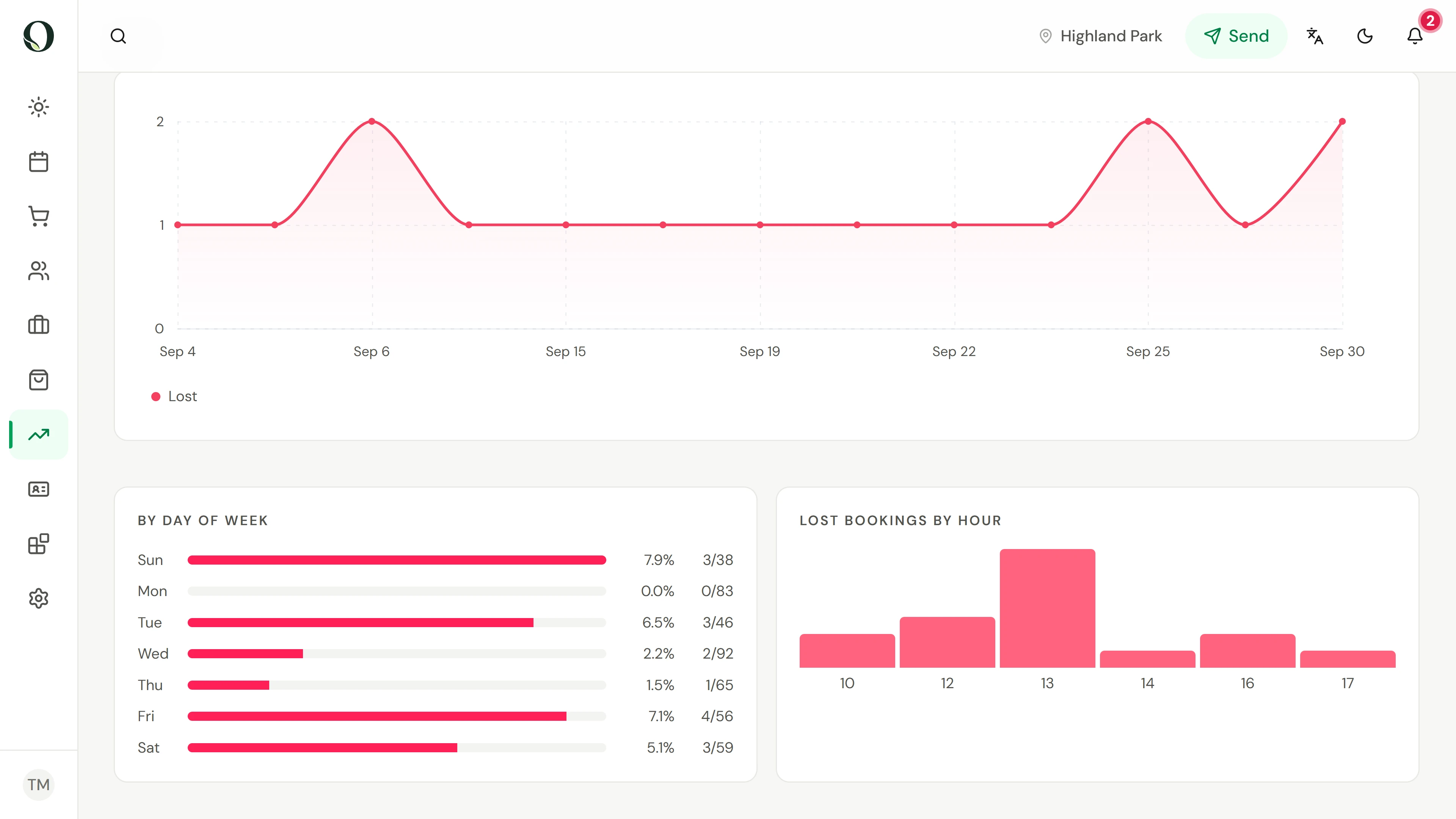
Scroll to By reason to see why clients cancelled, with no-shows on a line of their own. By day of week then shows which days lose the most visits. A pattern tells you where to look first. Treat it as a process to improve, not a client to blame.
3. Read the reminder clients get
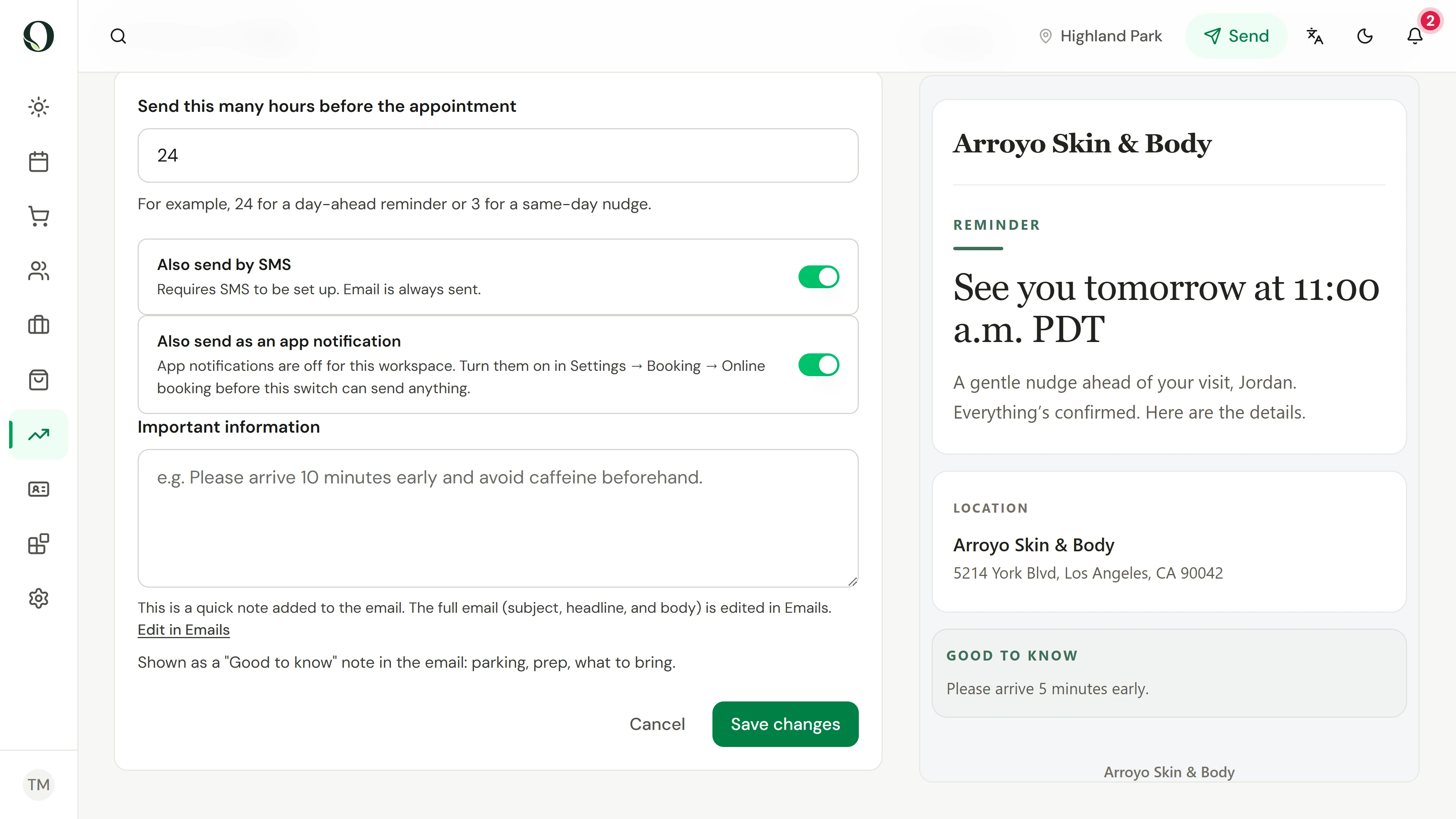
In Automations, open the 24-hour reminder and choose Details to read the message clients receive. Check that it gives the right time and place and a clear way to change the booking. Configure message holds an Important information note for arrival details, such as parking or what to bring. Nothing is saved here.
4. Offer the time to someone waiting
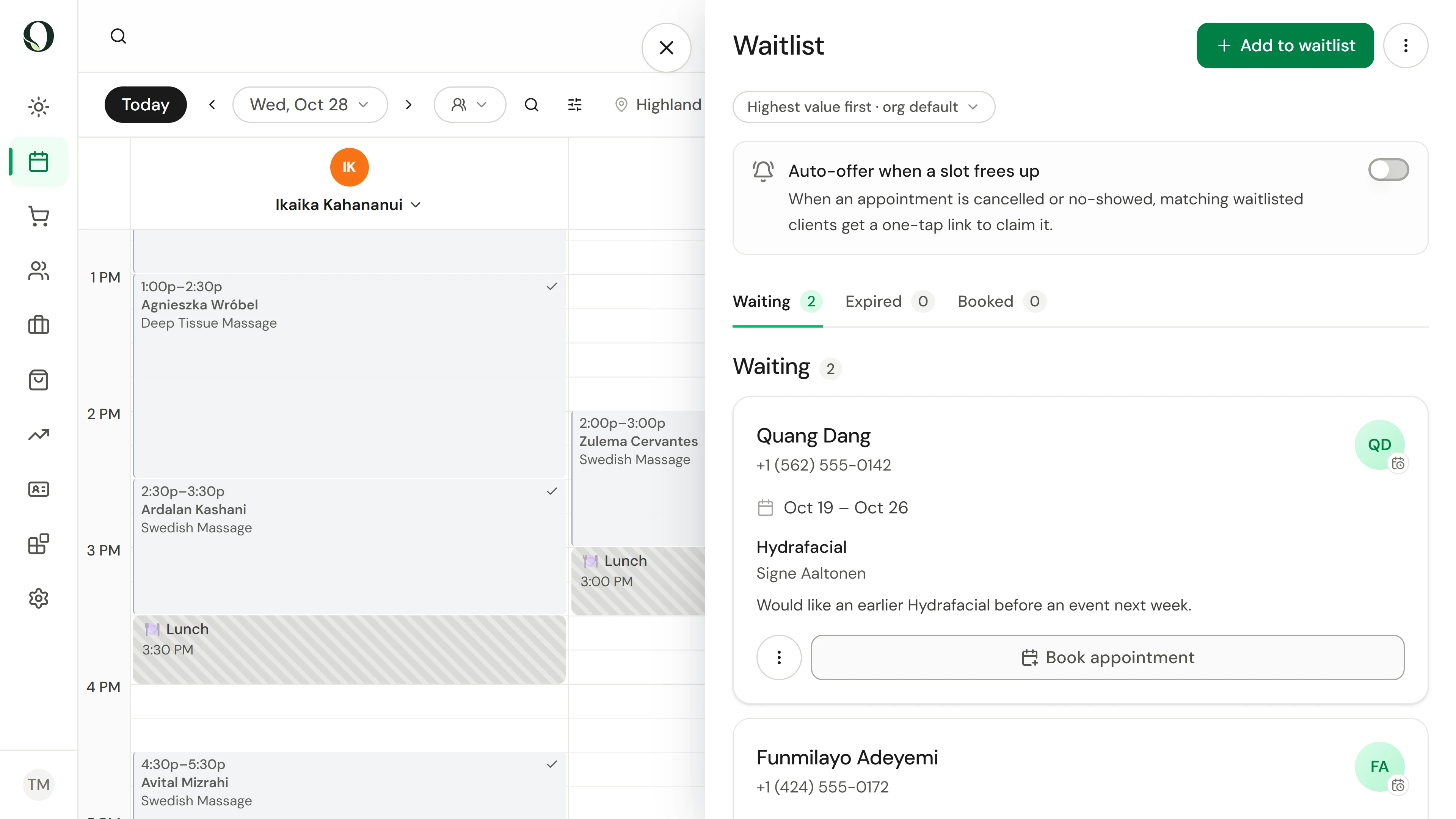
On the Calendar, open the waitlist. With auto-offer on, a cancelled or missed slot is offered to matching clients, who claim it with one tap. You can also book someone from their entry with Book appointment. An offer is not a booking until the client accepts.
Sources and further reading
Booking and Scheduling Software for Salons, MindbodyGo deeper