

For partners A real situation
A client returns a product. Find the sale and refund it.
Find a past sale, open its receipt, and refund one item back to the way it was paid.
Recorded in a demo workspace. Narrated, with captions on.
Find the sale
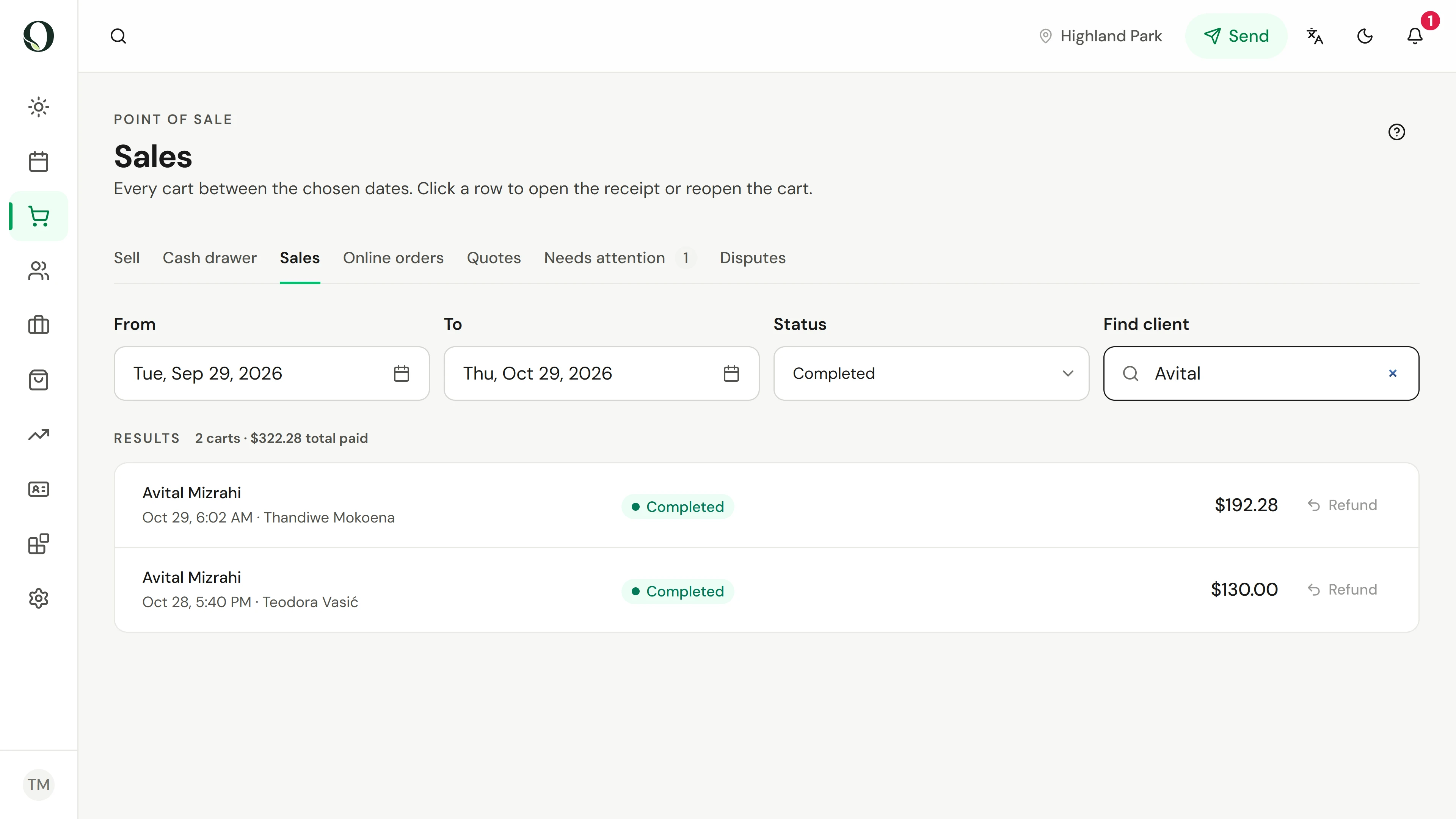
Open Sales. Set the dates and status, or type the client's name in Find client.
The situation
Put it into practice.
A client brings back the body lotion they bought, unopened. They want their money back for that item; the treatment stays paid.
What you will take away
You can find any sale, open its receipt, and refund the whole sale, chosen items or an amount.
Before you start
Refunds need permission to refund sales. A card refund goes back to the card; a cash refund comes out of the open drawer.
Keep in mind
Refunding items takes back the loyalty points they earned, and restocking returns products to inventory. A reason is required and kept on the audit log. A card dispute is answered in Disputes, not with a refund.
Try the decision
A client returns one product from a visit that also had a treatment. Which refund fits?
Read the full walkthrough
1. Find the sale
Open Sales. Set the dates and status, or type the client's name in Find client.
2. Open the receipt
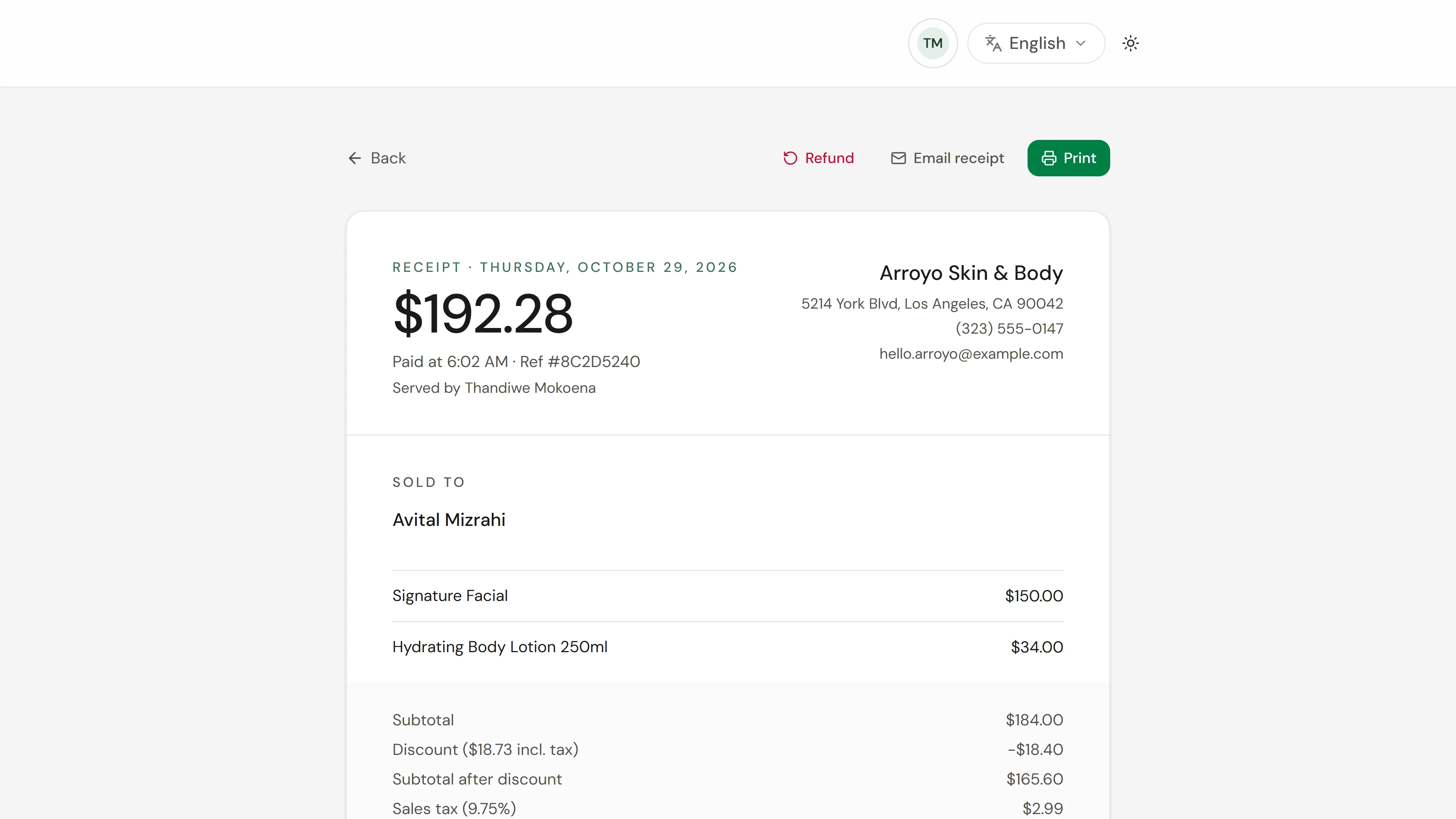
Select the sale to open its receipt: what was sold, the tax, the tip and how it was paid.
3. Start the refund
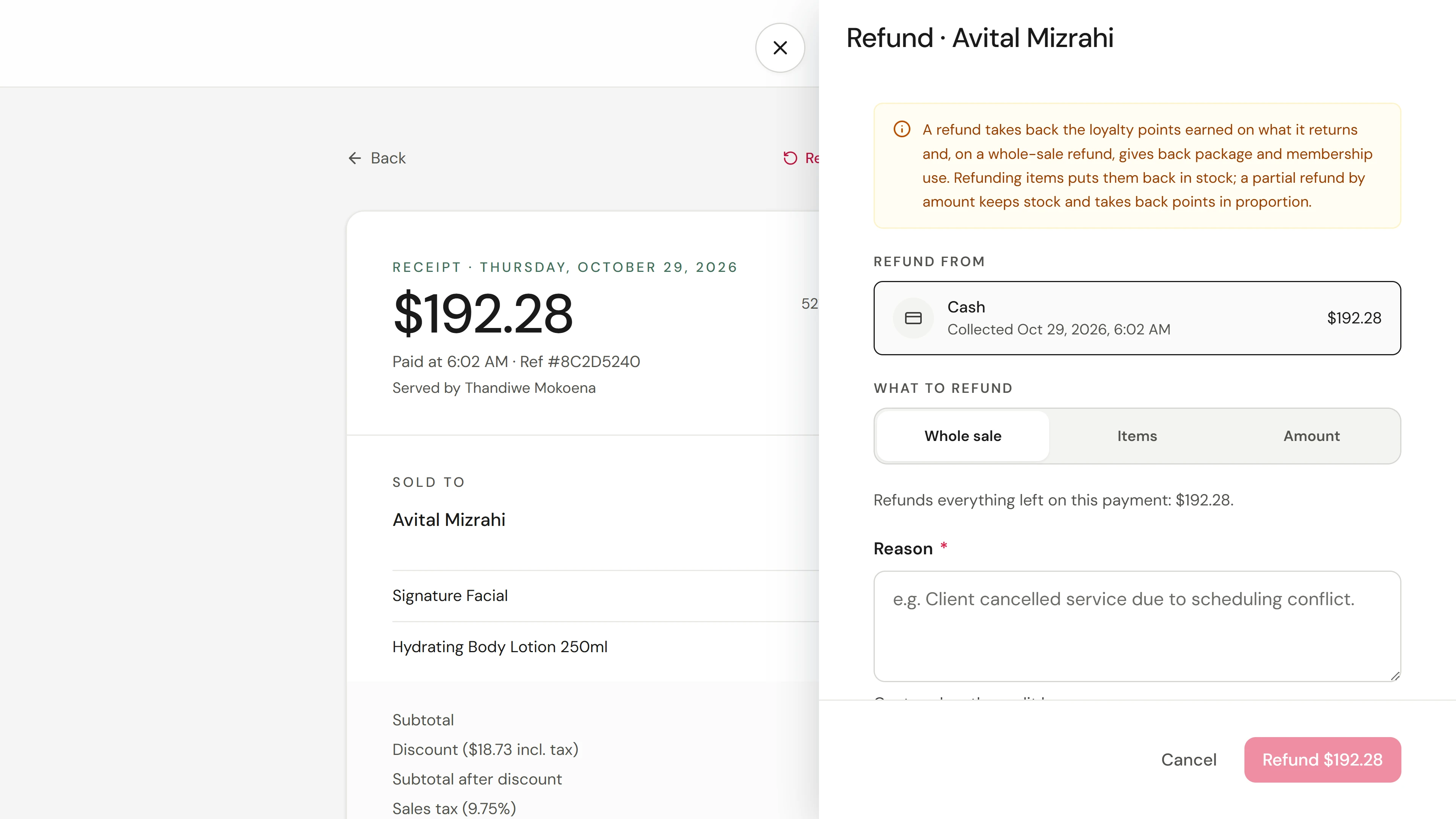
Choose Refund. Check which payment the money goes back to; a cash refund comes out of the drawer.
4. Choose the items
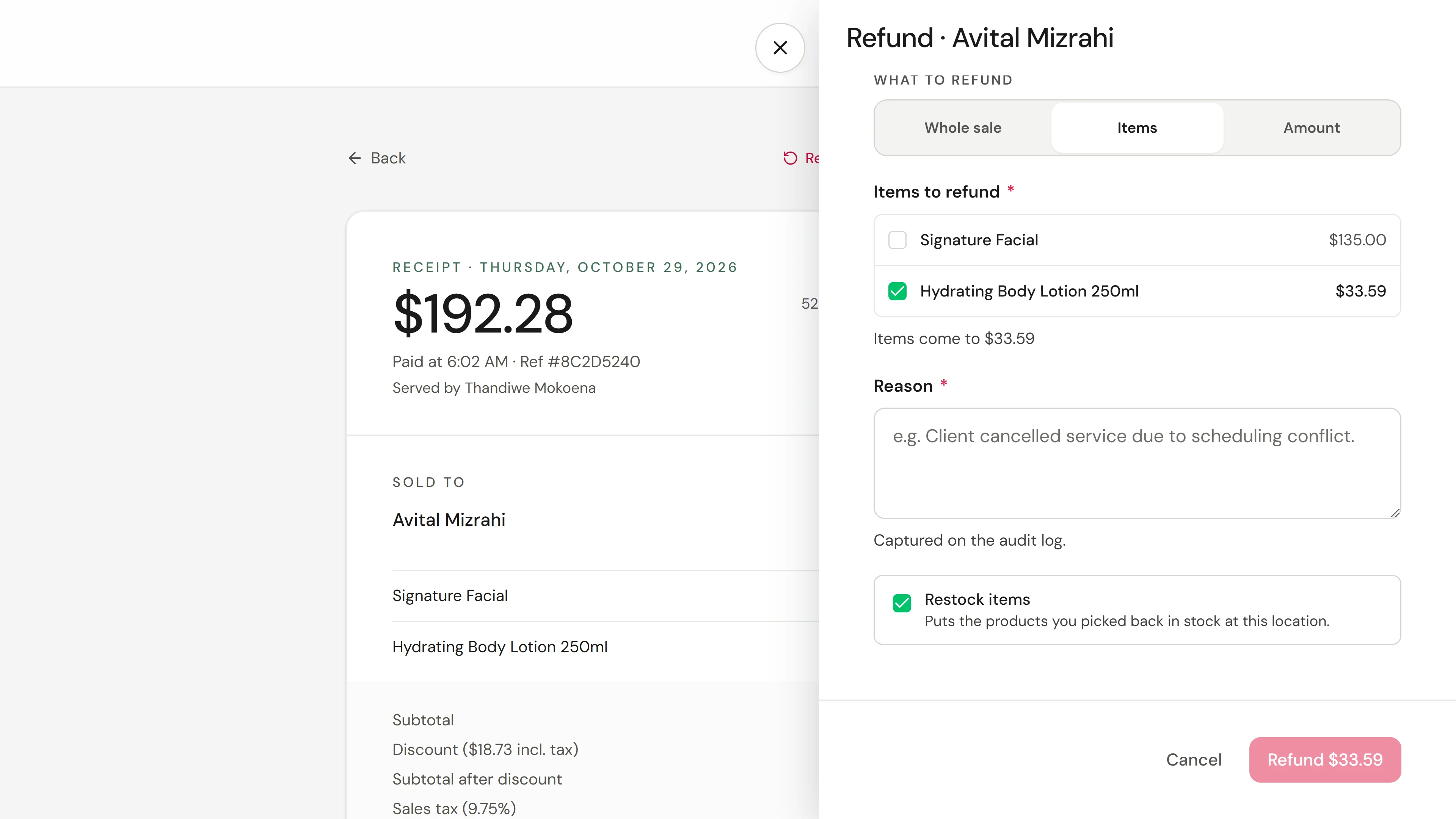
Choose Items and select only what is coming back. Whole sale refunds everything left; Amount refunds a set amount. Keep Restock items on for a product that goes back on the shelf.
5. Give a reason and refund
Write the reason, check the amount on the button, and confirm.
6. Check the result
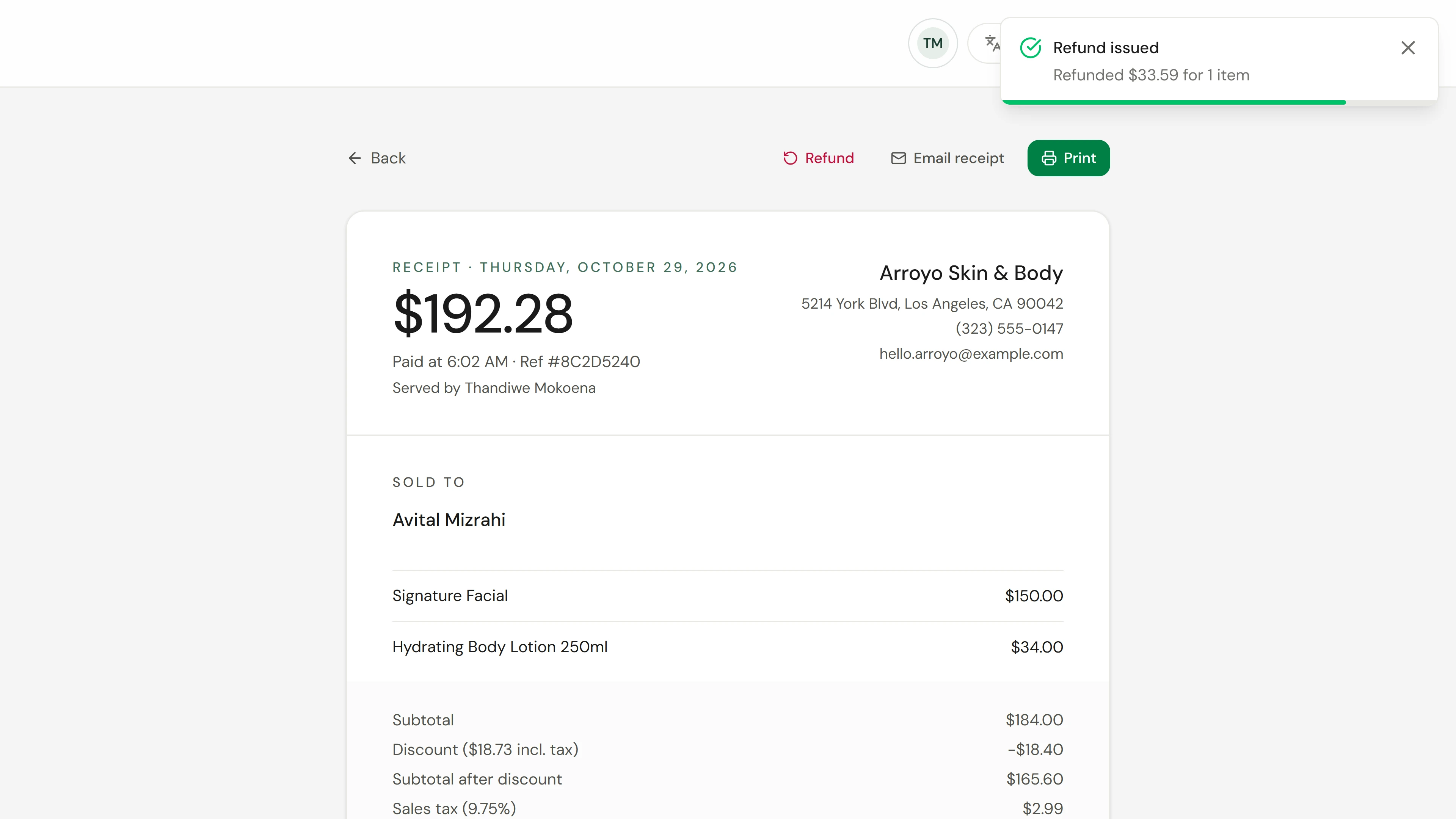
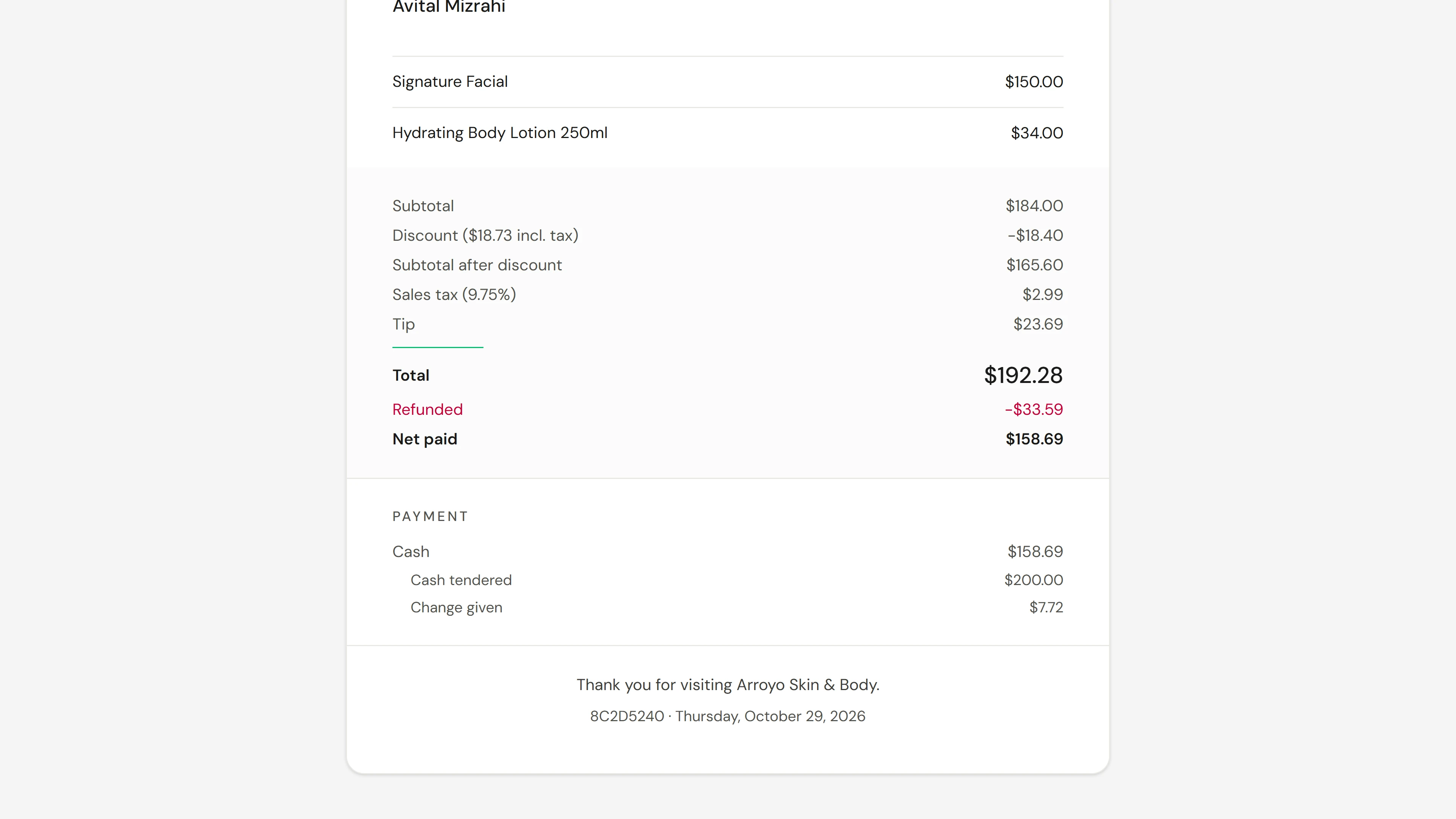
The sale now shows the refund. The treatment stays paid; only the returned item was refunded.
Go deeper