

For clients A real situation
Find your visits without calling the front desk.
See where your bookings live in the client portal, book your next visit and find it with the others.
Recorded in a demo workspace. Narrated, with captions on.
Start in your portal
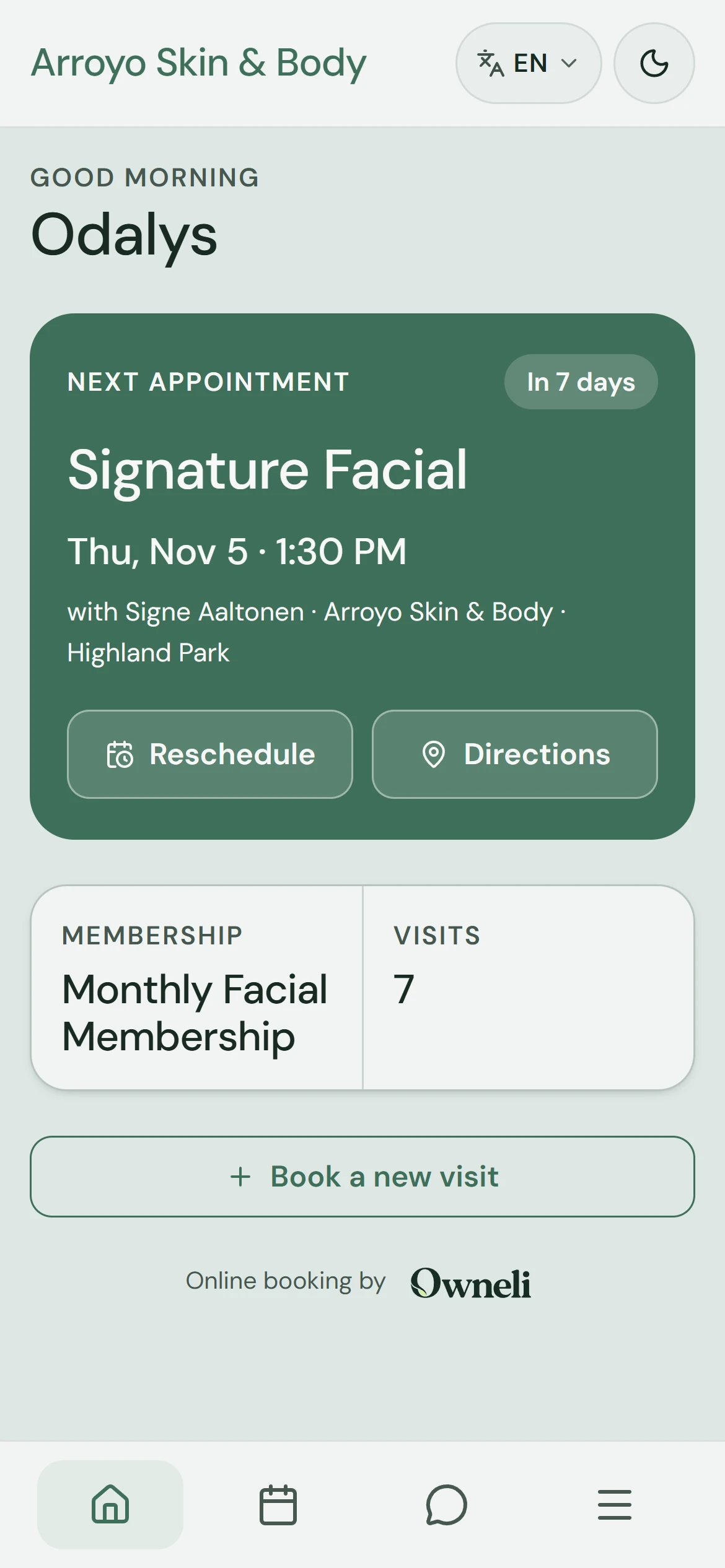
The home screen shows your next appointment and a button to book a new visit. Branding may look different for each business.
The situation
Put it into practice.
You want to check a visit or book again. Your client portal brings the visits linked to your account into one place.
What you will take away
You know how to find your appointments, book another visit and check that it arrived.
Before you start
Sign in to your client account with the email or phone associated with the booking. Check which business you are viewing.
Keep in mind
Rescheduling and cancellation depend on the business policy and timing. If a visit is missing, check the account used to book and contact the business rather than making a duplicate booking.
Try the decision
You cannot find an appointment you already booked. What is a useful first check?
Read the full walkthrough
1. Start in your portal
The home screen shows your next appointment and a button to book a new visit. Branding may look different for each business.
2. Open your visits
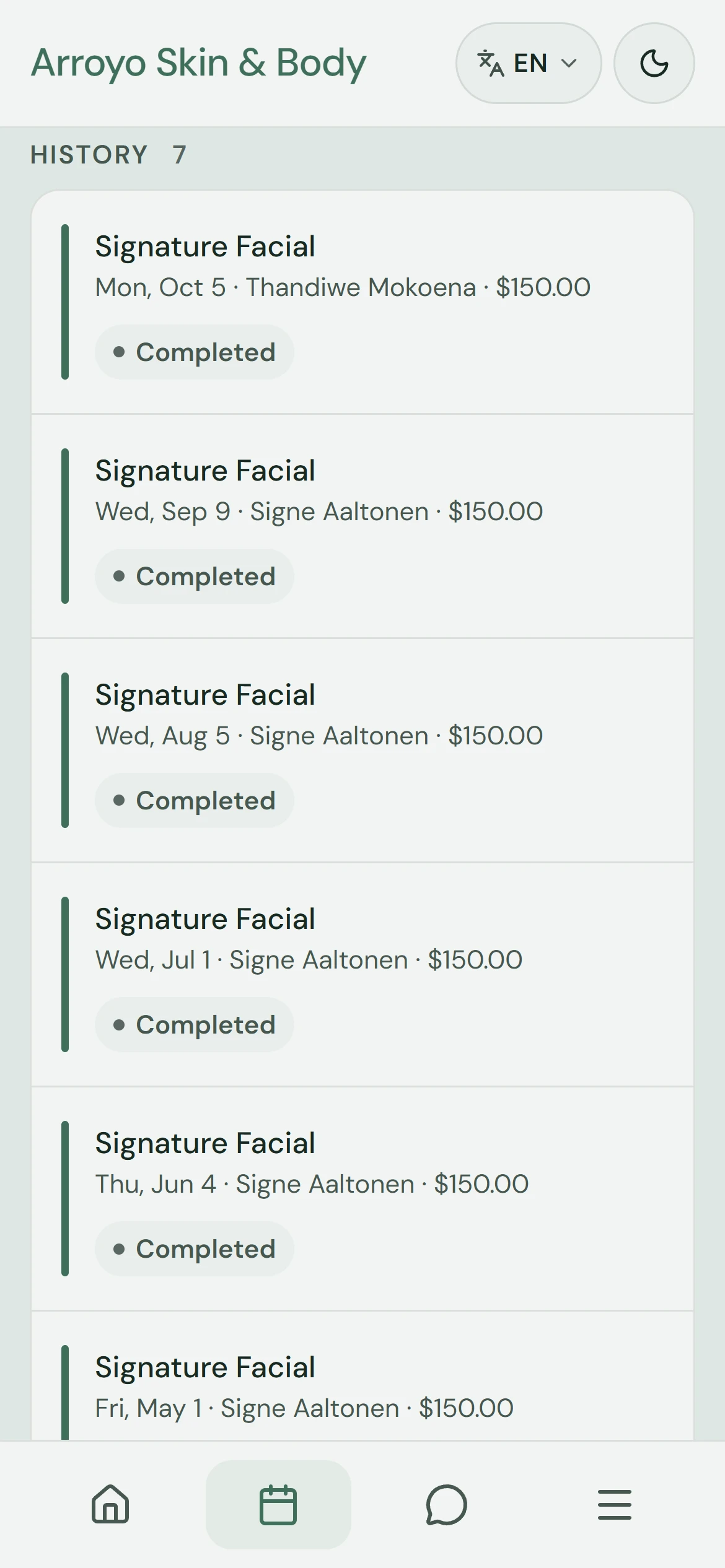
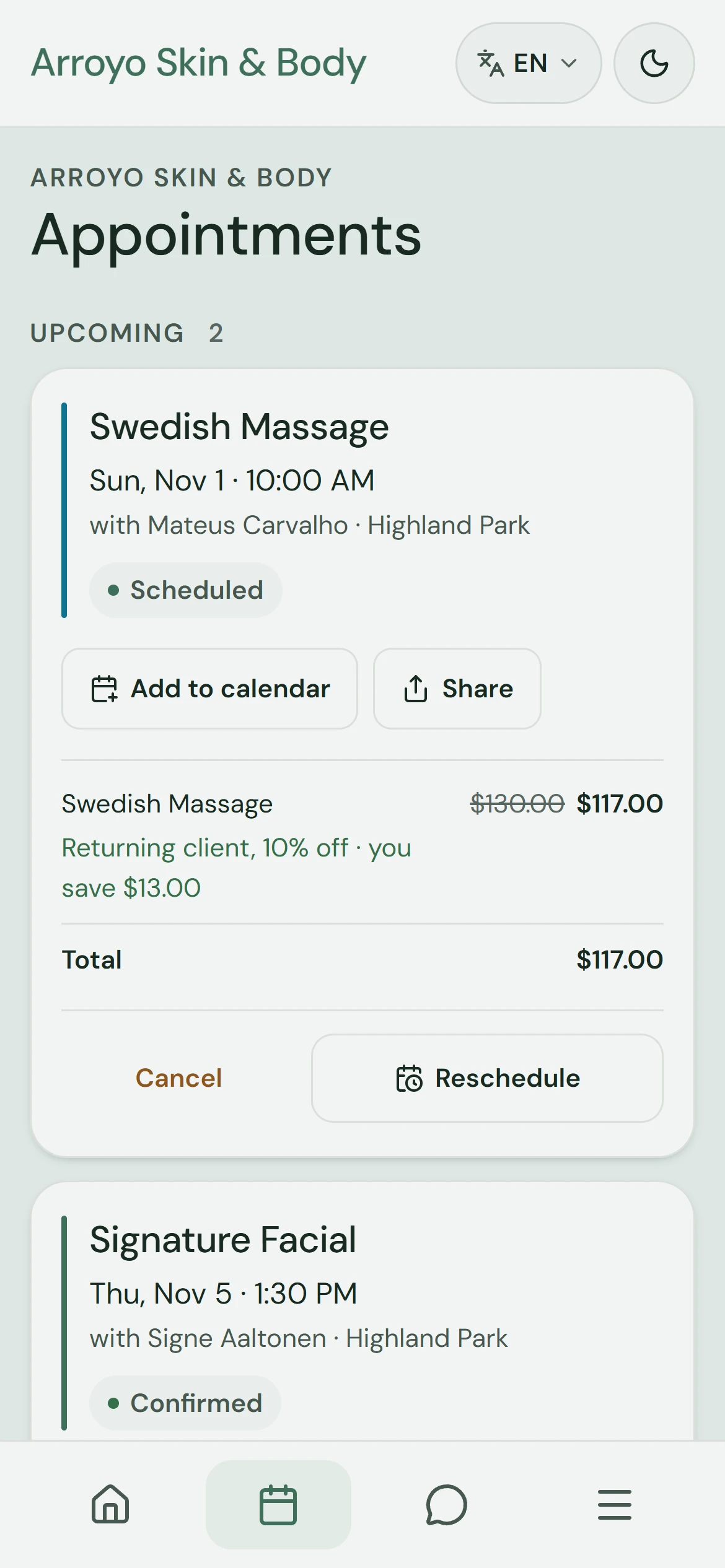
Tap Visits to see upcoming and previous visits. An upcoming visit shows the actions that business allows, such as Cancel or Reschedule.
3. Start a new booking
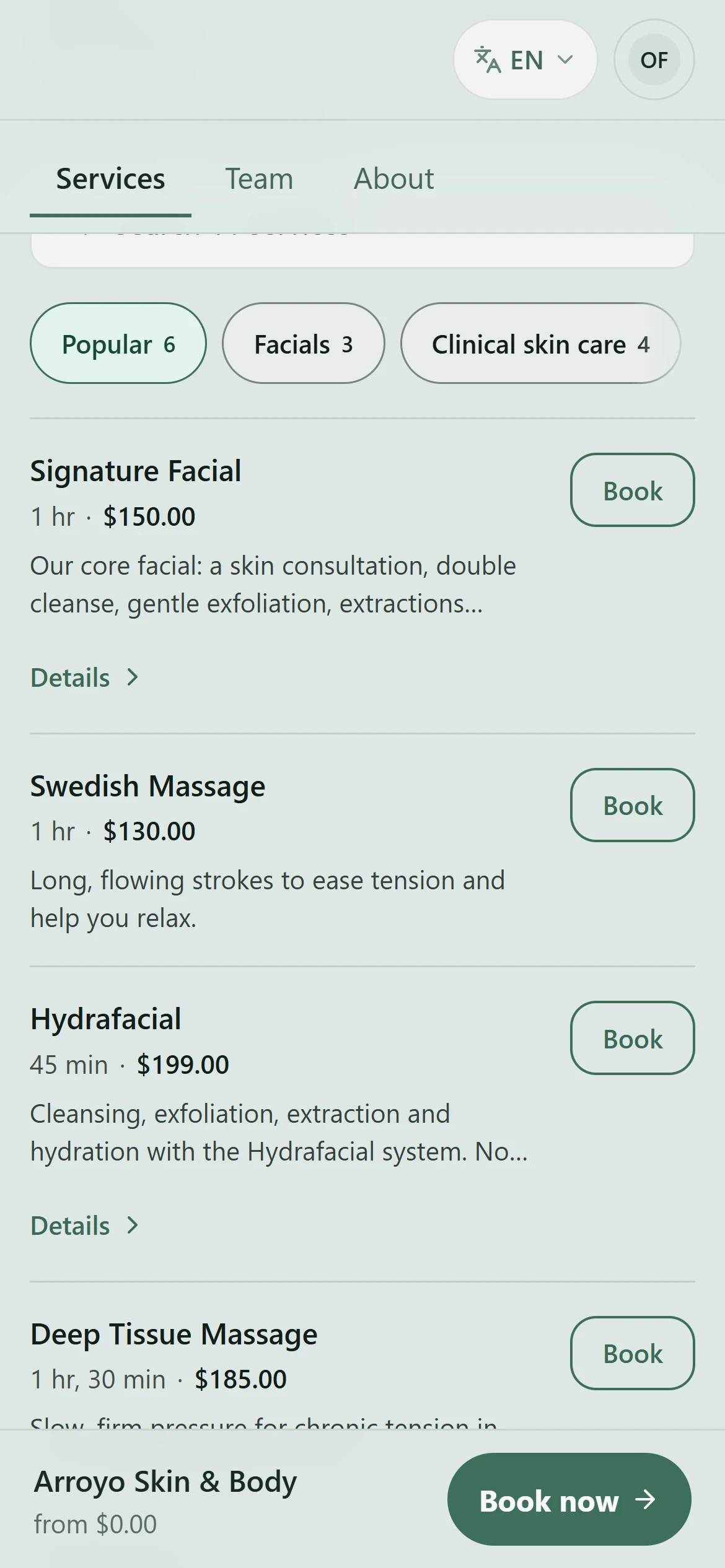
Return home and choose Book a new visit. The business's booking page opens on its services; find the one you want. A business with more than one location asks you to choose one first.
4. Choose who and when
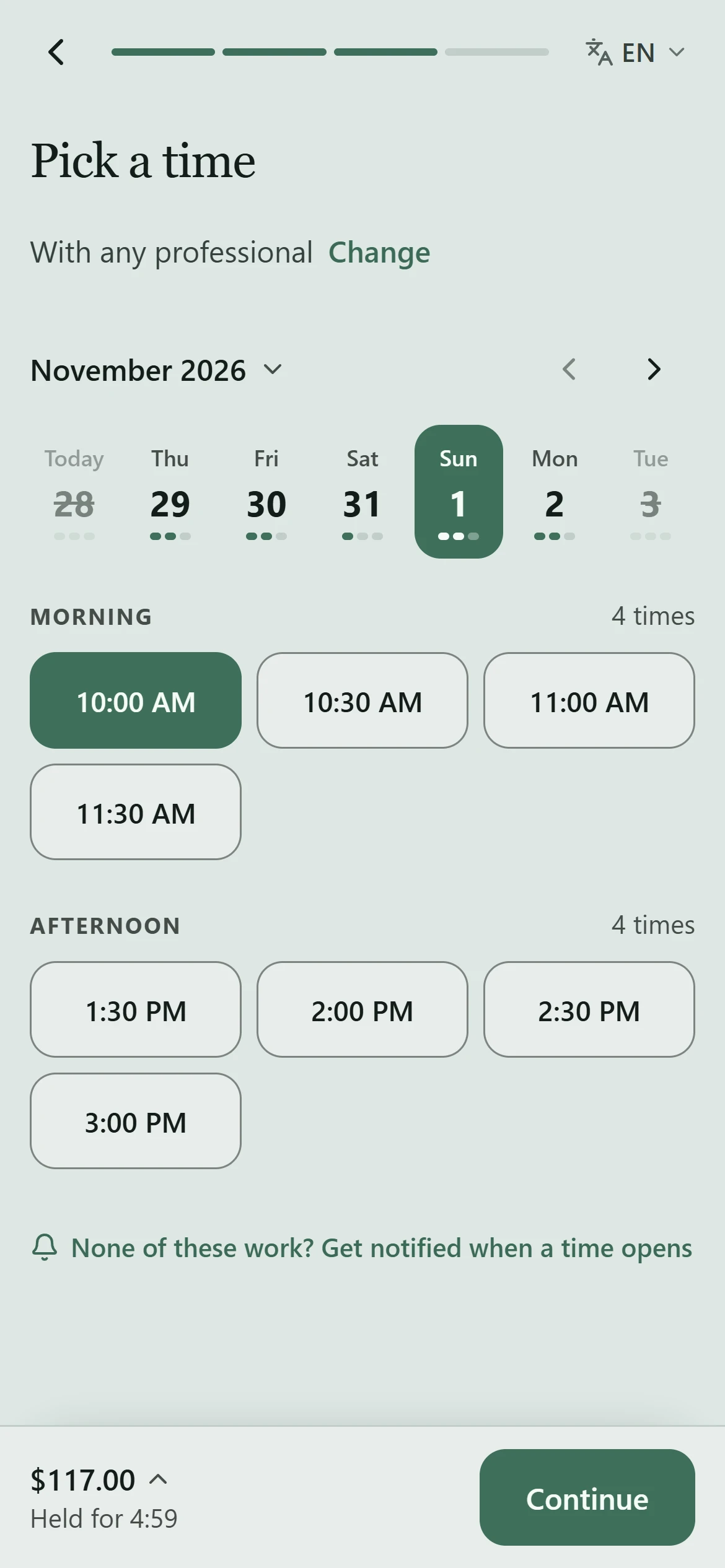
Choose Book beside the service, then a professional, or Any professional for the most availability. Pick a day and a time. The time is held for you for a few minutes while you finish.
5. Check and confirm
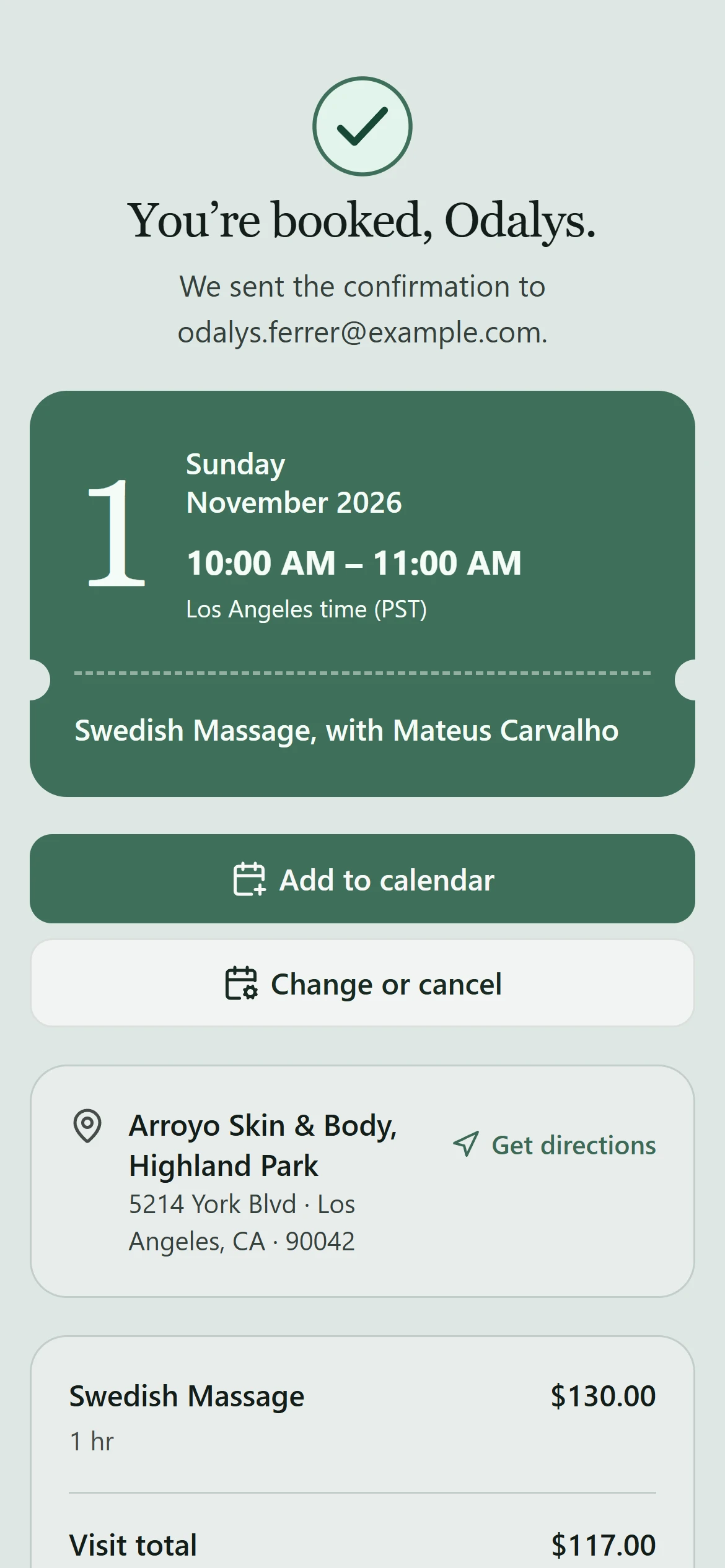
Your details come from your account. Check the service, the time and the total, including any discount the business applies, then choose Confirm. The confirmation shows your visit with its date and time.
6. Find it with your visits
Open Visits again. The new booking is with your upcoming visits, where you can change it if the business allows. The business may also confirm it by email or text.
Go deeper