

For partners A real situation
An online order is waiting. Get it to the client.
Find a new storefront order, mark it ready when it is packed, and complete it when the client collects.
Recorded in a demo workspace. Narrated, with captions on.
Find new orders
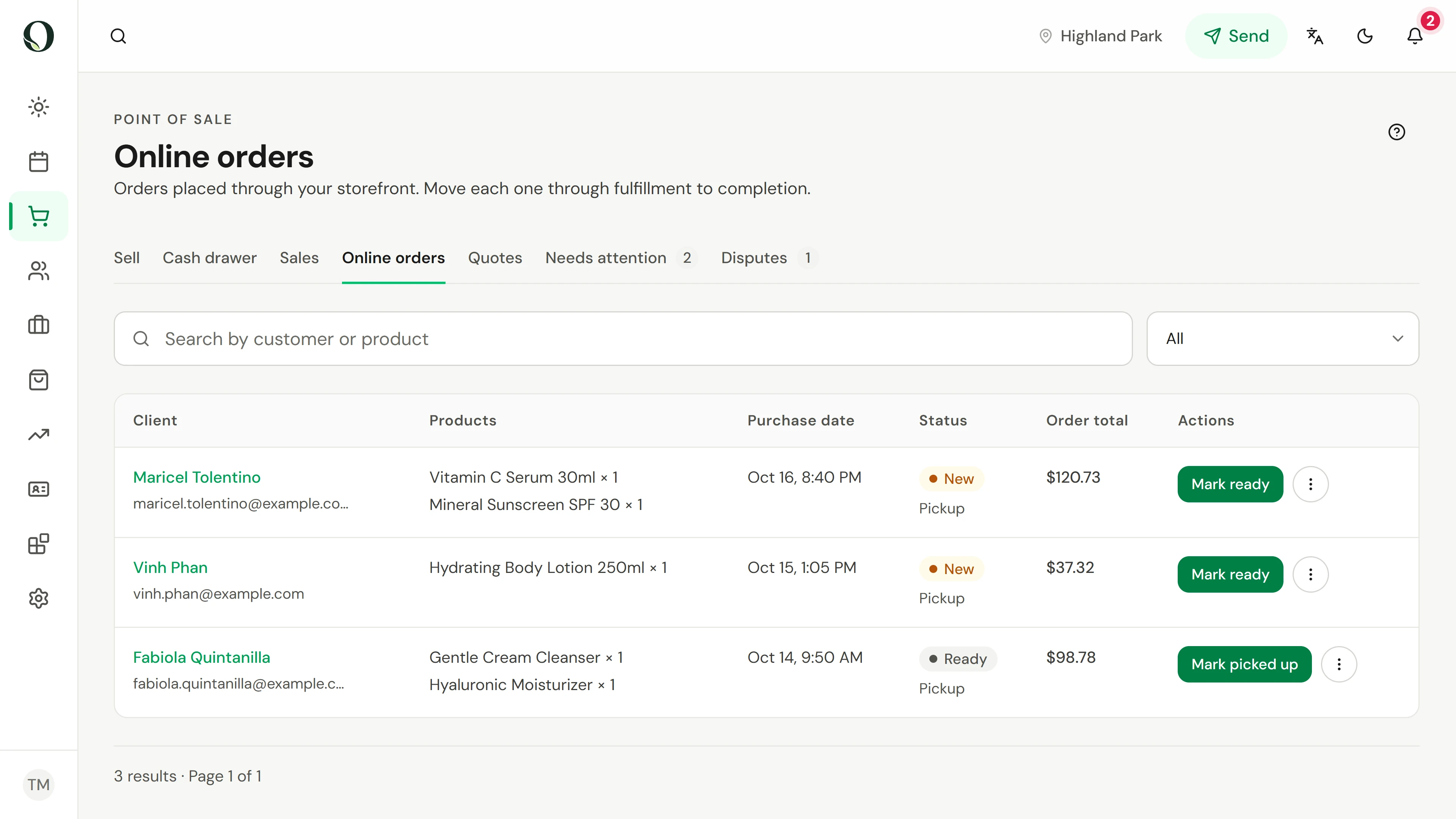
Open Online orders. Search by customer or product, or filter by status.
The situation
Put it into practice.
A client ordered a skincare routine from your online store, to collect in person. Pack it, mark it ready, and complete it when they pick it up.
What you will take away
You can move an online order through fulfilment to completed.
Before you start
Online orders come from your storefront. Check the location you are viewing, and read how each order is collected under its status: pickup, reserved for a visit, or shipping.
Keep in mind
Mark an order ready only when it is packed. A shipped order moves to delivered instead of picked up. Once an order is completed it is final; a refund goes through its sale.
Try the decision
An order for pickup is still on the shelf, not packed. Should you mark it ready?
Read the full walkthrough
1. Find new orders
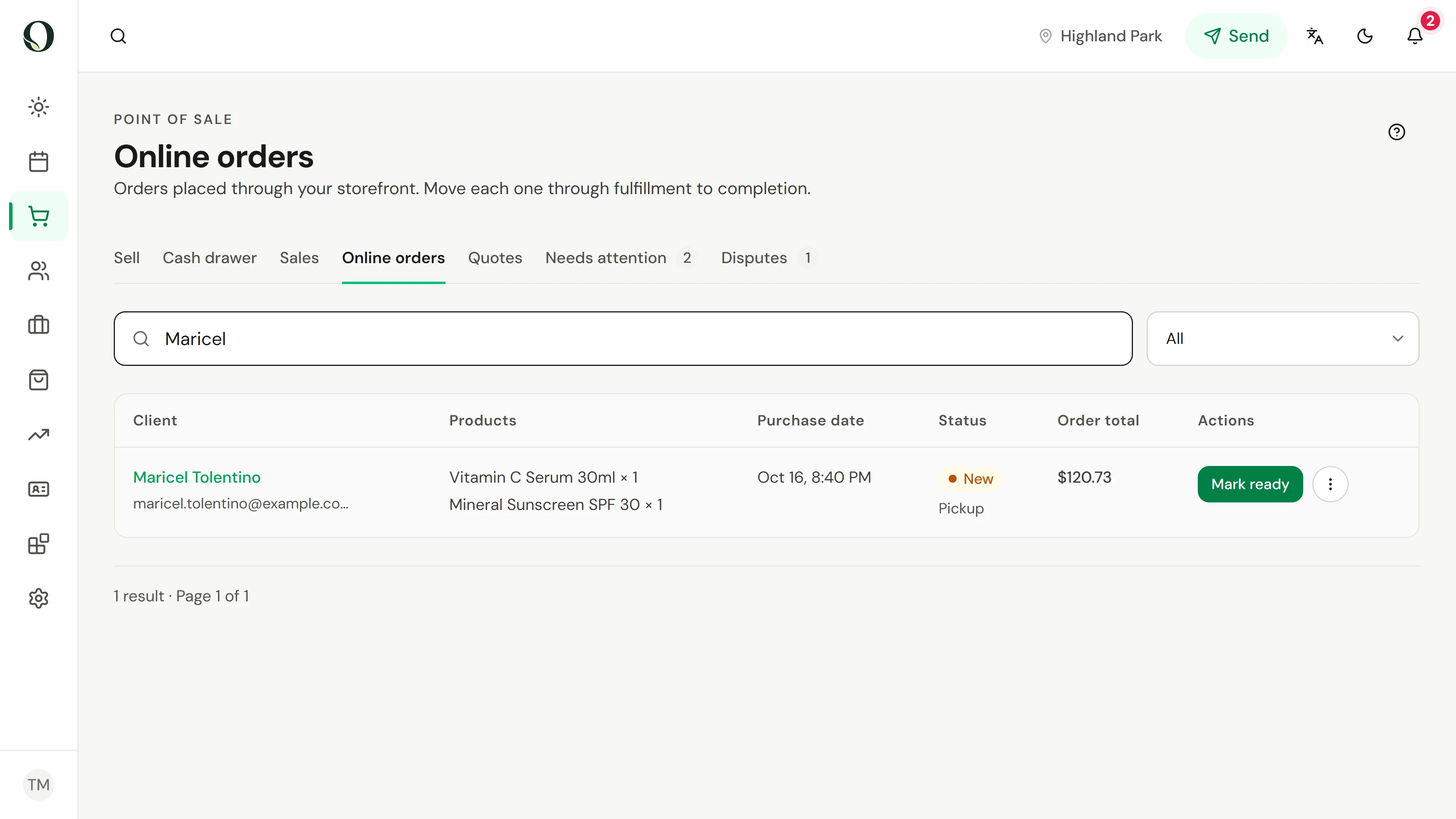
Open Online orders. Search by customer or product, or filter by status.
2. Check the order
Read the products, the total and how the order is collected, shown under its status, before you pack it.
3. Mark it ready
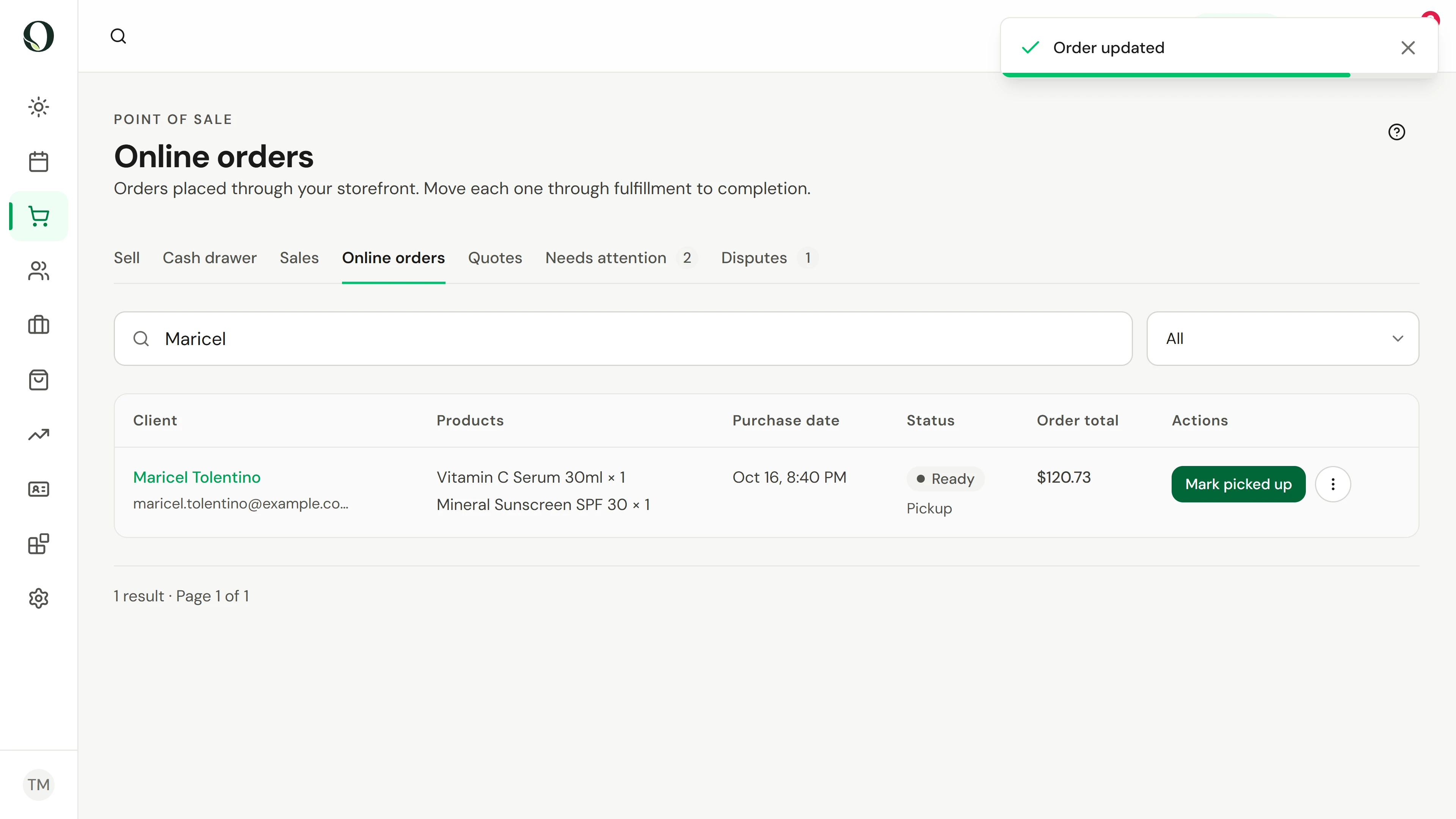
When it is packed, choose Mark ready. The status changes to Ready.
4. Hand it over
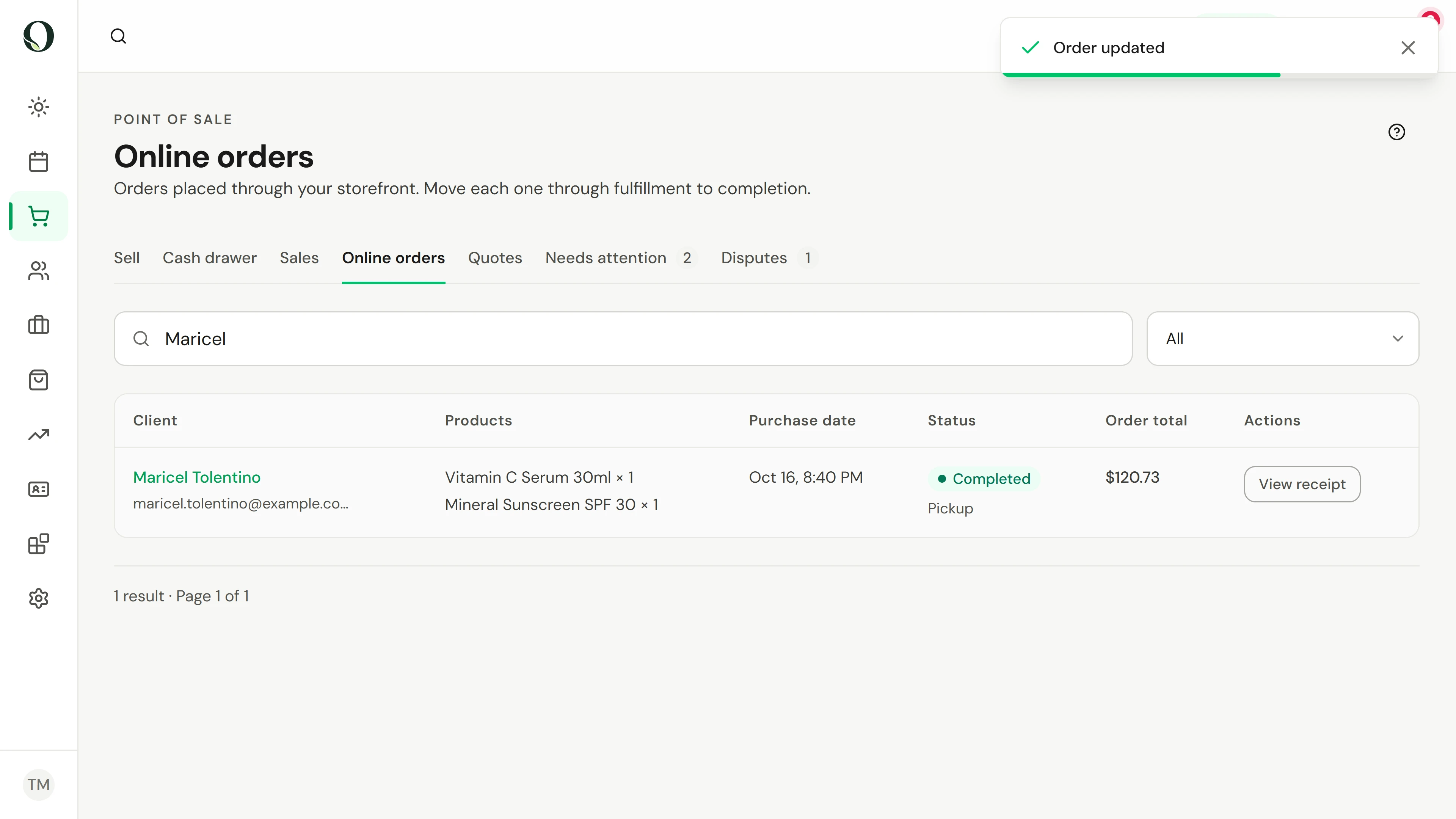
When the client collects, choose Mark picked up. The order is completed and keeps its receipt.
Go deeper