

Para parceiros Uma situação real
A client cancels late and another never arrives. Apply your payment policy.
Cancel a booking inside the cancellation window and keep its deposit as the fee, mark a no-show, and collect the no-show fee at the till when there is no card to charge.
Gravado num espaço de demonstração. Narrado e com legendas.
Esta gravação ainda não se encontra disponível no seu idioma, pelo que será reproduzida em inglês.
Open the visit
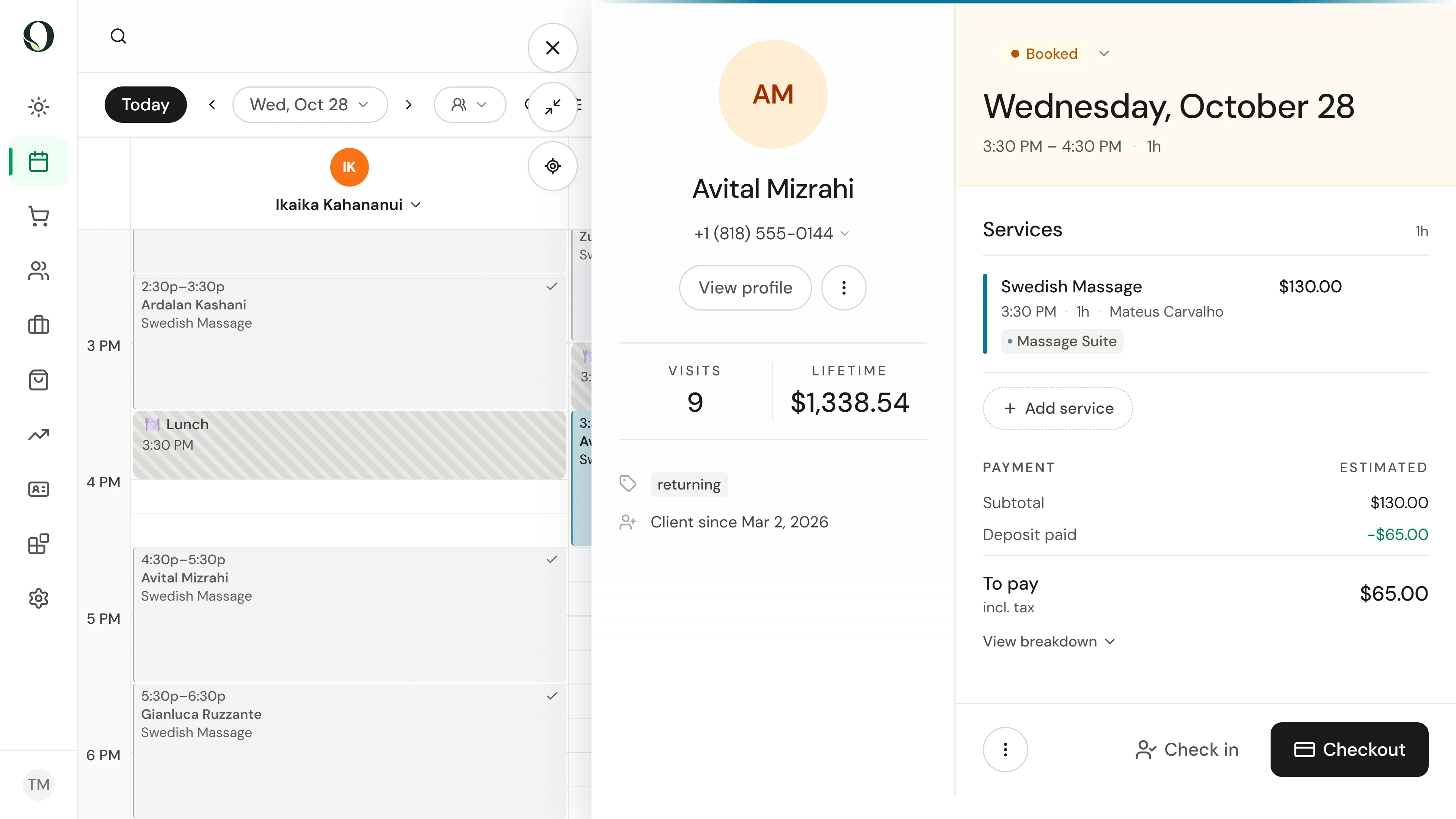
A client rings to cancel today's booking. Open it from the calendar: the payment summary shows the deposit they paid when they booked.
A situação
Pôr em prática.
A client rings this morning to cancel today's treatment, and they paid a deposit when they booked. Your first client of the day never arrived. Apply the payment policy to both.
O que vai aprender
You can cancel a visit and decide what happens to its deposit, mark a no-show, and collect a fee the card could not pay.
Antes de começar
The amounts come from your payment policy in Settings, or from the location's own policy. Cancelling and marking a no-show need appointment permission; collecting a fee needs point-of-sale permission.
Tenha em atenção
Nothing is charged or refunded until you confirm, and the dialog shows the amounts first. When a deposit is kept or a fee is charged, the client is always told. Refunding or keeping money against the policy needs a reason. A fee can only be charged to a saved card; without one, Collect fee takes it at the till.
Experimente a decisão
A client cancels inside the window, and you want to give their deposit back as a goodwill gesture. What do you do?
Ler o passo a passo completo
1. Open the visit
A client rings to cancel today's booking. Open it from the calendar: the payment summary shows the deposit they paid when they booked.
2. Cancel it with a reason
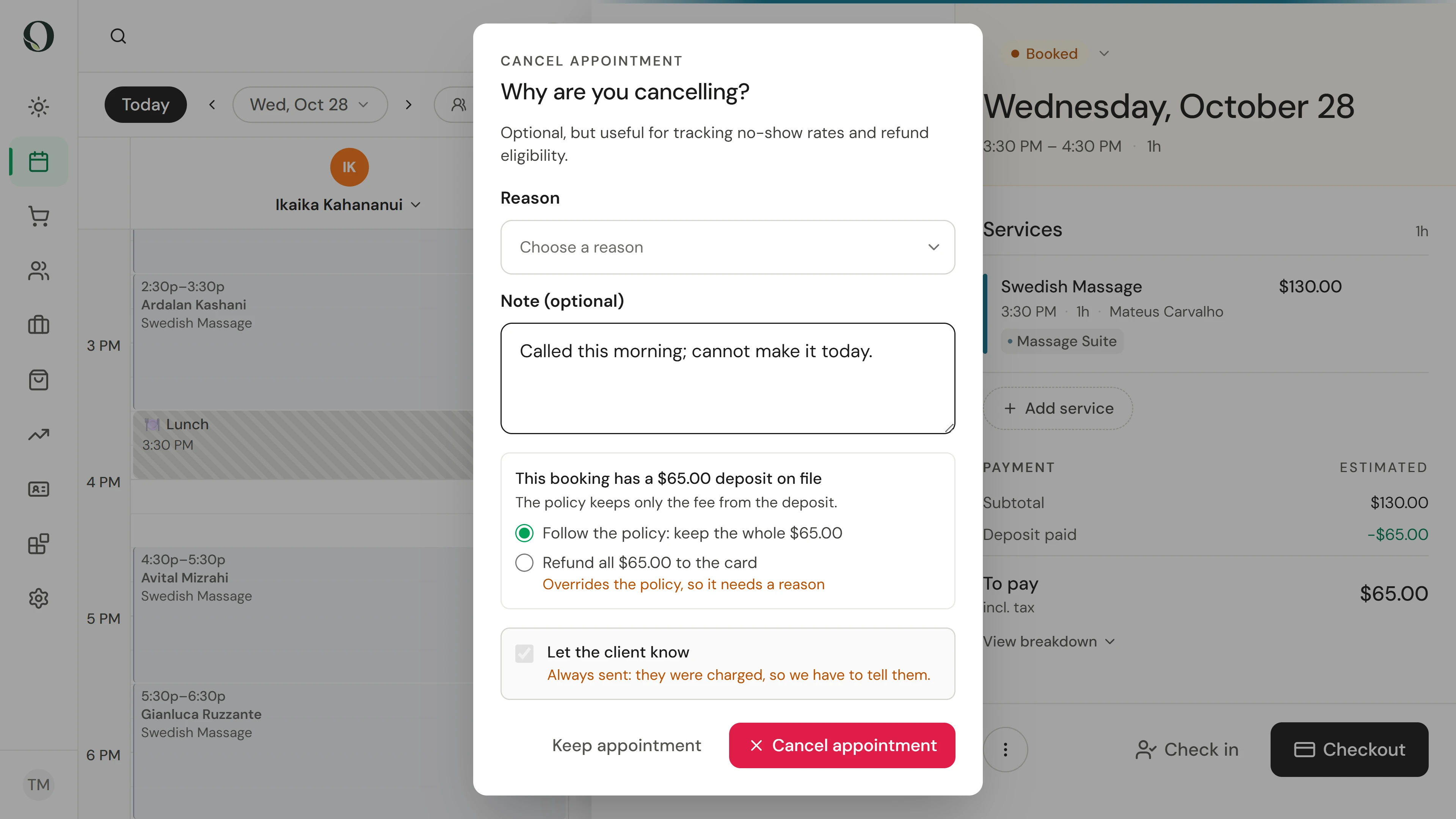
Open the status and choose Cancelled, then type why. The reason stays with the visit and feeds the cancellation reports.
3. Decide on the deposit
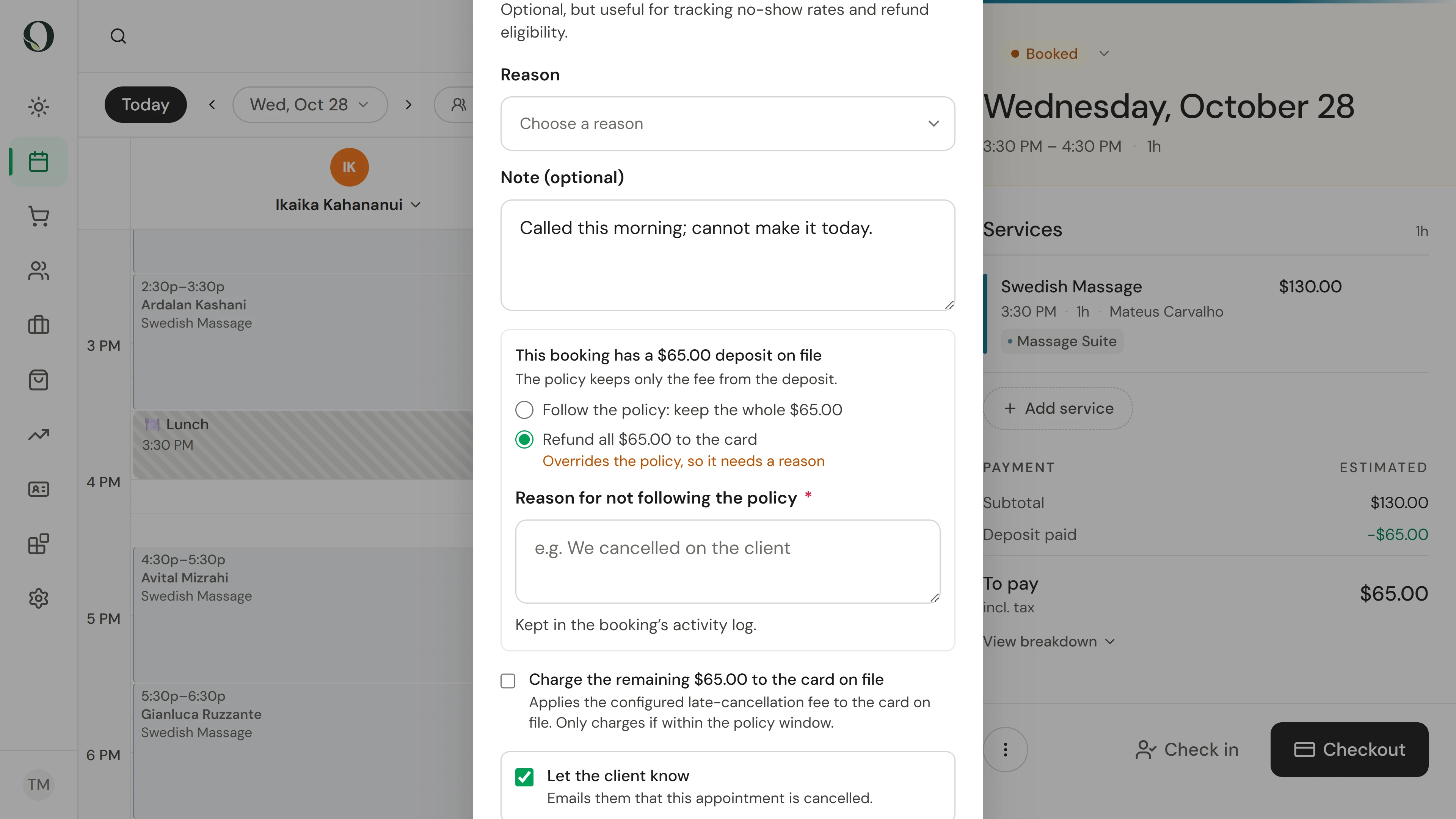
The dialog shows the deposit and what your payment policy does with it. Inside the cancellation window, the policy keeps it as the late-cancellation fee. To refund it instead, choose Refund and give a reason; the money goes back to the card it came from.
4. Follow the policy and confirm
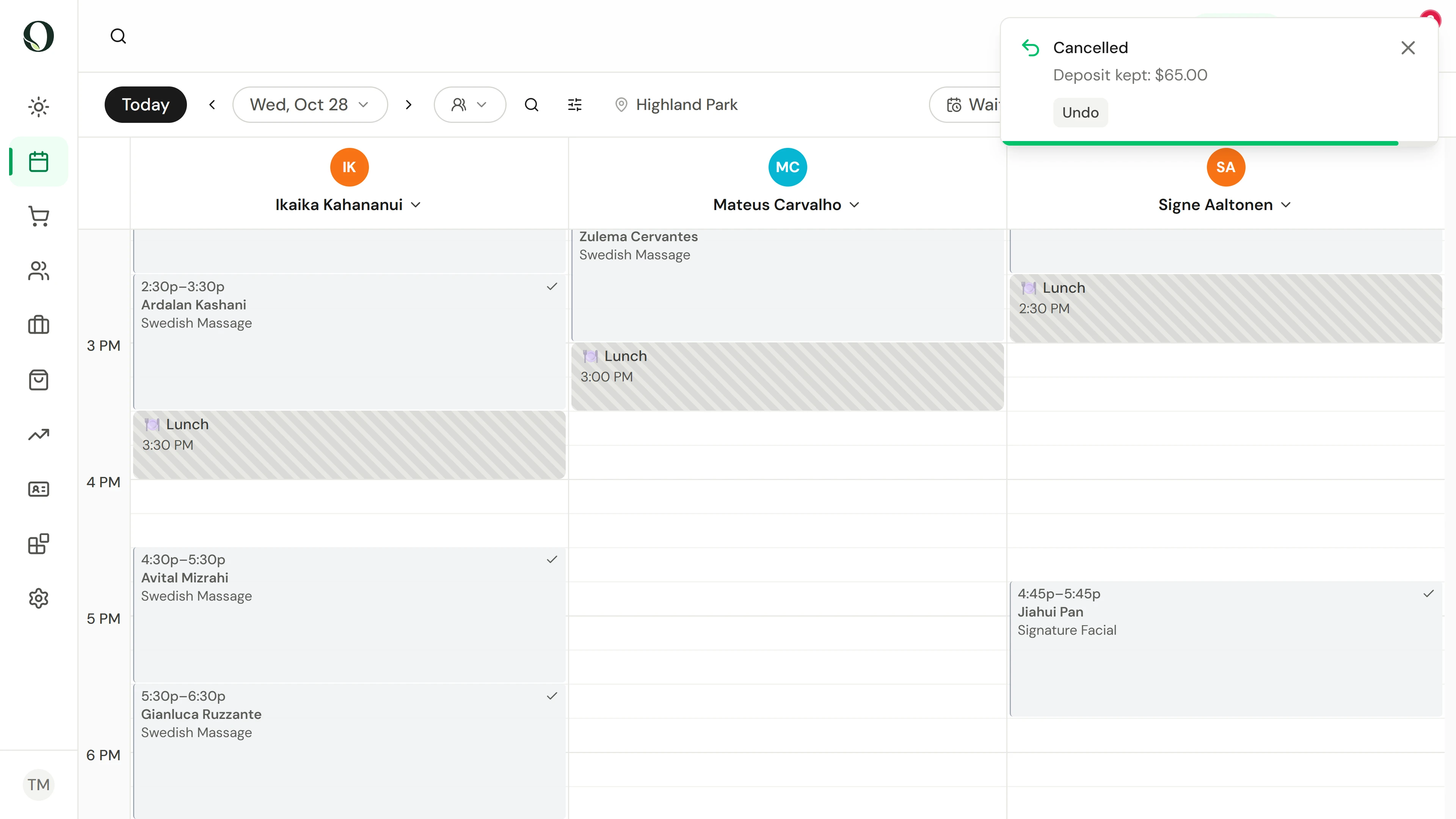
Here the policy stands, so choose Follow the policy, then Cancel appointment. When a deposit is kept, the client is always told by email. The confirmation shows the deposit kept, and the slot is free again.
5. Mark the no-show
Your first client of the day never arrived. Open their visit, open the status and choose No-show, then tick the no-show fee to charge it to the card on file.
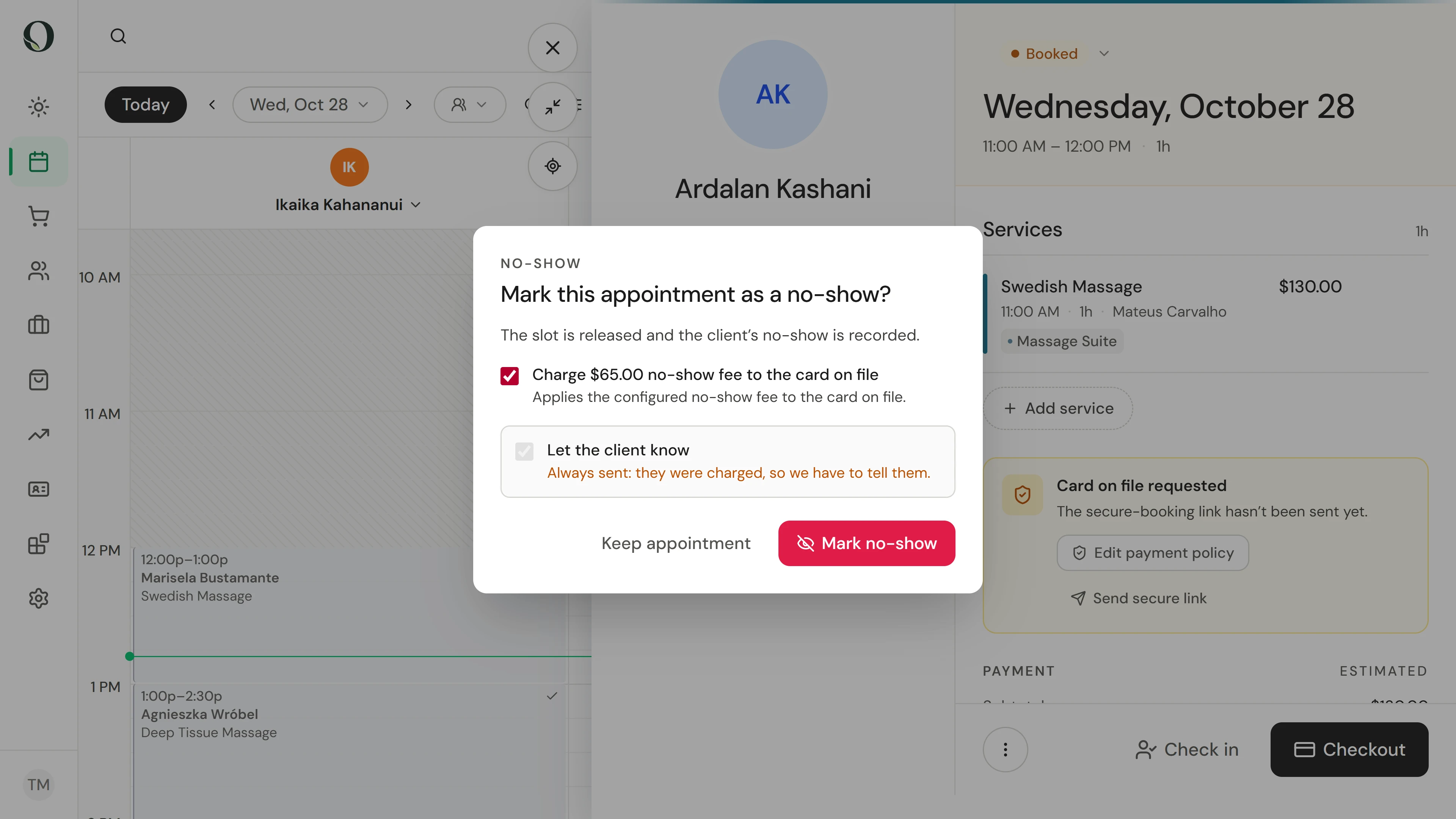
6. See what is owed
With a card on file, the fee is charged straight away. This client has no saved card, so the visit shows the fee as owed, ready to collect.
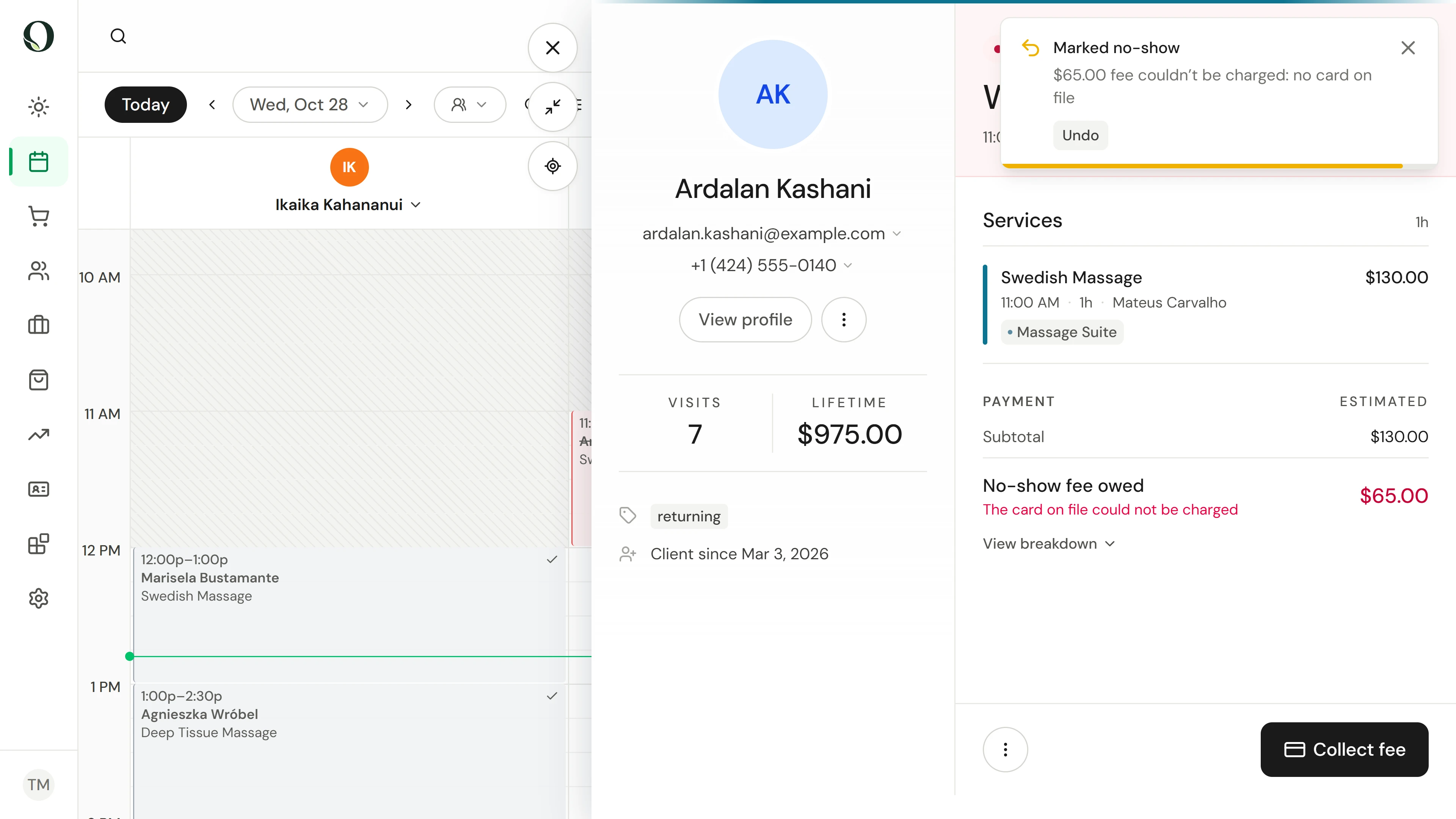
7. Collect the fee
When they settle up, choose Collect fee. The sale holds only the fee, never the treatment that did not happen. Take it like any payment, here on the card terminal.
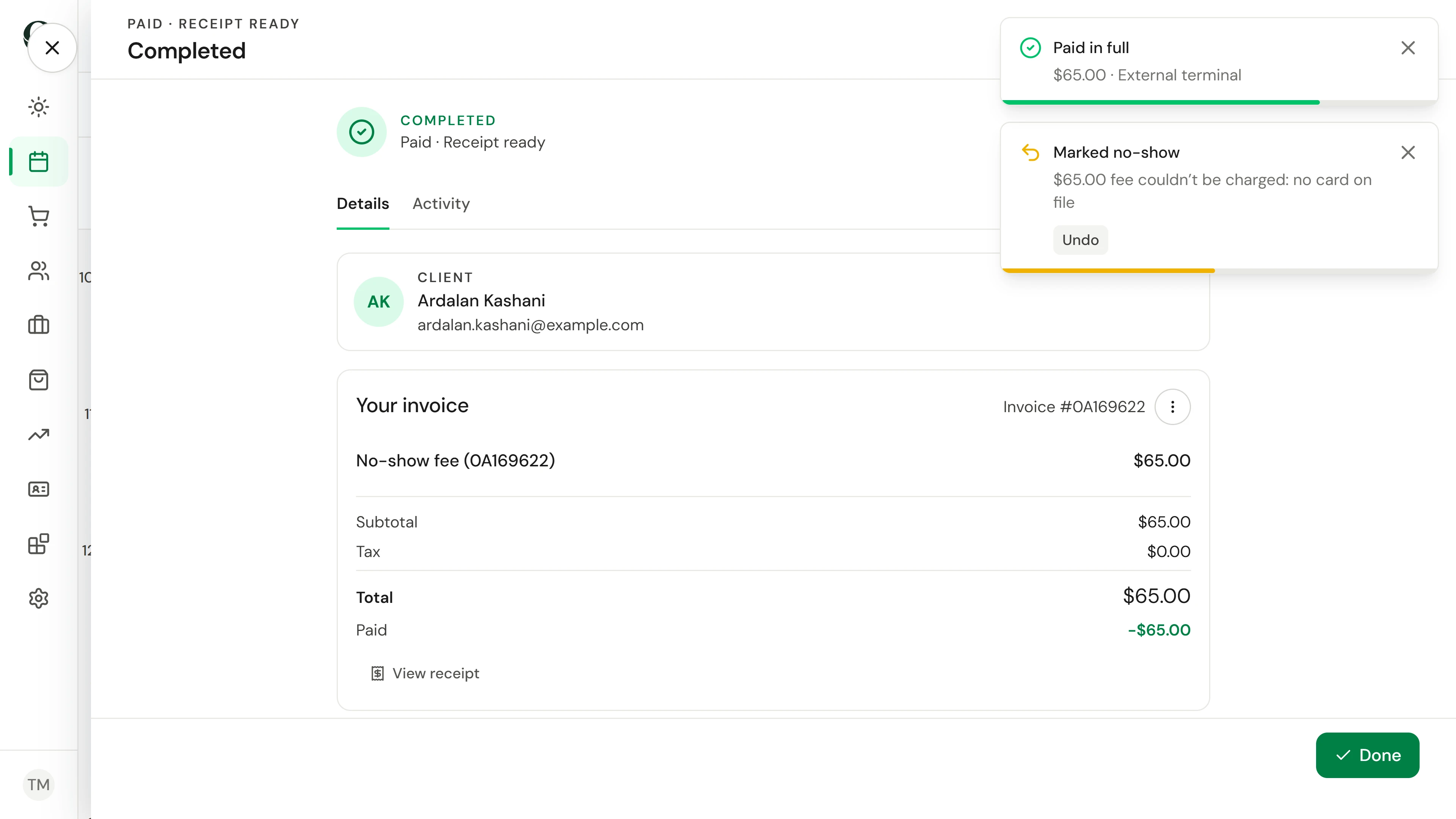
Aprofundar