

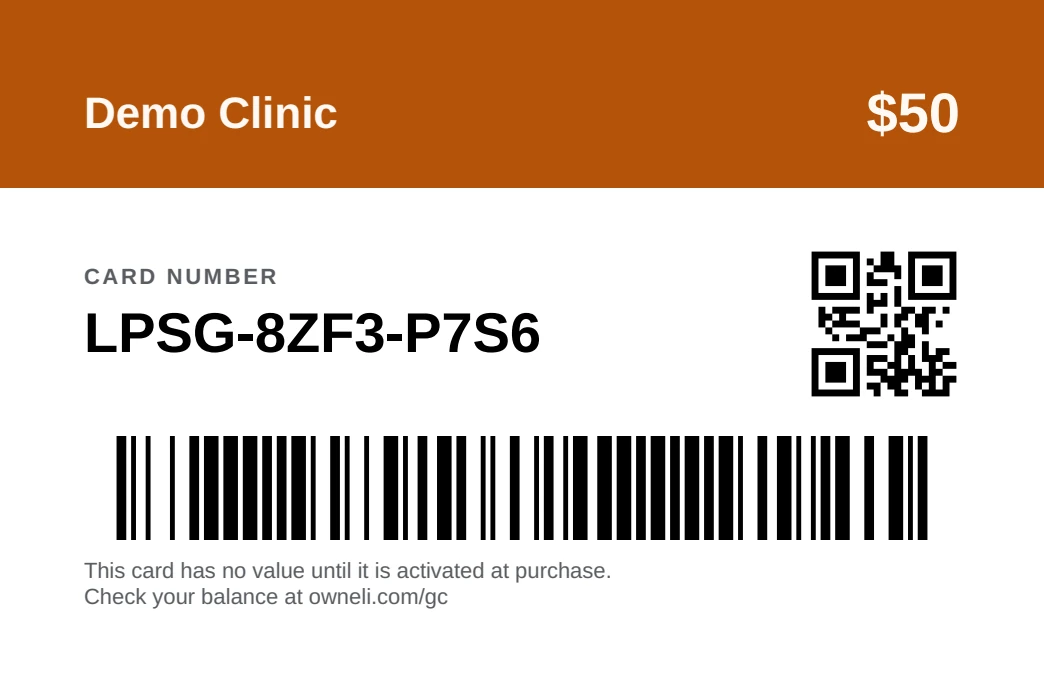
A printed gift card works like the ones on a supermarket rack: the card itself is worth nothing. Owneli makes a unique number for every card, a print shop puts that number on your design, and the card only takes its value when a client buys it at your till. A card that walks out of the rack unpaid has nothing on it.
How it works
| Step | Where | What happens |
|---|---|---|
| 1. Make a batch | Retail → Gift cards sold → Printed cards | Owneli makes a unique number for every card. The cards are blank: no value, not owed to anyone. |
| 2. Print | Your card printer | You send the print file. The printer puts each number, barcode and QR code on its own card. |
| 3. Sell | Point of sale | You scan or type the card's number and take payment. The card holds the value from that moment. |
| 4. Spend | Point of sale | The holder pays with it like any gift card, and checks the balance online. |
Everything after the sale is the same as for a gift card sold by email: redeeming, refunds, voiding and the liability report. See Gift cards.
Before you start
- Who can do it: making a batch and downloading its print file need permission to manage revenue setup, and seeing the Stock tab needs permission to view it. Selling a card at the till needs point-of-sale permission. Voiding a lost card or a whole batch needs permission to void sales.
- A scanner helps. Any USB or Bluetooth barcode scanner that types like a keyboard works. A 2D scanner reads both the barcode and the QR code. Typing the number works too.
- Leave time for printing. Card printers usually need two to three weeks, so order well before the holidays.
Make a batch
Open Printed cards
Go to Retail → Gift cards sold and switch to Printed cards at the top.
Start a batch
Select New batch.
Name it and choose how many
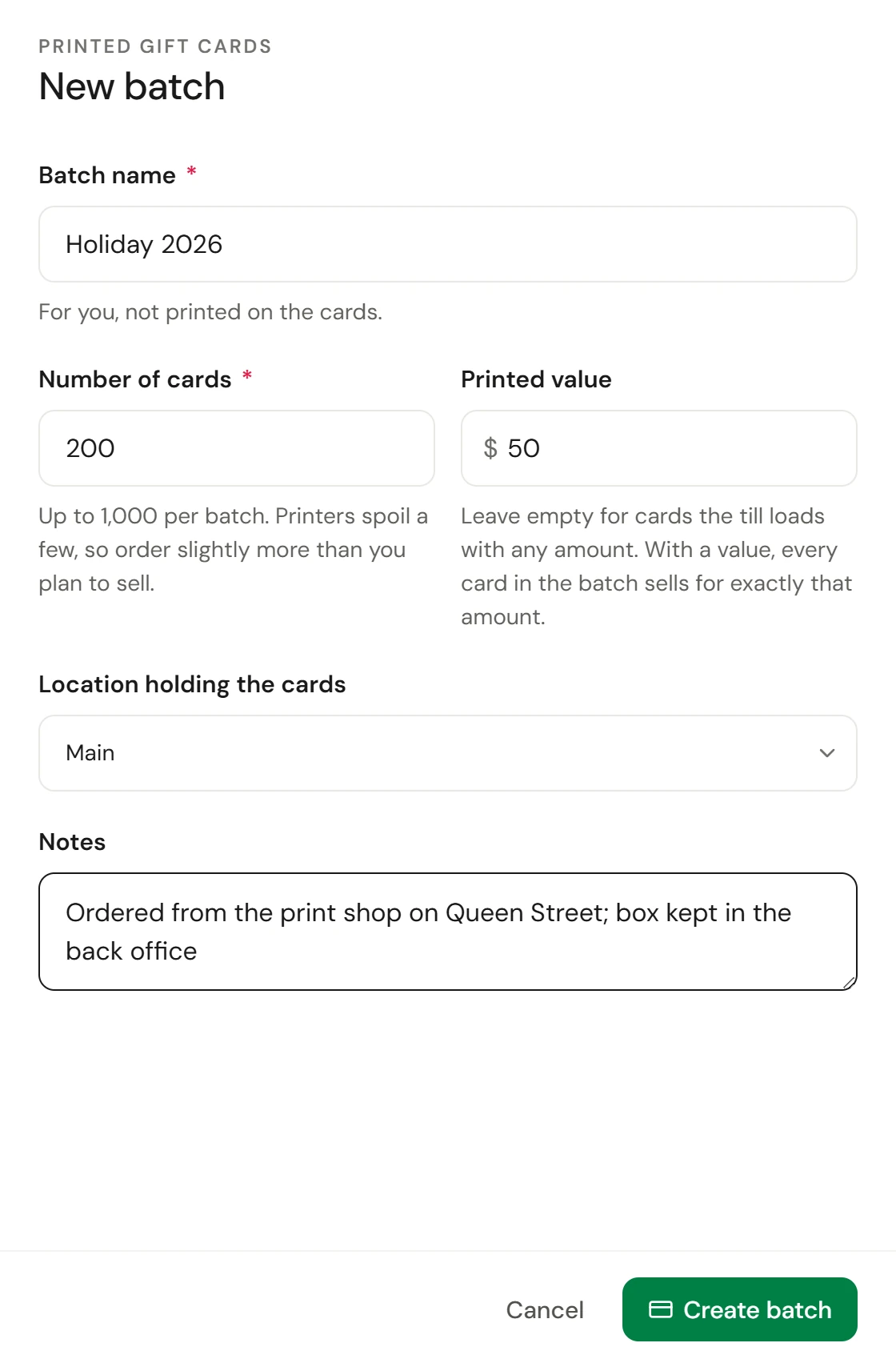
Give the batch a Batch name you'll recognise, such as Holiday 2026. It's for you and isn't printed. Enter the Number of cards, up to 1,000 per batch. Printers spoil a few, so make the batch slightly bigger than your order.
Fixed value or any amount
Leave Printed value empty for cards the till loads with whatever the client chooses. Enter a value, such as 50, for cards printed with that amount: every card in the batch then sells for exactly that, and the value appears on the card.
Say where the box is going
Choose the Location holding the cards, add any Notes (the printer, the order number, where the box is kept), and select Create batch.
Download the print file
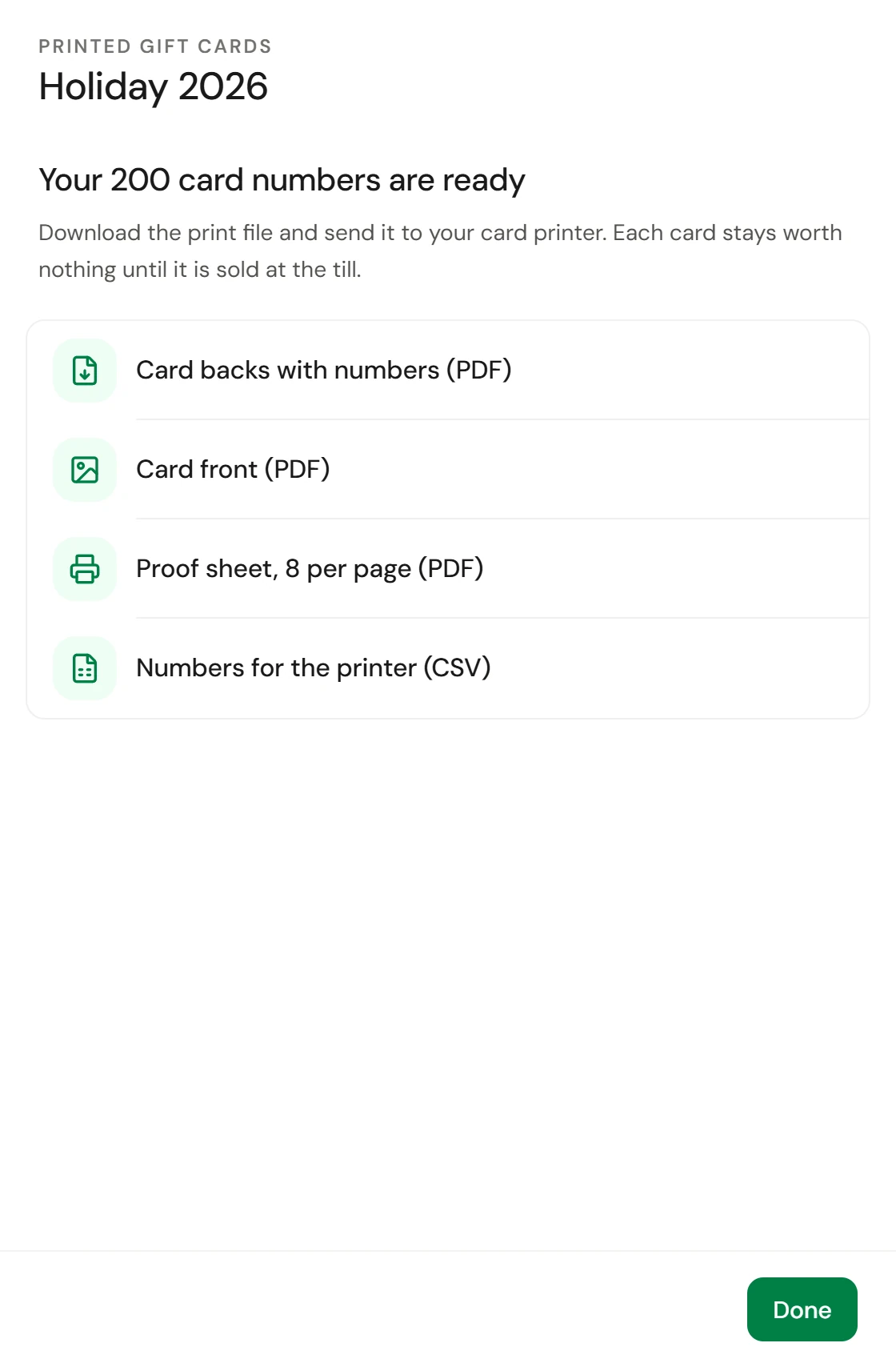
As soon as the batch is created, Owneli offers its files. You'll find the same files later under Download on the batch.
| File | What it is | Who it's for |
|---|---|---|
| Card backs with numbers (PDF) | One page per card, at card size with bleed: your name and brand colour, the number, a barcode and a QR code | Your card printer |
| Card front (PDF) | One branded front for every card | Your printer, if you don't have your own front design |
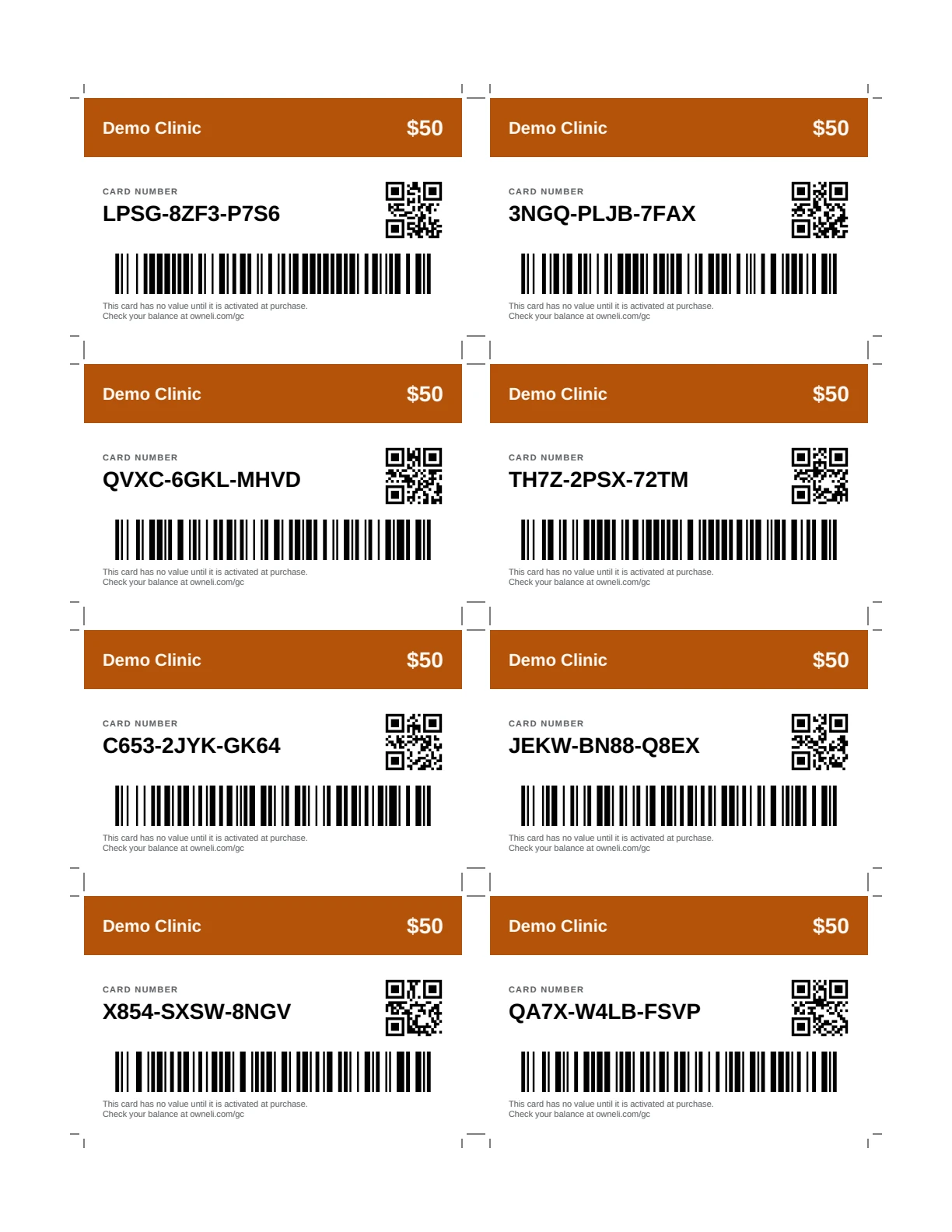
| Proof sheet, 8 per page (PDF) | Eight cards at actual size on a Letter page, with crop marks | You: print it in the office to check the look and scan a few numbers |
| Numbers for the printer (CSV) | Every number, dashed and plain, in order | A printer that lays the numbers onto its own design |
The words on the card are printed in the language Owneli is set to when you download, so switch the language first if your clients read French or Spanish.

What to ask the print shop for
Send this list with the files. Any shop that prints plastic membership or gift cards can do it.
| Ask for | Why |
|---|---|
| CR80 size, 85.6 × 54 mm (3.375 × 2.125 in) | The standard credit-card size, which fits wallets and card racks |
| 1/8 in (3 mm) bleed | The file already includes it, so the colour runs to the edge after trimming |
| 30 mil PVC plastic, or 16 pt or heavier card stock | Plastic feels like a bank card; heavy card stock is a cheaper paper option. A matte or laminated finish is fine. |
| Variable data printing | Every card gets its own number, barcode and QR code from the file. Also called numbered or personalised printing. |
| Barcode and QR code in pure black on white (100% K) | Scanners need the contrast. Keep foil, glitter, spot gloss and magnetic stripes off them. |
| A printed proof first | Scan two or three proof cards at your till before you approve the full run |
Store the blanks
Keep the box with the rest of your stock, and put out a handful at a time. A blank card has no value, so a card that goes missing from the rack costs only the printing. Even so, keep the box out of reach, because a stolen card that is later activated by mistake would carry real money.
See what each location has left
The Stock tab answers "how many cards does Westside have left?" at a glance.
Open Stock
Go to Retail → Gift cards sold → Printed cards, then choose Stock.
Pick the locations
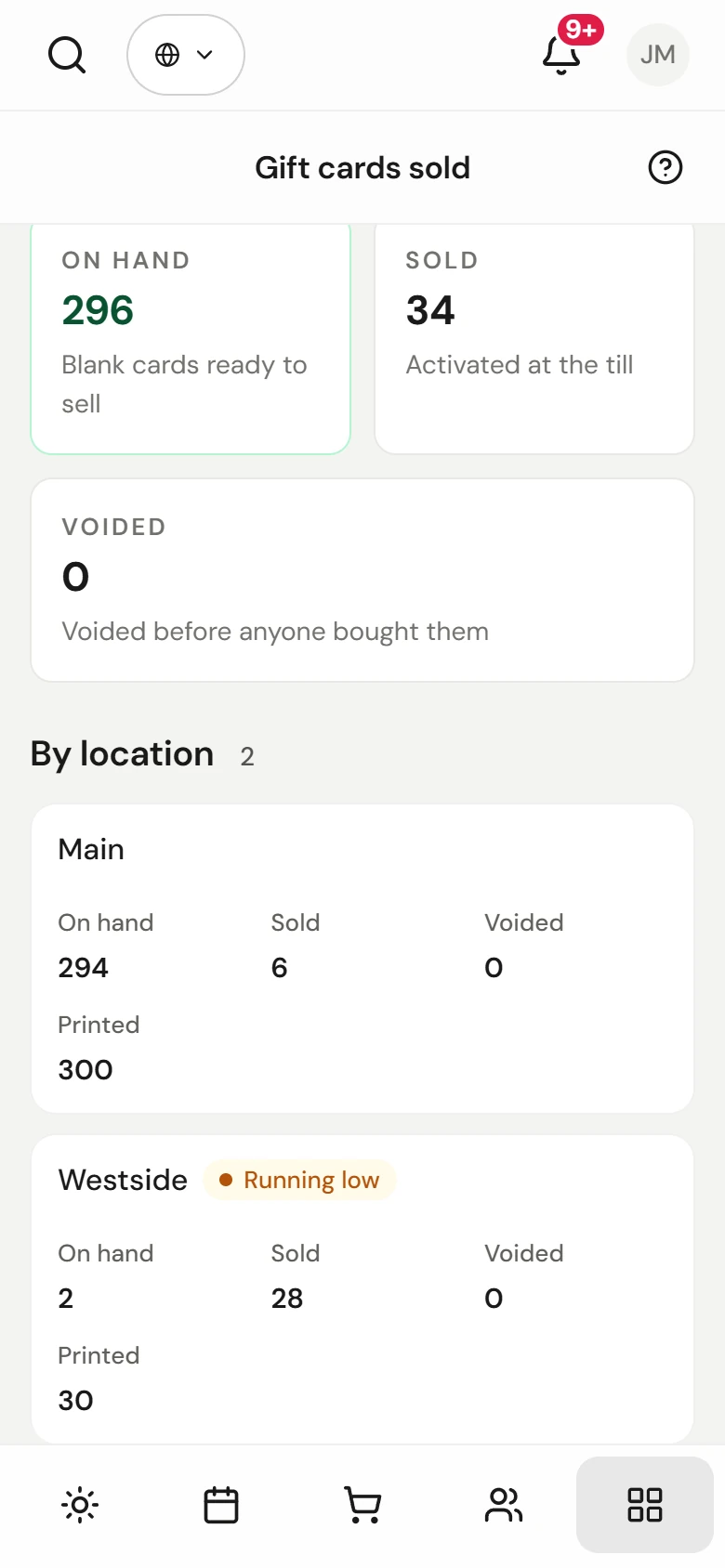
Stock follows the location in the top bar. Choose one location to see its cards, or All locations to compare them side by side. Whoever sees every location also sees the boxes that no location holds.
Read the counts
The three tiles add up every batch you can see. By location gives each location's totals, and By batch lists every box underneath with its location and value.
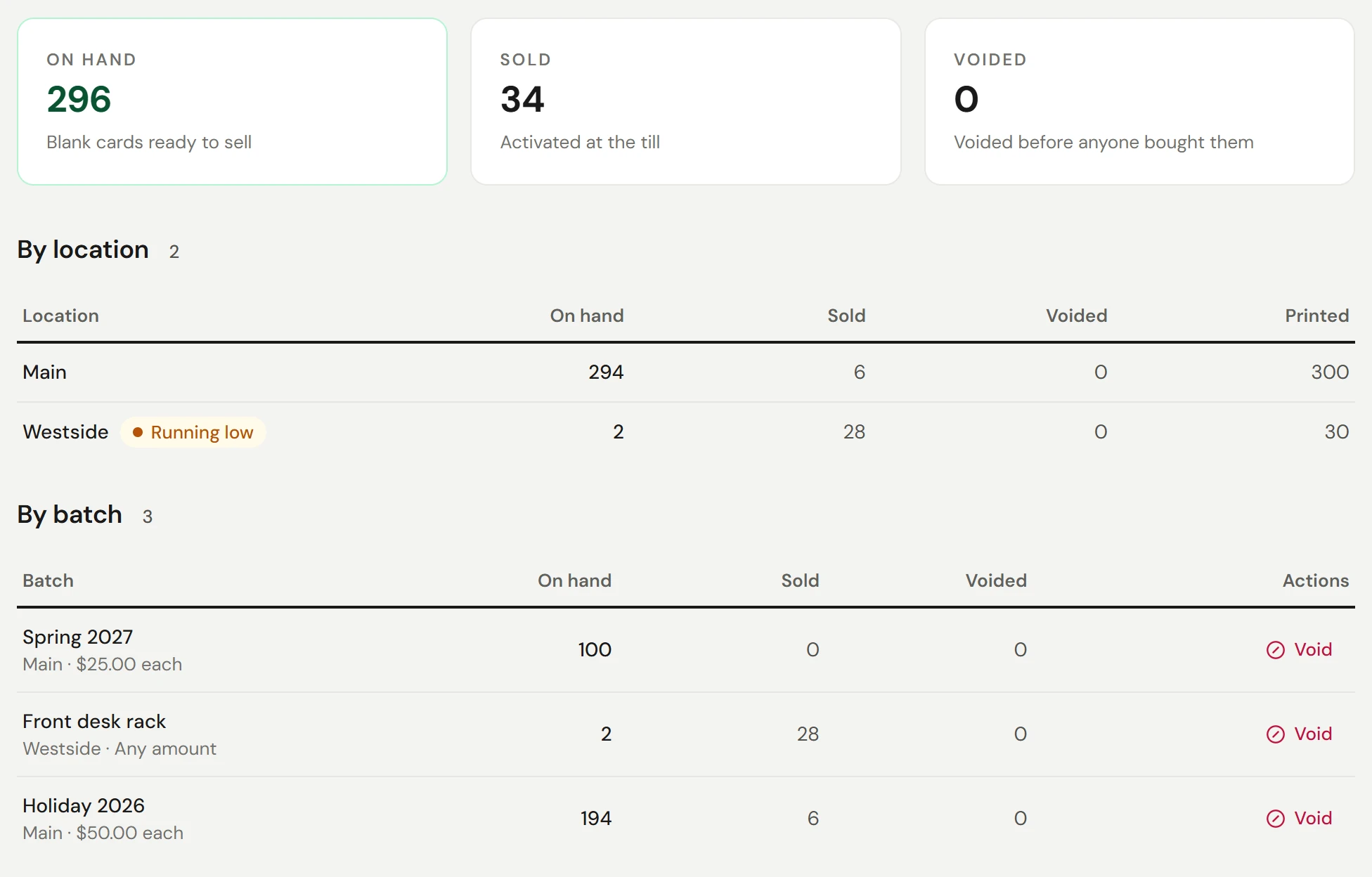
| Column | What it counts |
|---|---|
| On hand | Blank cards ready to sell. A card waiting in a sale that isn't paid yet still counts here, and the batch says how many are in a sale. |
| Sold | Cards activated at the till, whatever has happened to them since |
| Voided | Blanks voided before anyone bought them |
| Printed | Every card in the location's batches |
On hand, sold and voided always add up to the cards printed. A location shows Running low when fewer than one in ten of its sold and unsold cards is still on hand, and None left when it has nothing to sell.
Sell a printed card at the till
Open the gift card form
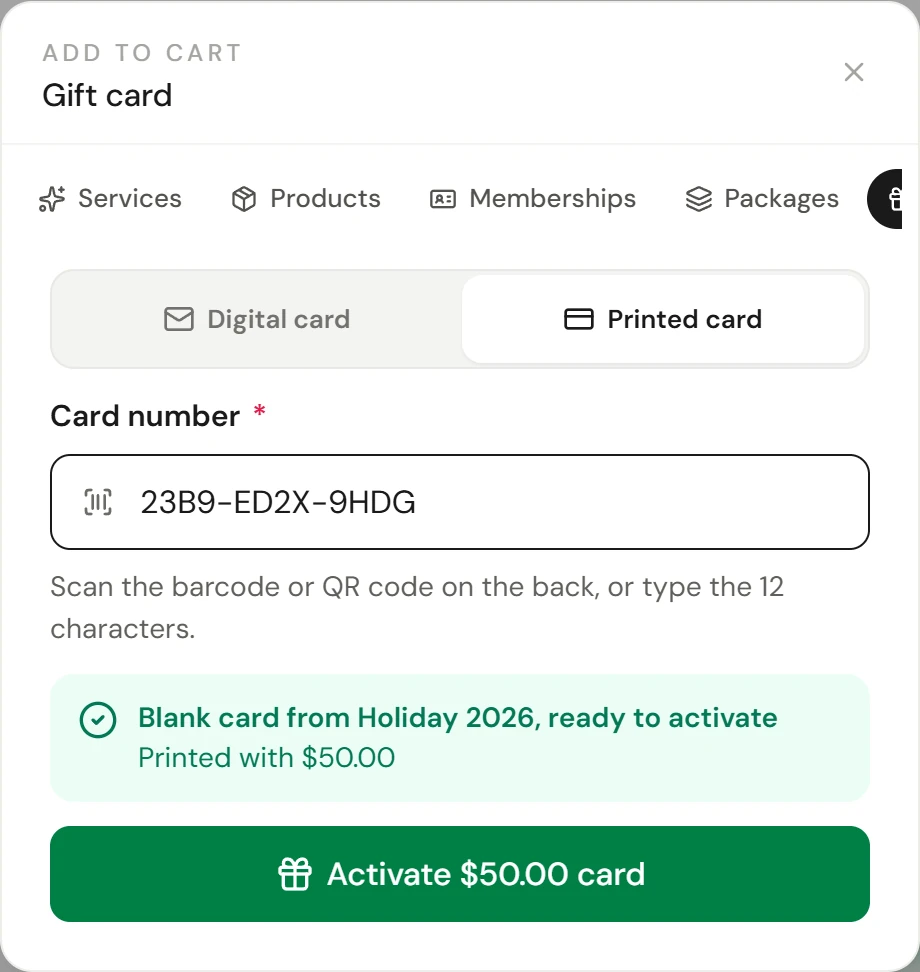
At checkout, under Add to cart, select Gift card, then switch to Printed card.
Scan the card
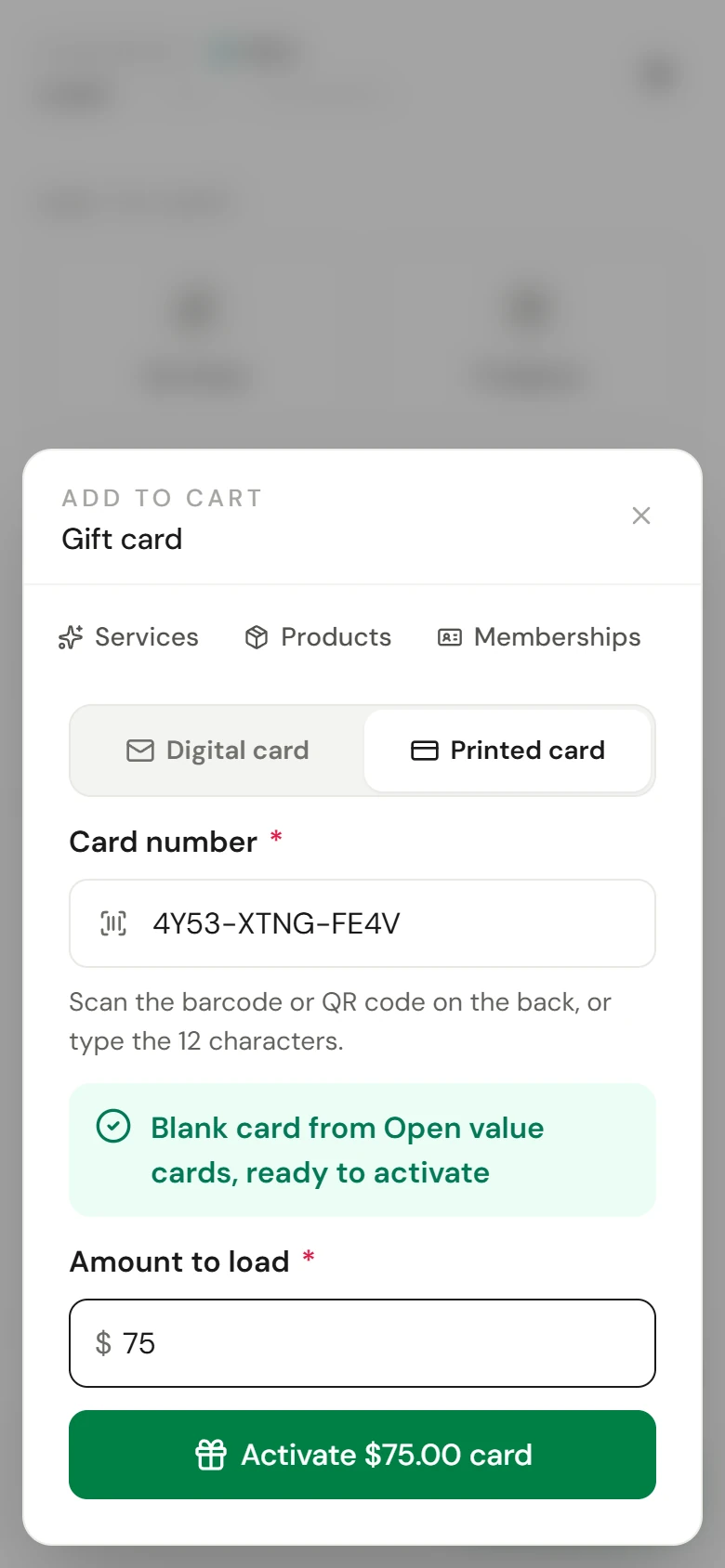
Scan the barcode or QR code on the back, or type the 12 characters into Card number. Dashes and capitals don't matter.
Check it's ready
A blank card shows Blank card from Holiday 2026, ready to activate. A card printed with a value shows that value, and the amount is set for you.
Set the amount
For a card without a printed value, enter the Amount to load.
Add it and take payment
Select Activate, for example Activate $50.00 card, then take payment as usual. The card becomes active, with its value, the moment the sale is paid.
When the till refuses a card
The till checks the card the moment it's scanned, before any money is taken, and says why it won't sell it.
| The till says | What it means | What to do |
|---|---|---|
| That card is already active with $50.00 on it. It cannot be sold again. | Someone already bought this card | Hand it back to its owner, or take another card from the rack |
| That card is in another sale that has not finished. | Another till, or an earlier sale at yours, has this card in its cart | Finish or void that sale, or remove the card from it |
| That card was just sold in another sale. | Another till has just been paid for it | Take another card |
| That card was voided and cannot be sold. | It was reported lost or damaged | Take another card, and put the voided one aside |
| That card was already sold and used. | It has been spent down to nothing | Take another card |
| That is a digital gift card. | The number belongs to a card sent by email | To sell a printed card, scan one from the rack |
| No printed card has that number. | A typing slip, or a card from another business | Check the number and try again |
| This card is printed with $50.00 and sells for exactly that. | The amount was changed on a fixed-value card | Sell it at its printed value |
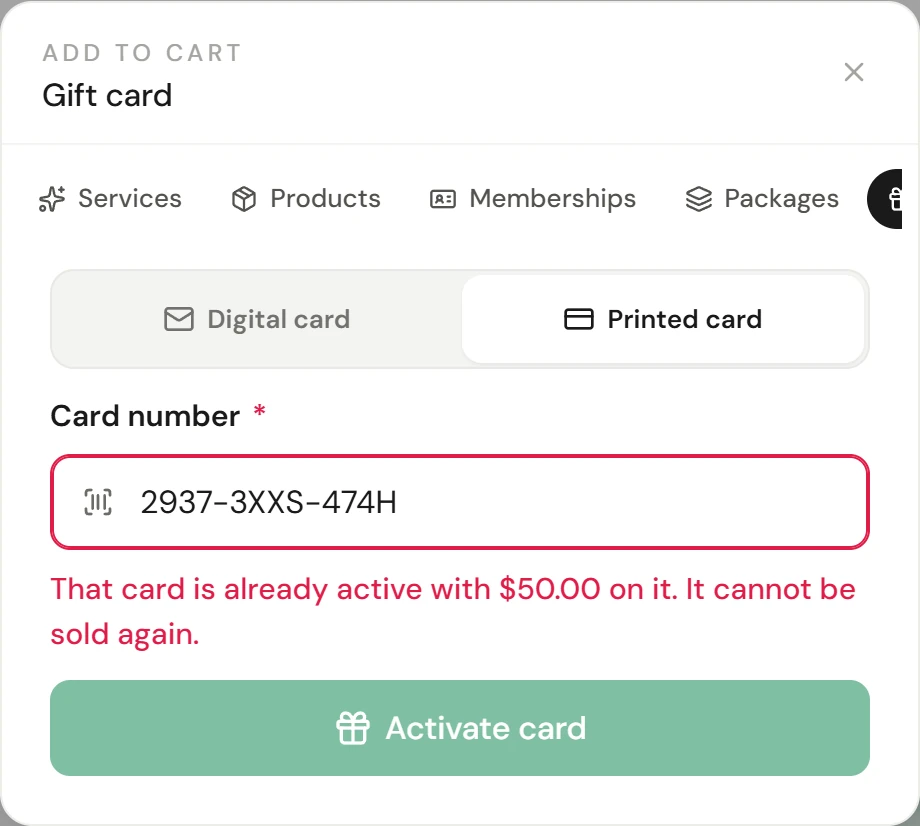
Redeem a card and check the balance
A sold printed card is spent at checkout like any gift card: choose Gift card as the payment method and scan or type the number. A card can pay part of a bill, and the rest goes on another payment method. See Redeem a gift card, package, or membership.
The holder checks what's left by entering the number on your booking site, or on the balance page printed on the card. It shows the balance and every time the card was used.
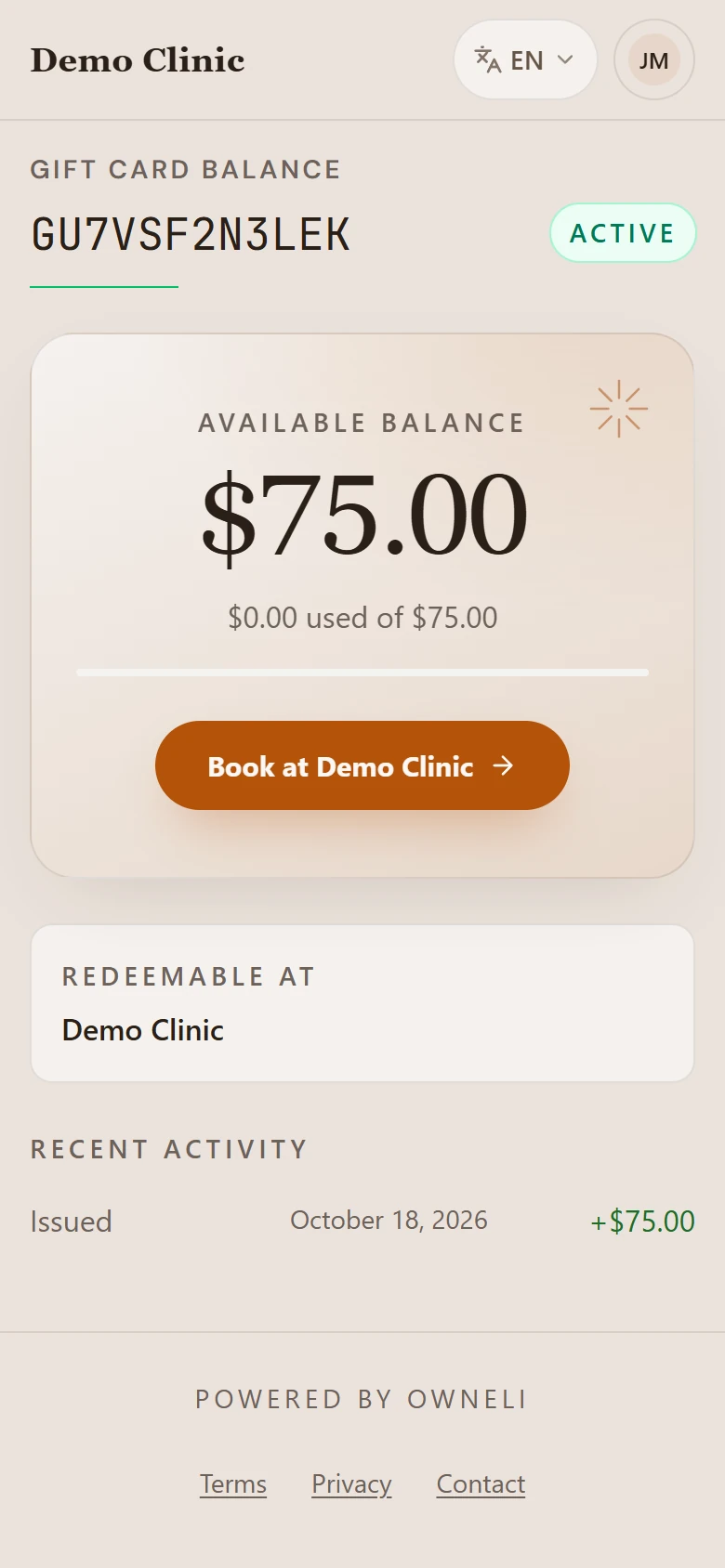
An unsold card can't pay for anything, and the balance page answers its number exactly as it would a number that doesn't exist. So nobody can use the page to find out which numbers are real cards waiting on your rack.
Lost, stolen or damaged blanks
Void a blank that's lost, stolen or damaged, so it can never be sold. For one card:
Find the card
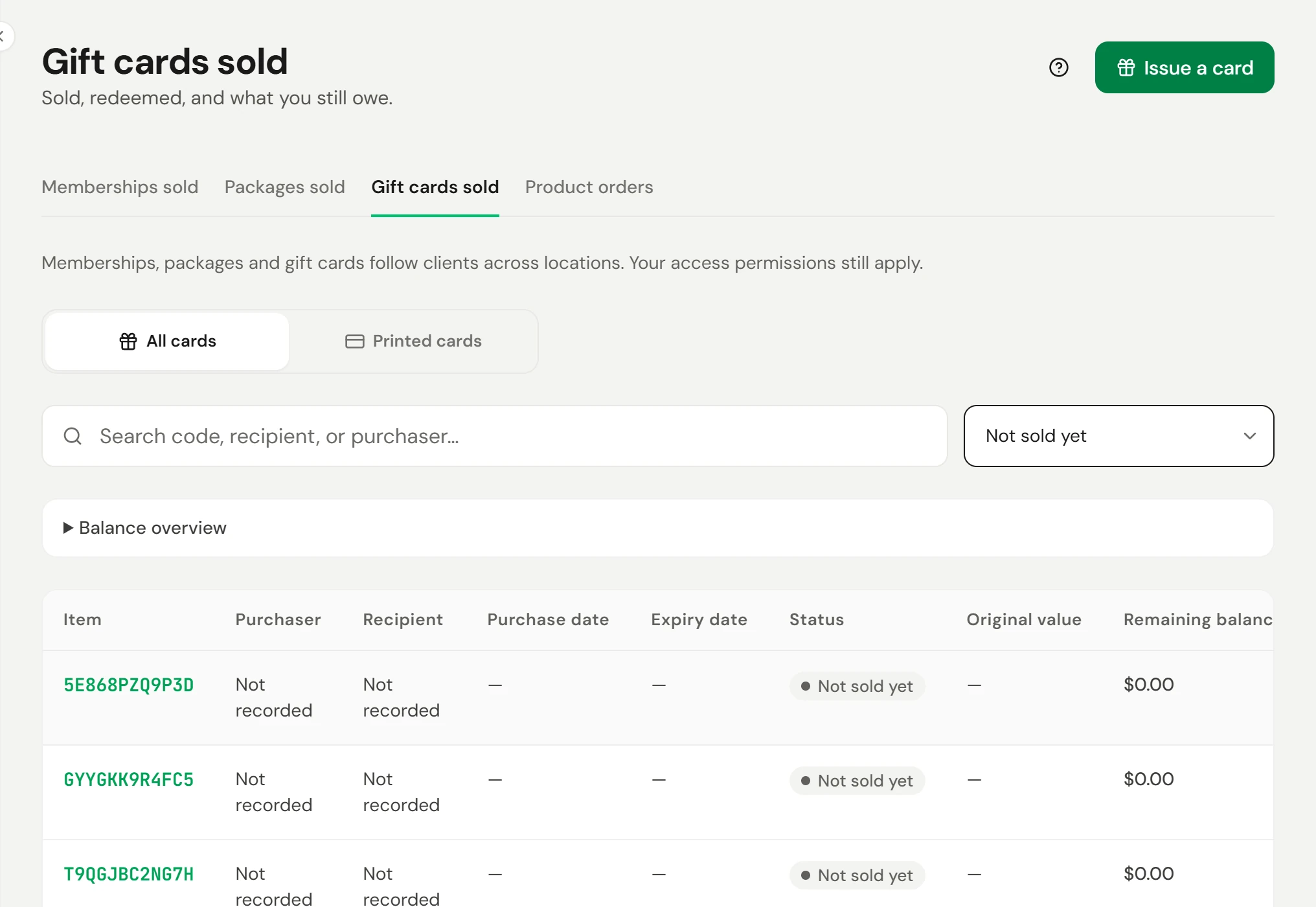
Go to Retail → Gift cards sold, stay on All cards, and set the status filter to Not sold yet. Search for its number.
Void it
Open the row's menu and choose Void, then confirm.
A blank that's sitting in an unfinished sale can't be voided until it's removed from that sale. A voided number is never reused, by you or any other business.
A whole box: void the batch
When a box goes missing, is stolen, or comes back misprinted, void every blank left in it at once:
Find the batch
On Stock, find the box under By batch.
Choose Void
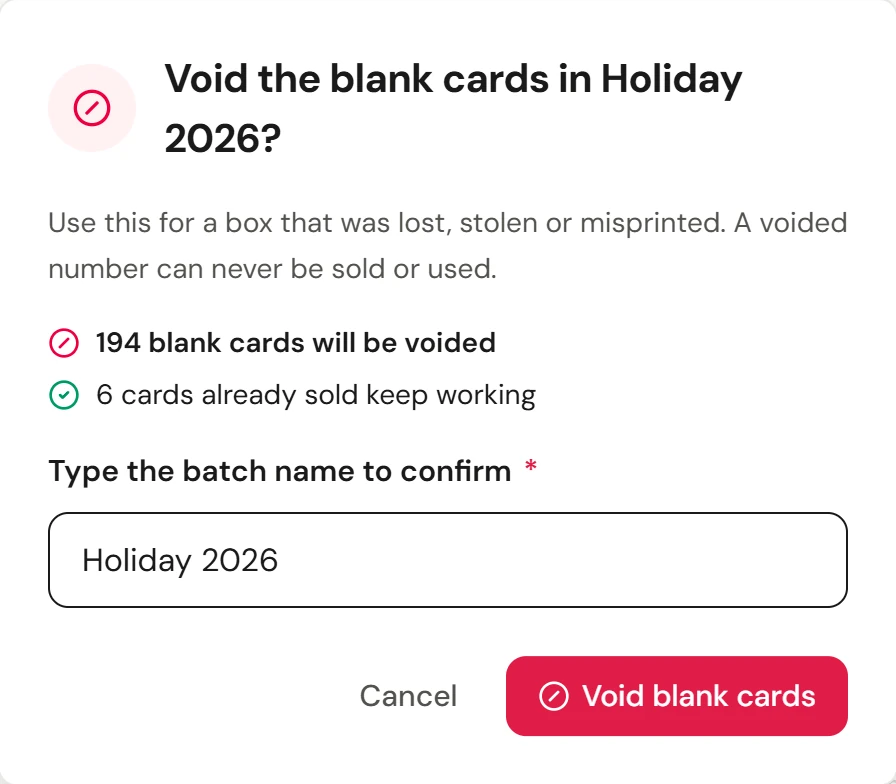
The confirmation says how many blank cards will be voided and how many cards already sold keep working.
Type the batch name
Type the batch's name to confirm, then choose Void blank cards.
| After the void | What happens |
|---|---|
| Blank cards from the batch | Voided. The till refuses them and the balance page answers as if they don't exist. |
| Cards already sold from it | Keep working: they can be spent, checked online and refunded as before |
| A card in a sale that isn't paid yet | Left for that sale. If the sale is paid the card activates as normal. If it's cancelled, void the batch again to catch it. |
| What you owe | Unchanged. Blanks were never counted. |
Voiding a batch is recorded in the audit log, with who did it and how many cards it voided. Voiding a lost card or a whole batch needs permission to void sales, and someone limited to one location can only void that location's batches.
Refunds
| You refund | What happens to the card |
|---|---|
| The sale of the card | Refund it in full, and only while nothing has been spent from the card. The card is then voided, so the money can't be both refunded and spent, and it can't go back on the rack. |
| Something paid for with the card | The value goes back onto the card |
Liability: blanks don't count
Money taken for a gift card is owed to the holder until it's spent. A printed card only starts counting the moment it's sold, so 500 blank cards in a box add nothing to what you owe, and nor does a card sitting in a sale that hasn't been paid.
| The card is | Counted in Outstanding liability? |
|---|---|
| Blank, in the box or on the rack | No |
| In a sale that isn't paid yet | No |
| Sold | Yes, its remaining balance |
| Used up or voided | No |
The liability belongs to the location that sold the card, wherever the box was sent. See Gift card liability and expiry.
Card statuses
| Status | Meaning |
|---|---|
| Not sold yet | A blank card from a batch. No value. Shown only when you filter for it. |
| In a sale | Added to a sale that isn't paid yet. Another till can't sell it. Shown as Not sold yet in the list. |
| Active | Sold. Has a balance and can be spent. |
| Depleted | Spent down to zero |
| Voided | Lost, stolen or damaged before it was sold (on its own or with its whole batch), or its sale was refunded |
Each batch on Printed cards shows how many of its cards are sold, how many are still blank, and how many were voided before anyone bought them. Stock adds them up per location.
Check it worked
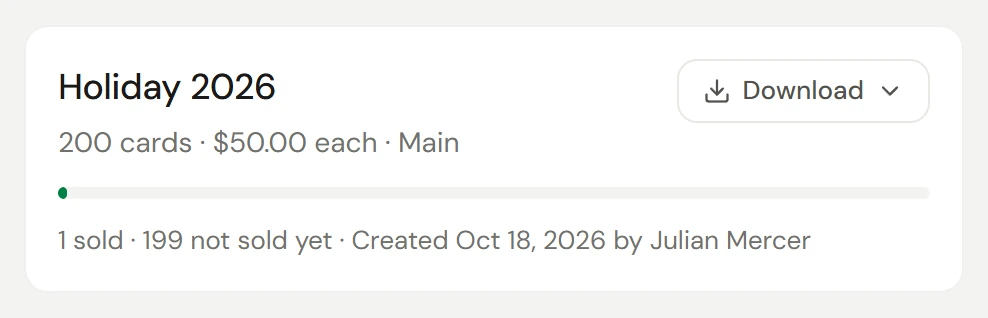
After a sale, the card shows Active with its value in Retail → Gift cards sold, and its batch shows one more sold. Outstanding liability under Balance overview has gone up by the card's value.
After voiding a batch, Stock shows it with nothing on hand and its blanks under Voided, and Outstanding liability hasn't moved.
FAQ
Can a client top up a printed card?
Not yet. Sell them another card.
Can I sell a card from one location's box at another location?
Yes. The batch's location records where the box went. The card can be sold at any of your locations, and its liability belongs to the location that sold it.
Do printed cards expire?
No. Like every gift card sold in Owneli, they have no expiry date.
Can I use cards a printer has already numbered?
Not yet. Owneli makes the numbers, so each one is unique and print-safe: 12 characters without the easily confused I, O, 0 and 1.
Do I need a barcode scanner?
No. Typing the 12 characters works the same way. A scanner is just faster at a busy till.
What if I sell a printed card by mistake?
Refund the sale before the card is used, and the card is voided. Then sell the right card.
A box went missing after we'd sold a few. What happens to those?
Nothing. Void the batch: the cards already sold keep their balance and keep working, and only the blanks left in the box are voided.