

Repeating shifts are the hours someone works week after week. Each person's repeating shifts have a start date, can end on a date, and can repeat every week or every 2, 3 or 4 weeks. Days you change by hand, approved time off and holidays sit on top.
Before you start
- Who can do it: anyone with permission to manage scheduling.
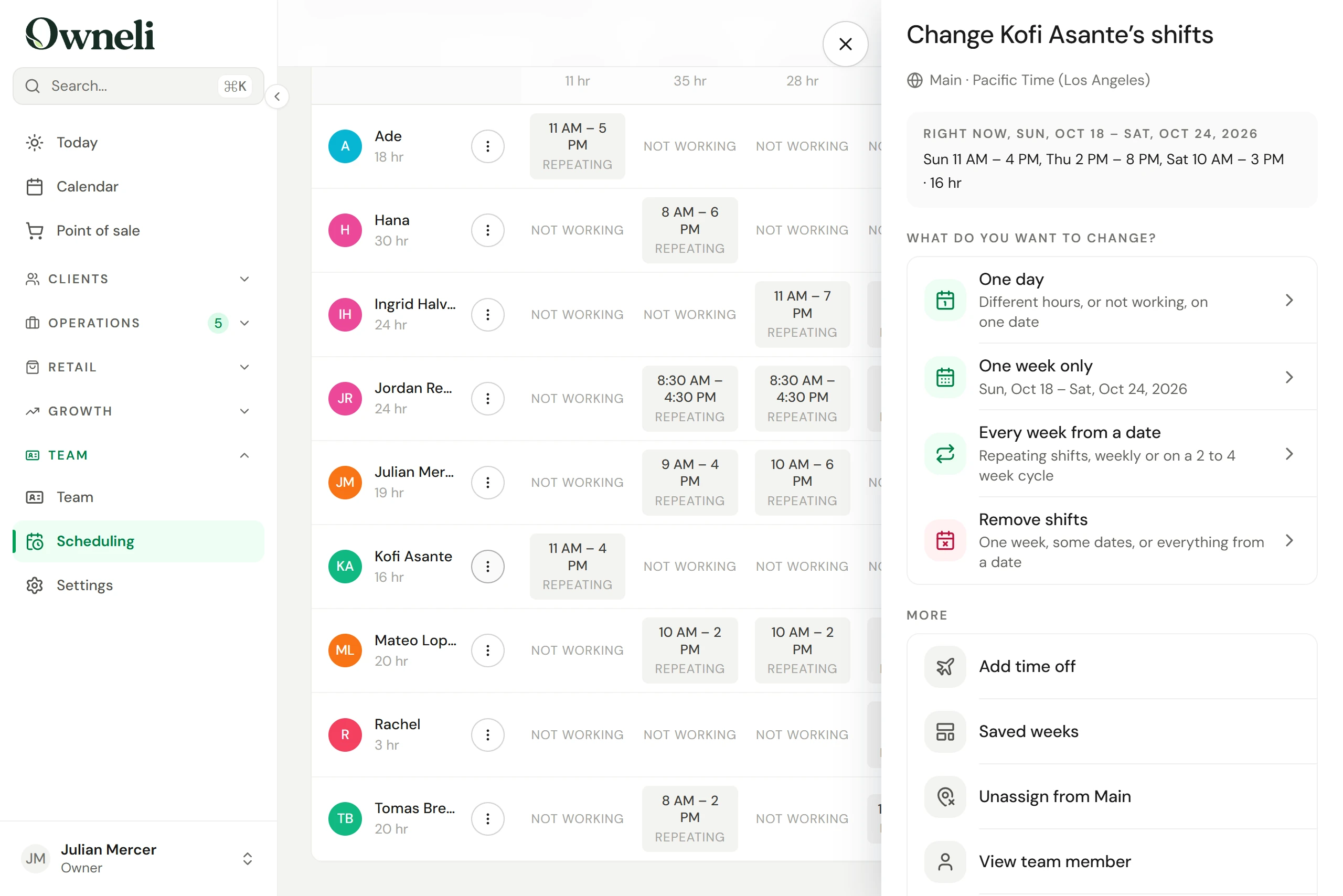
- Where: Team → Scheduling → Shifts. Select a shift to change that day. The ⋮ beside each name opens Change their shifts, which holds everything else on this page. Availability lists each person's repeating shifts, every week of a 2-to-4-week schedule with this week marked, and opens the same page.
- Times: shift times are always the location's local time, named above the grid. If your device is set to another time zone, a note says so.
Set someone's repeating shifts
Open the page
On Shifts, open the ⋮ beside their name and choose Every week from a date. The page starts on the week you're looking at. From a day, choose Change every Monday instead (with that day's name), or Set repeating shifts under More for this day, to start from that day.
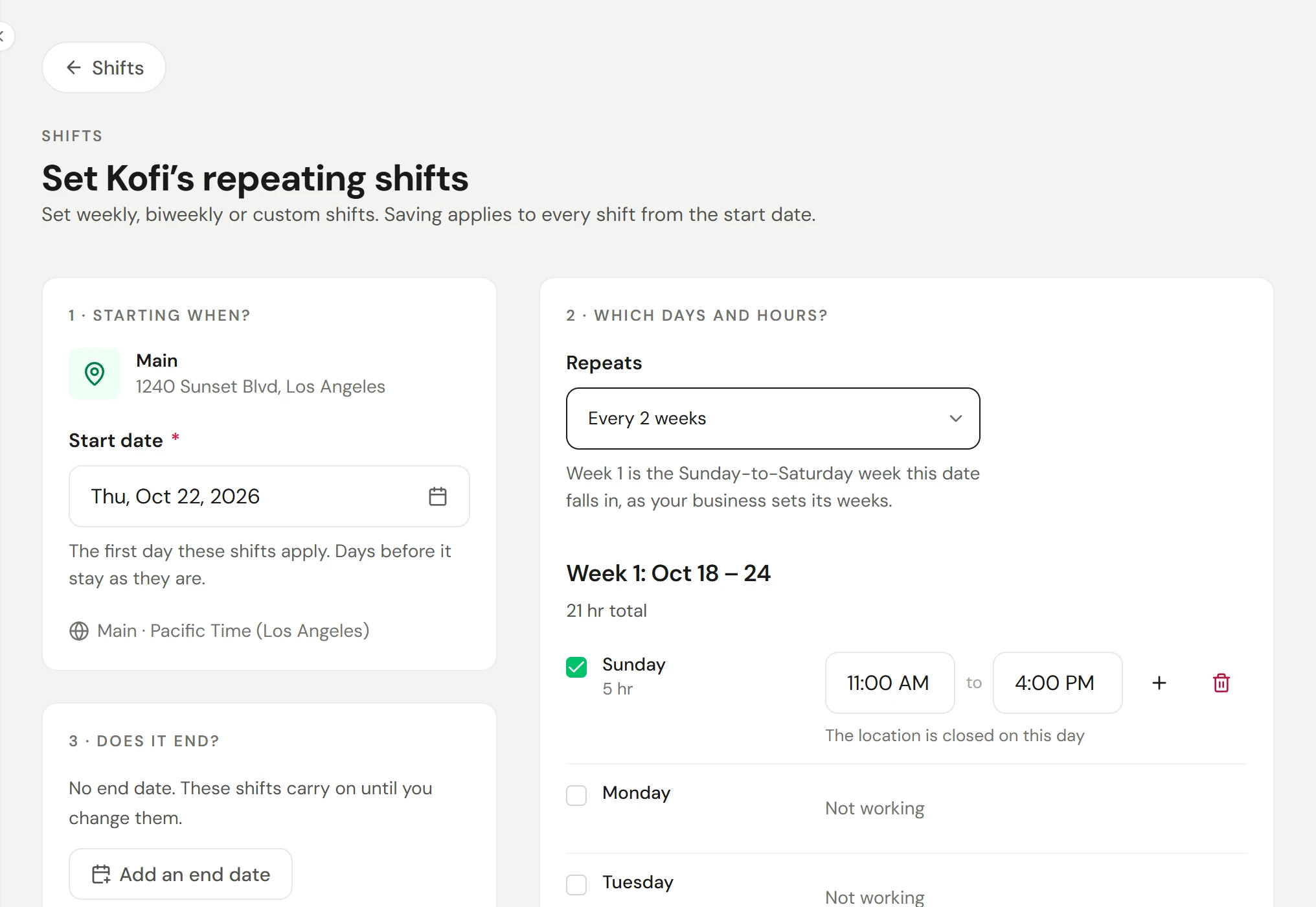
1 · Starting when?
Set the Start date: today or later. If they work at several locations, choose the location. The time zone the hours are in shows under the date.
2 · Which days and hours?
Under Repeats, choose Every week, Every 2 weeks, Every 3 weeks or Every 4 weeks. With 2 to 4 weeks you set each week, and each is headed with its dates, such as "Week 1: Oct 25 – 31". Week 1 is the week the start date falls in, running from your business's first day of the week (First day of the week under Settings → Business → Region & formats). If your week starts on Monday, Saturday and Sunday sit in the same week, so "every other weekend" is one week of a 2-week schedule. Changing the first day of the week later does not move anyone's weeks; the next time you save their shifts, the new first day applies.
Tick each day they work. A ticked day starts at the location's opening hours; change the times in 5-minute steps. Select Add shift for a second shift on the same day, up to 10, and the bin to remove one. A note says when a shift runs past opening hours.
3 · Does it end?
There's no end date unless you add one. Select Add an end date and pick their last day on these shifts. Remove the end date takes it away again.
Check what changes, then save
Beside Save, one line reads the whole schedule back, such as "Kofi works a 2 week cycle from Sun, Oct 25, 40 hr over the cycle. Ends after Sat, Dec 5." What saving changes lists days you changed by hand that the new shifts replace, and appointments already booked that would fall outside the new hours, with links to them. Select Save. If saving replaces days or leaves appointments outside the new hours, you're asked once more before it saves.
From the start date, every week follows the new shifts. Weeks before it keep their old hours, so past reports don't change.
Change many weeks at once
Go to the week the change starts, open the ⋮ beside their name and choose Every week from a date. The page opens with the shifts in force on that date, so you only change what's different. When you save:
- the shifts in force stop the day before;
- any shifts you had already set for later dates inside the new period are replaced;
- days you changed by hand from the start date are replaced. Approved time off and holidays are never touched.
Nothing is cancelled. If a booked appointment falls outside the new hours, it's listed before you save so you can move it.
When someone is leaving
Open Remove shifts
Open the ⋮ beside their name and choose Remove shifts.
Choose Everything from a date
Choose Everything from a date, then the First day with no shifts, usually the day after their last day. If they work at several locations, choose one or All their locations. Select Continue.
Check, then remove
The panel says from which day they have no shifts, which days you changed by hand go too, and which appointments are already booked with them from that date, with links. Select Remove from the date. Their repeating shifts end the day before; nothing is cancelled, and their time off stays.
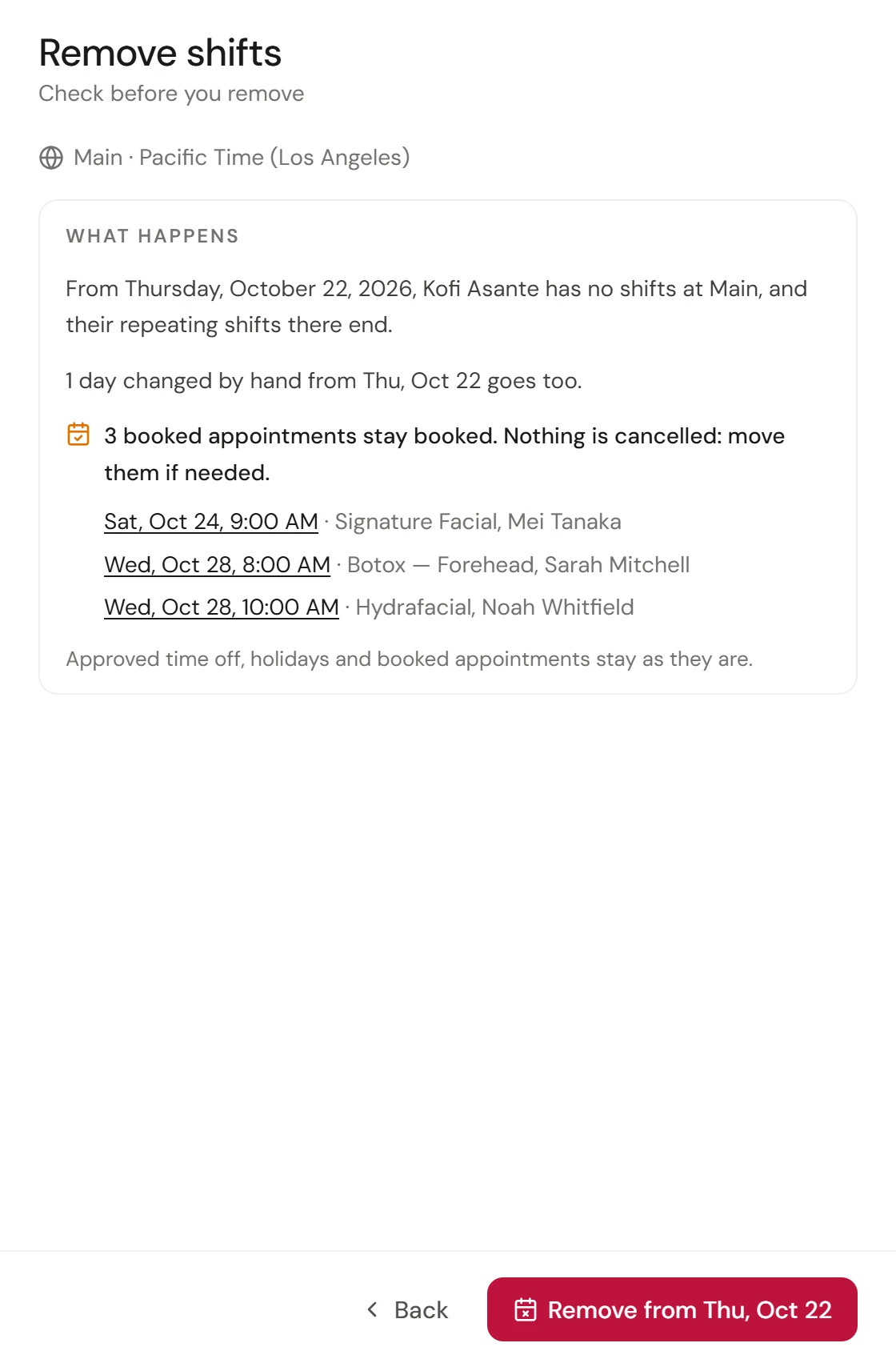
This is the one change without Undo, which is why it shows you everything first. To give them shifts again, set new repeating shifts from a later date.
On their last day, archive them as usual: see Suspend, archive or offboard a team member.
Remove one week or some dates
For a gap rather than a goodbye, open Remove shifts and choose One week or Some dates (any run of dates, up to 13 weeks). The check lists the shifts that go, says that time off and holidays stay as they are, and lists appointments still booked, which stay booked. Their repeating shifts carry on after the last date. Select Undo within 8 seconds to put everything back.
Going on leave or a holiday? Select Add time off instead, so the absence is recorded and approved like any other.
Change one day or one week
Select any shift on Shifts and the day opens straight away: Repeating hours, Different hours or Not working, with Add another shift this day for a split shift. For a whole week, choose One week only from the ⋮ beside their name. Both change those dates only, list anything booked, and offer Undo for 8 seconds. See Set working hours and shift patterns.
Check it worked
Go to a week after the start date on Shifts: the person works only on the days you set, marked Repeating. On the calendar they appear on those days, and on the booking page times are offered only then.
If something goes wrong
"This team member doesn't offer any services"
They can't be booked online until they do. Select Edit team member on the note and add their services.
A shift is marked in red
Two shifts on the same day overlap, or one ends before it starts. Fix the times, then save.
Their hours at another location collide
The page warns when the new shifts overlap their hours at another location. You can still save, but online booking is off for them on those days until one location changes.