

Recover what card payments cost you in one of two ways: add a surcharge when a client pays by credit card, or offer a cash discount when they pay another way. Separately, you can add a service charge to any sale, such as a call-out fee.
Before you start
- Who can set it up: admins.
- Surcharging is regulated. You must register a surcharge program with the card networks first. Confirming what's lawful where you work is up to you.
Choose a surcharge or a cash discount
| Credit-card surcharge | Cash discount | |
|---|---|---|
| What happens | A percentage is added when the client pays by credit card | A percentage comes off when the cashier applies it |
| Limit | 3% at most | None |
| Switched off automatically | At locations in Connecticut and Massachusetts, and until you confirm you've registered | Never |
| At the till | Added for you on card payments | The cashier selects Apply 3% cash discount (with your percentage) |
| On the receipt | Its own row, such as Card processing fee | A discount, with your label |
Set it up
Open the payment policy
Go to Settings → Payments & selling → Payment policy and find Card fees.
Choose the mode
In Surcharging & cash discount, choose Off, Cash discount or Credit-card surcharge.
Set the amount and label
Enter the Percentage. In Receipt label, type how the line should read on receipts.
Confirm registration (surcharge only)
Tick We have registered our surcharge program with the card networks. Surcharging stays off until this is ticked.
Save
Select Save changes.
If a location runs its own payment policy (under Each location), it uses its own card-fee setting too.
Take a payment with a surcharge
Choose the card method
On the payment step, select External terminal or the client's saved card.
Waive it for a debit card
Owneli can't tell whether a card tapped on your own terminal is credit or debit, so it adds the fee by default. If the client used a debit card, tick Debit card: waive the fee. A saved debit card is never surcharged.
Check the total and charge
A note shows the fee, such as Card processing fee (3%), and Total charged to card: the payment, the tip and the fee together. Charge that amount.
Cash, check, gift card, package and membership payments are never surcharged.
Give a cash discount
Apply it in the cart
In the cart, select Apply 3% cash discount. The button shows your percentage. It only appears when the sale has no other manual discount.
Take the payment
Take payment by cash or check as usual. The discount shows under Show breakdown on the right and comes off the total, tax included.
Add a service charge
Open the sale actions
In the cart footer, select the ⋮ (Sale actions), then Add service charge.
Fill in the charge
Enter a Charge label (it starts as "Service charge") and the Amount.
Add it
Select Add charge. It joins the sale as its own line.
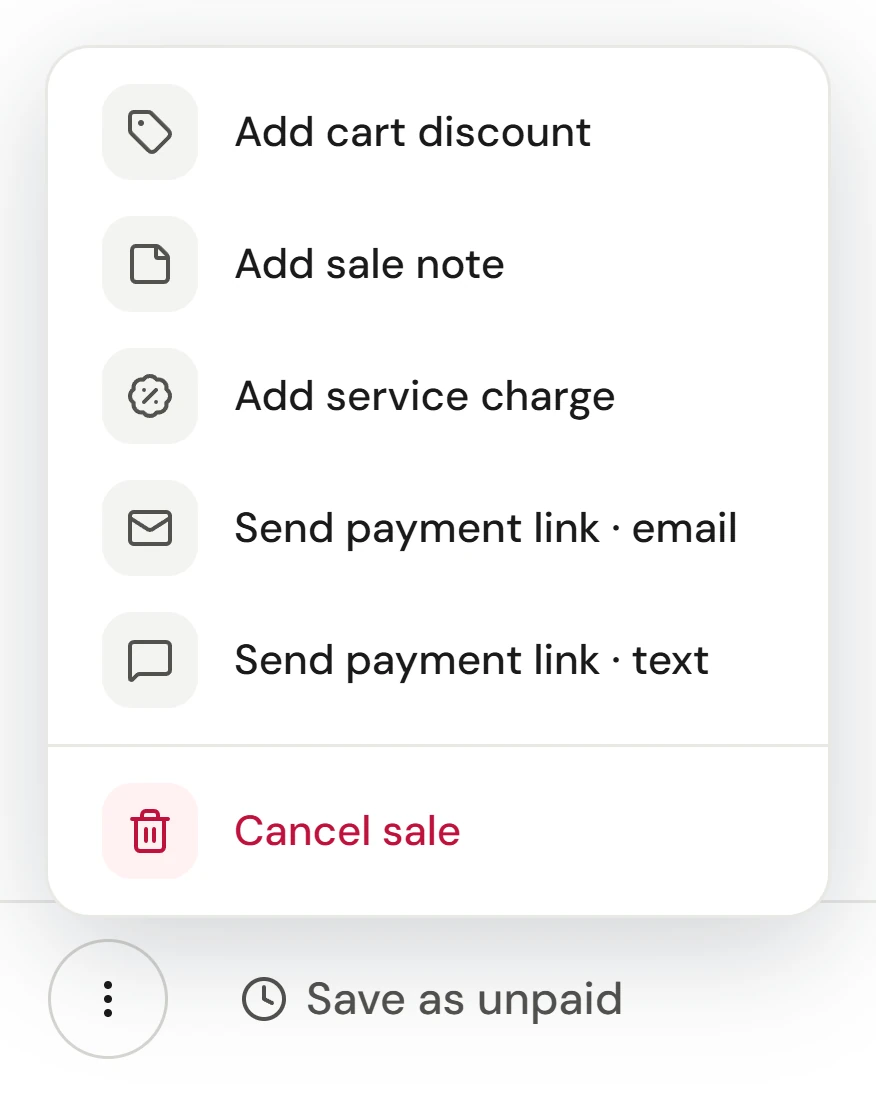
A service charge carries no tax and isn't a tip, so it isn't shared between providers. If the client means it as a thank-you to the team, take it as a tip instead.
Check it worked
The receipt shows the surcharge as its own row with your label, a cash discount as a discount, and a service charge as a line item.
If something goes wrong
No surcharge was added to a card payment
One of these applies: the mode is off, the registration box isn't ticked, the location is in Connecticut or Massachusetts, the saved card is a debit card, or someone ticked Debit card: waive the fee.
The cash discount button isn't in the cart
The mode isn't Cash discount, or the sale already has a manual discount.
I can't set the percentage above 3%
That's the limit for a credit-card surcharge. A cash discount has no limit.