

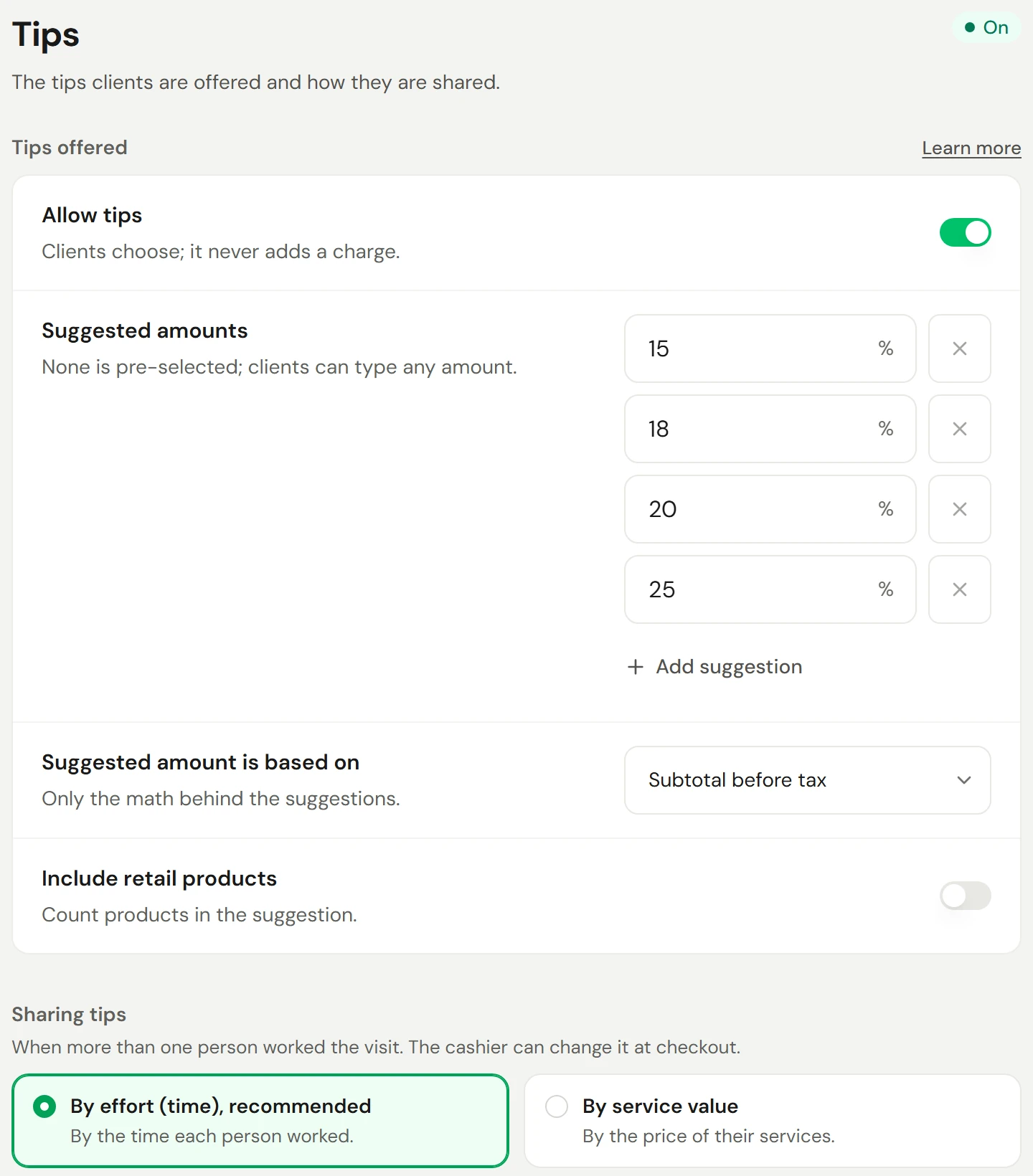
Your tip settings decide whether clients are offered a tip at checkout, which amounts they're shown, and how a tip is shared between your team. Clients always choose: nothing here adds a charge, and no tip is ever picked for them.
This article covers setting it up. For tips at the till, see Tips.
Before you start
- Who can do it: admins and owners.
Set up tipping
Open the setting
Go to Settings → Payments & selling → Tips.
Offer tips
Switch on Allow tips. This only shows clients the option.
Choose the suggestions
Under Suggested amounts, edit the percentages clients see, or select Add suggestion. None is selected for them, and they can always type their own amount or leave nothing.
Choose what the suggestions are based on
Under Suggested amount is based on, choose Subtotal before tax or Total after tax. Switch on Include retail products if products should count too.
Choose how tips are shared
Under Sharing tips, pick how a tip is divided when more than one person worked the visit (see below).
Save
Select Save changes in the bar at the bottom.
How tips are shared
| Split | Each person's share follows |
|---|---|
| By effort (time), recommended | The time each person was booked for |
| By service value | The price of the services each person did |
| Equal | An even split |
| Primary provider only | The whole tip goes to the main provider |
The cashier can change the split for one sale at checkout.
Under Tips with no service provider, choose who gets a tip on a product-only or walk-in sale: The cashier who rang the sale or A shared house / unassigned pool.
To share tips with support staff, switch on Tip out to support staff and set the Share sent to support staff. That part of each provider's tip goes to a shared pool. It only divides what the client left.
A different setting for one location
Under Each location, select Override on a location and set its own tips. Locations without an override follow your default.
Check it worked
Start a sale and go to payment. The tip step shows your suggested amounts with none selected, plus No tip and Custom amount.
If something goes wrong
Clients aren't offered a tip
Check Allow tips is on, and that this location doesn't have an override with tips off.
Can I add a set service charge instead?
Not as a tip, because tips are always the client's choice. You can add a service charge to a sale instead. See Card surcharges, cash discounts, and service charges.