

For partners A real situation
A client is at the desk. Take their payment.
Ring up a visit from cart to receipt: the client, a service and a product, a discount, the tip they choose, and cash with change.
Recorded in a demo workspace. Narrated, with captions on.
Open a cart
In Point of sale, choose Open a cart. Checkout has three steps: Cart, Tip and Payment.
The situation
Put it into practice.
A regular has finished a facial and wants to take a body lotion home. Charge both, apply this month's offer, add the tip they choose and take their cash.
What you will take away
You can build a cart, take payment and find the receipt.
Before you start
Selling needs point-of-sale permission. Check the location at the top of the checkout, and open the cash drawer before you take cash.
Keep in mind
A tip is always the client's choice; nothing adds one for them. Here, tax applies to retail products only; your tax settings decide this. The recording pays in cash, so no card is charged and no receipt is emailed. Email a receipt only when the client asks for one.
Try the decision
The client hands you $250 for a $212.77 bill. What do you type as the cash amount?
Read the full walkthrough
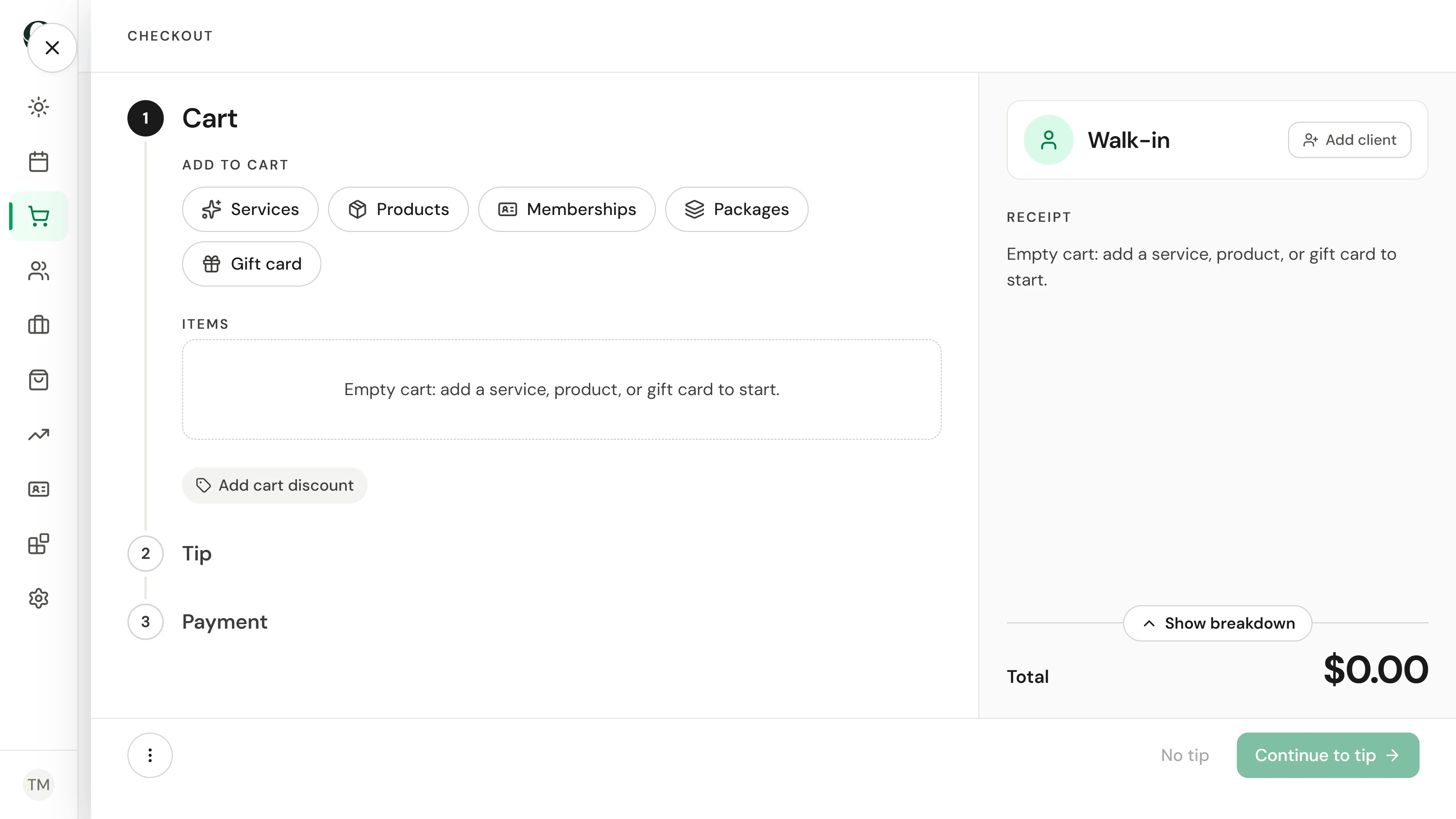
1. Open a cart
In Point of sale, choose Open a cart. Checkout has three steps: Cart, Tip and Payment.
2. Attach the client
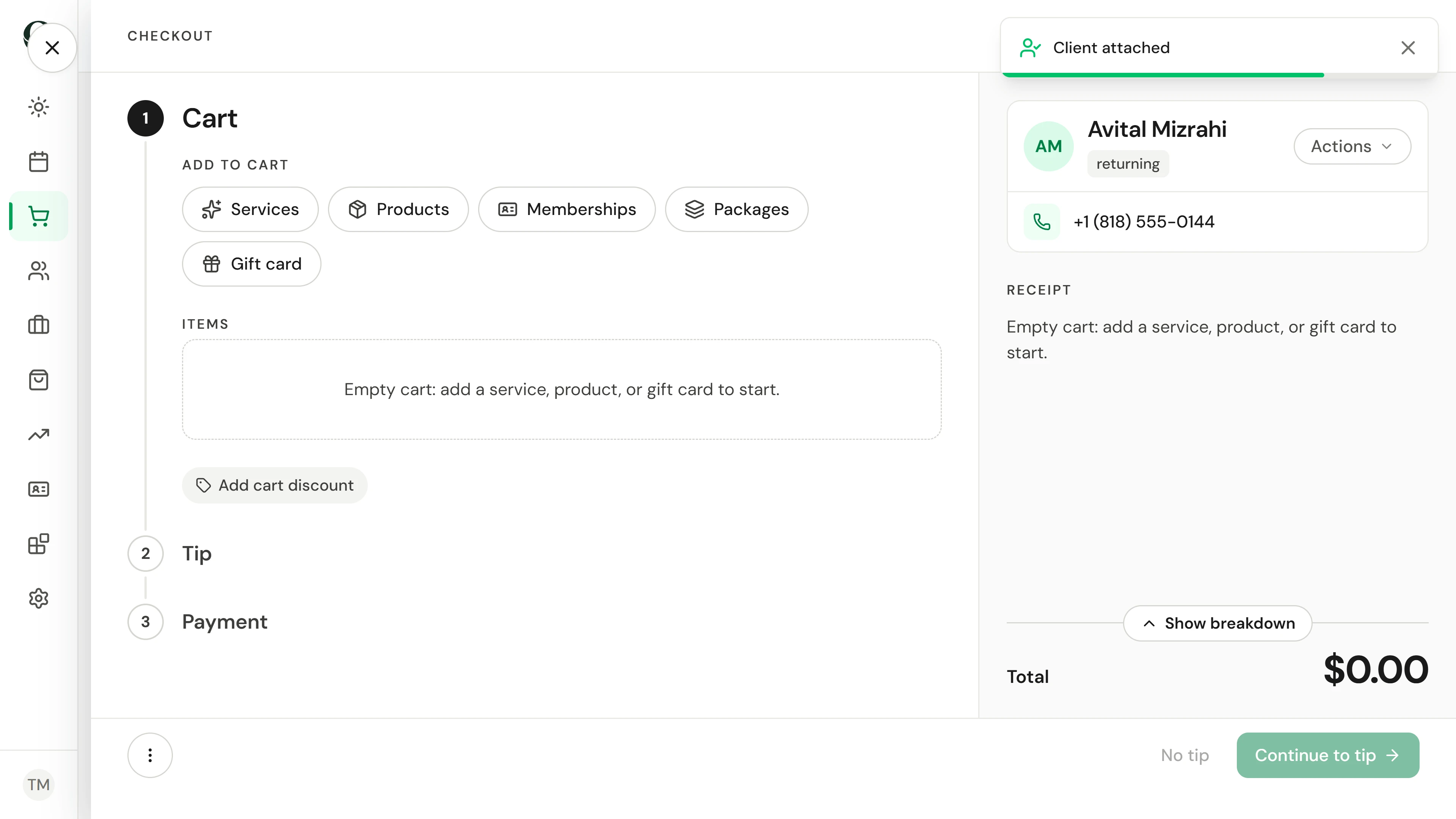
Choose Add client and search by name, email or phone. Their name, contact details and any loyalty balance appear beside the cart.
3. Add the service
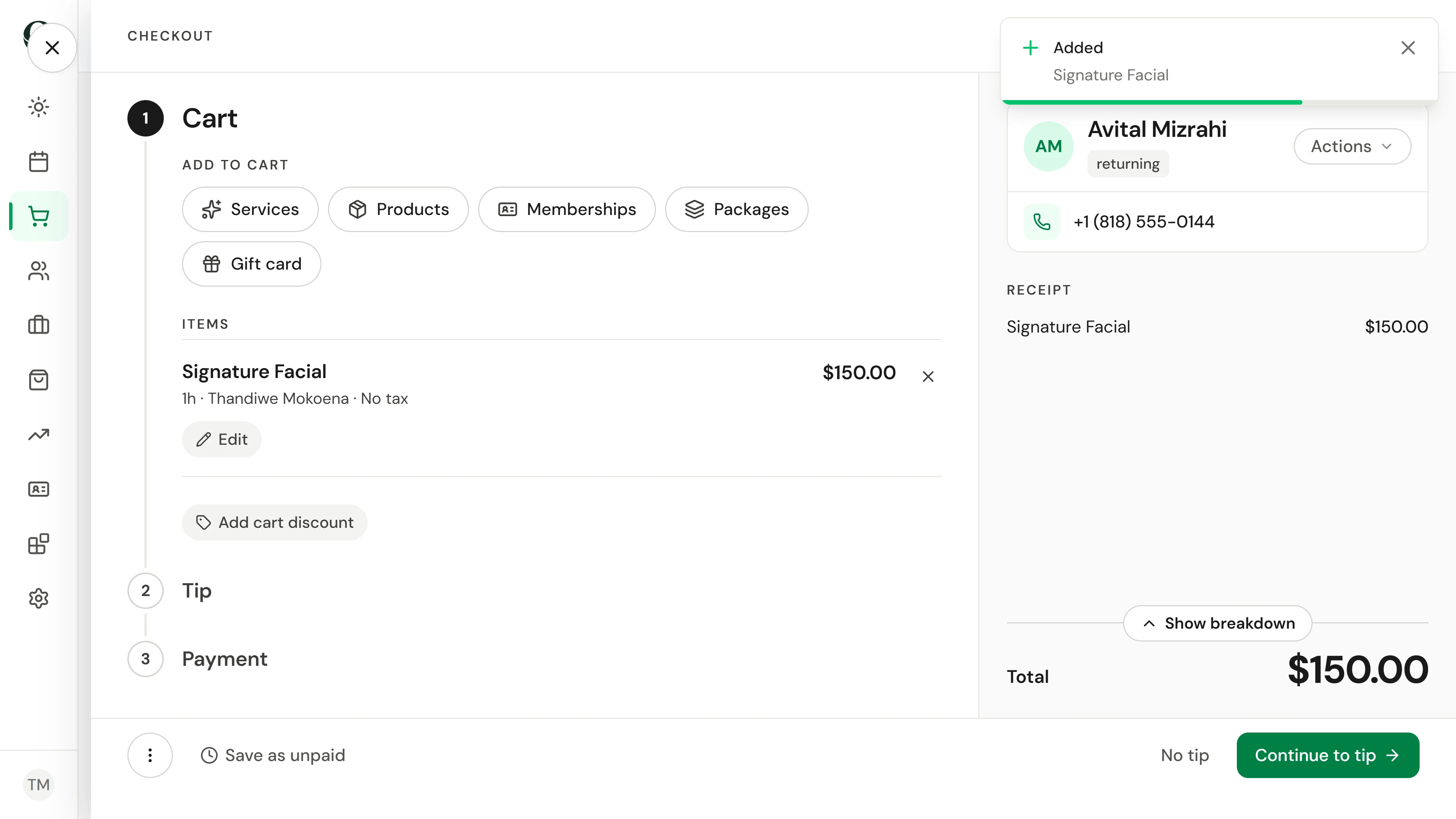
Choose Services and select the treatment they had. It joins the cart at its price. When two people worked on it, select the item, choose Split with another team member under Team member, and Apply.
4. Add a product
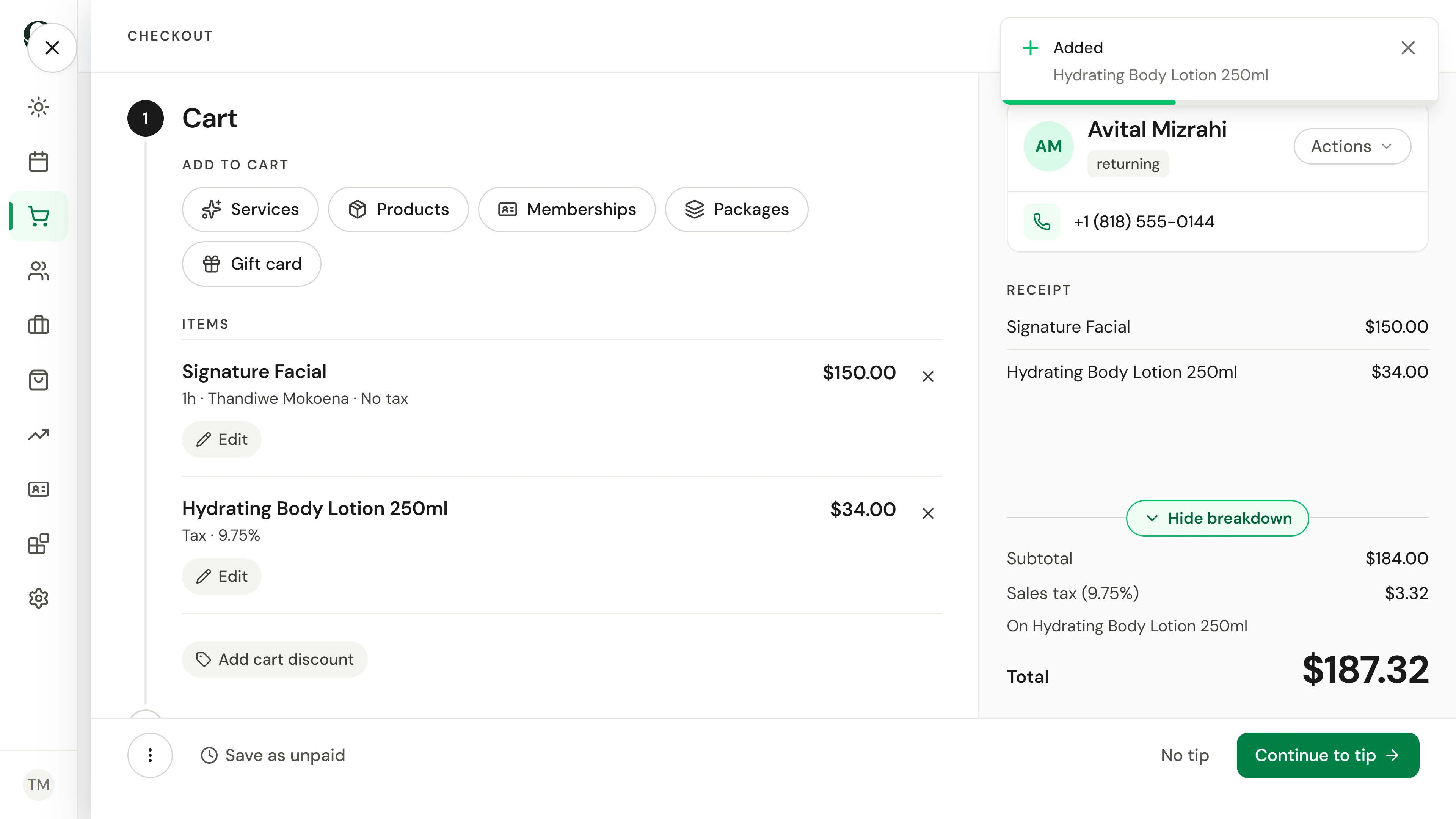
Choose Products, then search by name or scan the barcode into the same field; a scanned barcode adds the product straight away. Choose Show breakdown to see tax on retail products on its own line.
5. Apply a discount
Choose Add cart discount. Deals lists the offers you can apply, Code takes a promo code, and Manual sets a one-off amount. The total updates straight away.
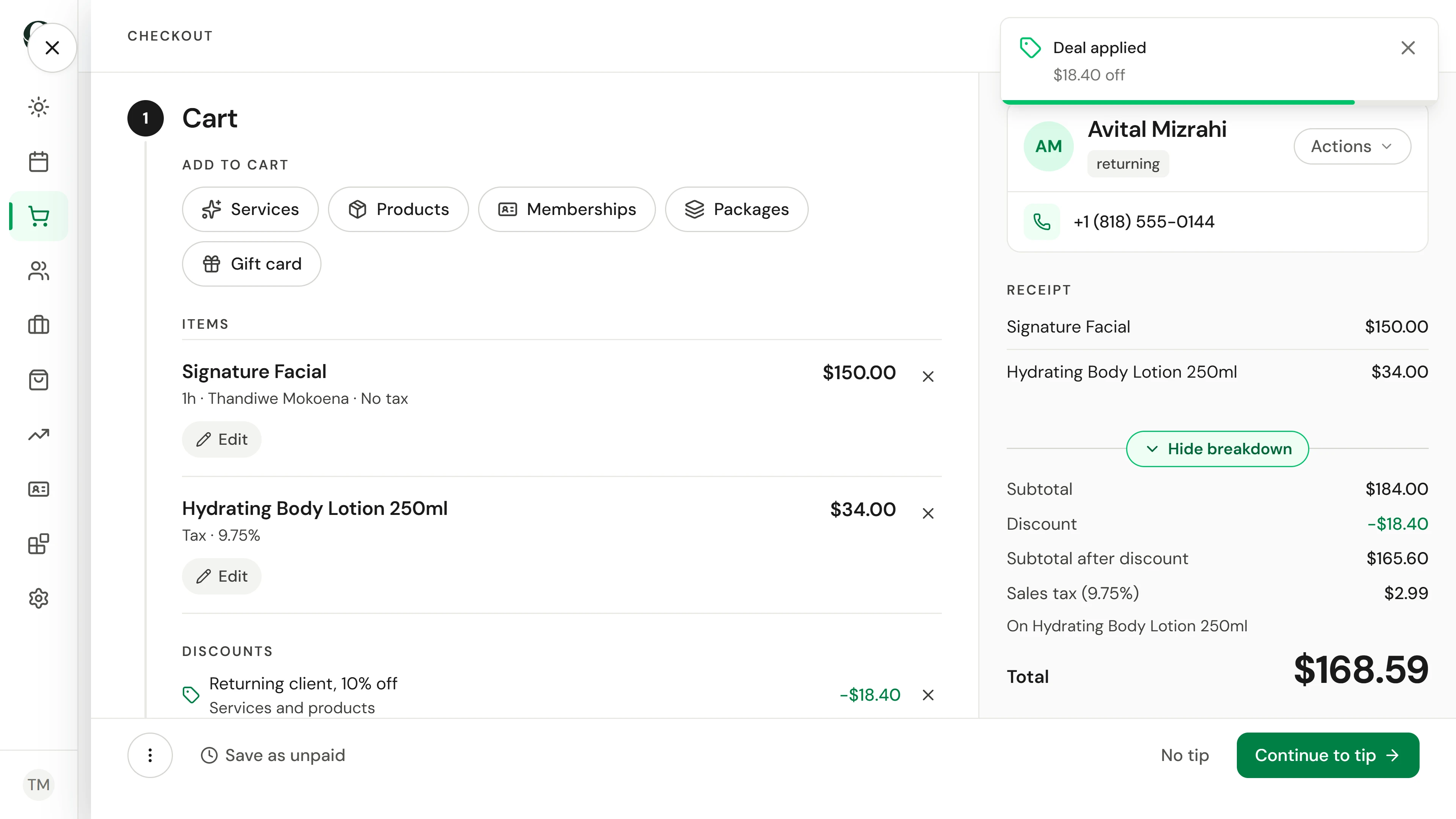
6. Add the tip they choose
Continue to tip. Tap the suggestion the client picks, enter their own amount, or choose No tip.
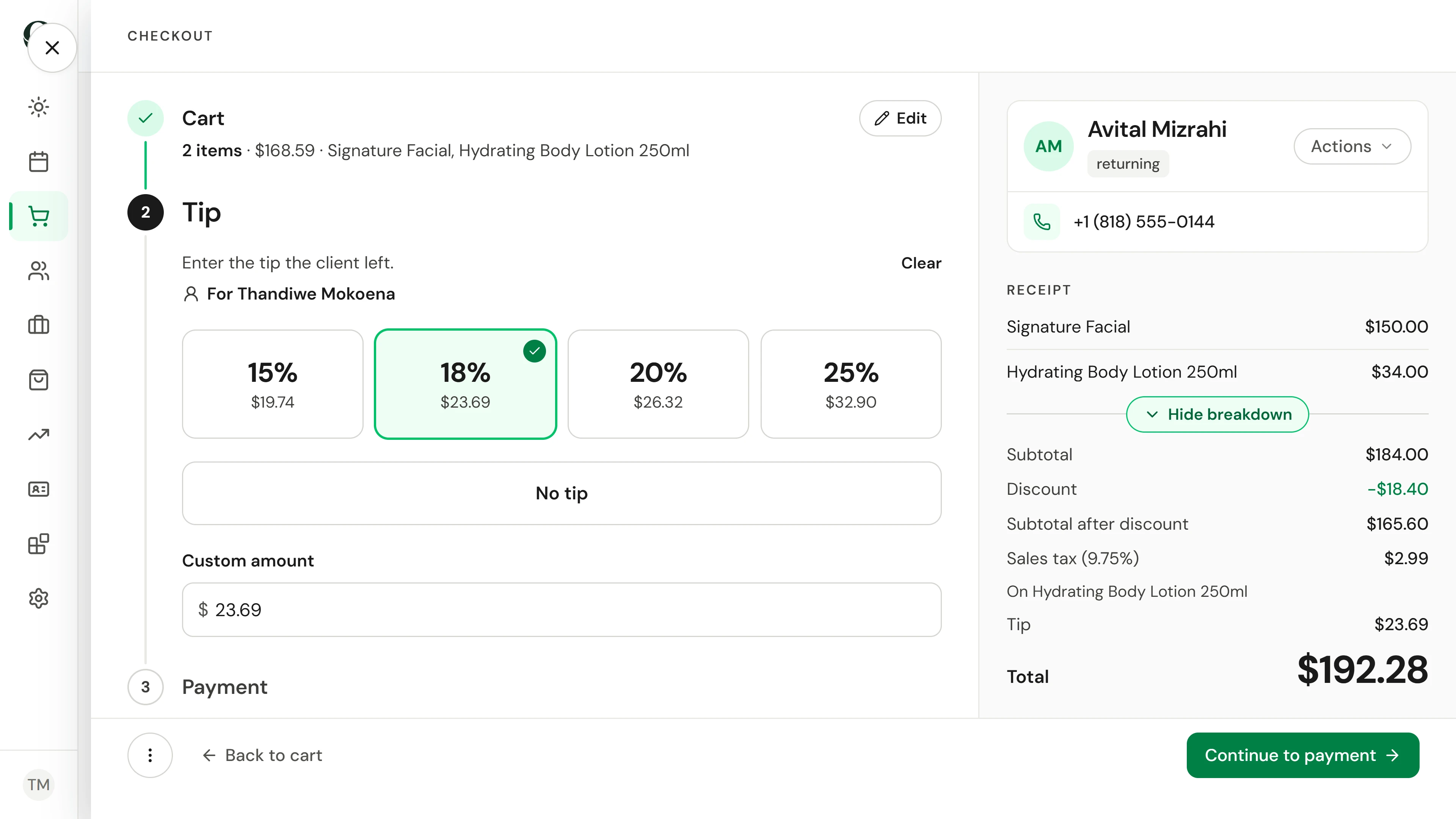
7. Take cash and give change
Continue to payment and choose Cash. Type the amount the client hands you; Change due shows what to give back. Then charge. To split a bill, take part now and the rest by another method.
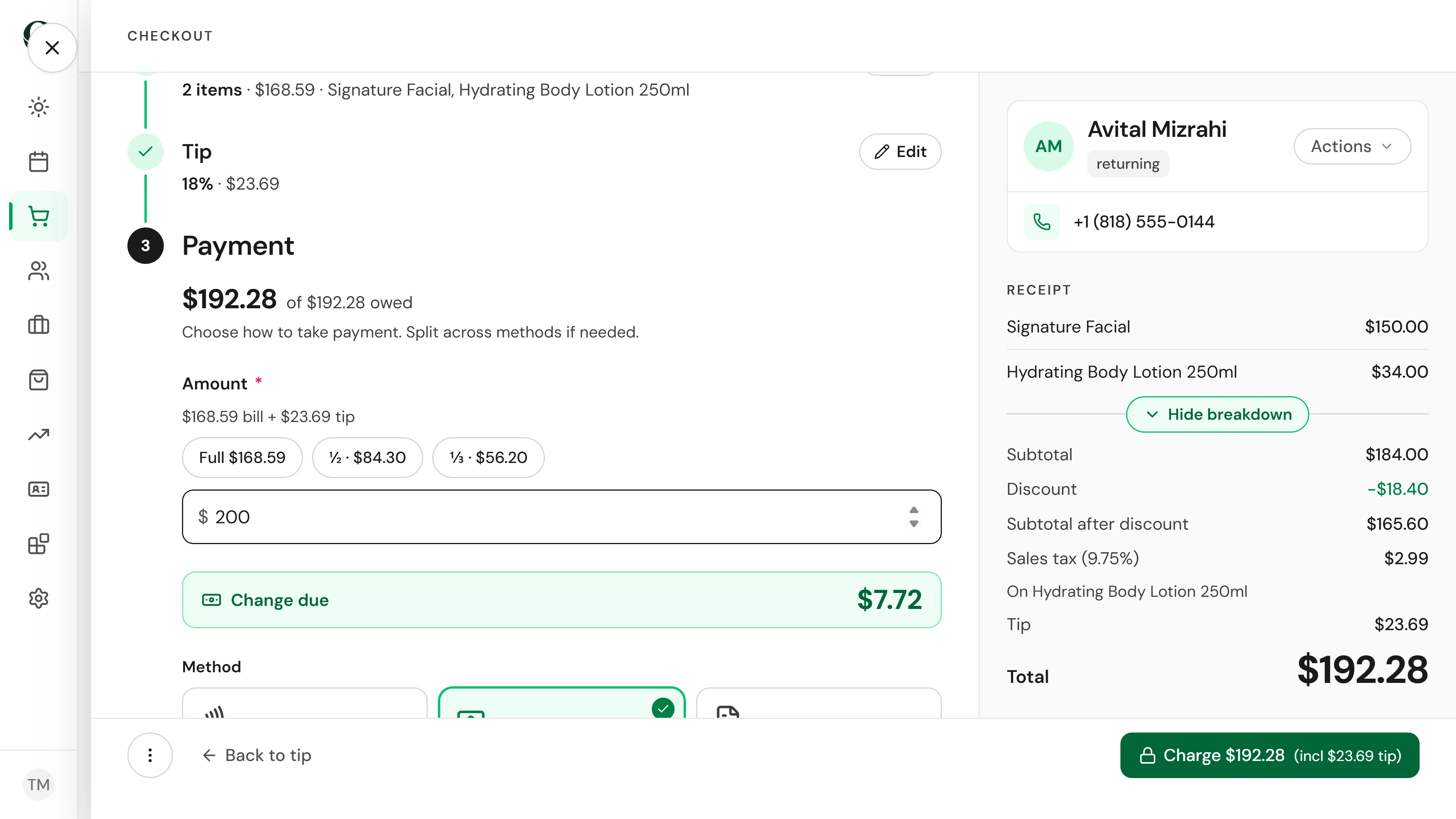
8. Hand over the receipt
The sale is complete. View receipt opens it to print, or to email when the client asks. The sale is in Sales from now on.
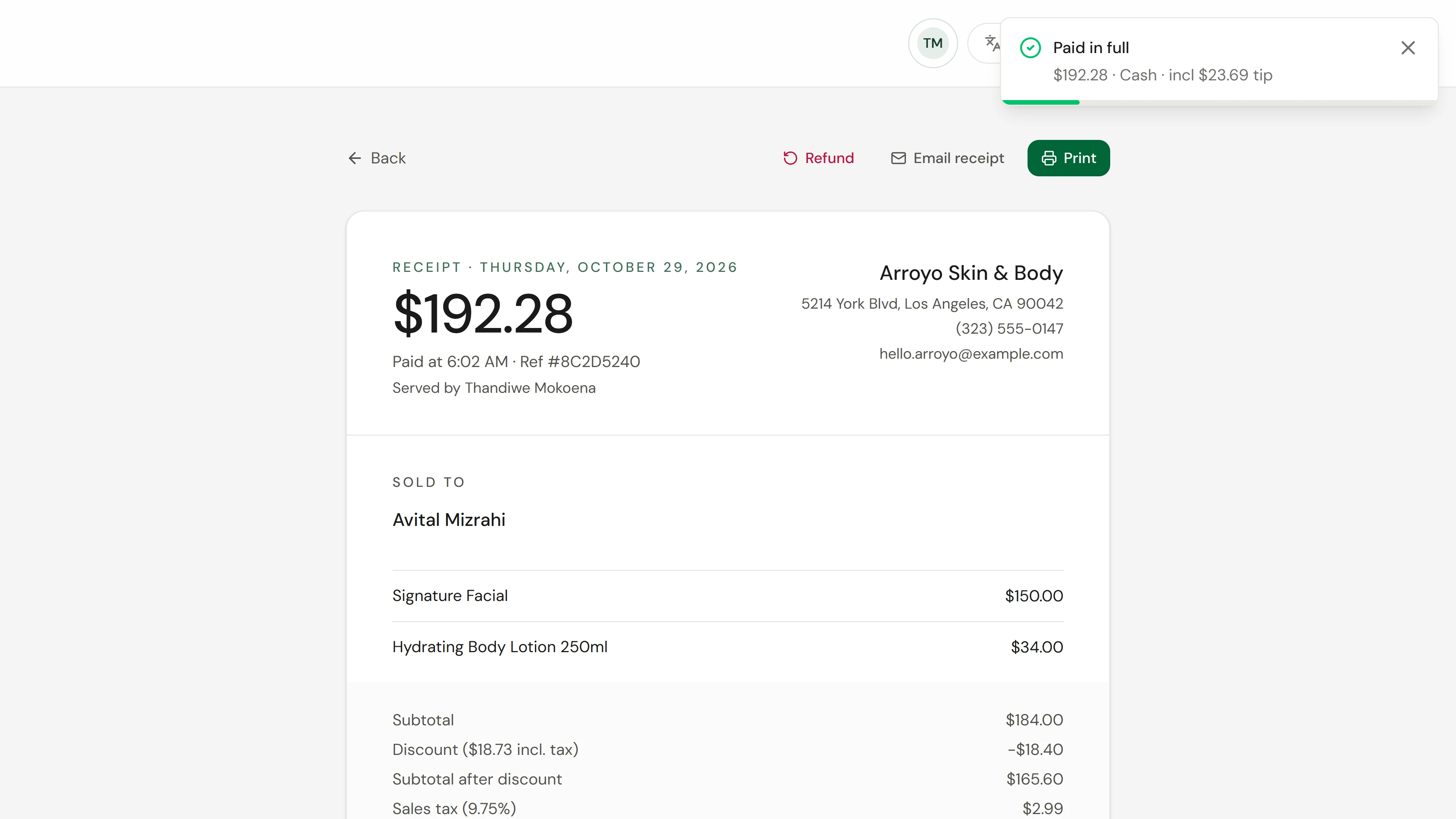
Go deeper