

Owneli Academy
Real situations.
Clear next steps.
A quiet calendar. A pricing decision. A client who means to return. Work through everyday business problems and learn the Owneli tasks that help.
Built around your day
What brings you here?
Choose a role for a short, practical learning path. You can explore any path.
Your suggested path
I run a business
20 walkthroughs shown
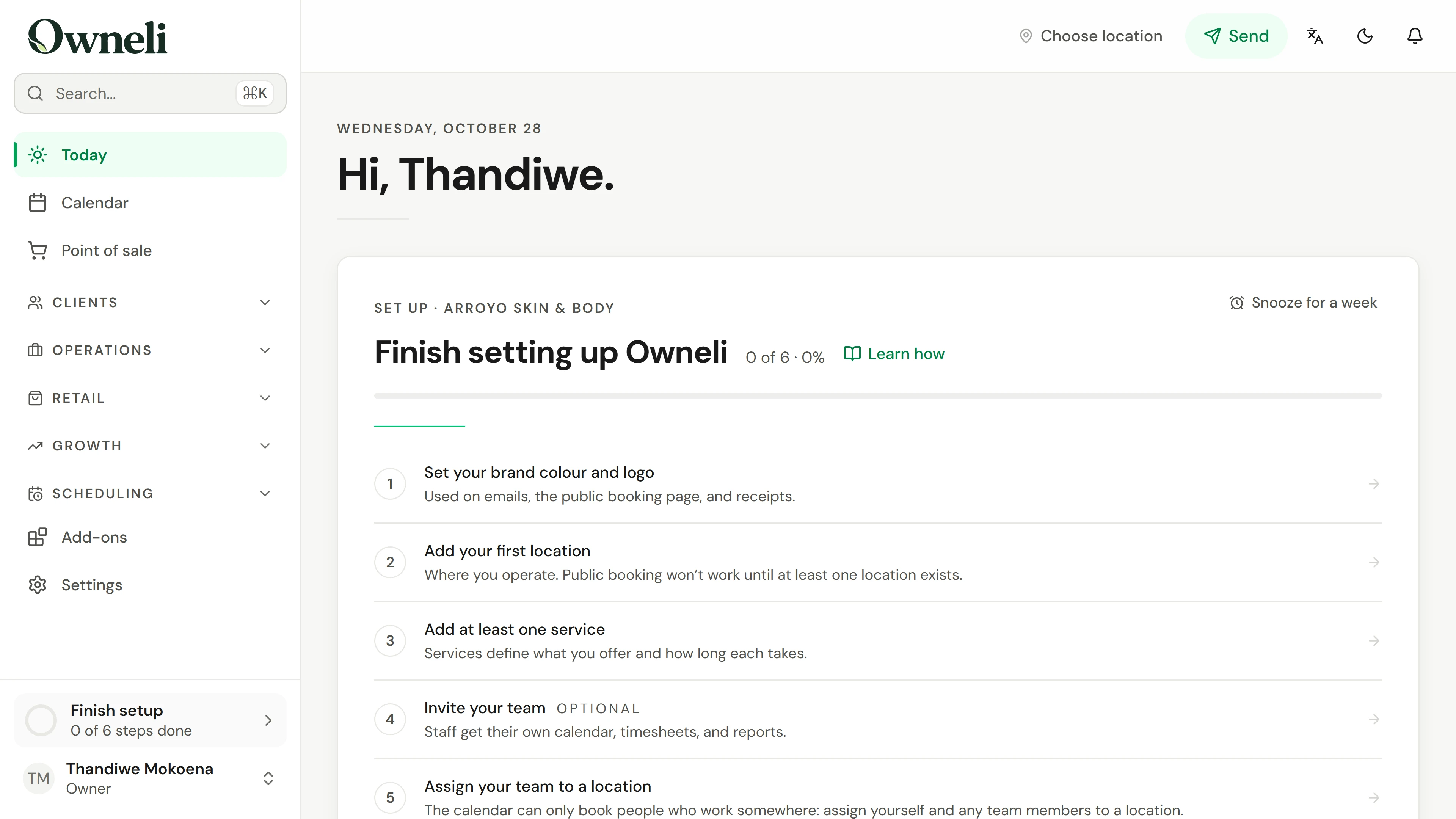
01. Your business is new. Get it ready for its first booking.
Work through the setup list on Today: your brand, a location, a service, your hours and a first client, then online booking and payments.
Explore this situation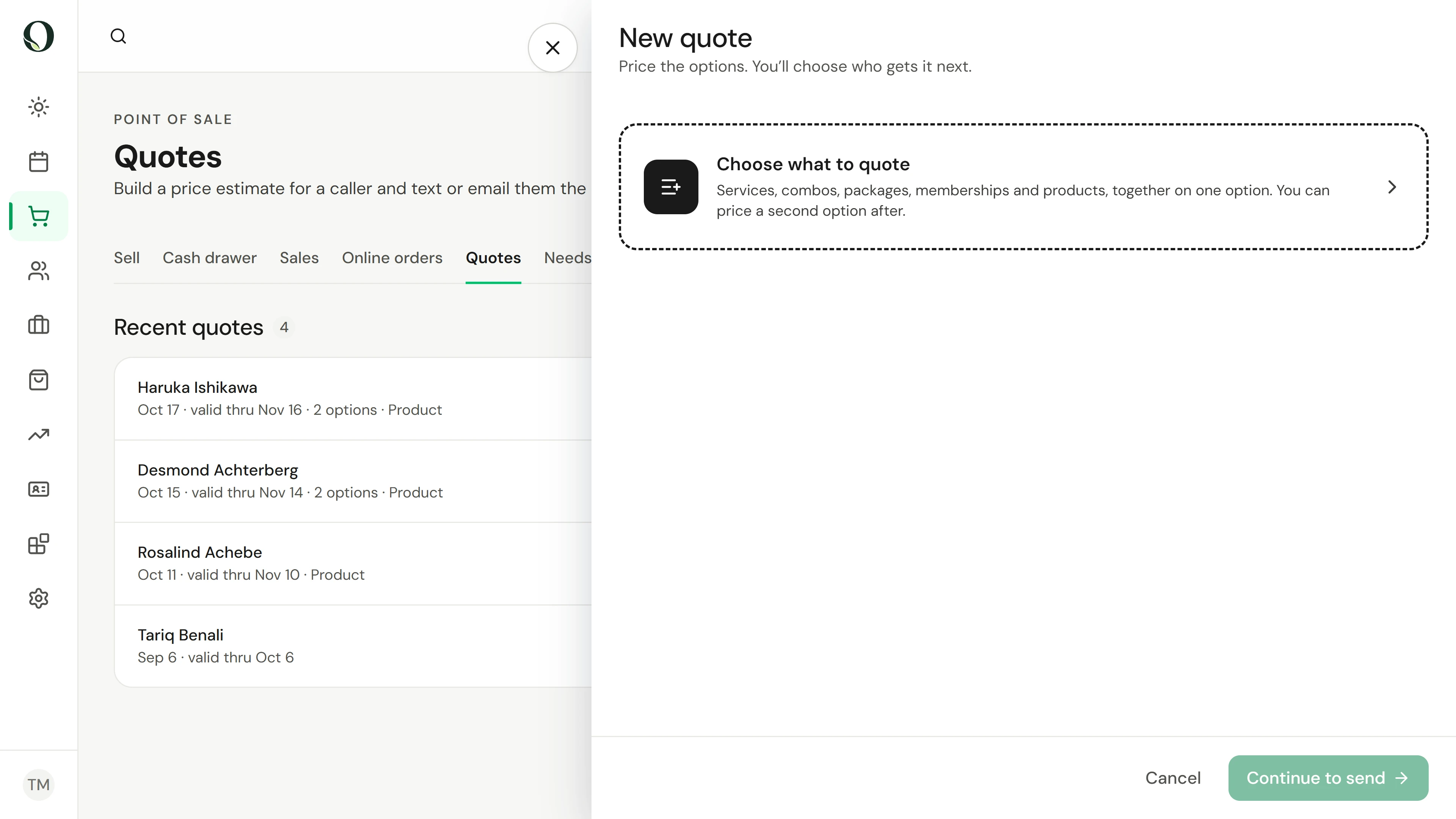
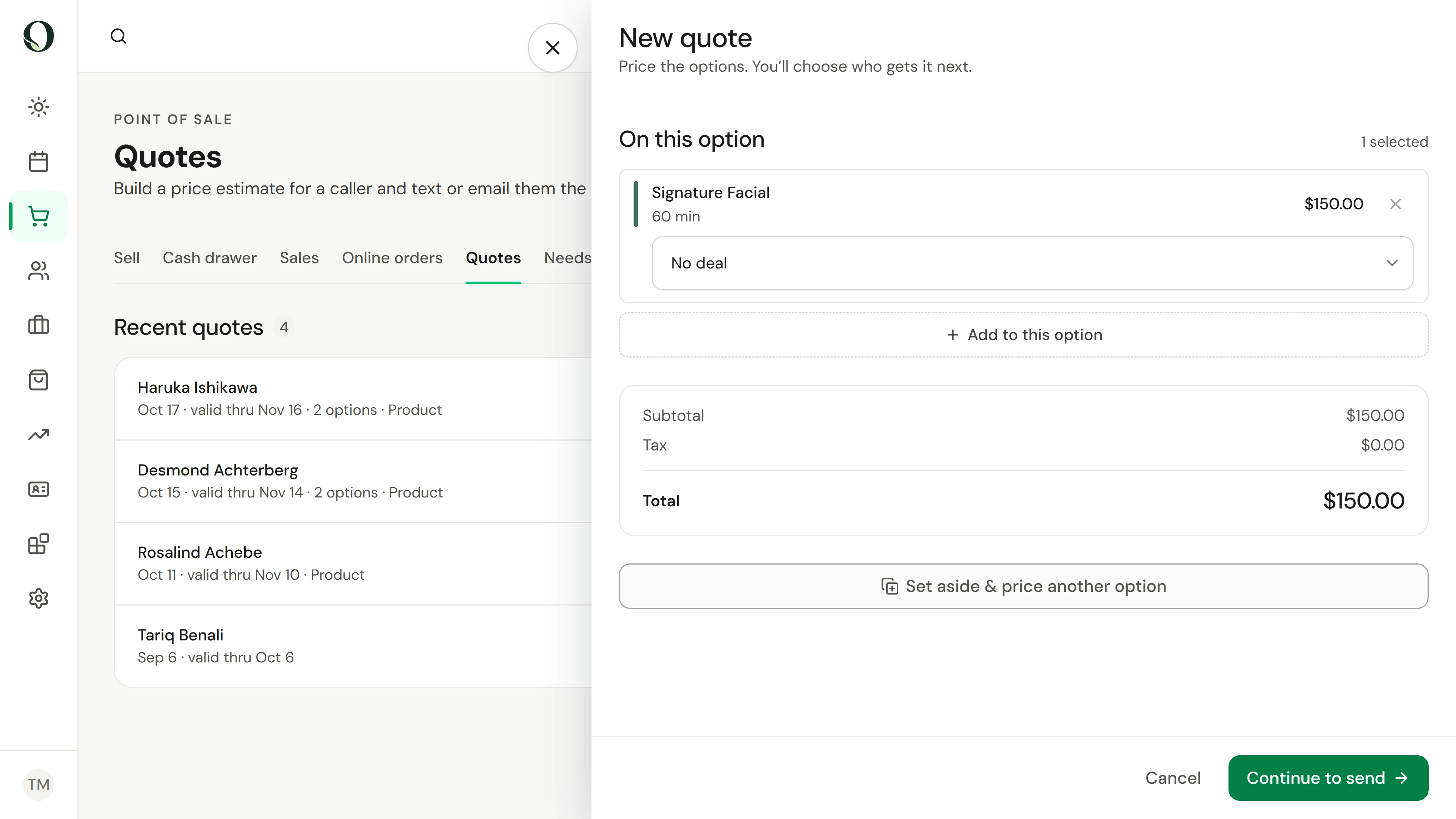
02. A caller wants prices. Give them a next step.
Build a clear estimate, compare options, and show a caller how to move from a price enquiry to booking.
Explore this situation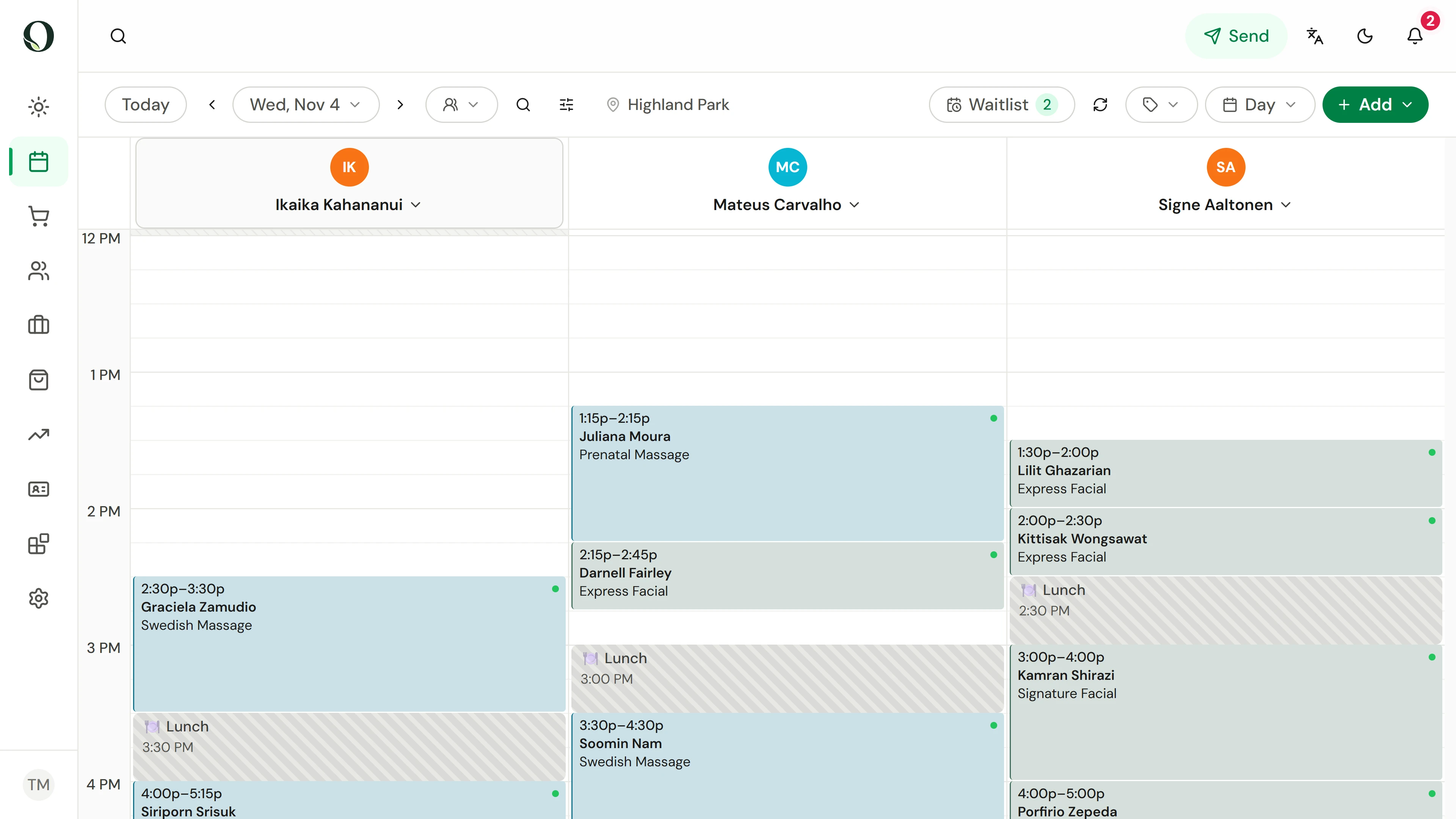
03. Book the whole visit while the client is on the phone.
Find the booking controls, choose the client and services, and check the complete visit before confirming.
Explore this situation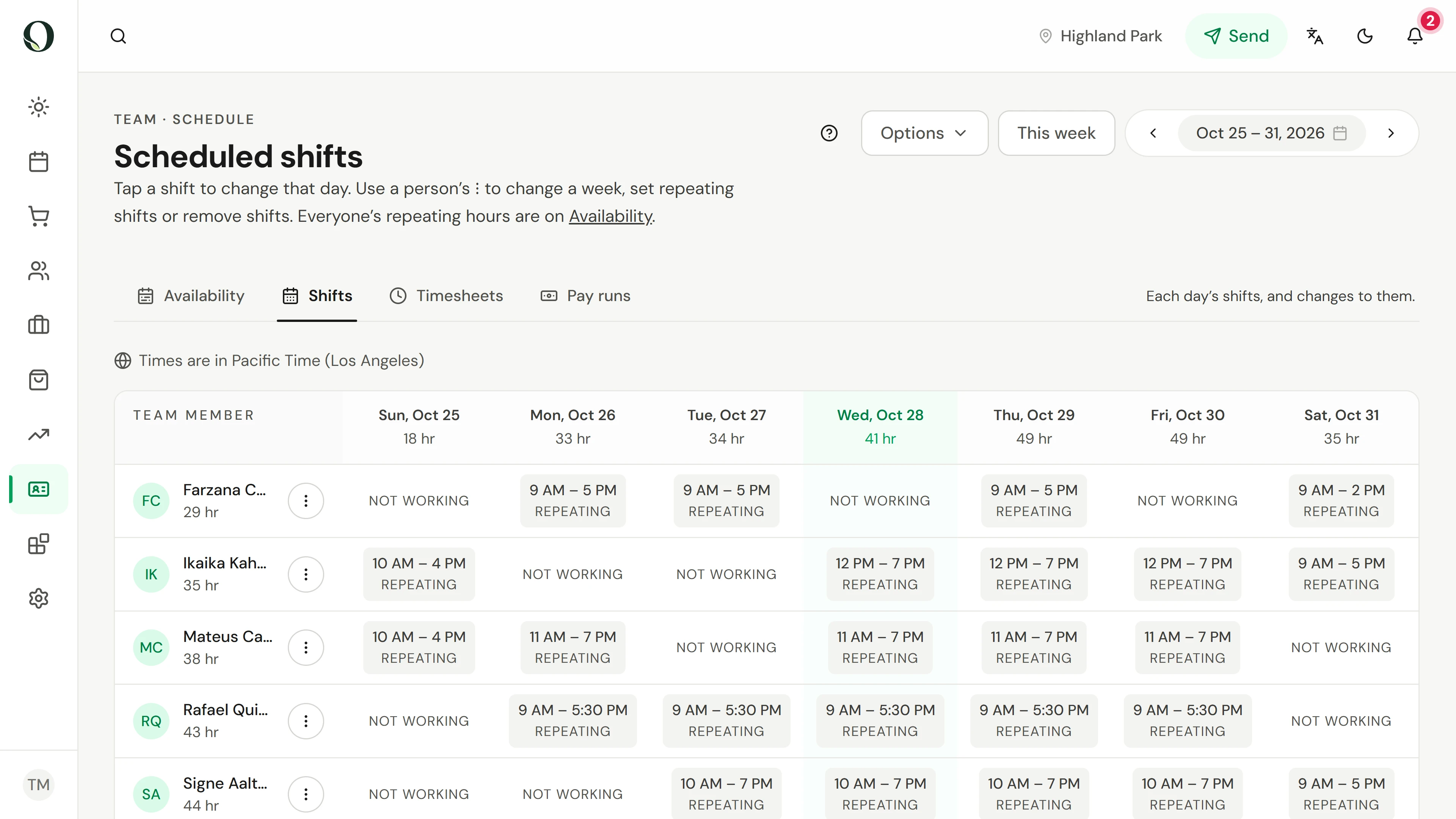
04. Someone is starting late this week. Adjust the right schedule.
Understand the difference between repeating availability and a change for a particular week.
Explore this situation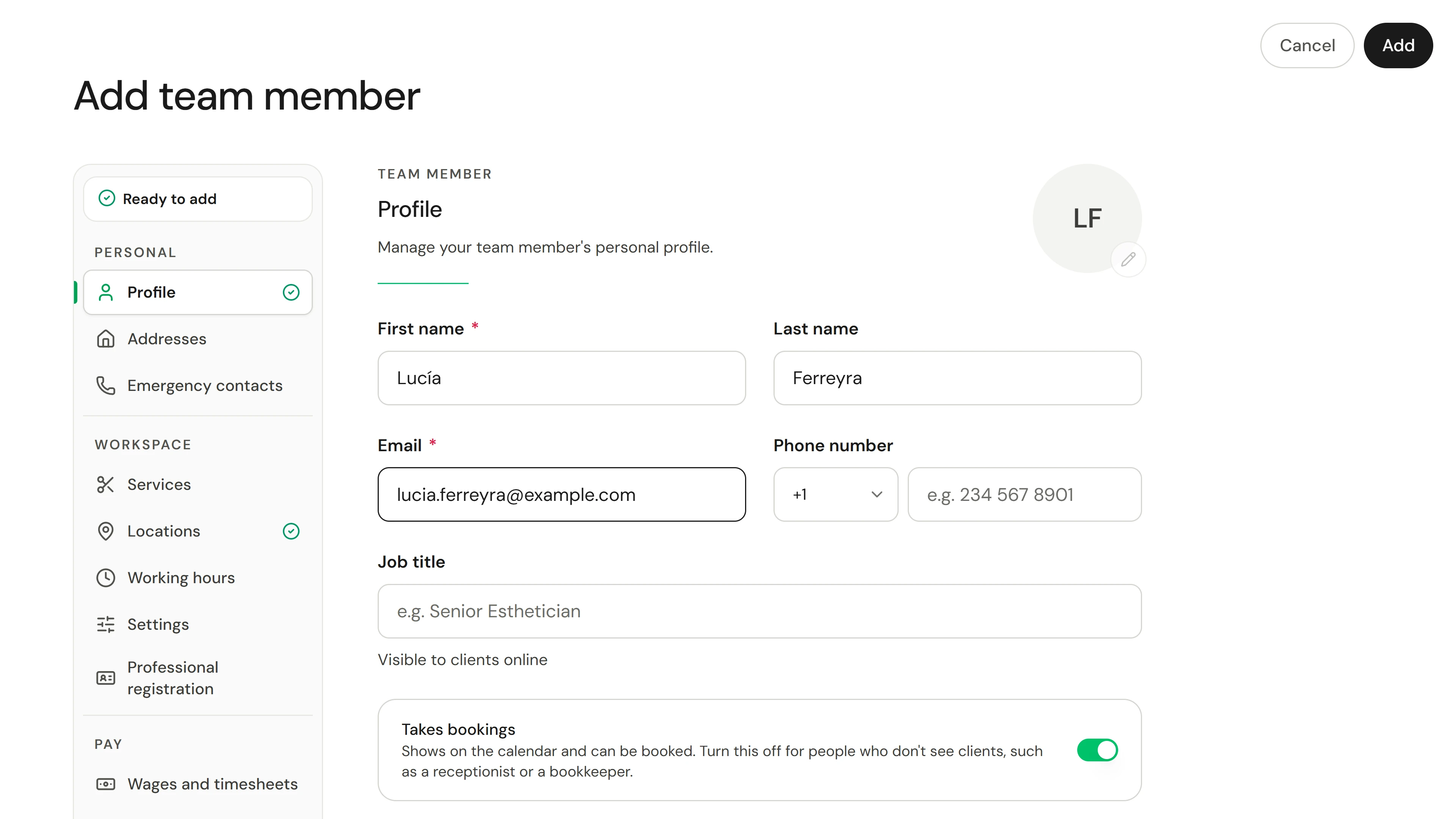
05. Someone new starts soon. Invite them with the right access.
Invite a team member, choose their role, services and location, and track the invitation until they join.
Explore this situation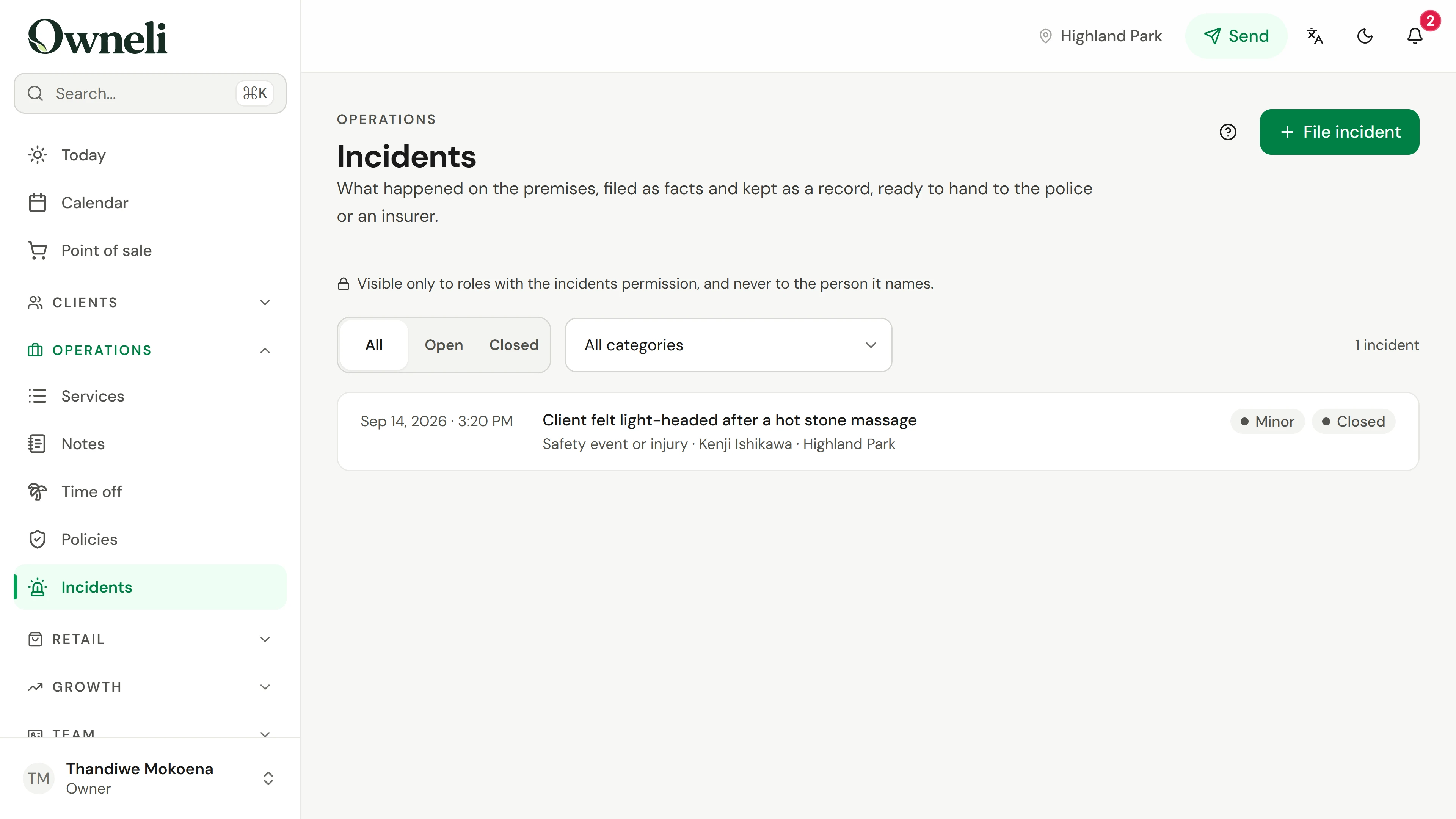
06. Something happened at the venue. Record it while it's fresh.
File a factual incident record with the response and a witness, then follow it up and close it.
Explore this situation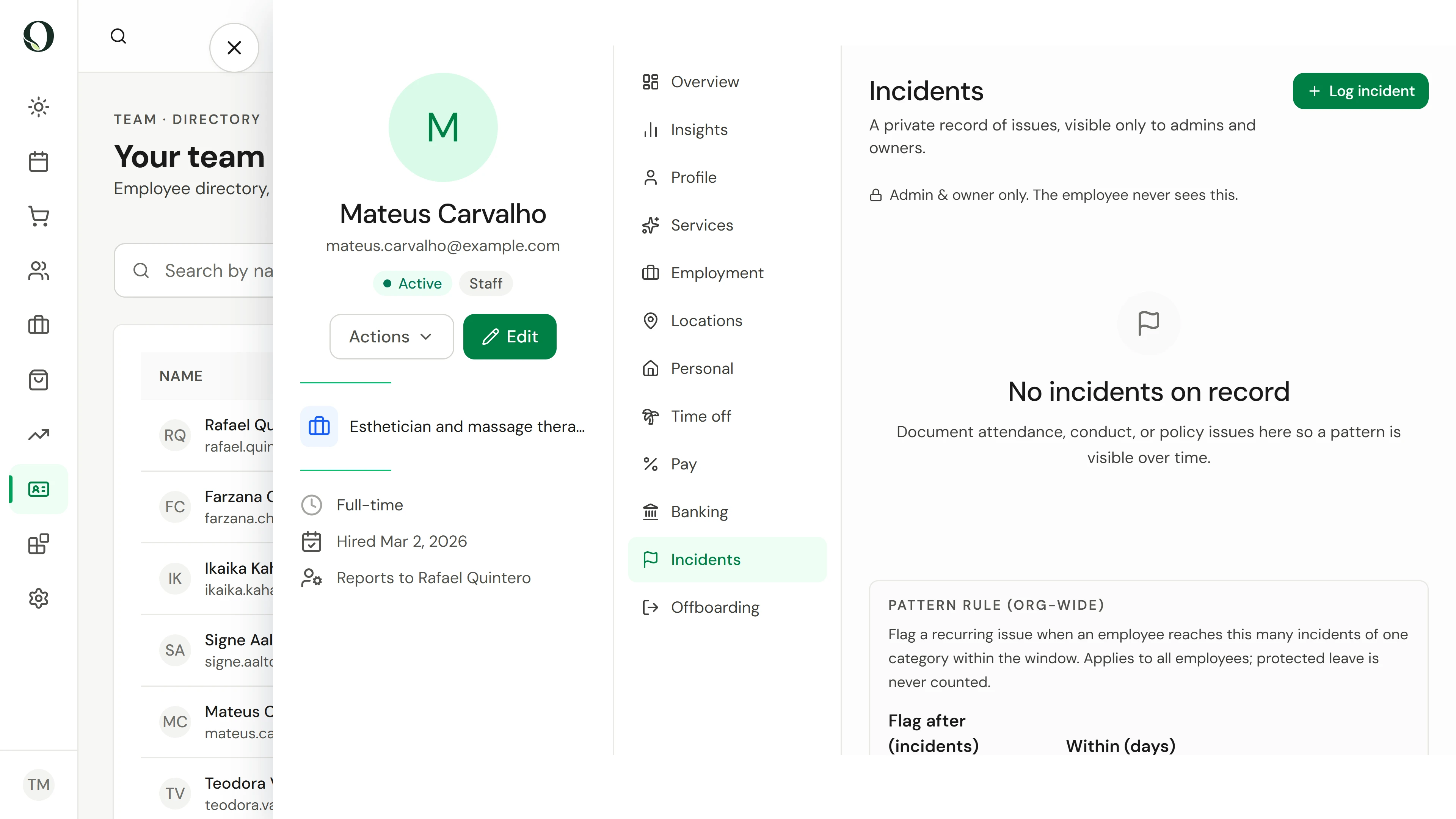
07. A team member was late again. Keep a fair, private record.
Log a factual incident on a team member's record, see who can read it, and how a pattern is flagged.
Explore this situation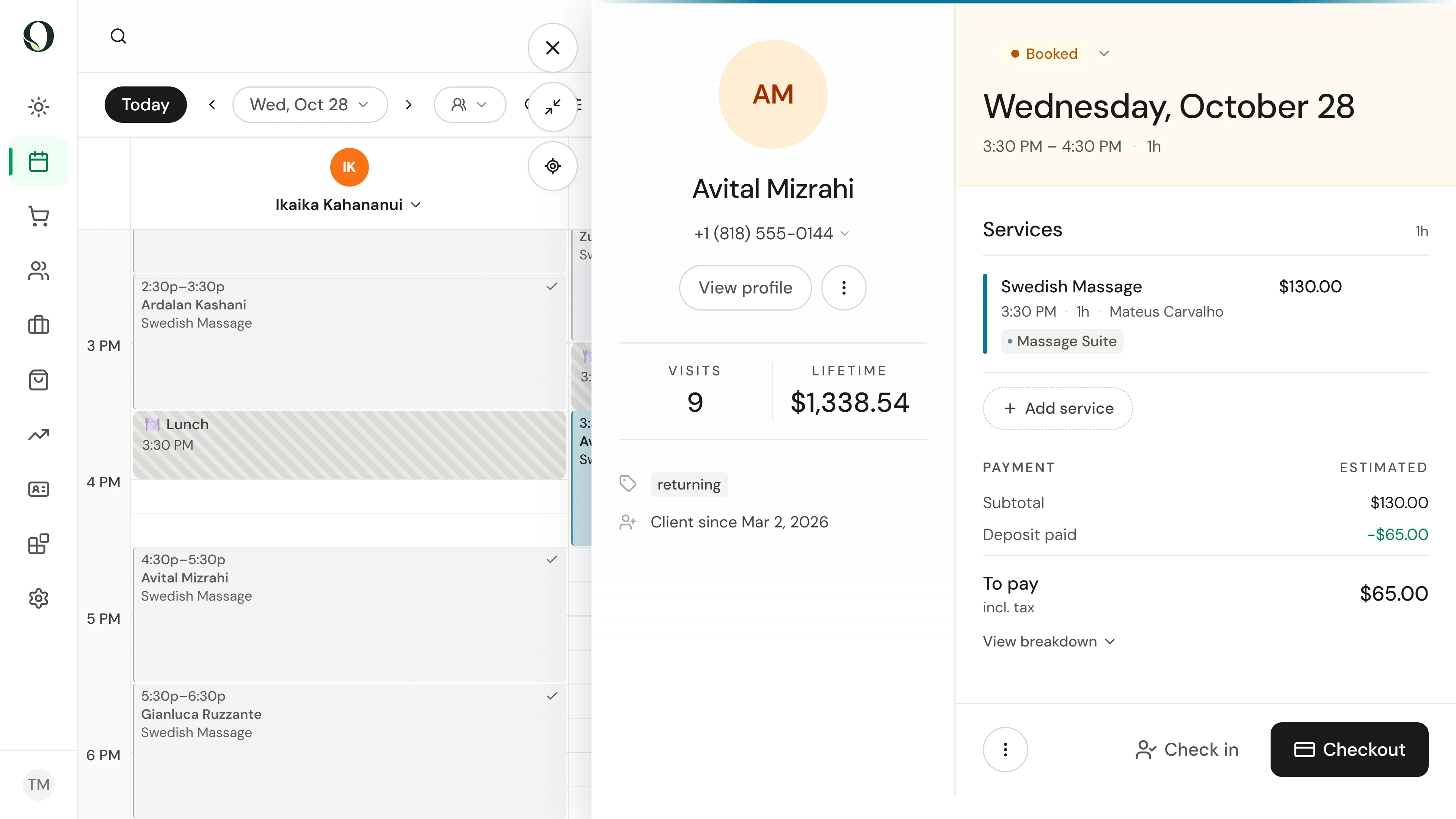
08. A client cancels late and another never arrives. Apply your payment policy.
Cancel a booking inside the cancellation window and keep its deposit as the fee, mark a no-show, and collect the no-show fee at the till when there is no card to charge.
Explore this situation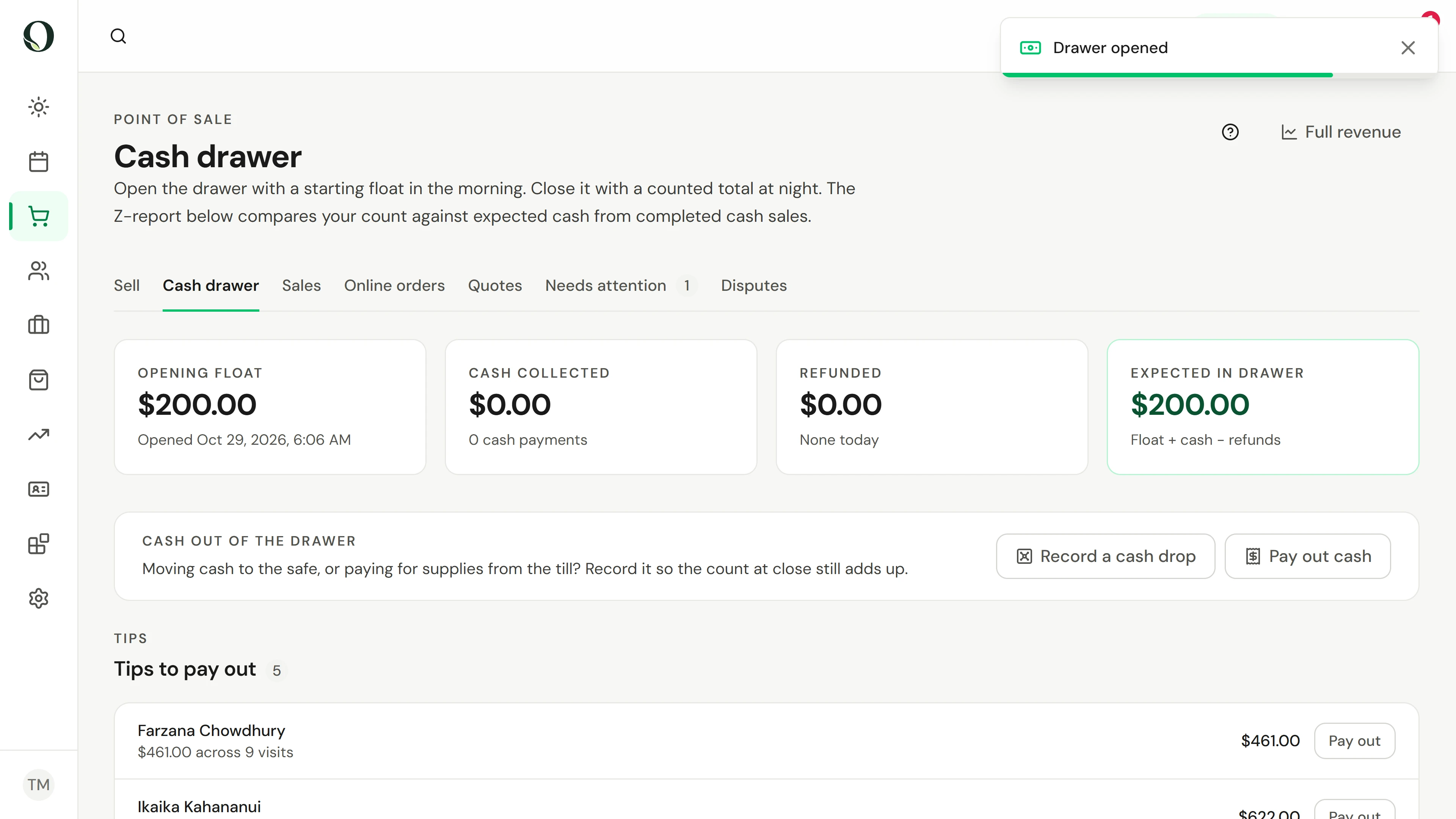
09. Start the day with a float. End it with a count.
Open the cash drawer, record cash drops and tip pay-outs, then count it at close and read the Z-report.
Explore this situation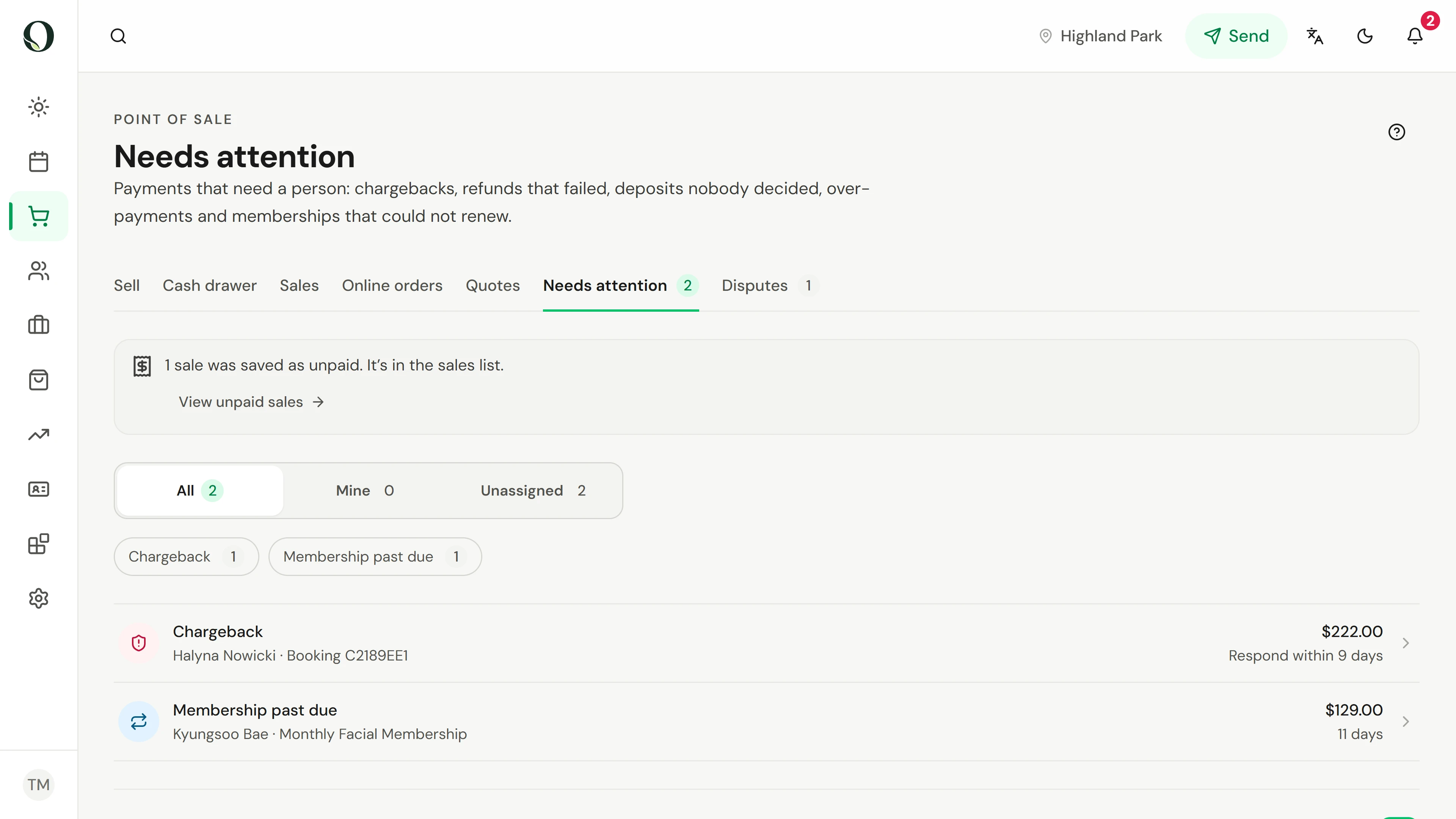
10. Some payments need a person. Clear them first.
See what lands in Needs attention, take ownership of an item, and go straight to the action that resolves it.
Explore this situation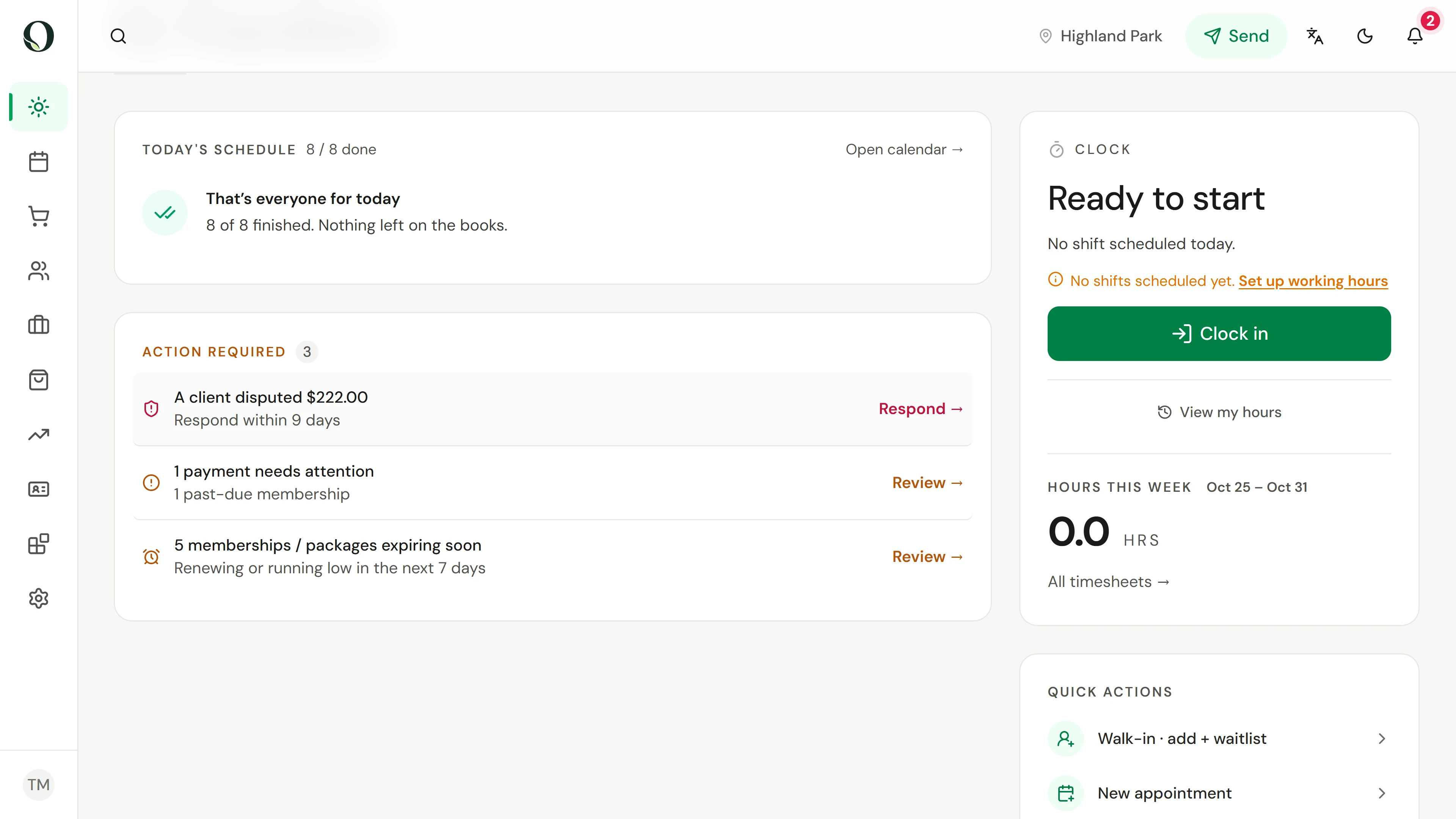
11. A client disputed a card charge. Find it before the deadline.
See where a chargeback shows up, what each stage means, how long you have to answer and what is held from your payouts.
Explore this situation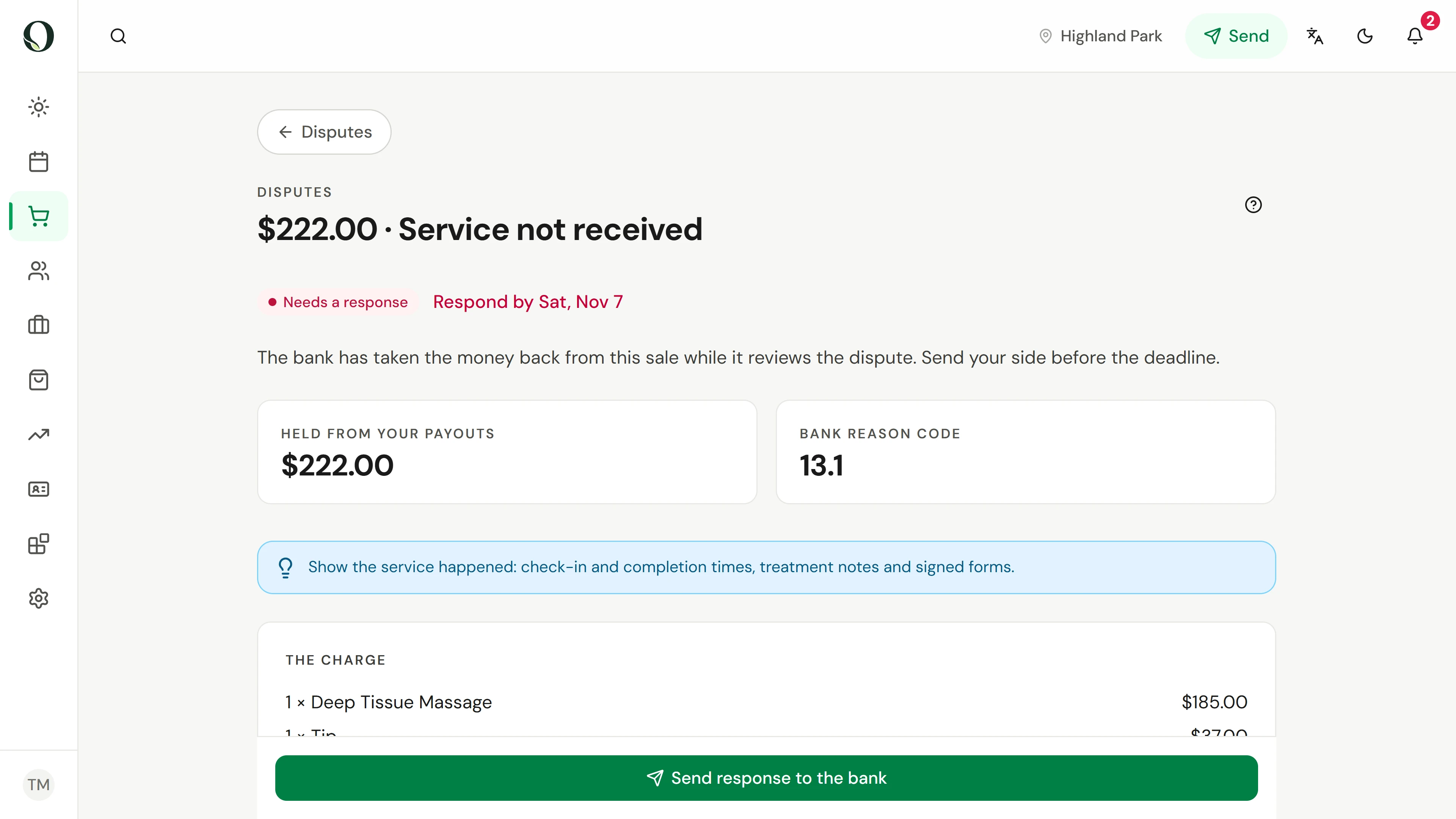
12. Answer a card dispute with the evidence that wins it.
Use the evidence Owneli gathers, add your explanation and files, and know what winning, losing or accepting costs.
Explore this situation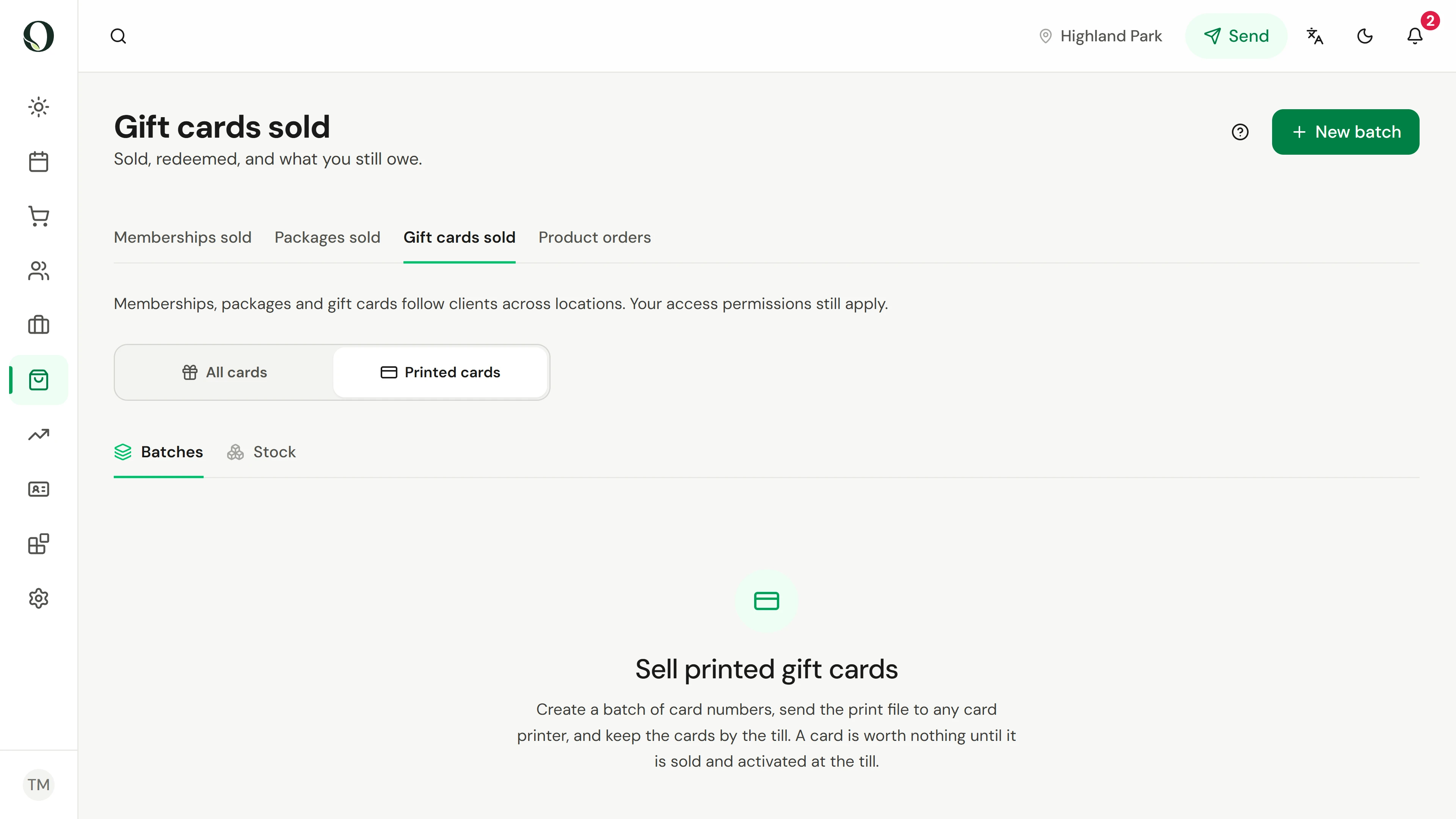
13. Print a batch of gift cards for the holidays.
Make a batch of numbered cards, download the print file and proof sheet, and know exactly what to ask a card printer for.
Explore this situation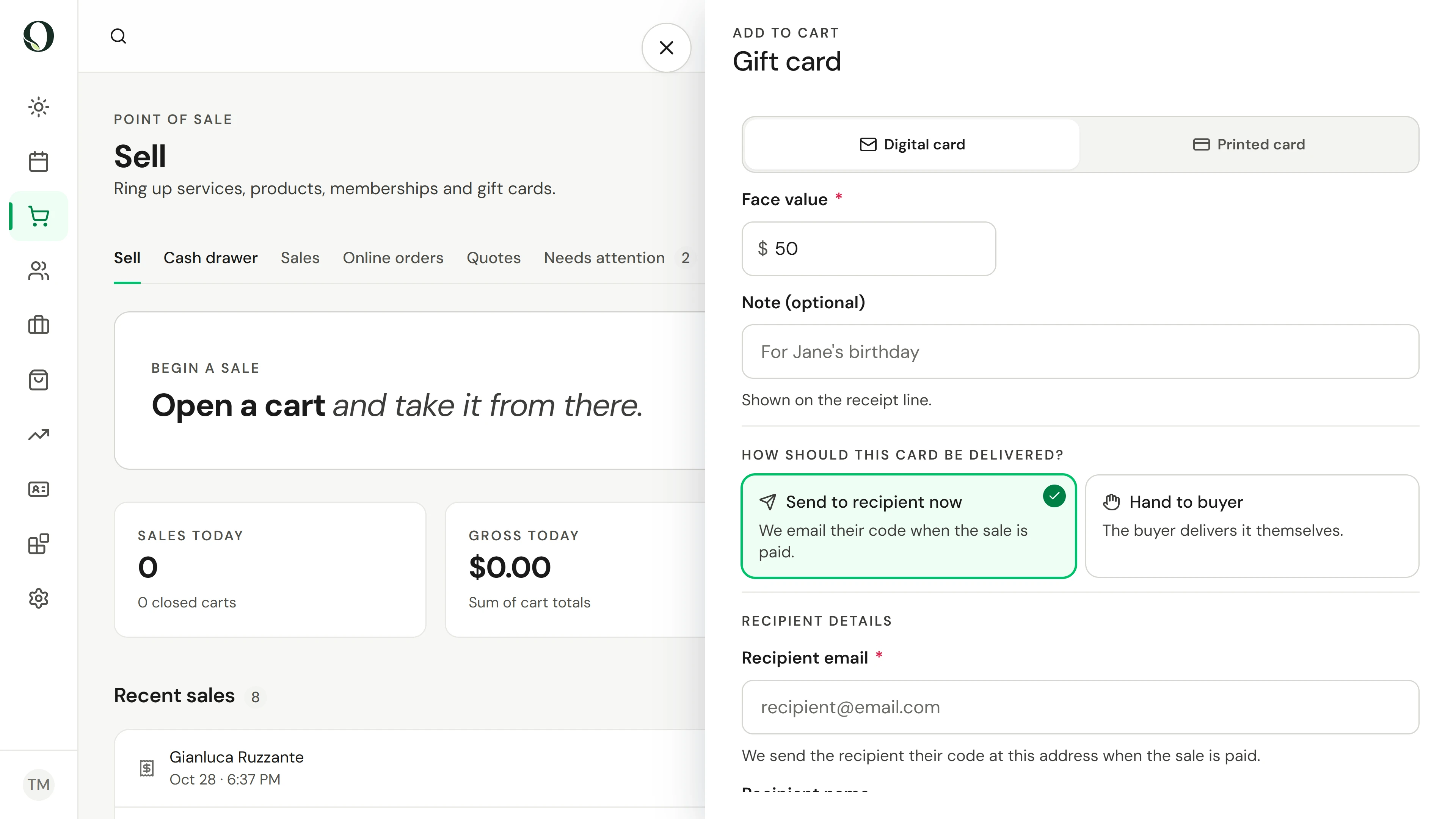
14. A client brings a gift card from the rack. Sell it.
Scan a printed card at the till, confirm its value, take the payment and see the card go live.
Explore this situation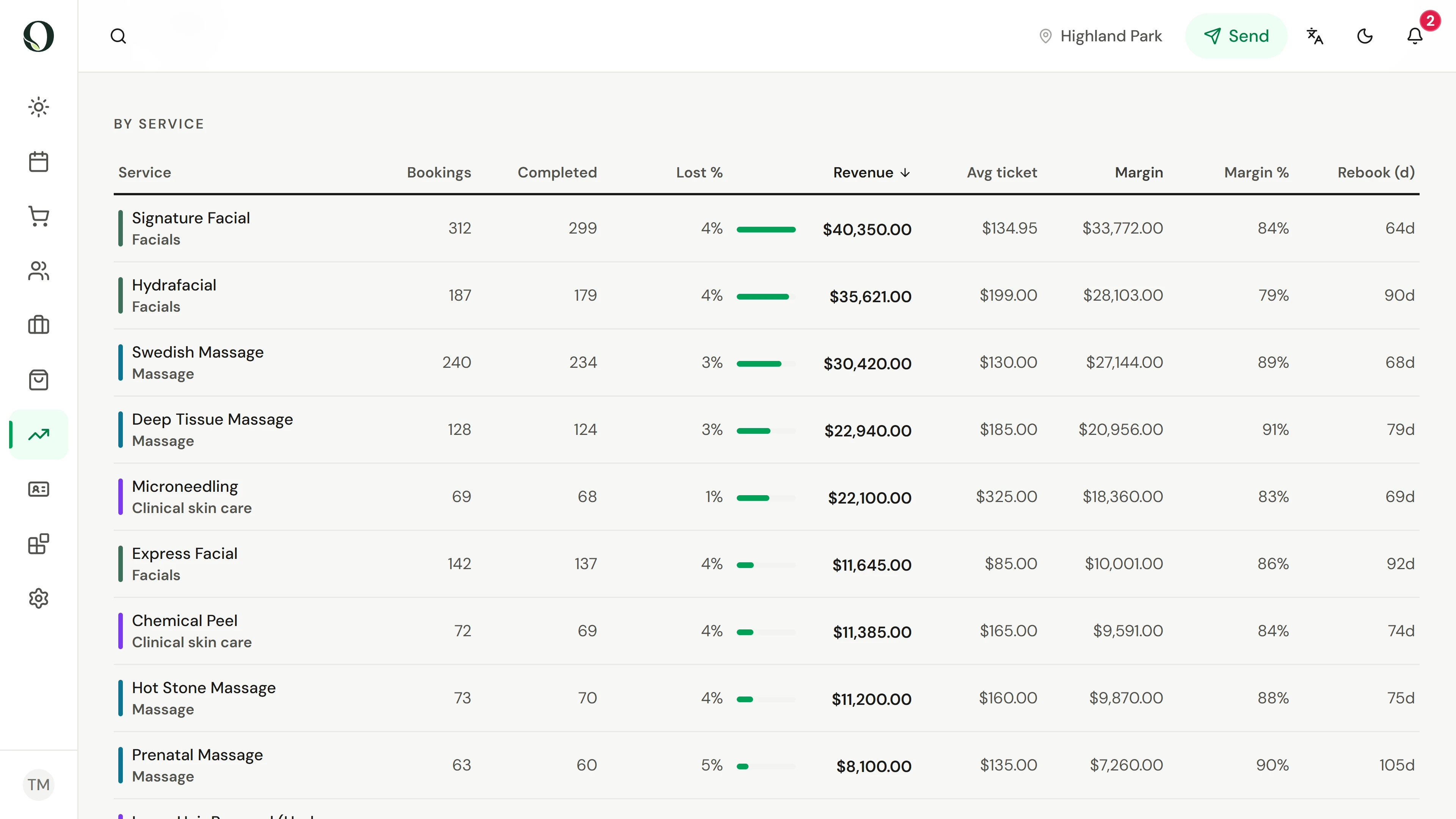
15. Your calendar is full. Check what each service earns.
A practical pricing check using the full appointment time, direct costs and the effect of a discount.
Explore this situation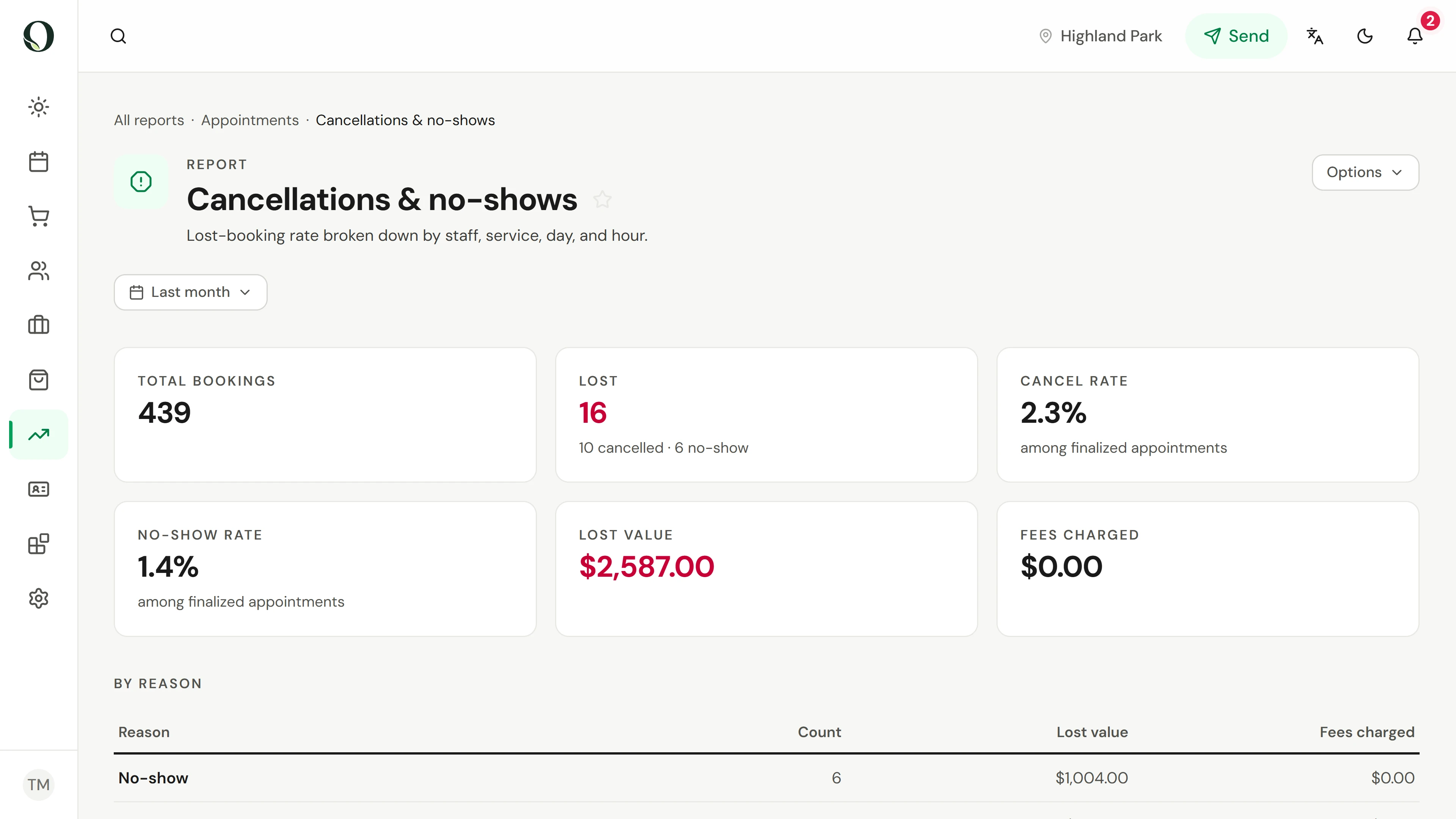
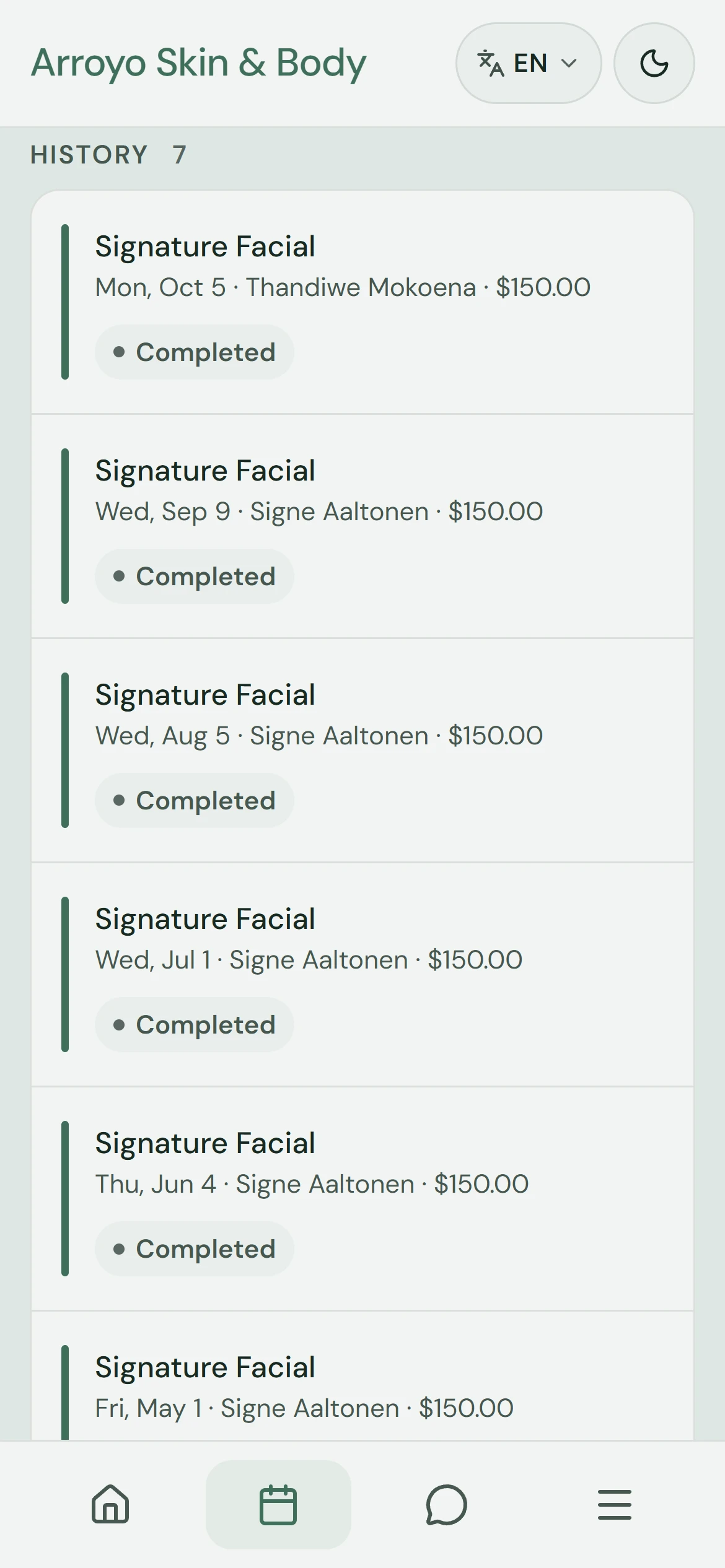
16. Clients miss visits. Make the next step clear.
Find where missed visits happen, check what the reminder tells clients and offer a freed slot to someone waiting.
Explore this situation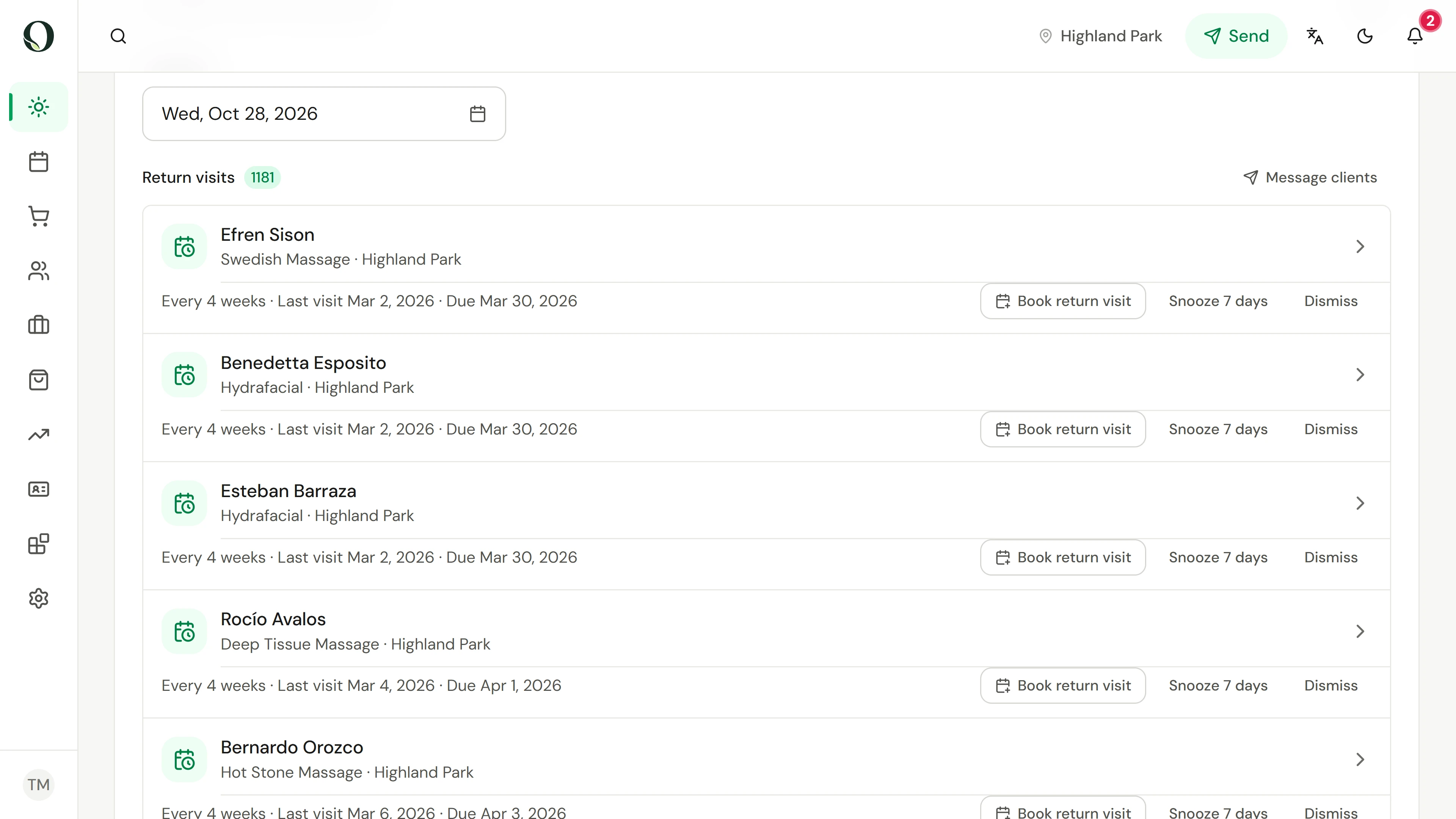
17. Clients mean to return. Make rebooking easier.
Use relevant, well-timed nudges to make the next visit easier to arrange, and measure what happens afterwards.
Explore this situation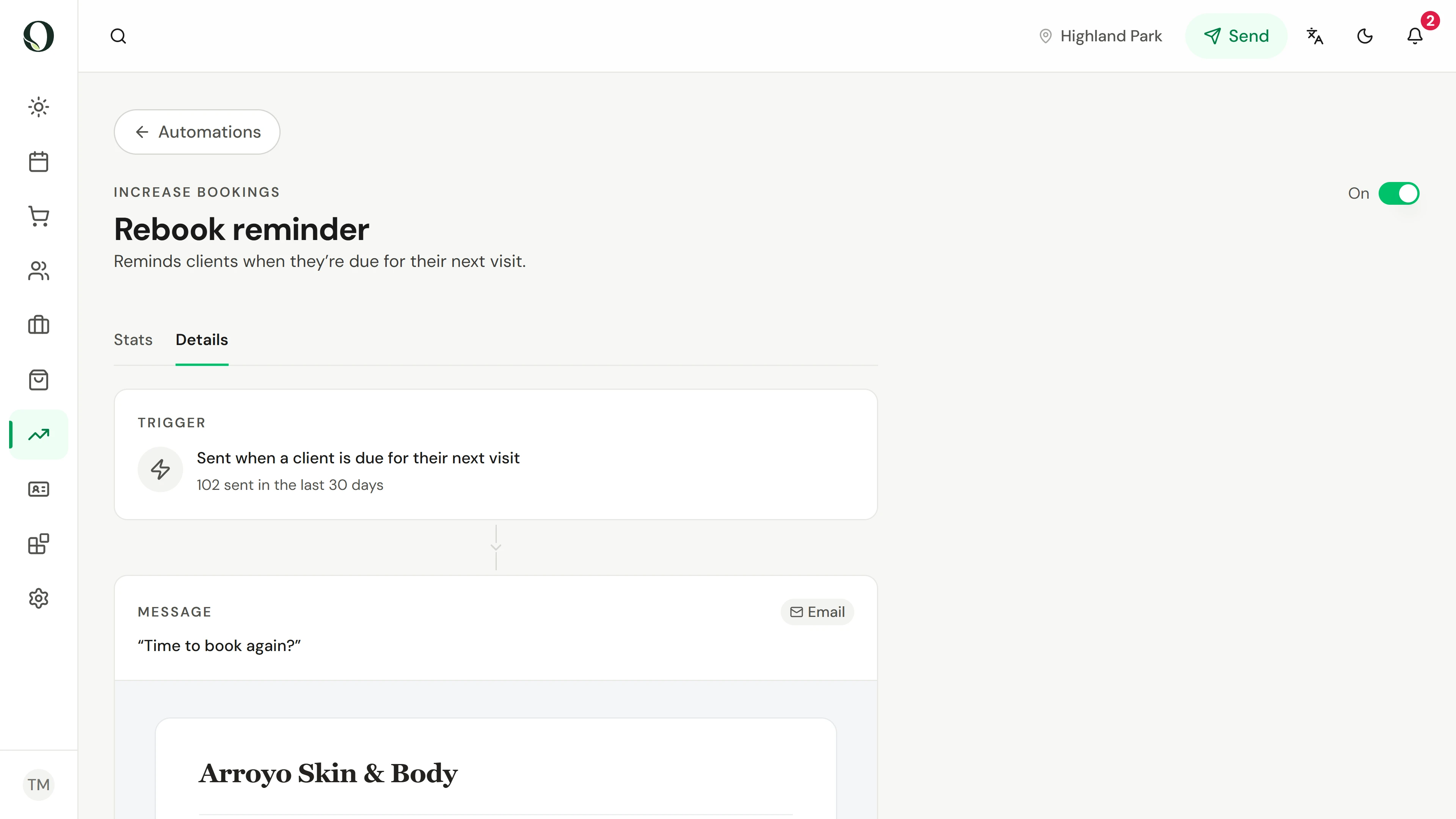
18. Clients are due back. Review your rebook reminder.
Review the business default, a service-specific rebooking interval and the conversion report before saving changes.
Explore this situation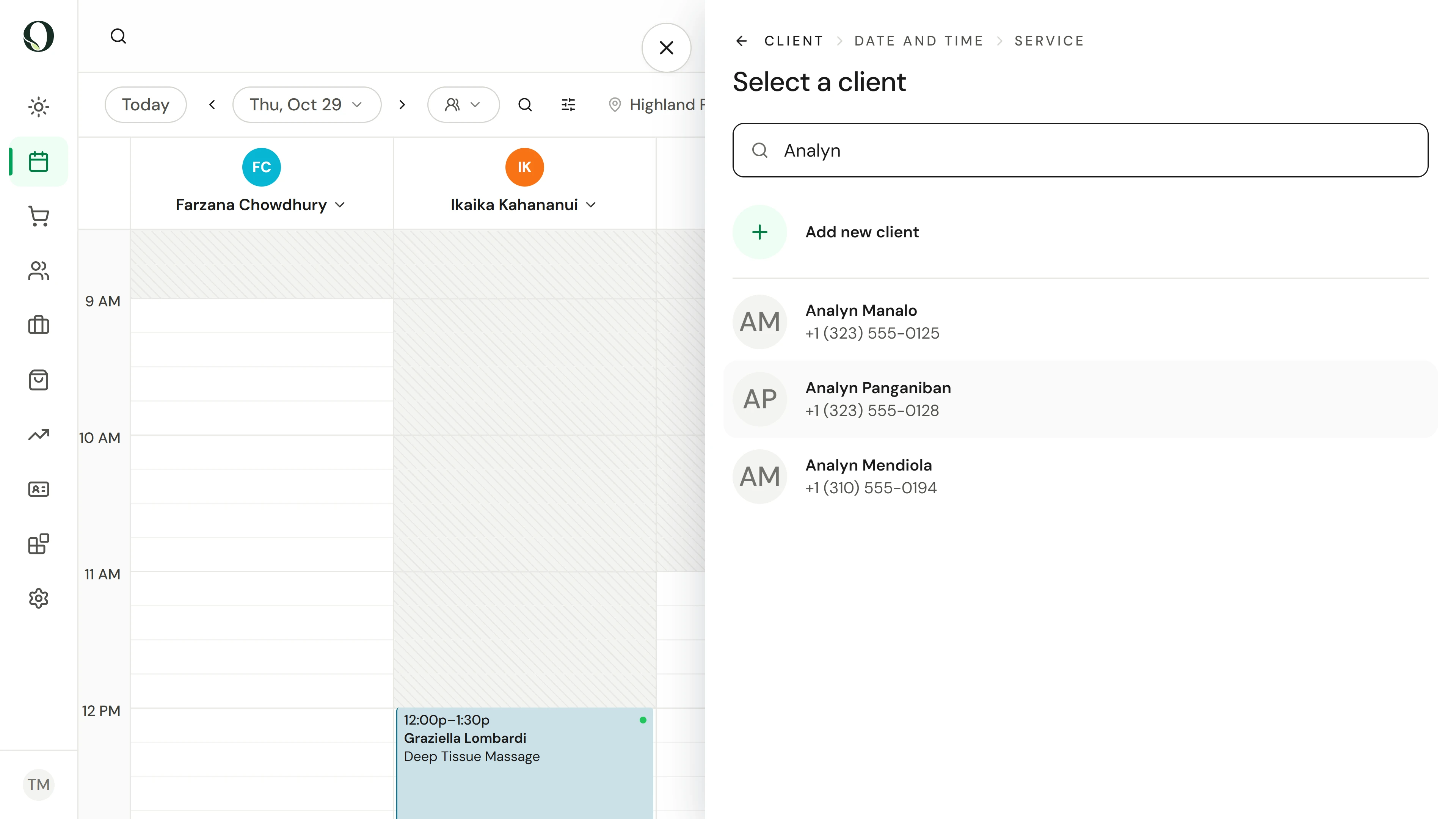
19. A client needs another time. Prepare a waitlist request.
Record the client’s preferred times and service in an unsaved waitlist request, then review the handover.
Explore this situation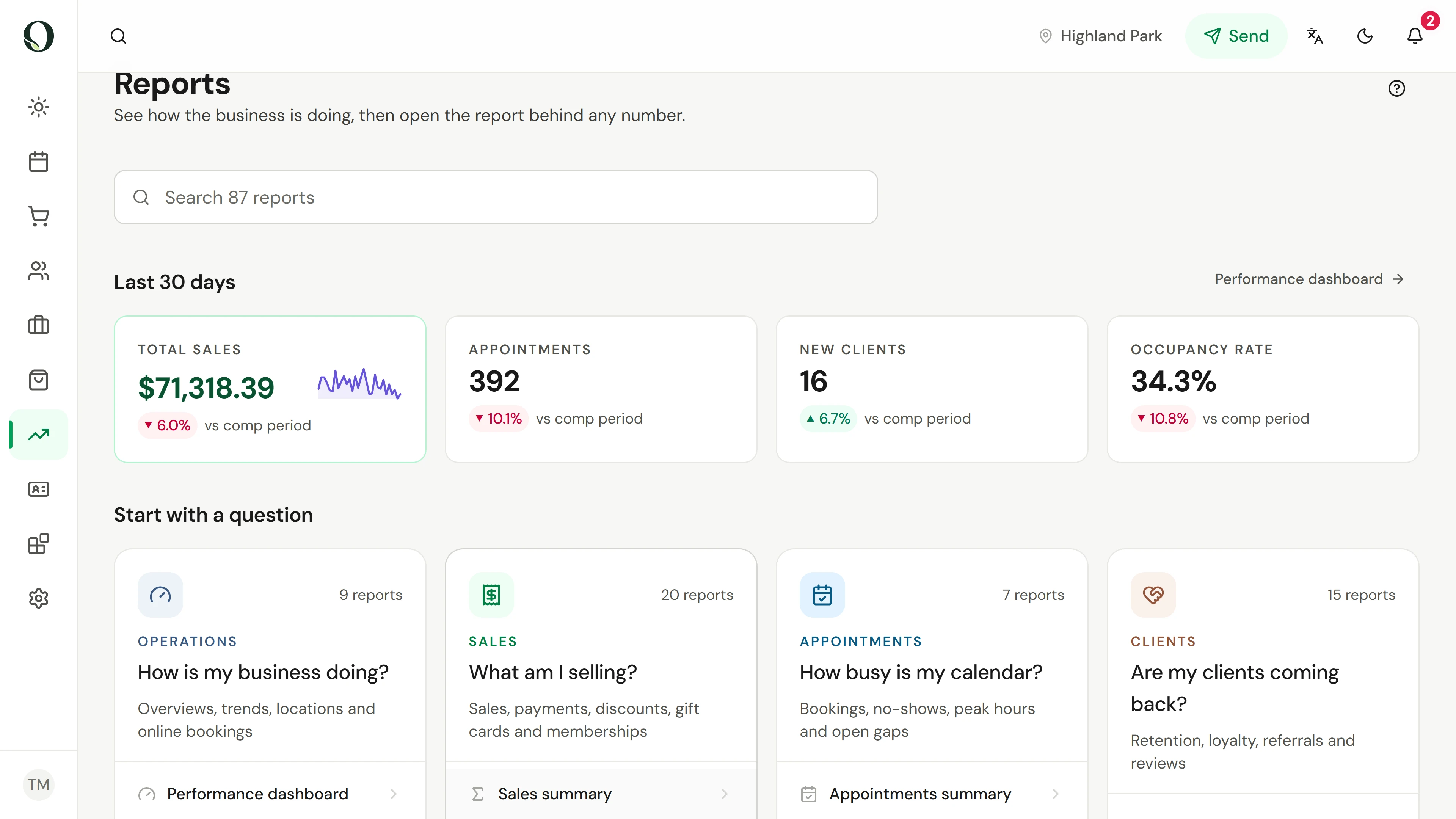
20. Sales and cash differ. Read the right report.
Use sales and payment reports to separate sales, money collected and value still owed to clients.
Explore this situationLooking for one specific answer?
The help library has the full reference, including permissions, settings and exceptions.